
How do I set up Product by Collection?
Product by Collection recommends products drawn from collections you choose — “from our Outerwear range” — unlike Collection Best Seller, which shows the collections themselves.
Product by Collection recommends products drawn from collections you choose — “from our Outerwear range” — unlike Collection Best Seller, which shows the collections themselves.
Before you start
Sledge Core must be enabled on your theme. Sledge Core is the app embed that loads Sledge on your storefront — without it, nothing you configure here reaches your customers. You enable it during onboarding (Enable in theme), or any time via Online Store → Themes → Customize → App embeds → Sledge Core. Which pages actually show this feature is controlled by its own Surfaces section, explained below.
Open the campaign
Go to Sledge → Tools → Product Recommendation and click Add, then pick the Product by Collection strategy — or open an existing campaign of this strategy from the list. All recommendation strategies share the same campaign form; the sections below walk through it with this strategy’s specifics.
Campaign name and Discount
Campaign name is internal — customers never see it. The Discount card can attach an offer to the recommended products: pick the discount type and value, and optionally show the compare-at price so the saving is visible on the card.
Strategy Structure
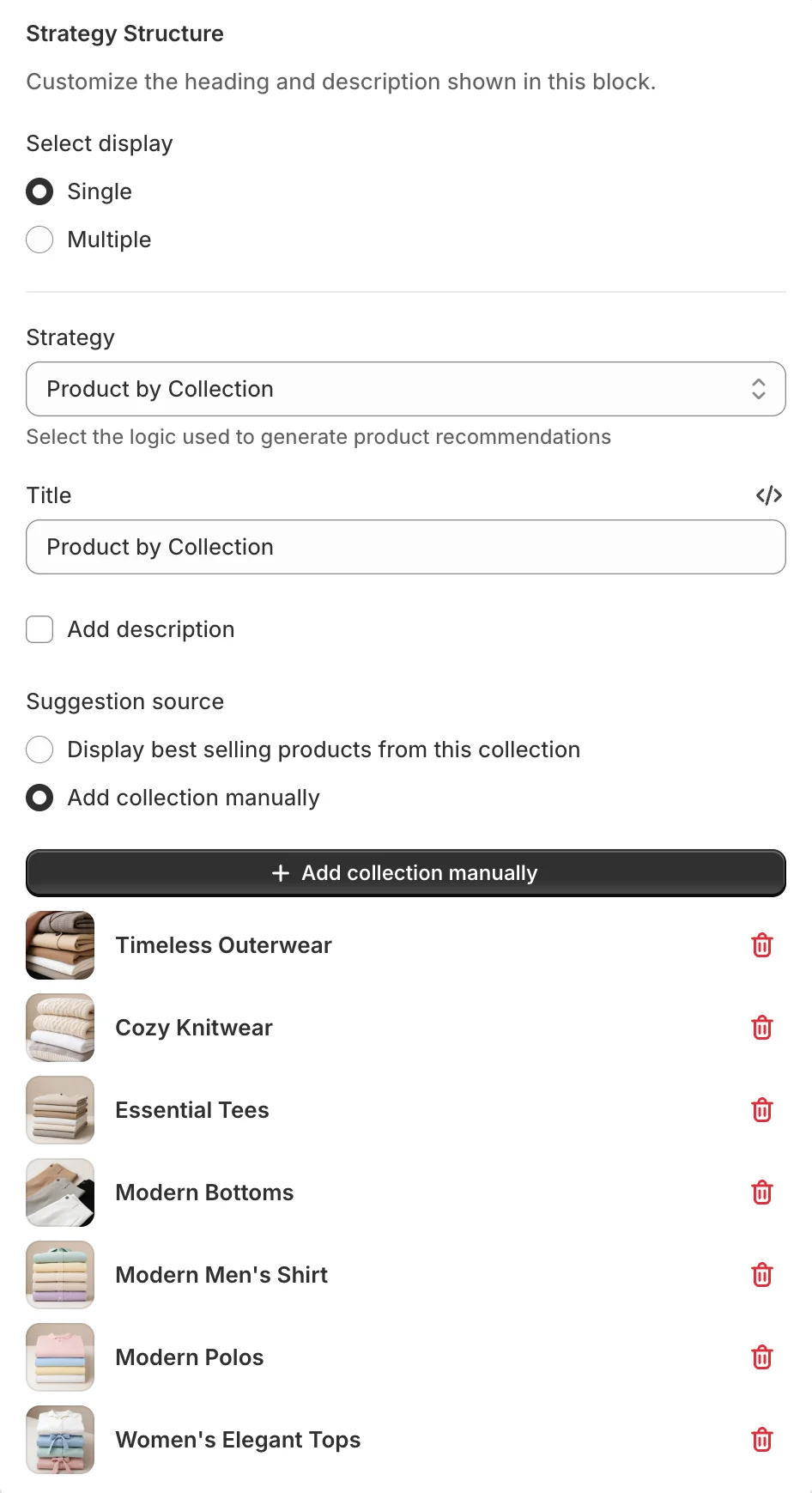
- Select display — Single block or Multiple stacked strategies.
- Strategy / Title — set to Product by Collection.
- Suggestion source — Display best selling products from this collection picks automatically from your chosen collections, or Add collection manually to select the source collections yourself (the example uses seven).
Layout
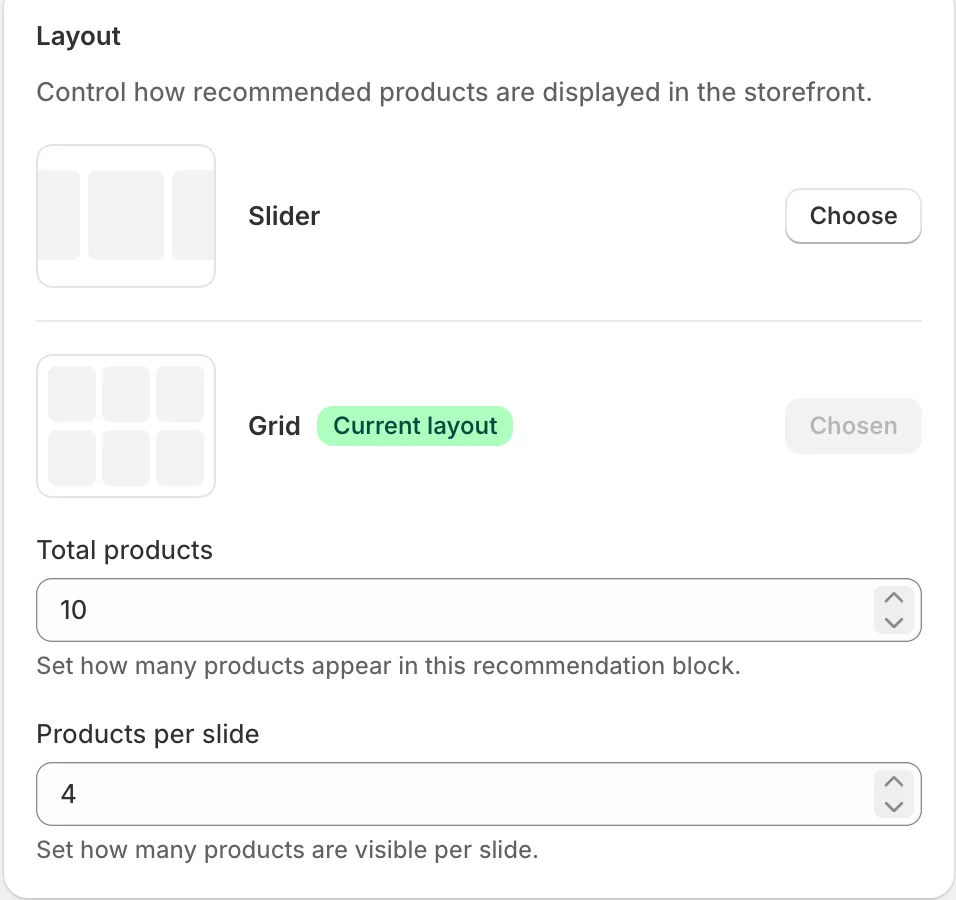
How the block renders on your storefront: Slider (a horizontal carousel) or Grid. Total products caps how many products the block shows in total, and Products per slide sets how many are visible at once in the slider.
Surfaces
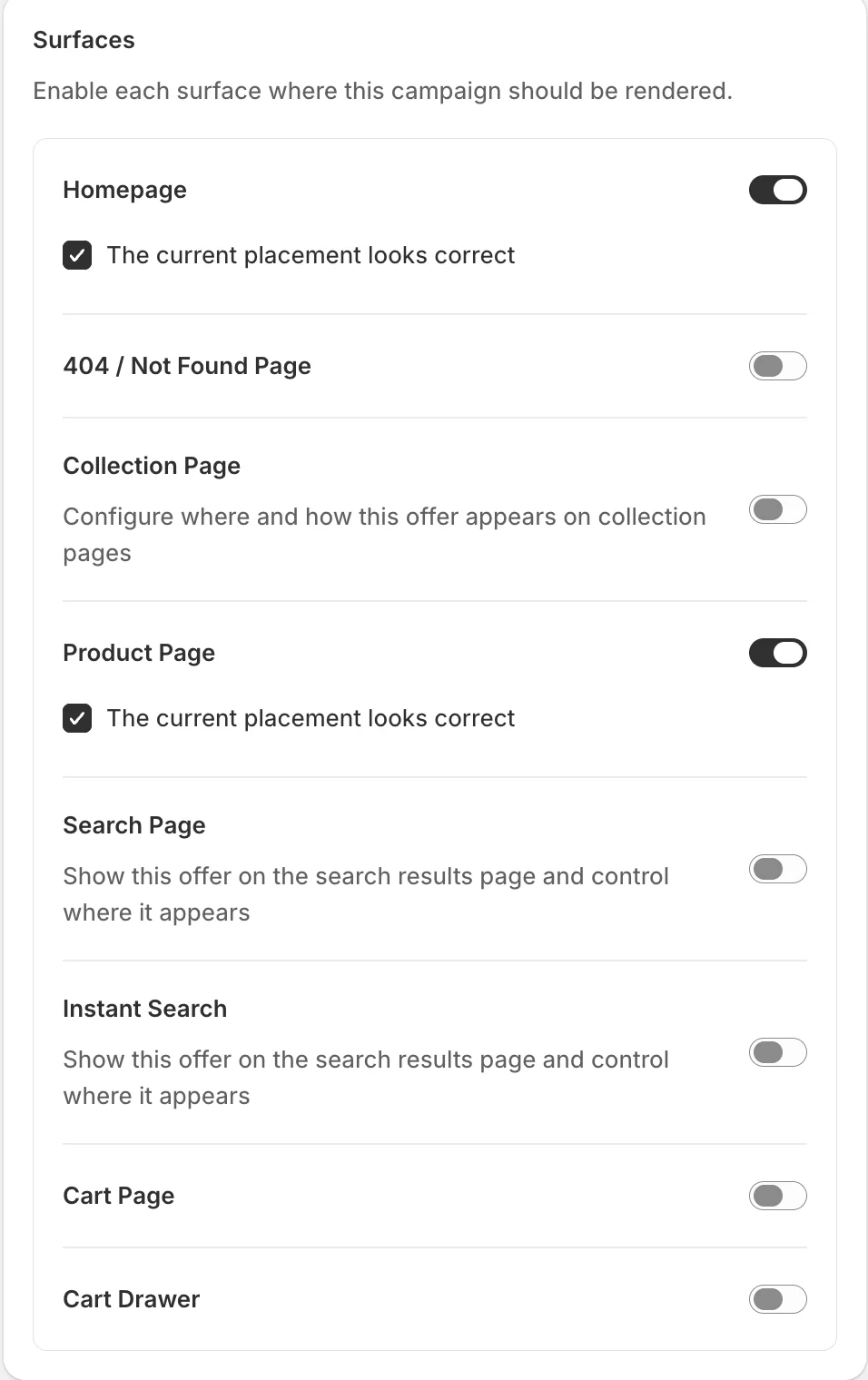
Each surface has its own switch: Homepage, 404 / Not Found Page, Collection Page, Product Page, Search Page, Instant Search, Cart Page, and Cart Drawer. Surfaces with placement options expand when enabled — Collection and Search pages let you choose At top or At bottom, Collection Page adds collection targeting, and Search Page can be limited to specific keywords.
Design, Status, and Preview
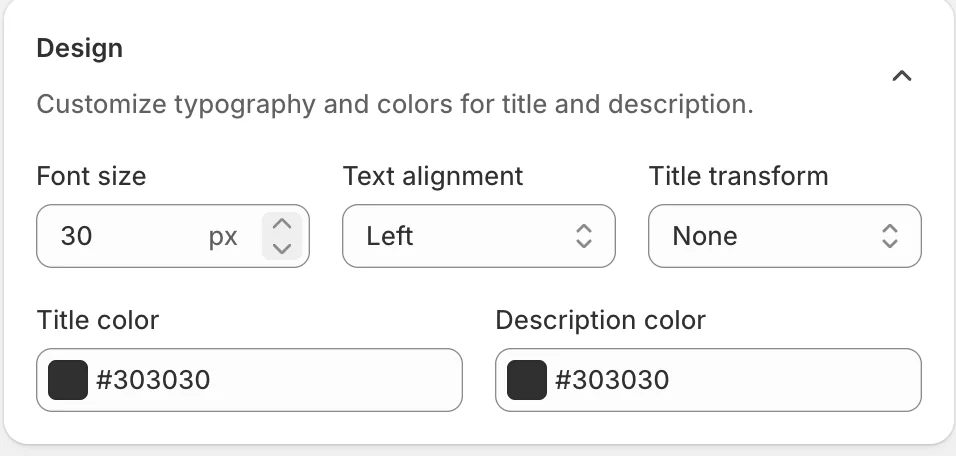
Design styles the block heading — font size, alignment, transform, and colours for title and description. Status (Enable/Disable) controls whether the campaign is live, and the Preview panel renders the block with your real store data. Click Save in the save bar to apply.
Result
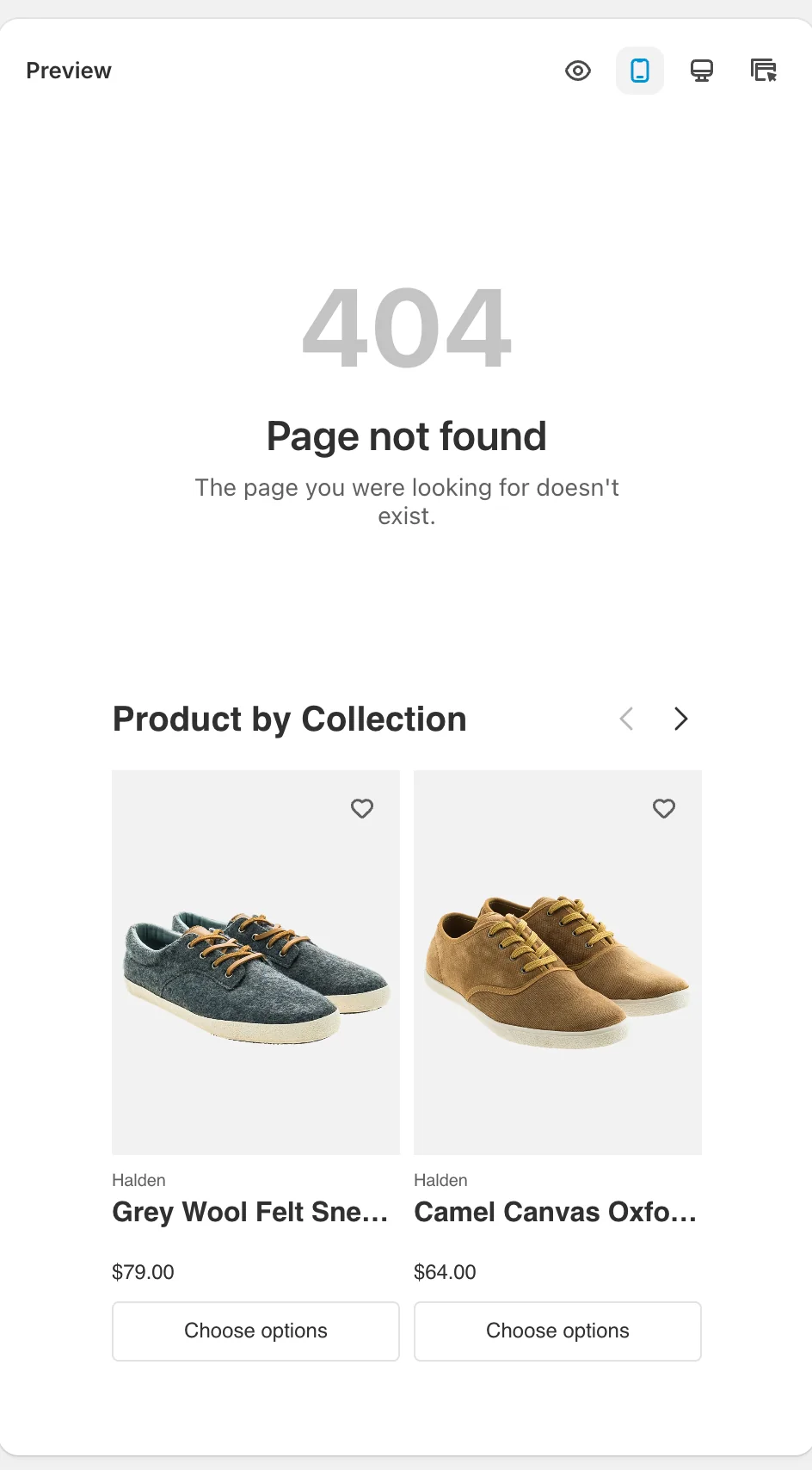
The block fills with products pulled from the chosen collections. The preview shows the live render on the 404 surface:
Not showing up? Give the change a minute to sync, then reload the page. Also confirm the campaign’s Status is Enable, the surface you expect is switched on in Surfaces, and Sledge Core is enabled as described above.
Related
Last updated on
How do I set up Personalized Picks?
Personalized Picks recommends different products to each customer, based on their own behavior — what they’ve viewed, added to cart, and bought. Two visitors see two different blocks.
How do I set up Recently Viewed?
Recently Viewed shows each customer the products they themselves looked at — a personal breadcrumb trail that makes it easy to return to something they almost bought.