
How to set up Product Countdown?
A Product Countdown is a timer shown on specific product pages — “Limited offer, Hurry up!” — creating urgency for exactly the products you choose, unlike the store-wide Global Countdown.
A Product Countdown is a timer shown on specific product pages — “Limited offer, Hurry up!” — creating urgency for exactly the products you choose, unlike the store-wide Global Countdown.
Before you start
Sledge Core must be enabled on your theme. Sledge Core is the app embed that loads Sledge on your storefront — without it, nothing you configure here reaches your customers. You enable it during onboarding (Enable in theme), or any time via Online Store → Themes → Customize → App embeds → Sledge Core. Which pages actually show this feature is controlled by its own Surfaces section, explained below.
Create or edit a product countdown
Go to Sledge → Tools → Promotion, open Product Countdown, and click Add (or open an existing one — the example targets the Butter Yellow Textured Polo Shirt).
Name and Product eligibility
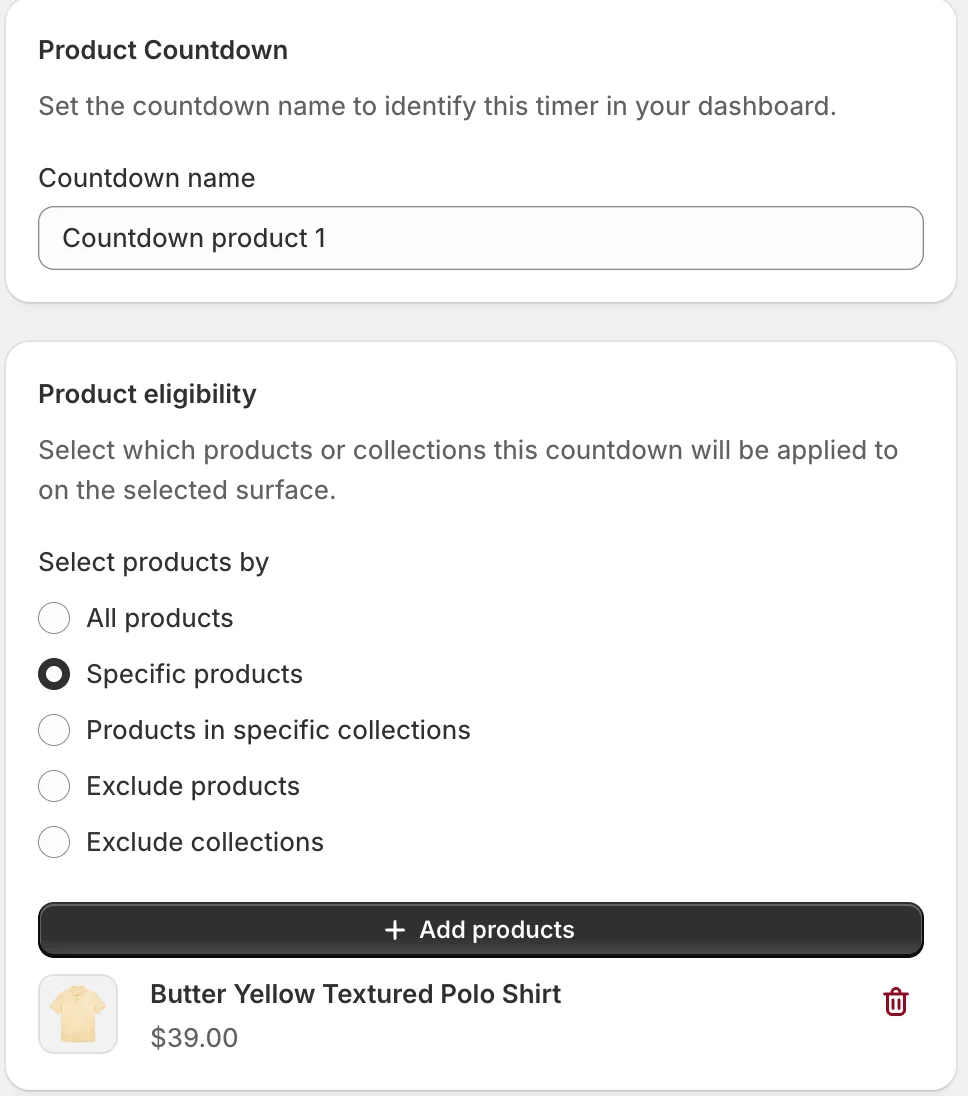
Countdown name is internal. Product eligibility decides which product pages carry the timer:
- All products — every product page.
- Specific products — only the products you pick with Add products (the example).
- Products in specific collections — everything inside chosen collections.
- Exclude products / Exclude collections — everything except your exclusions.
Countdown content
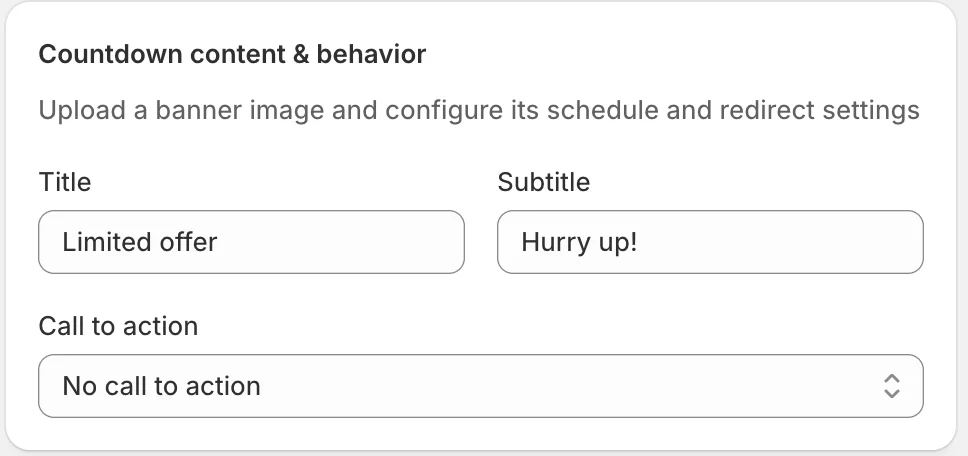
Title and Subtitle are the timer’s text (“Limited offer” / “Hurry up!”); Call to action can make the timer clickable, add a button, or stay passive (No call to action).
Country, Active dates, and the timer
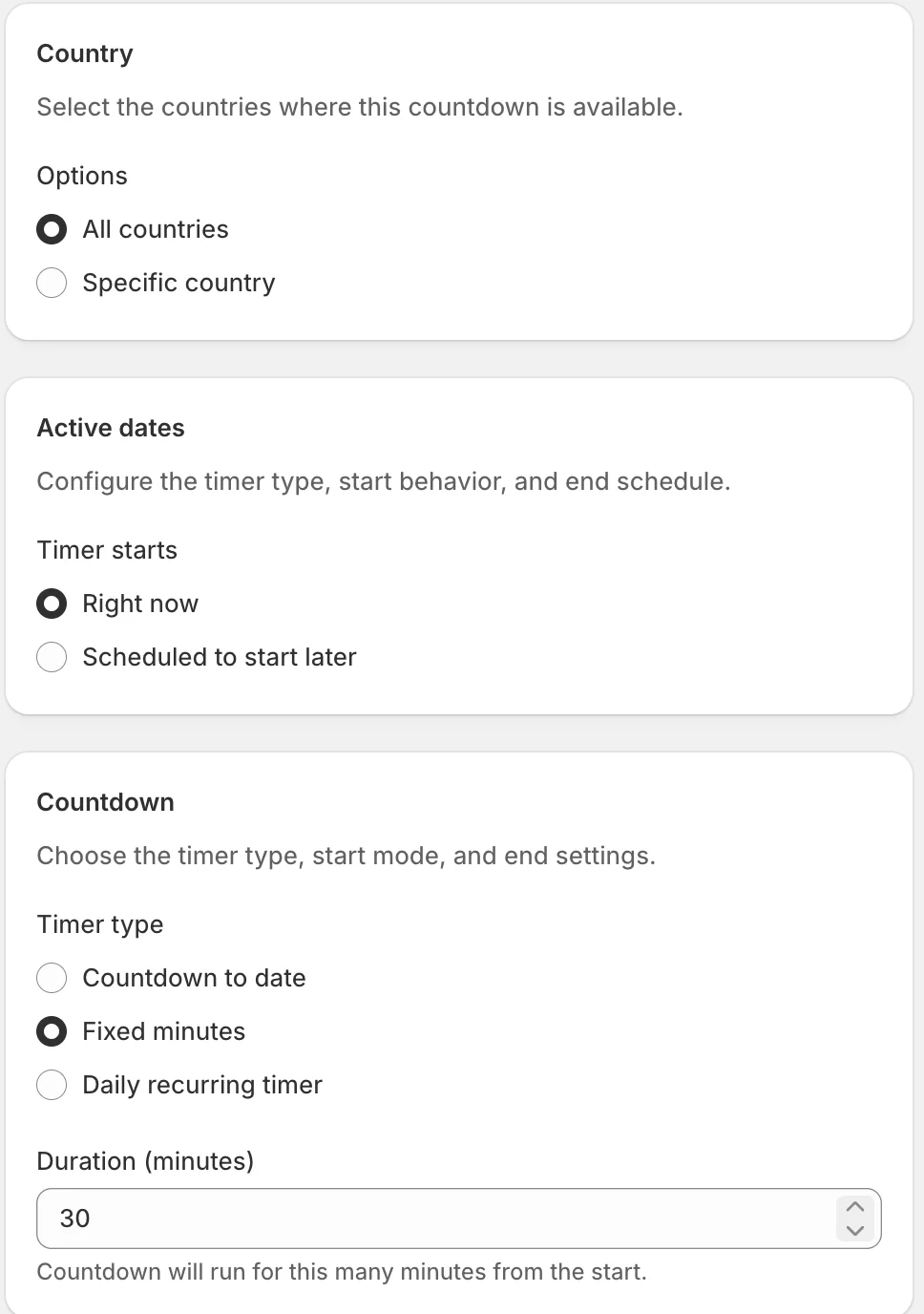
Surfaces
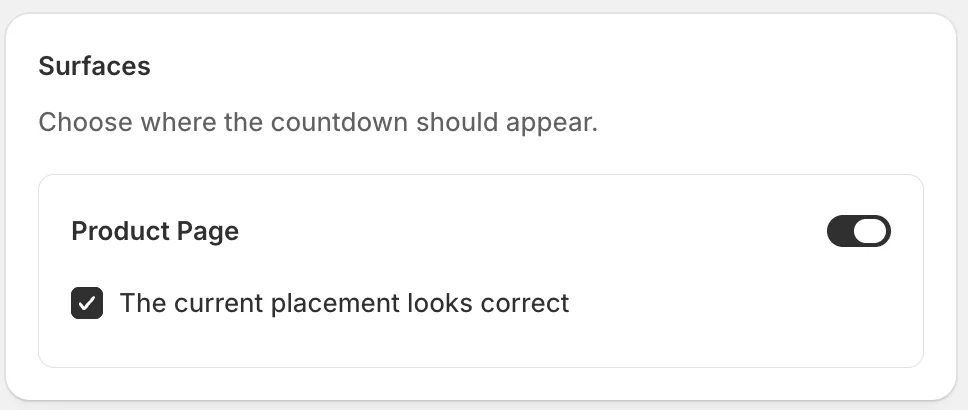
The countdown renders on the Product Page of eligible products. The “current placement looks correct” checkbox confirms where the widget sits in your theme’s product page layout.
Status and Preview
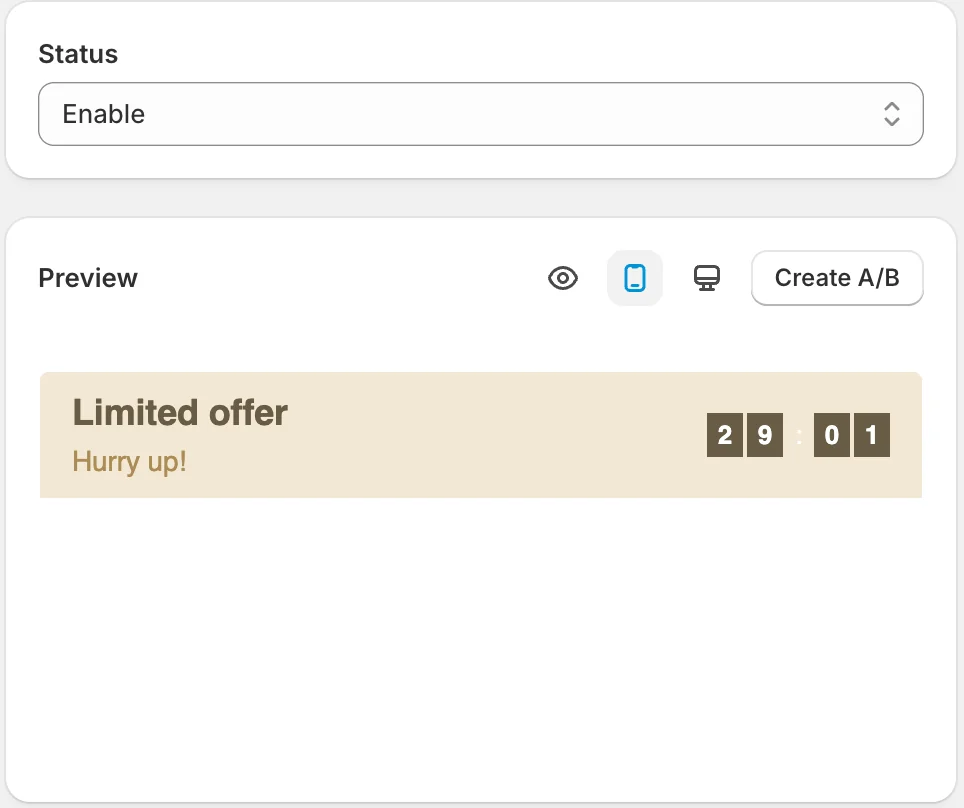
Status + live Preview of the timer, and Create A/B for testing variants. Click Save to apply.
Result
Eligible product pages show the countdown near the product details. Note that a product page can also carry the Global Countdown bar at the top of the page — they are independent widgets.
Not showing up? Give the change a minute to sync, then reload the page. Also confirm the campaign’s Status is Enable, the surface you expect is switched on in Surfaces, and Sledge Core is enabled as described above.
Related
Last updated on
How to set up Global Countdown?
The Global Countdown is a slim countdown bar shown across your storefront — “Black Friday Sale! Sale ends in 16:39:22” — building urgency for a store-wide campaign. It runs everywhere Sledge is active
Recommendations
Recommendations in Sledge — 8 guides covering setup and day-to-day use.