
How do I configure review Display Settings?
Display Settings shapes how review content looks everywhere it appears — how the review list sorts and paginates, and what details each review card reveals. There is no Status here: these settings app
Display Settings shapes how review content looks everywhere it appears — how the review list sorts and paginates, and what details each review card reveals. There is no Status here: these settings apply to the other review widgets.
Before you start
Review widgets render on your storefront through Sledge, so make sure of the following first:
- Sledge Core is enabled on your theme. Sledge Core is the app embed that loads Sledge on your storefront — without it, nothing you configure here reaches your customers. You enable it during onboarding (Enable in theme), or any time via Online Store → Themes → Customize → App embeds → Sledge Core.
- Product Review and Sidebar Review are turned on. Open Sledge → Tools → Product Review and check the two switches at the top — Product Review renders review content on product pages, and Sidebar Review powers the quick-view review drawer. With them off, the features below have nowhere to render.
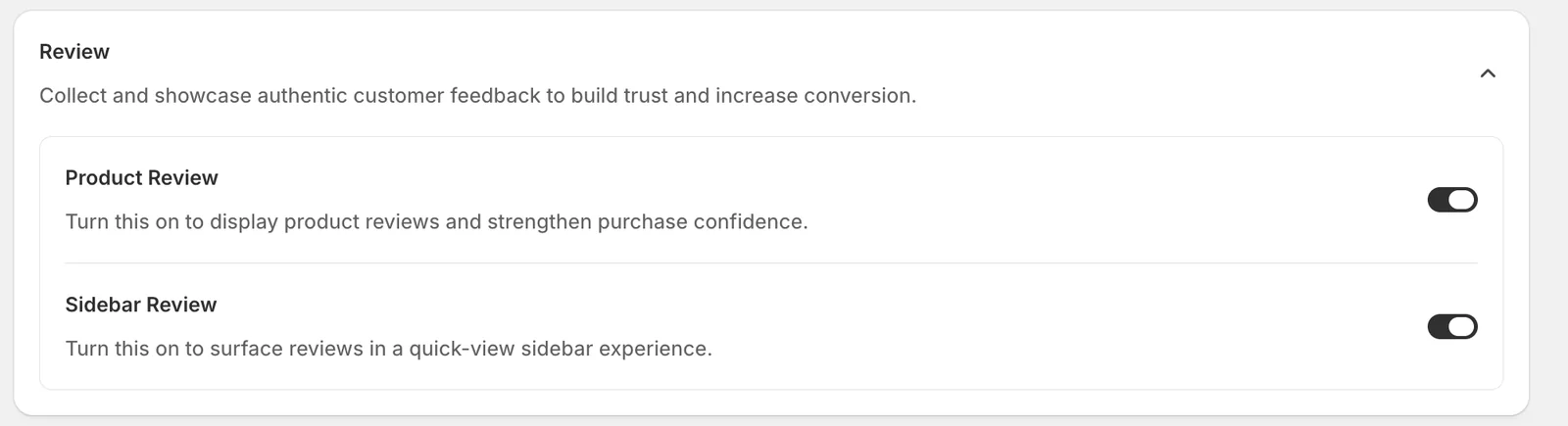
Open Display Settings
Go to Sledge → Tools → Product Review, and under Features click Display Settings.
Review list
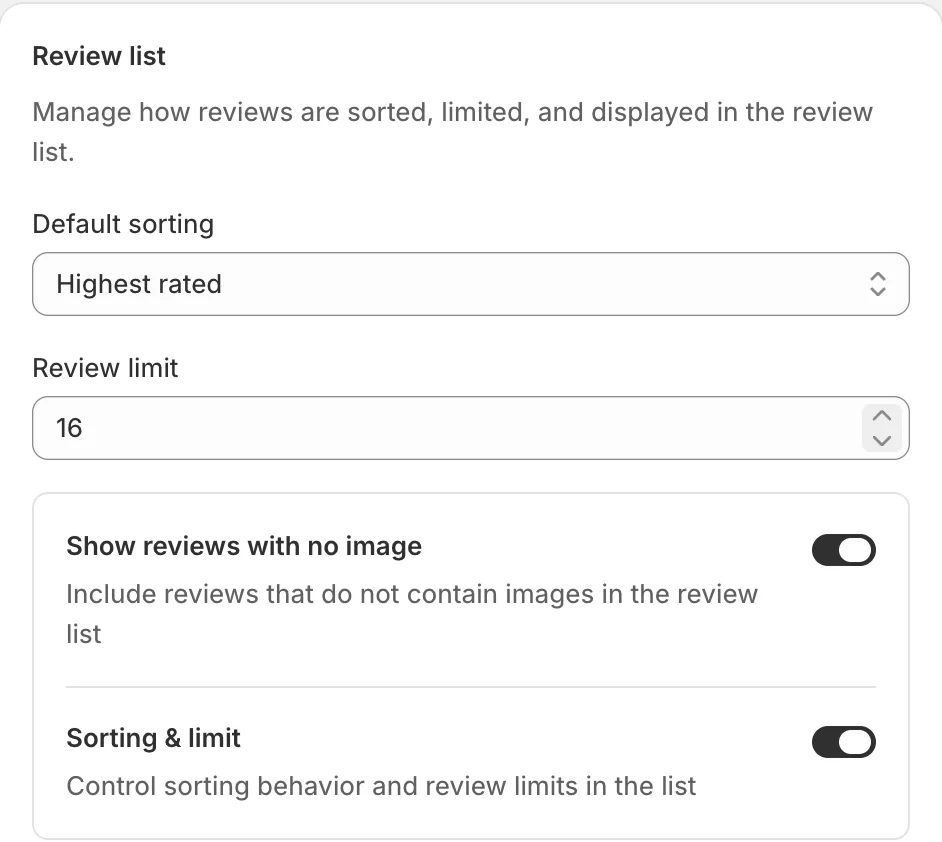
- Default sorting — the order reviews appear in by default (“Highest rated” in the example; customers can still re-sort).
- Review limit — how many reviews load per page of the list (16 in the example).
- Show reviews with no image — include text-only reviews in the list.
- Sorting & limit — expose the sort control and paging behavior in the list itself.
Review card
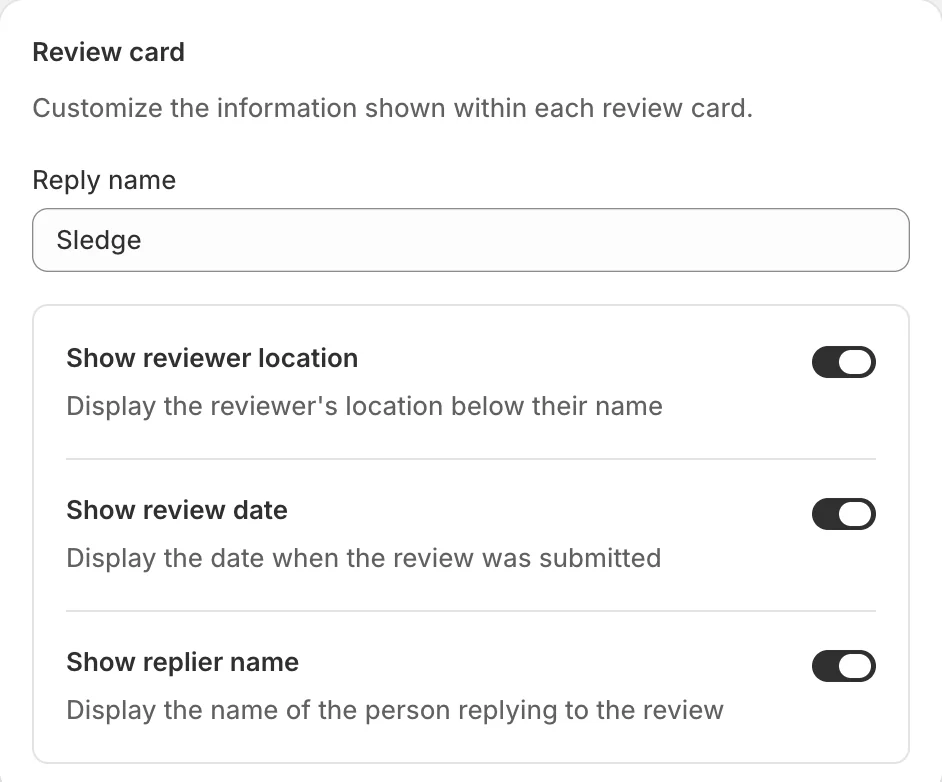
- Reply name — the name shown on your replies to reviews (“Sledge” in the example) next to the Admin tag.
- Show reviewer location — display the reviewer’s city below their name.
- Show review date — display when the review was submitted.
- Show replier name — display who replied on your behalf.
Preview
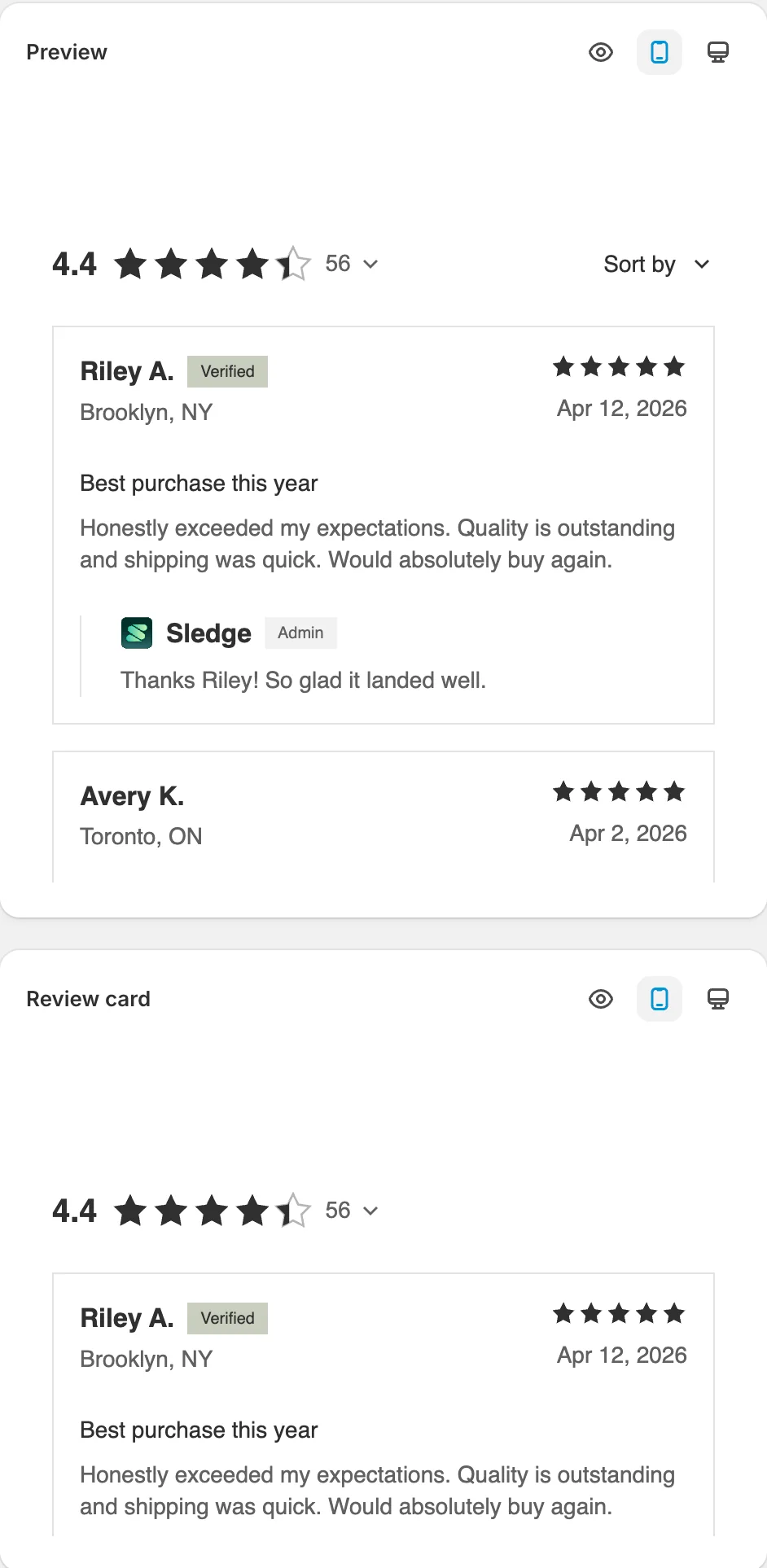
The two preview panels reflect your choices live — the full review list (sorting, verified badges, replies) and a single review card with the details you toggled on. Click Save in the save bar to apply.
Result
Every review widget — the product page list, sidebar, and cards — follows these rules: your default sort order, your per-page limit, and exactly the reviewer details you chose to show.
Not showing up? Give the change a minute to sync, then reload the page. Also confirm the feature’s Status is Enable, and that Sledge Core, Product Review, and Sidebar Review are switched on as described above.
Related
Last updated on
Product Reviews
Product Reviews in Sledge — 6 guides covering setup and day-to-day use.
How do I set up Product Reviews?
Product Reviews is the core of the review module: the review list customers see on your product pages, plus the moderation queue where you publish, verify, and reply to what customers write.