
How do I configure the product card?
The product card is the single product tile Sledge renders everywhere — in filtered collection grids, search results, recommendations, and the wishlist. This page decides what every one of those tiles
The product card is the single product tile Sledge renders everywhere — in filtered collection grids, search results, recommendations, and the wishlist. This page decides what every one of those tiles shows, store-wide.
Before you start
These settings shape what Sledge renders on your storefront, so make sure of the following first:
- Sledge Core is enabled on your theme. Sledge Core is the app embed that loads Sledge on your storefront — without it, nothing you configure here reaches your customers. You enable it during onboarding (Enable in theme), or any time via Online Store → Themes → Customize → App embeds → Sledge Core.
- The Collections page surface is turned on. Open Sledge → Tools → Product Filter and check the Collections page switch — collection pages are where these settings are most visible, since Sledge renders the product grid there.

Open Product Card
Go to Sledge → Settings & Support, open Global setting, and click Product Card. The View storefront button at the top right opens your store to check the result.
Card content
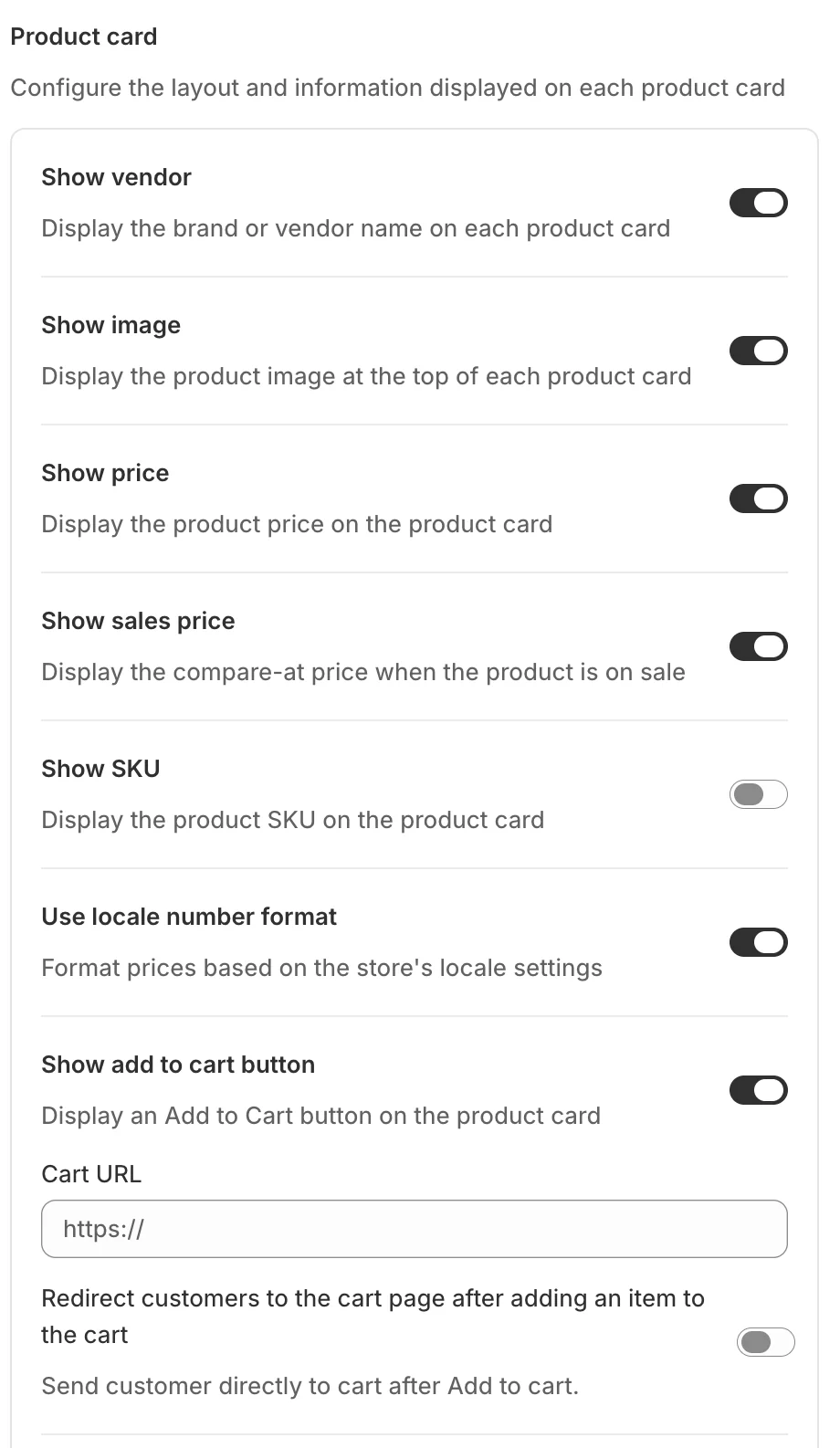
Show vendor — display the brand or vendor name on each card.
- Show image — display the product image at the top of each card.
- Show price — display the product price.
- Show sales price — when a product is on sale, also show the struck-through compare-at price.
- Show SKU — display the product SKU (off in the example; usually an internal code).
- Use locale number format — format prices based on the store’s locale settings, so decimal and thousands separators match what your customers expect.
- Show add to cart button — put an Add to Cart button on the card. Cart URL optionally points it at a specific cart page, and Redirect customers to the cart page after adding an item sends them straight to cart instead of staying on the grid.
Product Attributes to Retrieve
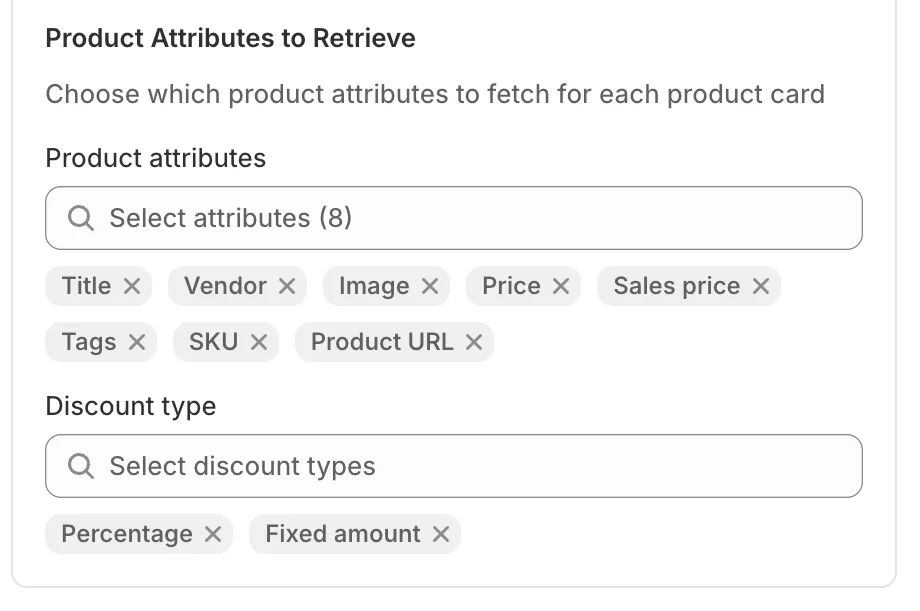
Product attributes selects which fields Sledge fetches for each card (Title, Vendor, Image, Price, Sales price, Tags, SKU, Product URL in the example) — a card can only display what is retrieved, and fetching only what you use keeps the grid fast. Discount type controls which discount formats the card understands (Percentage, Fixed amount).
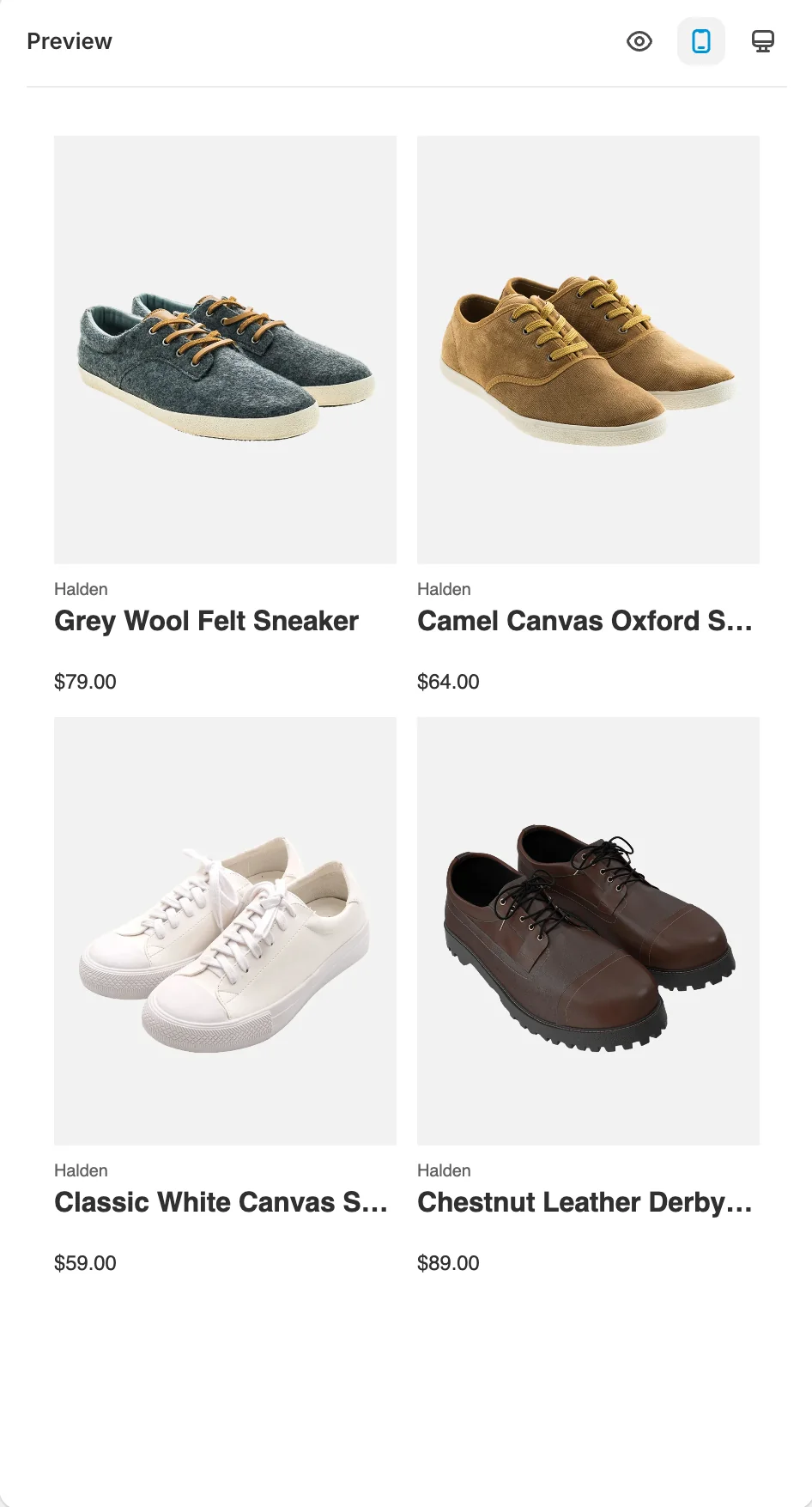
The panel on the right renders live product cards with your current toggles — vendor line, image, price — with mobile and desktop views.
Result
Every Sledge product tile across your store follows these rules — the same card everywhere a product appears: filter results, search, recommendations, and the wishlist.
Not showing up? Give the change a minute to sync, then reload the page, and confirm Sledge Core and the Collections page switch are on as described above.
Related
Last updated on
How do I keep Sledge indexing my Shopify catalog?
Indexing is how Sledge keeps its copy of your Shopify catalogue fresh — the data behind search, filters, and recommendations. It runs automatically; this page lets you watch it and trigger it by hand
How do I configure the product list?
The product list is the grid around the cards — the toolbar, sorting, paging, and stock rules used by instant search, the search page, collection pages, and the wishlist. One page controls them all.