
How do I set up the Trust Badge?
The Trust Badge is a compact rating seal — your average score, stars, and review count — that reinforces credibility wherever it’s shown.
The Trust Badge is a compact rating seal — your average score, stars, and review count — that reinforces credibility wherever it’s shown.
Before you start
Review widgets render on your storefront through Sledge, so make sure of the following first:
- Sledge Core is enabled on your theme. Sledge Core is the app embed that loads Sledge on your storefront — without it, nothing you configure here reaches your customers. You enable it during onboarding (Enable in theme), or any time via Online Store → Themes → Customize → App embeds → Sledge Core.
- Product Review and Sidebar Review are turned on. Open Sledge → Tools → Product Review and check the two switches at the top — Product Review renders review content on product pages, and Sidebar Review powers the quick-view review drawer. With them off, the features below have nowhere to render.
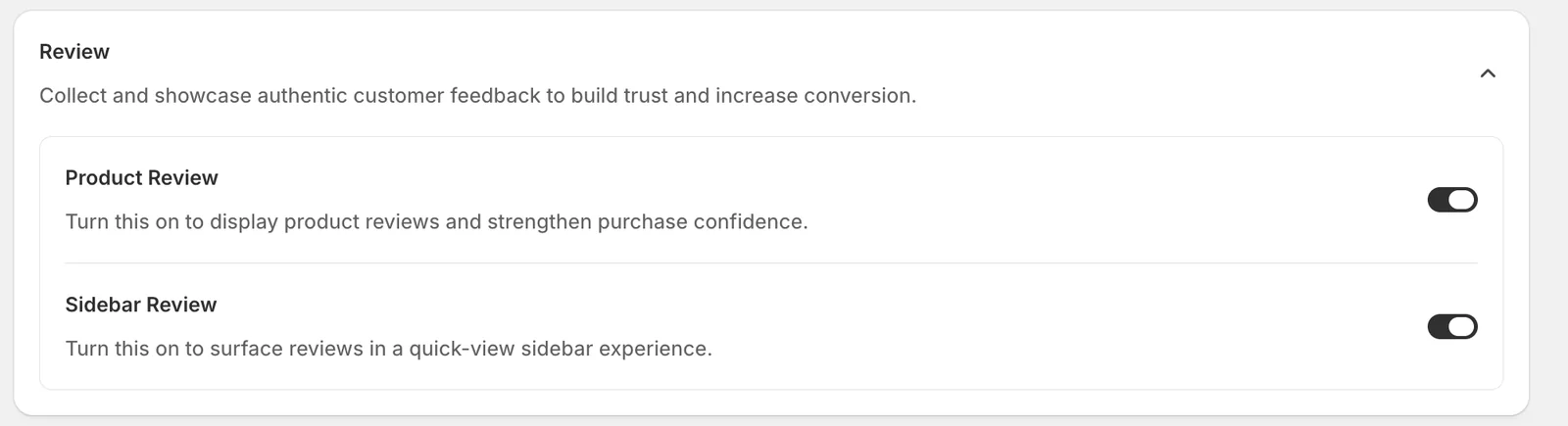
Open Trust Badge
Go to Sledge → Tools → Product Review, and under Features click Trust Badge.
Layout
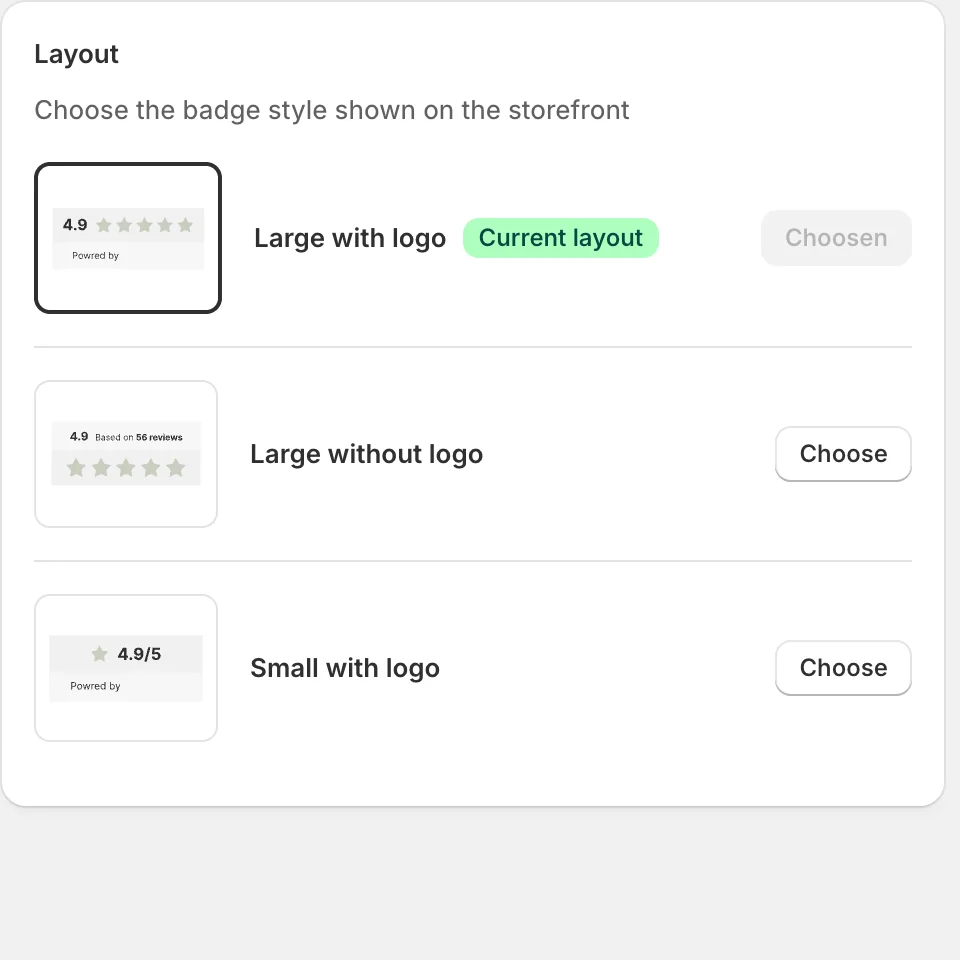
The badge style shown on the storefront:
- Large with logo — score, stars, and a “Powered by Sledge” logo line (the current choice).
- Large without logo — score, review count, and stars only.
- Small with logo — a compact one-line “4.9/5” variant for tighter spots.
Status and Preview
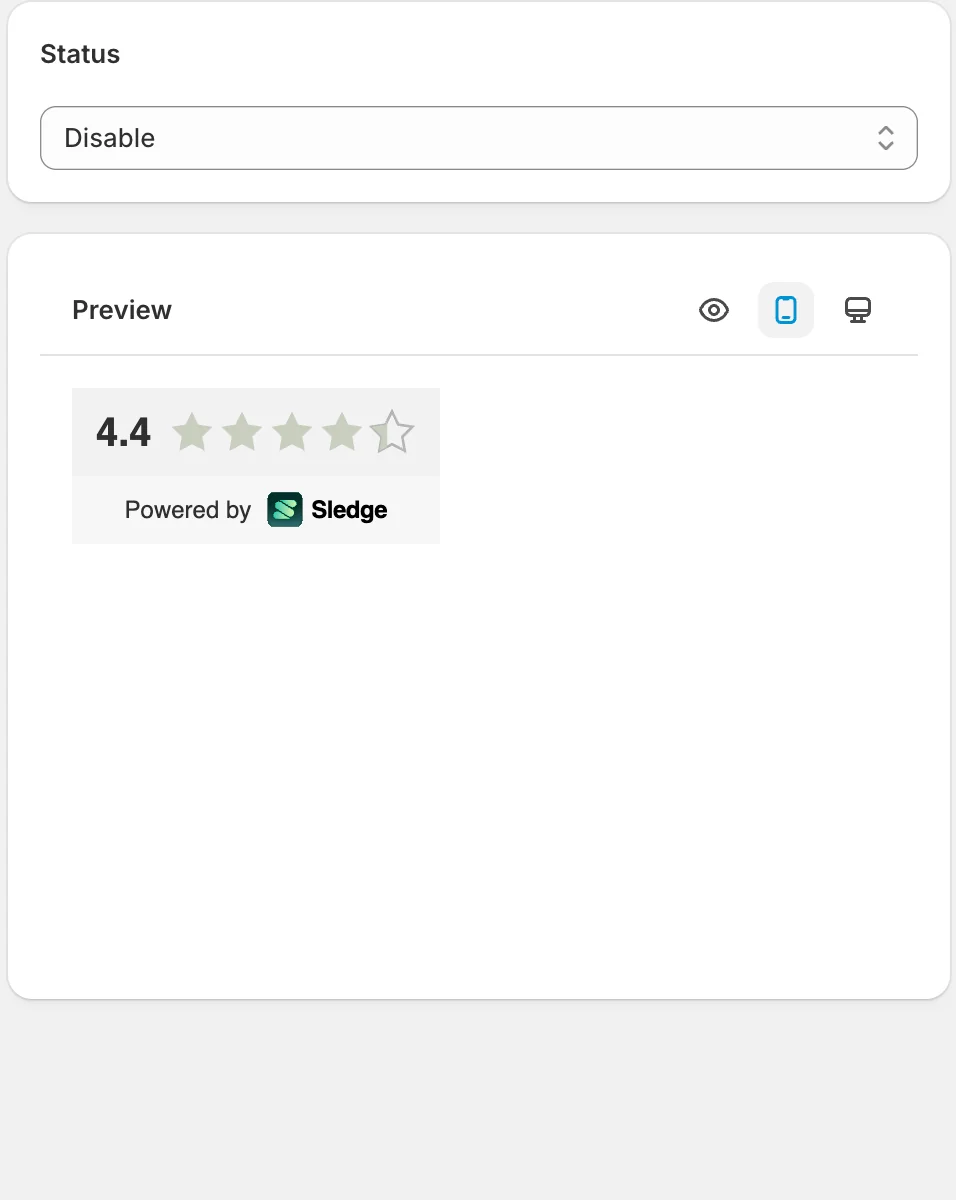
The Preview renders the badge with your live aggregate score. Note that Trust Badge ships with Status set to Disable — switch it to Enable when you’re ready, or the badge will never appear on the storefront.
Result
Once enabled, the badge renders your store’s real aggregate rating in the style you picked, quietly backing up every page it appears on.
Not showing up? Give the change a minute to sync, then reload the page. Also confirm the feature’s Status is Enable, and that Sledge Core, Product Review, and Sidebar Review are switched on as described above.
Related
Last updated on
How do I set up the Happy Customer showcase?
Happy Customer is a store-wide testimonial showcase: one page that aggregates your best reviews — product and store reviews together — with a rating histogram and a Write a Review form.
Analytics
Analytics in Sledge — 1 guide covering setup and day-to-day use.