
How do I set up Wishlist actions?
Wishlist actions controls how customers save products — whether they must log in, how the save button behaves, and the confirmation they see after saving.
Wishlist actions controls how customers save products — whether they must log in, how the save button behaves, and the confirmation they see after saving.
Before you start
The wishlist renders on your storefront through Sledge, so make sure of the following first:
- Sledge Core is enabled on your theme. Sledge Core is the app embed that loads Sledge on your storefront — without it, nothing you configure here reaches your customers. You enable it during onboarding (Enable in theme), or any time via Online Store → Themes → Customize → App embeds → Sledge Core.
- Wishlist is turned on. Open Sledge → Tools → Wishlist and check the Wishlist switch at the top — it activates the whole wishlist experience on your storefront.
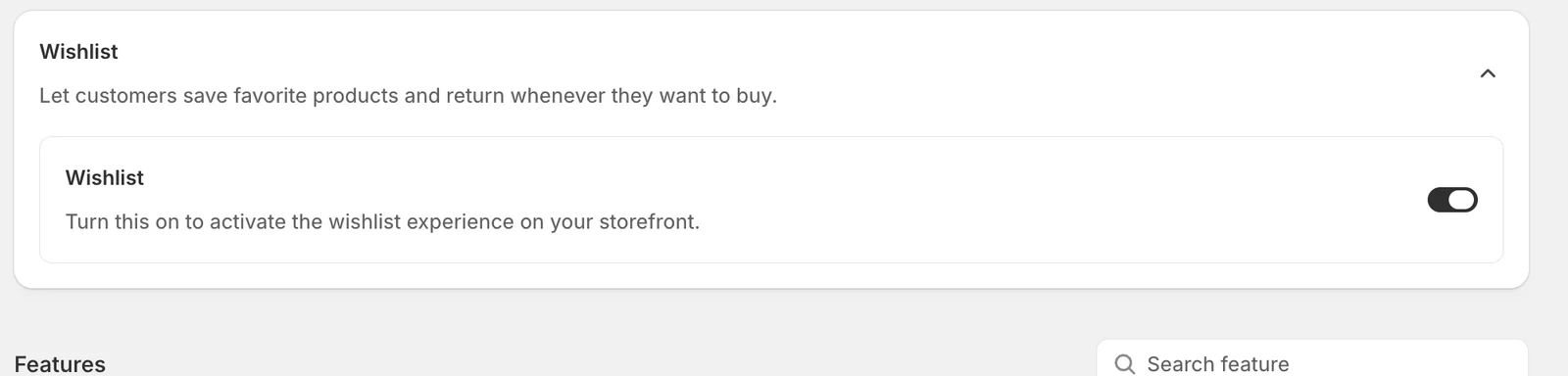
Open Wishlist actions
Go to Sledge → Tools → Wishlist, and under Features click Wishlist actions.
User access
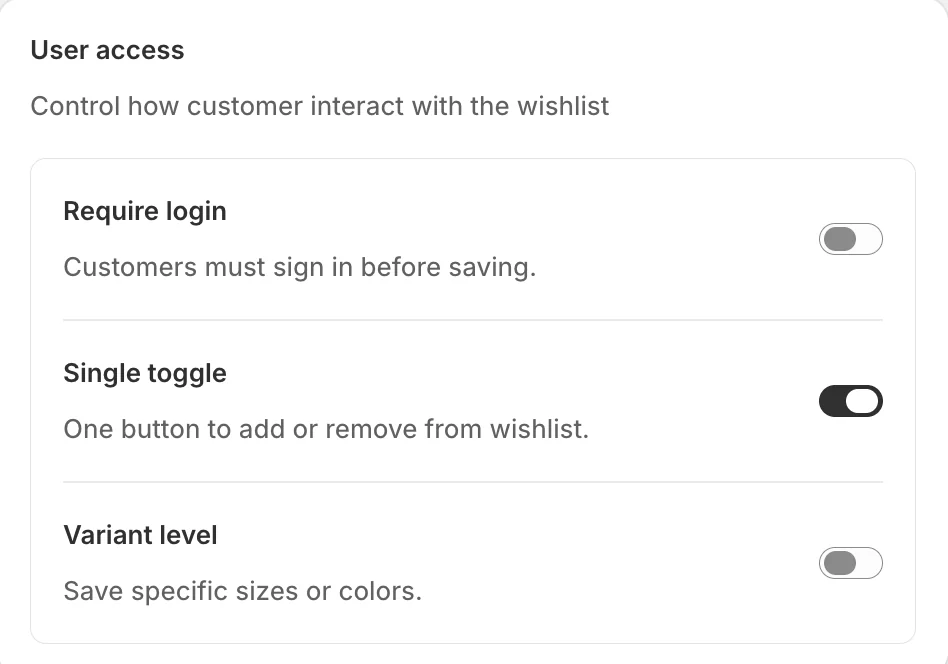
- Require login — customers must sign in before saving. Logged-in wishlists follow the customer across devices; with this off, the wishlist lives in the browser. When it’s on, guests see a “Login required” prompt instead of a save.
- Single toggle — one heart button both adds and removes: tap to save, tap again to un-save.
- Variant level — save a specific size or colour rather than the product in general, so “M, Sage” is what lands in the wishlist.
Notification
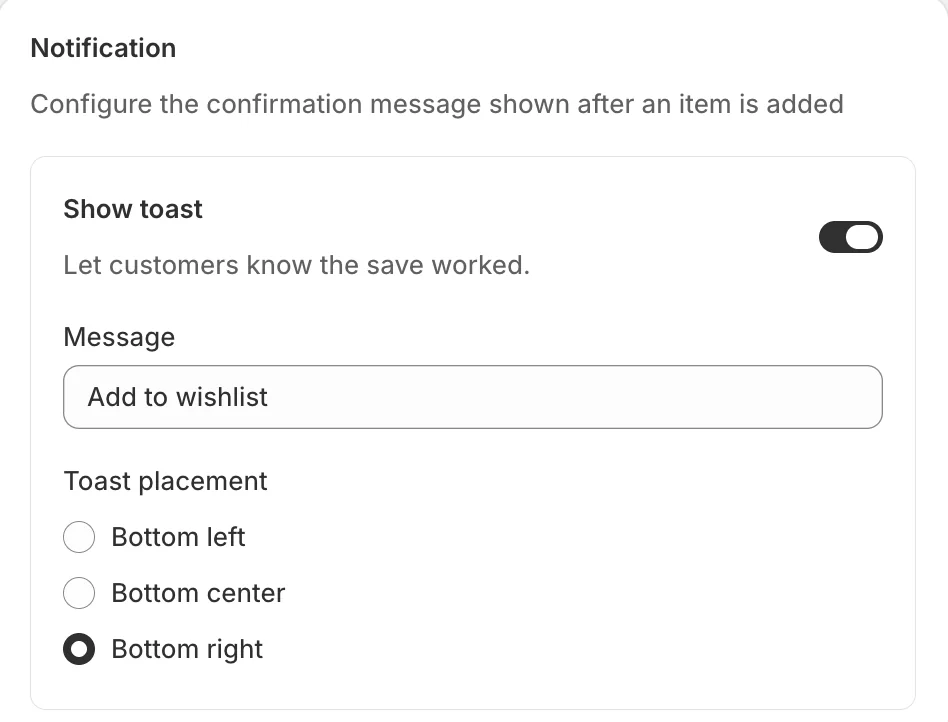
The confirmation shown right after an item is added:
- Show toast — pop a small confirmation so customers know the save worked.
- Message — the toast’s text (“Add to wishlist” in the example).
- Toast placement — where it appears: Bottom left, Bottom center, or Bottom right.
Surfaces
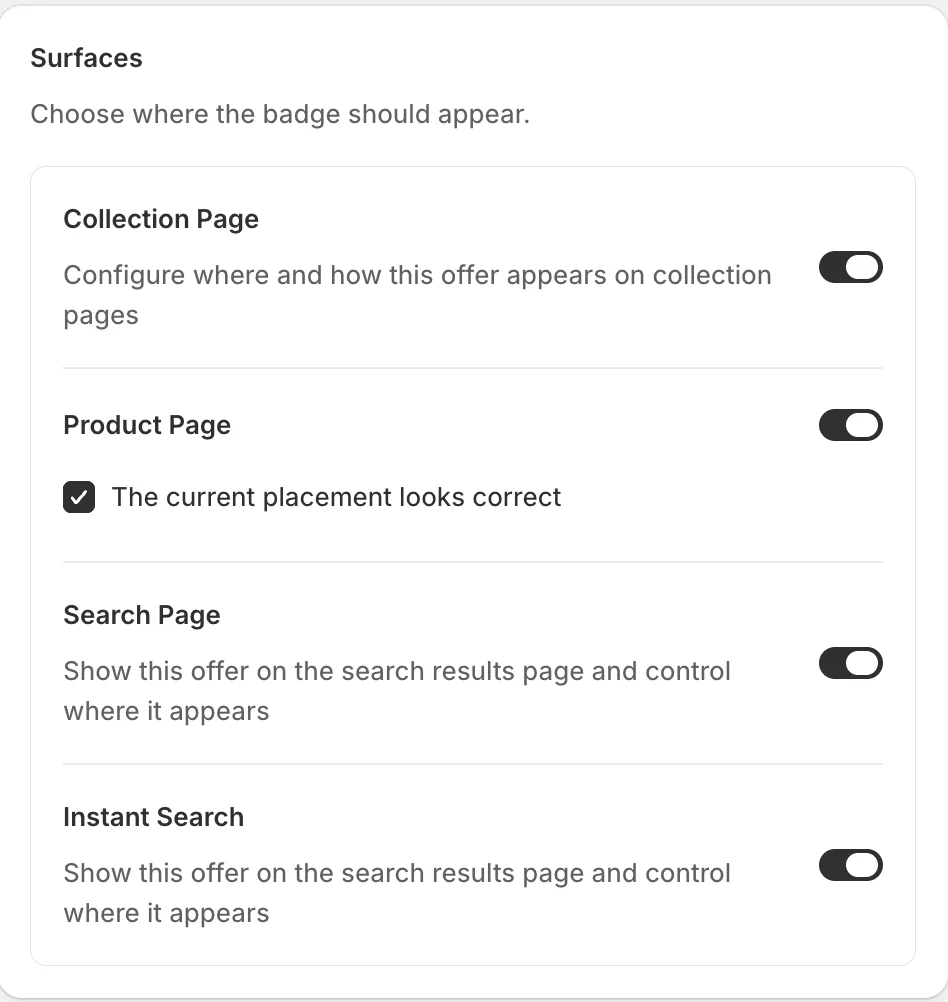
Where the save action is available: Collection Page, Product Page (with placement confirmation), Search Page, and Instant Search — each with its own switch.
Status and Previews
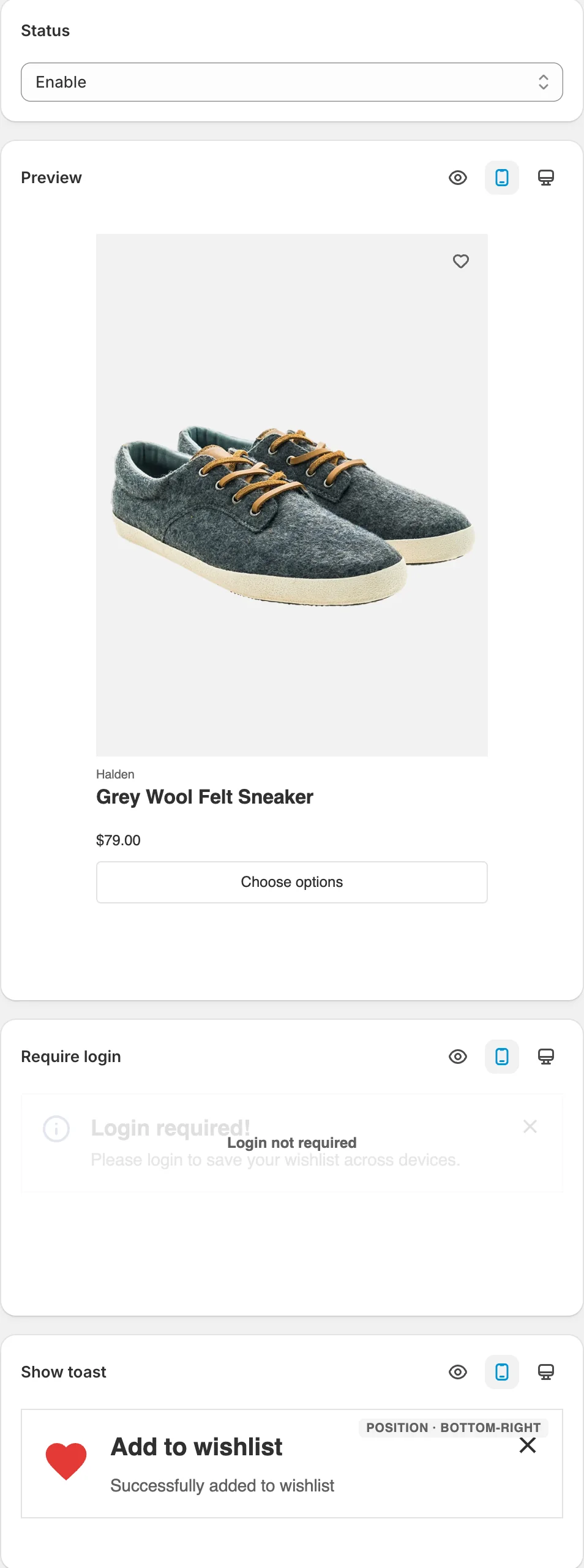
Status turns the actions on. The preview panels render each piece live: the product card with its heart button, the Require login prompt guests would see, and the Show toast confirmation with your message and placement.
Result
Customers tap the heart on any enabled surface to save a product — the toast confirms it, the counter in your navigation ticks up, and the item appears in their wishlist ready for a later purchase.
Not showing up? Give the change a minute to sync, then reload the page. Also confirm the feature’s Status is Enable, and that Sledge Core and the Wishlist switch are on as described above.
Related
Last updated on
How to set up the Wishlist view?
Wishlist view controls what customers see when they open their wishlist — whether it’s a slide-out drawer or a full page, where the wishlist counter sits in your store, and which surfaces show the wis
Product Reviews
Product Reviews in Sledge — 6 guides covering setup and day-to-day use.