
How do I merge duplicate filter values?
Merge Value combines several filter values into one clean label. Catalogs accumulate near-duplicates — “Navy” and “navy blue”, or a run of granular sizes like 28, 30, 32 — and every one of them become
Merge Value combines several filter values into one clean label. Catalogs accumulate near-duplicates — “Navy” and “navy blue”, or a run of granular sizes like 28, 30, 32 — and every one of them becomes its own row in the filter. Merging shows customers a single label instead; selecting it applies all merged values at once.
Before you start
This feature renders inside the Sledge product filter on your storefront, so make sure of the following first:
- Sledge Core is enabled on your theme. Sledge Core is the app embed that loads Sledge on your storefront — without it, nothing Sledge does reaches your customers. You enable it during onboarding (Enable in theme), or any time via Online Store → Themes → Customize → App embeds → Sledge Core.
- The Collections page surface is turned on. Open Sledge → Tools → Product Filter and check the Collections page switch at the top — this is what puts the Sledge filter on your collection pages.

Add a merge rule
Go to Sledge → Tools → Product Filter, under Features click Merge Value, then click Add merge value.
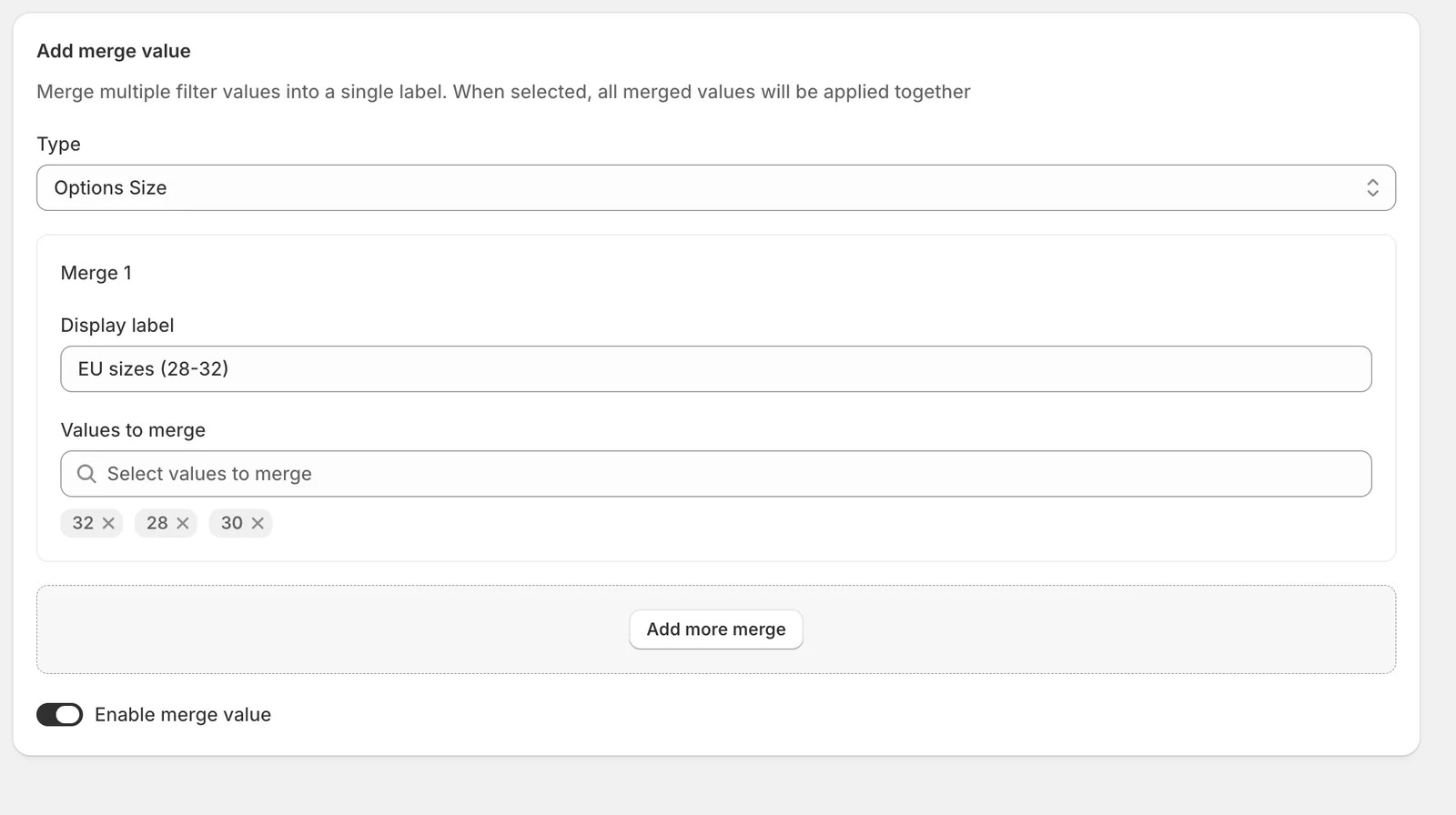
Type
Which filter the rule applies to — the same source list as your filter items (product options, metafields, tags, vendor, and so on). In the example it’s Options Size. Choosing a type loads that filter’s values below.
Display label
The single label customers will see instead of the merged values — here EU sizes (28-32).
Values to merge
Tick the values to combine; each selected value appears as a chip under the field (here 28, 30, and 32). When a customer selects the merged label on your storefront, products matching any of these values are shown.
Add more merge / Enable merge value
Add more merge adds another merge card so you can create several rules for the same type in one go. The Enable merge value switch controls whether the rule is live — leave it on and click Save in the save bar.
Manage your merge rules
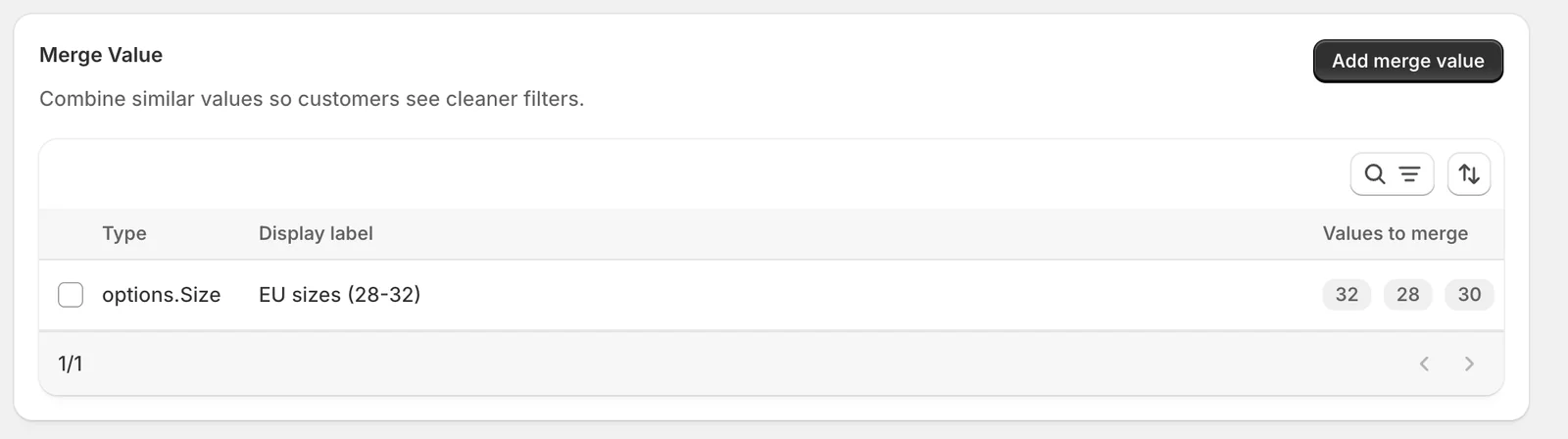
Saved rules appear in the Merge Value list showing the Type, the Display label, and chips for the Values to merge. Click a row to edit it, use the icons above the table to search and sort, or select rows with the checkboxes to delete them.
Result
On your collection pages, the size filter no longer lists 28, 30, and 32 separately — customers see one EU sizes (28-32) entry, and selecting it filters to products matching any of the three sizes.
Not showing up? Give the change a minute to sync, then reload the collection page. Also confirm that Sledge Core and the Collections page switch are enabled as described above.
Related
Last updated on
How do I set up a filter group?
A filter group is the set of filters a customer sees on one page of your store. Sledge keeps filters in groups so that a customer browsing Women's Elegant Tops can see a Colour and a Size filter, whil
How do I set up Color Swatches?
A color swatch turns a plain text colour value — “Sage”, “Butter Yellow” — into a colour chip customers can scan at a glance in the filter sidebar. Instead of reading a list of colour names, customers