
How do I keep Sledge indexing my Shopify catalog?
Indexing is how Sledge keeps its copy of your Shopify catalogue fresh — the data behind search, filters, and recommendations. It runs automatically; this page lets you watch it and trigger it by hand
Indexing is how Sledge keeps its copy of your Shopify catalogue fresh — the data behind search, filters, and recommendations. It runs automatically; this page lets you watch it and trigger it by hand when needed.
Before you start
These settings shape what Sledge renders on your storefront, so make sure of the following first:
- Sledge Core is enabled on your theme. Sledge Core is the app embed that loads Sledge on your storefront — without it, nothing you configure here reaches your customers. You enable it during onboarding (Enable in theme), or any time via Online Store → Themes → Customize → App embeds → Sledge Core.
- The Collections page surface is turned on. Open Sledge → Tools → Product Filter and check the Collections page switch — collection pages are where these settings are most visible, since Sledge renders the product grid there.

Open Indexing
Go to Sledge → Settings & Support and open Indexing.
Manual indexing and Indexing status

Sledge indexes product changes automatically about 1–2 minutes after you make them. If the storefront still shows stale data — an old price, a product that should have appeared — click Start indexing to run a manual index immediately. Indexing status next to it shows when the last indexing run happened.
Indexing history
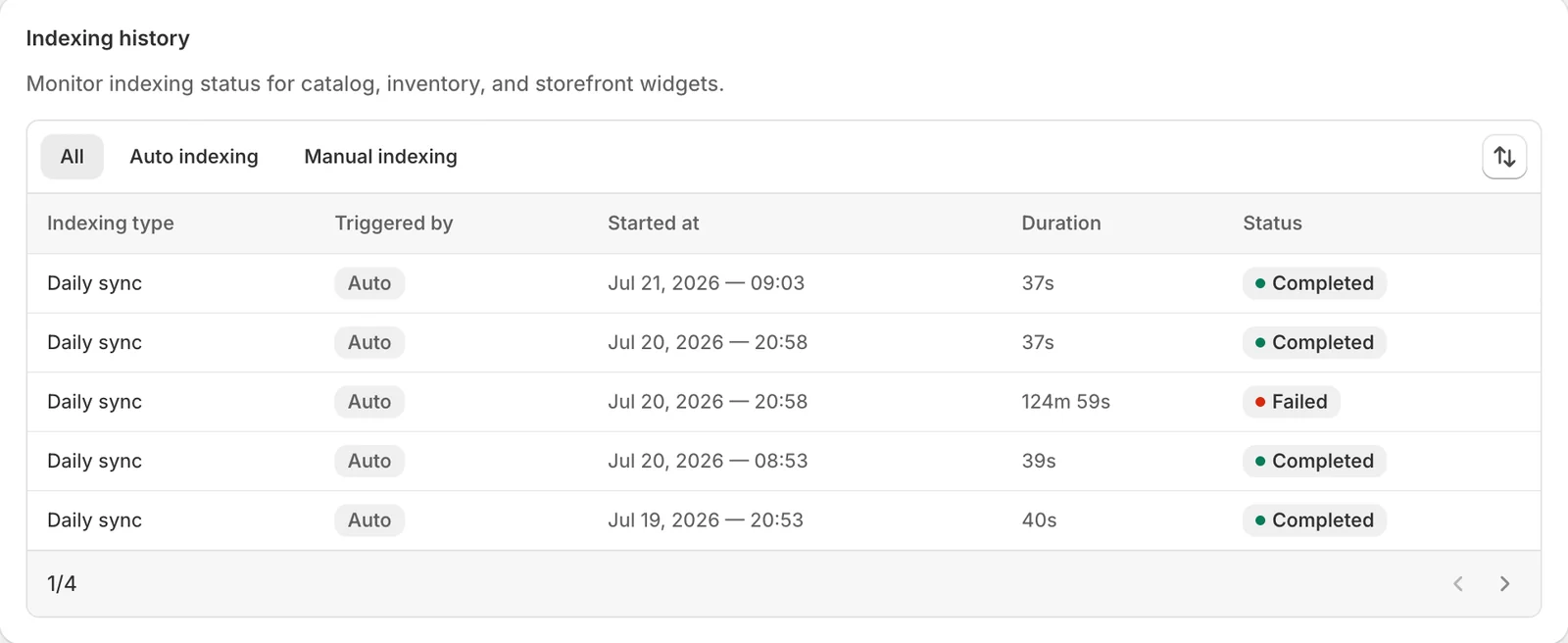
Every indexing run, filterable by All / Auto indexing / Manual indexing. Each row shows the Indexing type (for example the daily sync), Triggered by (Auto or Manual), Started at, Duration, and Status — Completed or Failed. An occasional failed run recovers on the next sync; repeated failures are worth reporting to support.
Result
Catalogue changes — new products, price updates, stock changes — flow into Sledge search and filters within minutes automatically, and you have a one-click manual index plus a full history when you need to verify or force a sync.
Not showing up? Give the change a minute to sync, then reload the page, and confirm Sledge Core and the Collections page switch are on as described above.
Related
Last updated on
Settings & Support
Settings & Support in Sledge — 4 guides covering setup and day-to-day use.
How do I configure the product card?
The product card is the single product tile Sledge renders everywhere — in filtered collection grids, search results, recommendations, and the wishlist. This page decides what every one of those tiles