
How do I set up skeleton loaders?
Skeleton loaders are the grey placeholder blocks shown while products load. Instead of a blank space or a layout jump, customers see the shape of the grid immediately — then products fade in.
Skeleton loaders are the grey placeholder blocks shown while products load. Instead of a blank space or a layout jump, customers see the shape of the grid immediately — then products fade in.
Before you start
These settings shape what Sledge renders on your storefront, so make sure of the following first:
- Sledge Core is enabled on your theme. Sledge Core is the app embed that loads Sledge on your storefront — without it, nothing you configure here reaches your customers. You enable it during onboarding (Enable in theme), or any time via Online Store → Themes → Customize → App embeds → Sledge Core.
- The Collections page surface is turned on. Open Sledge → Tools → Product Filter and check the Collections page switch — collection pages are where these settings are most visible, since Sledge renders the product grid there.

Open Skeleton
Go to Sledge → Settings & Support, open Global setting, and click Skeleton. These settings apply to all Sledge features on your store.
Settings
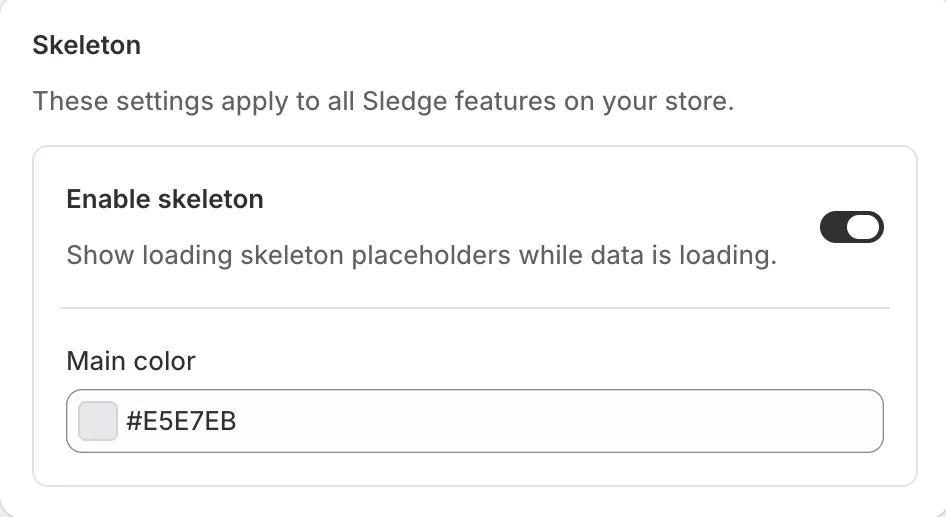
- Enable skeleton — show loading skeleton placeholders while data is loading. Turning it off means content areas stay empty until data arrives.
- Main color — the placeholder colour (#E5E7EB in the example, a light grey). Match it to your theme’s background tones so the loading state feels native.
Preview
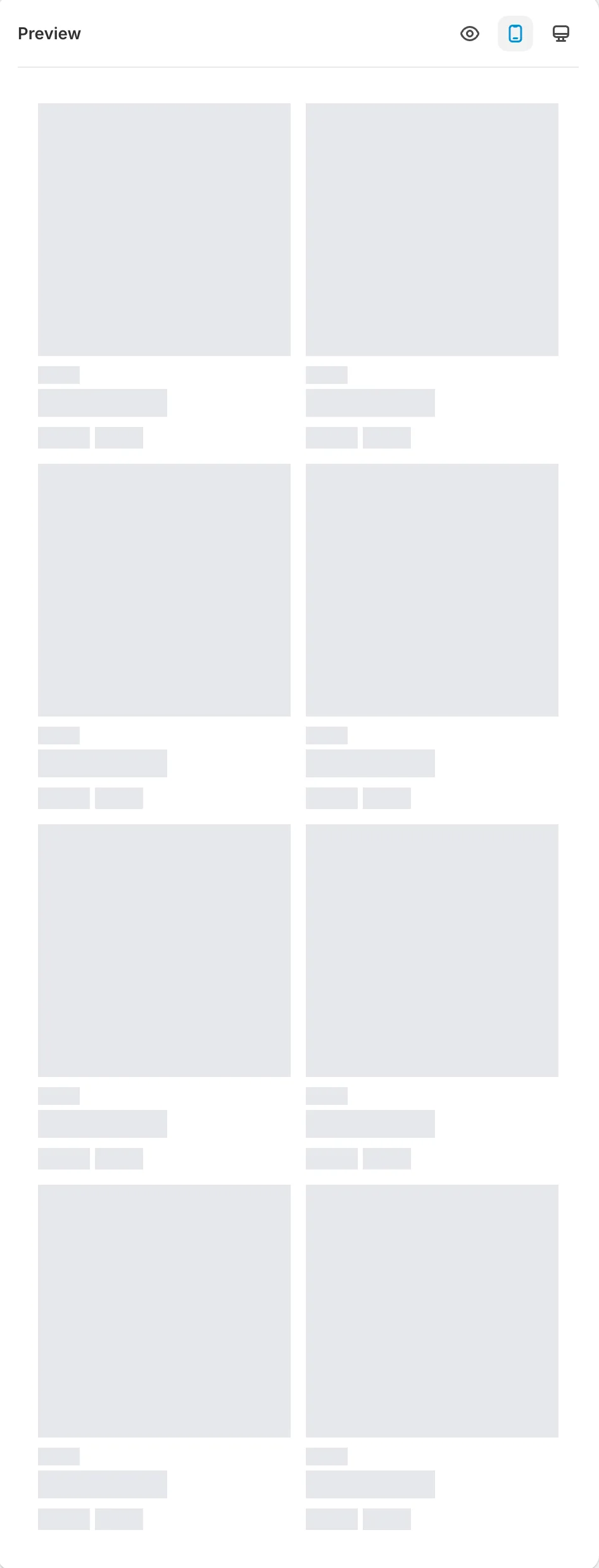
The preview shows the skeleton grid exactly as customers see it during loading — image blocks, text lines, and price stubs in place of the real cards.
Result
While any Sledge widget fetches data — a filtered collection, search results, recommendations — customers see your skeleton placeholders instead of a blank area, and the layout doesn’t jump when products arrive.
Not showing up? Give the change a minute to sync, then reload the page, and confirm Sledge Core and the Collections page switch are on as described above.
Related
Last updated on
How do I configure the product list?
The product list is the grid around the cards — the toolbar, sorting, paging, and stock rules used by instant search, the search page, collection pages, and the wishlist. One page controls them all.
Storefront
Place Sledge widgets on your storefront from the Shopify theme editor using app embeds and app blocks — no theme code, and everything is removable from the same screen.