
How to Create Product Add-ons in Sledge?
Add-ons suggest related products underneath the one a customer is already looking at, each available at a discount if they take it now.
Add-ons suggest related products underneath the one a customer is already looking at, each available at a discount if they take it now.
It's the shop-counter question — “anything else with that?” — at the one moment the answer is most likely to be yes. The customer has already decided to buy; adding a small, relevant item is a much easier decision than starting a new one.
Add-ons is deliberately narrow: it renders on the Product Page only. There is no collection or search placement, because the offer only makes sense next to a product someone is actively considering.
Before you start — Sledge must be active on your theme. Decide what the offer is and what it costs you before you build it. The example throughout this guide is an Ivory Jacquard Polo Shirt suggesting a Heather Knit Pullover and other pieces.
Step 1 — Name it and choose where it applies
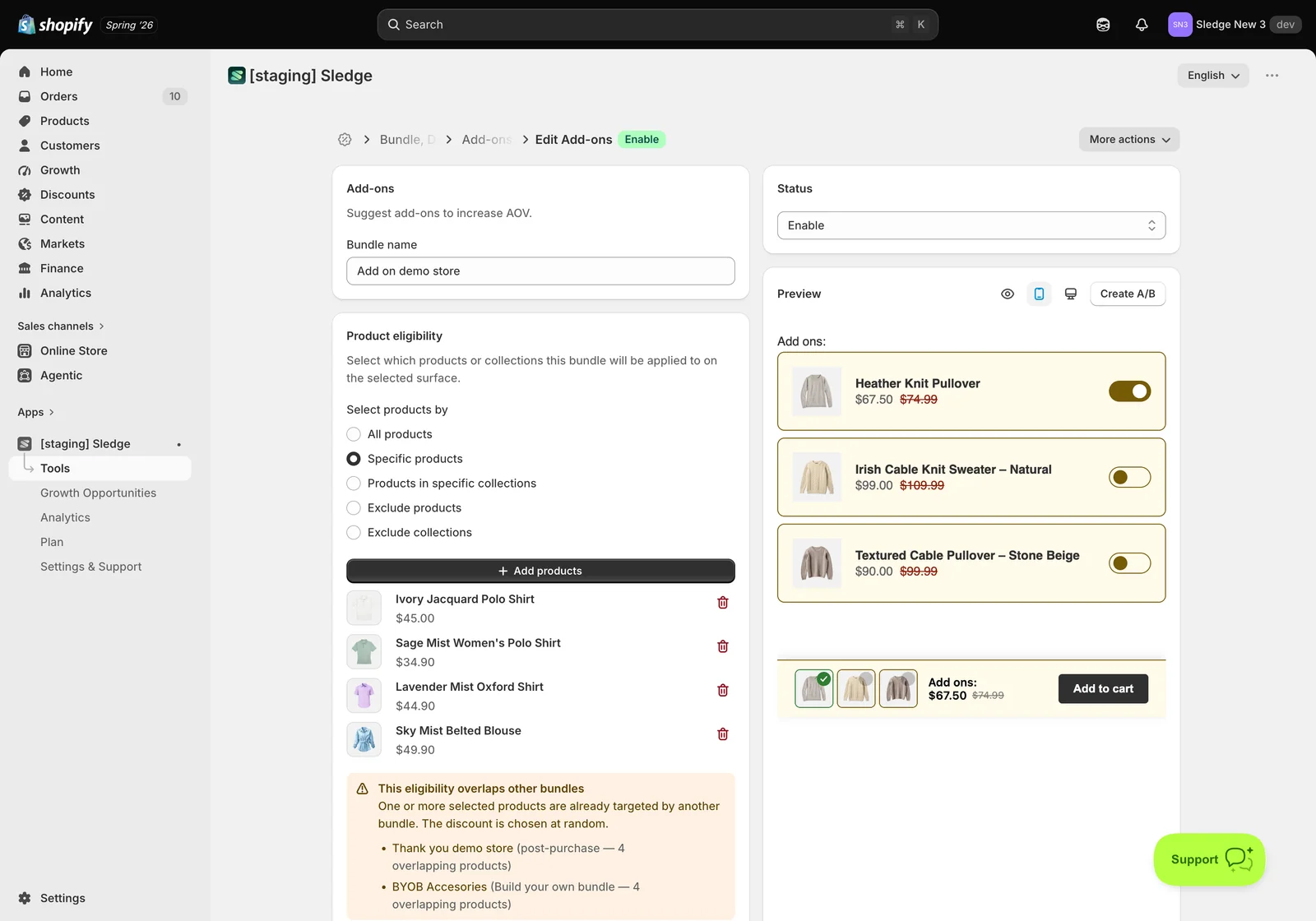
- Go to Tools → Bundle, Discount & Upsell → Add-ons and open the bundle you want to edit, or create a new one.
- Bundle name — customer-facing, so write it as a shopper would read it.
- Product eligibility decides which product pages the offer appears on. Choose All products, Specific products, Products in specific collections, or one of the two exclude options. Then add the products with Add products.
- Optionally set Country to limit markets, Active dates to schedule a run, and Countdown to add urgency. Leave all three alone for an evergreen offer.
If you see an overlap warning — another bundle already targets one of these products, and Shopify picks between the competing discounts at random. It won’t stop you saving, but the customer may not get the offer you intended. Narrow one of the two bundles if the overlap wasn’t deliberate.
Step 2 — Build the offer
The Offer section is where this bundle type does its real work.
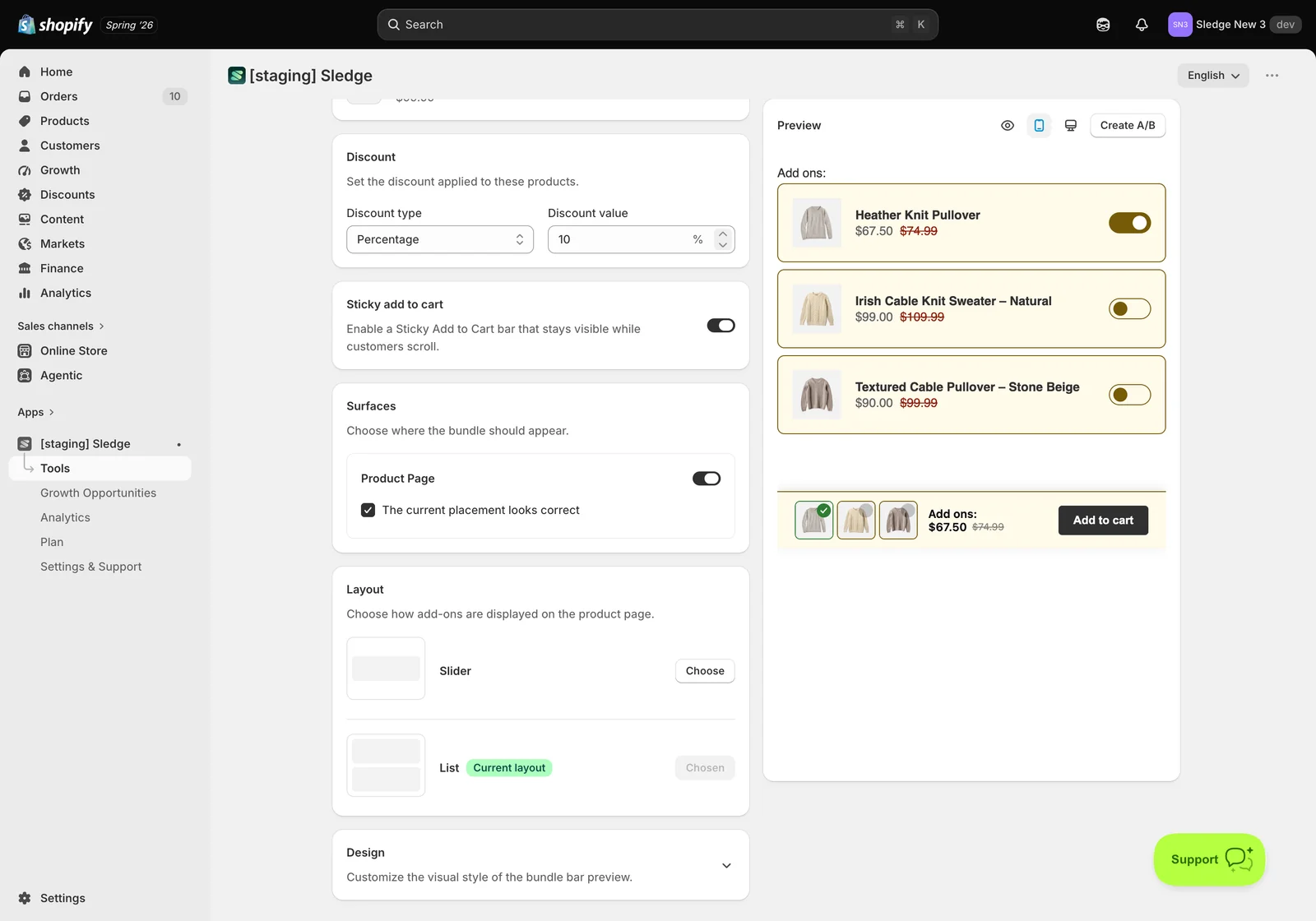
The Offer card holds the products you want to suggest, and Discount sets the incentive that applies to them.
- Products — the add-ons themselves. Pick things that genuinely complement the anchor product; a random discount on something unrelated reads as clearance.
- Discount type and value — the saving customers get for adding now. It only needs to be enough to tip a small decision.
- Layout — Slider or grid, controlling how the suggestions are presented.
Sticky add to cart keeps the buy bar in reach while customers scroll the suggestions.
Under Surfaces, switch on where the offer should render. Add-ons is Product Page only.
Step 3 — Customise how it looks
The Design card is what makes the offer look like part of your theme rather than an app bolted onto it. It’s optional, and it’s the difference between an offer customers trust and one they scroll past.
- Bundle label, price and compare-at price colours — the text customers read first.
- Badge (and, on tiered types, medal) colours — the flag carrying your savings message. Give it contrast; it does the selling.
- Card background, border, border radius and padding — the panel itself. Radius and padding are what match it to your theme’s other cards.
- Featured card — a separate colour used only where the bundle appears as a card in a product grid on Collection, Search and Instant Search.
Watch the Preview as you edit — it re-renders live, so you can judge the real thing instead of guessing from hex codes.
Step 4 — Save and publish
- Check the Preview, then click Save.
- Set Status to Enable. A saved bundle that is still disabled won’t appear for anyone.
Result
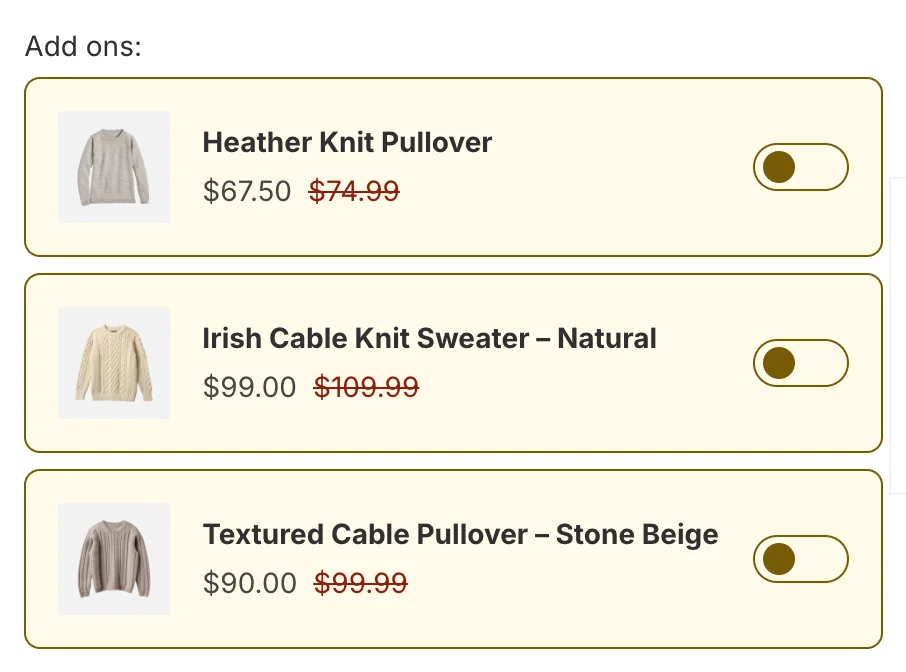
Done. The offer is now live. Below is the example on the storefront — the add-on strip under the product with its combined price.
Not showing up?
- Status must be Enable, and the relevant surface switched on.
- Make sure you’re looking at a product that’s actually in Product eligibility.
- Every product involved must be active and in stock — an unavailable product takes the offer down with it.
- If a different discount applies, look for the overlap warning — another bundle is competing for the same product.
- If you set Active dates, confirm today falls inside the window.
- Storefront changes take about a minute to sync.
Related
Last updated on
How to Create a Fix Bundle in Sledge?
A Fix Bundle is a fixed set of products sold together at a single discounted price — the classic “buy these two things together and save” offer. The customer doesn’t choose the contents; you do.
How to Create a Volume Discount in Sledge?
Volume Discount lowers the unit price as the quantity goes up — buy one and save a little, buy more and save more.