
How to Set Up Pre-Order for Volume Discount?
Pre-order lets customers buy a Volume Discount before you can ship it — useful for a restock, a launch, or anything you’re taking demand for ahead of stock arriving.
Pre-order lets customers buy a Volume Discount before you can ship it — useful for a restock, a launch, or anything you’re taking demand for ahead of stock arriving.
Volume tiers and pre-orders pair well for restocks: customers commit to the larger quantity now and you get a read on demand before the stock lands. You decide whether customers pay the whole amount up front or leave a deposit and settle the rest on a date you choose.
Before you start — Set the bundle up the way you want it first; pre-order is a setting on an existing bundle, not a separate one. If you plan to take a deposit, decide the amount and the date the balance should be charged before you begin.
Step 1 — Switch pre-order on
-
Go to Bundle, Discount & Upsell → Volume Discounts and open the bundle you want to pre-sell (the example here is Volume tiers).
-
Scroll to the Pre order card — Offer pre-orders and choose whether customers pay in full or pay a deposit — and switch it on.
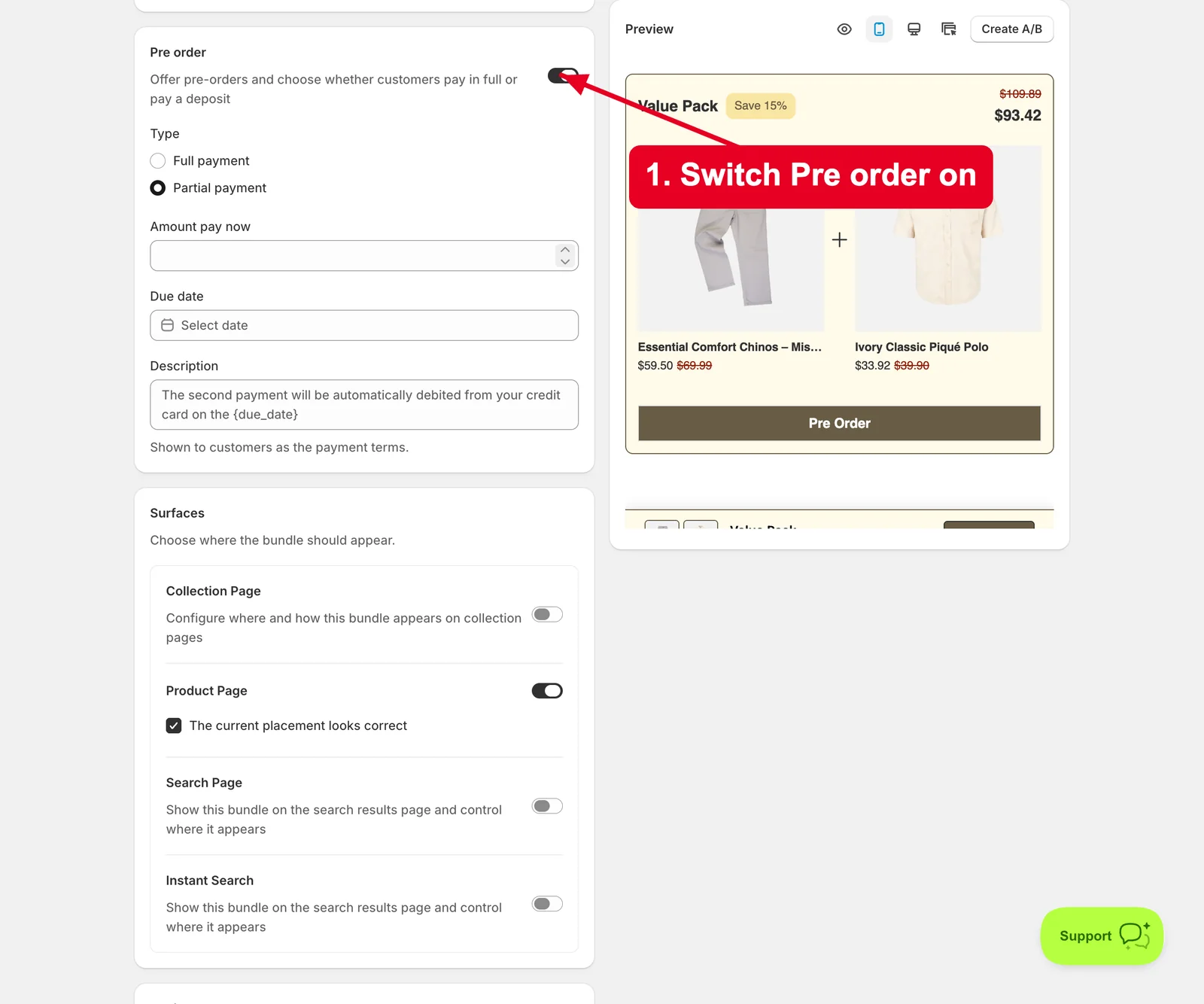
-
A Type choice appears. This is the only decision that changes how customers are charged, so take it deliberately.
Step 2 — Choose how customers pay
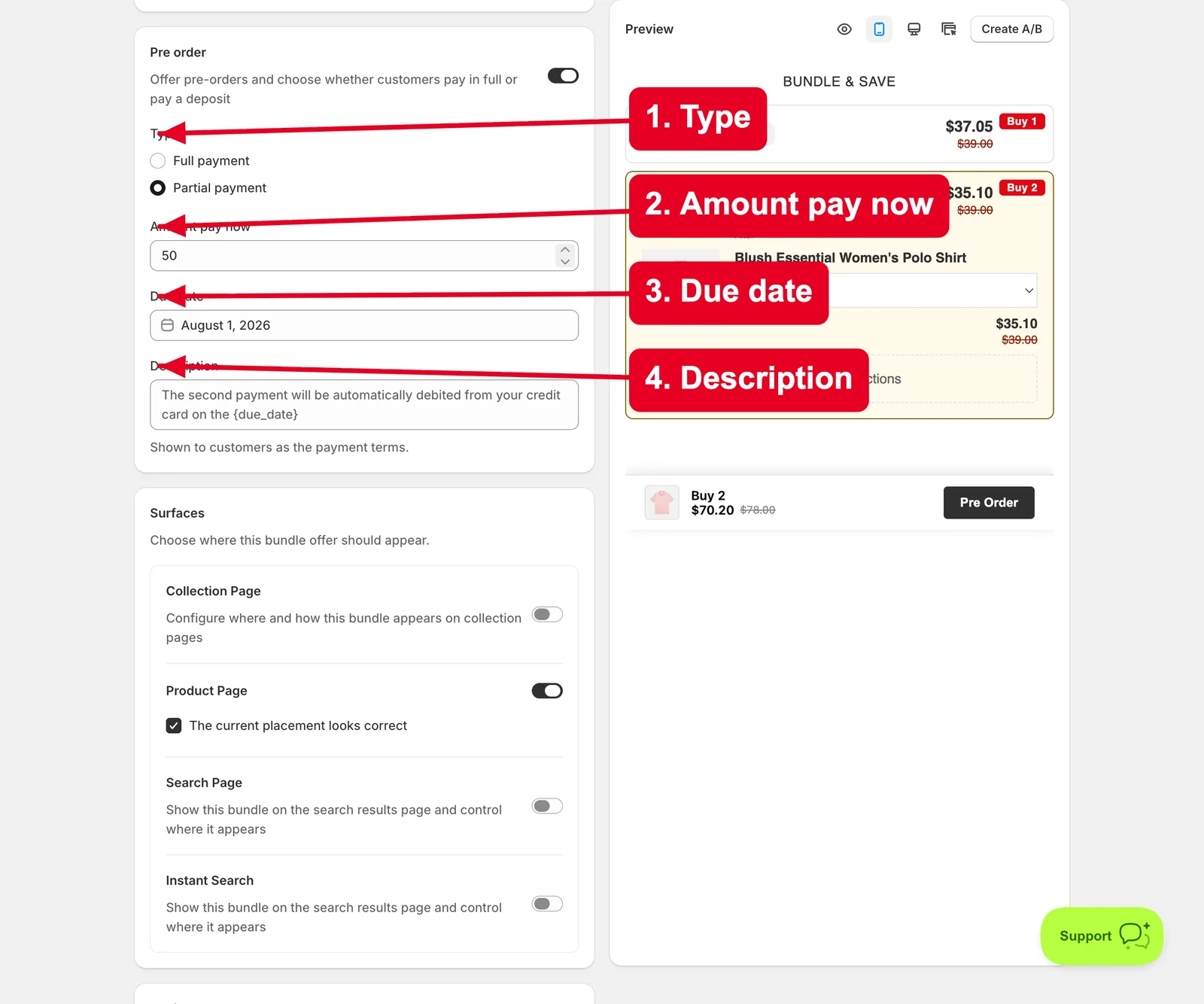
- Type — pick one:
- Full payment — customers pay the entire amount at checkout, exactly like a normal order. Nothing else to configure. Best when the wait is short and you’d rather not manage a second charge.
- Partial payment — customers pay a deposit now and the balance later. This lowers the barrier to committing, at the cost of a payment you still have to collect. Choosing it reveals the three fields below.
- Amount pay now — the deposit taken at checkout. Set it high enough that a customer thinks twice before abandoning, low enough that it still feels easy.
- Due date — when the remaining balance is charged. Pick a date you’re confident the stock will have arrived; charging a customer before you can ship invites refund requests.
- Description — the payment terms customers actually read, e.g. The second payment will be automatically debited from your credit card on the {due_date}. The {due_date} token is replaced with the real date, so you can set the wording once and let each bundle fill in its own date. Be explicit here — this line is what prevents a surprise charge turning into a dispute.
Step 3 — Save
- Check the Preview on the right. With pre-order on, the bundle’s button changes to Pre Order, which is the quickest way to confirm the setting took effect.
- Click Save, and make sure Status is Enable so the bundle is live.
Result
Done. Customers can now reserve this Volume Discount before it’s in stock. With Full payment they’re charged once at checkout; with Partial payment they pay your deposit now, see your payment terms at checkout, and the balance is charged automatically on the due date.
Not showing up? Check Status is Enable and that at least one surface is switched on under Surfaces — a bundle with pre-order enabled but no surface still has nowhere to appear. If the button doesn’t say Pre Order, the Pre order toggle didn’t save; reopen the bundle and confirm it’s still on. If you chose Partial payment, all three fields need a value — an empty Amount pay now or Due date will block the save. Storefront changes can take about a minute to sync.
Related
Last updated on