
How do I create a Free Gift offer?
Free Gift adds a product to the basket at no charge once the customer spends above an amount you set.
Free Gift adds a product to the basket at no charge once the customer spends above an amount you set.
A gift feels different from a discount. Money off reduces what you receive; a gift adds something the customer wasn’t expecting, and it costs you the item rather than the margin on everything in the basket. It's also a way to move slow stock or introduce a product people haven’t tried.
The gift is added as a fully discounted line, so the customer sees it in the cart at zero. Sledge also guards against the gift being claimed twice or hanging around after the basket drops below the threshold.
Before you start — Sledge must be active on your theme. Decide what the offer is and what it costs you before you build it. The example throughout this guide is a Chestnut Wool Overcoat, with Noir Pleated Trousers as the gift.
Step 1 — Name it and choose where it applies
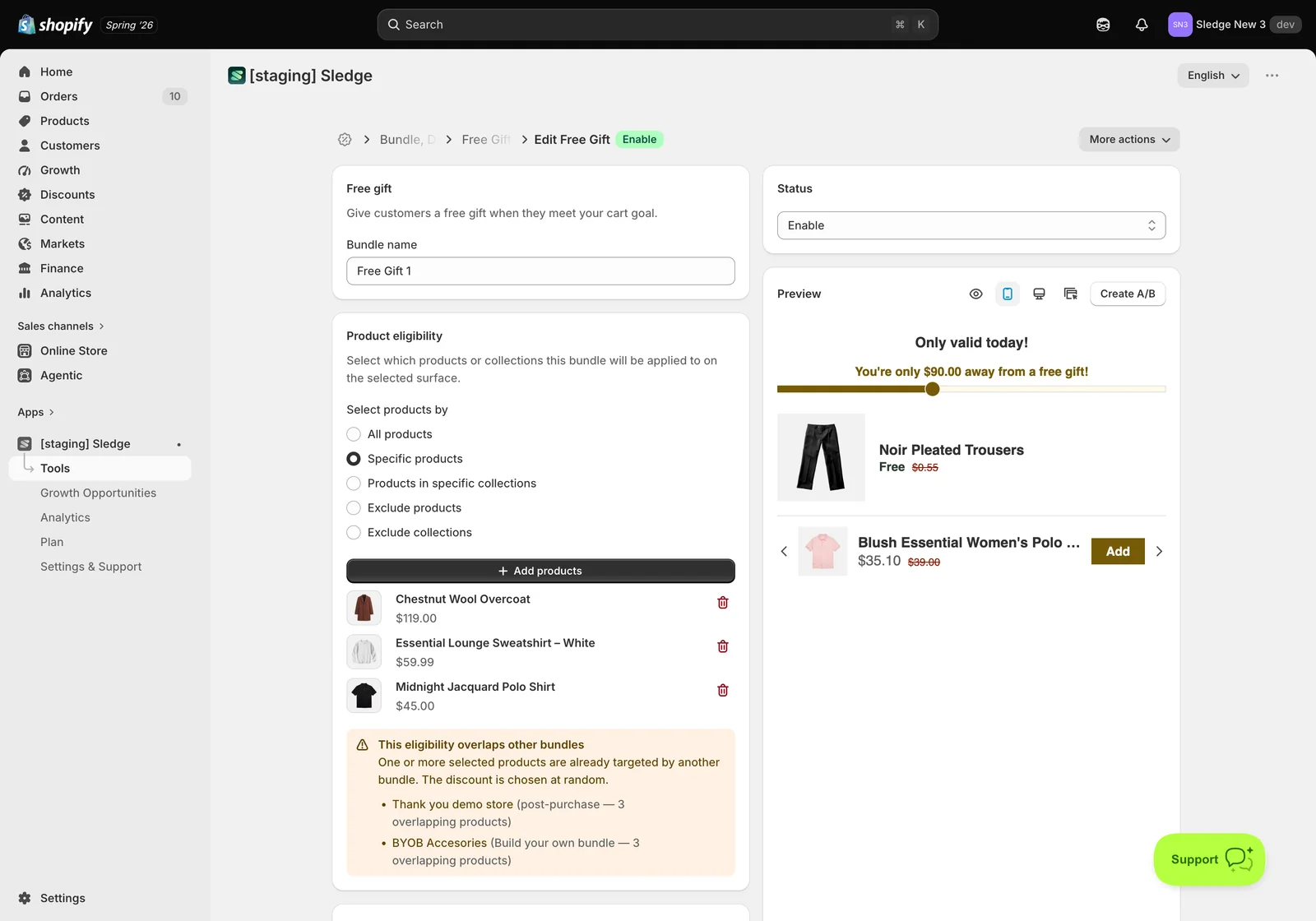
- Go to Tools → Bundle, Discount & Upsell → Free Gift and open the bundle you want to edit, or create a new one.
- Bundle name — customer-facing, so write it as a shopper would read it.
- Product eligibility decides which product pages the offer appears on. Choose All products, Specific products, Products in specific collections, or one of the two exclude options. Then add the products with Add products.
- Optionally set Country to limit markets, Active dates to schedule a run, and Countdown to add urgency. Leave all three alone for an evergreen offer.
If you see an overlap warning — another bundle already targets one of these products, and Shopify picks between the competing discounts at random. It won’t stop you saving, but the customer may not get the offer you intended. Narrow one of the two bundles if the overlap wasn’t deliberate.
Step 2 — Build the offer
The Free Gifts section is where this bundle type does its real work.
The Free Gifts card defines what customers earn and when:
- Gift products — the item given away. Choose something with a clear perceived value; a gift nobody wants is worse than no offer.
- Threshold — the spend required to unlock it. As with free shipping, set it just above your typical order.
- Bundle label, description and progress goal label — the wording that tells customers what they’re working toward.
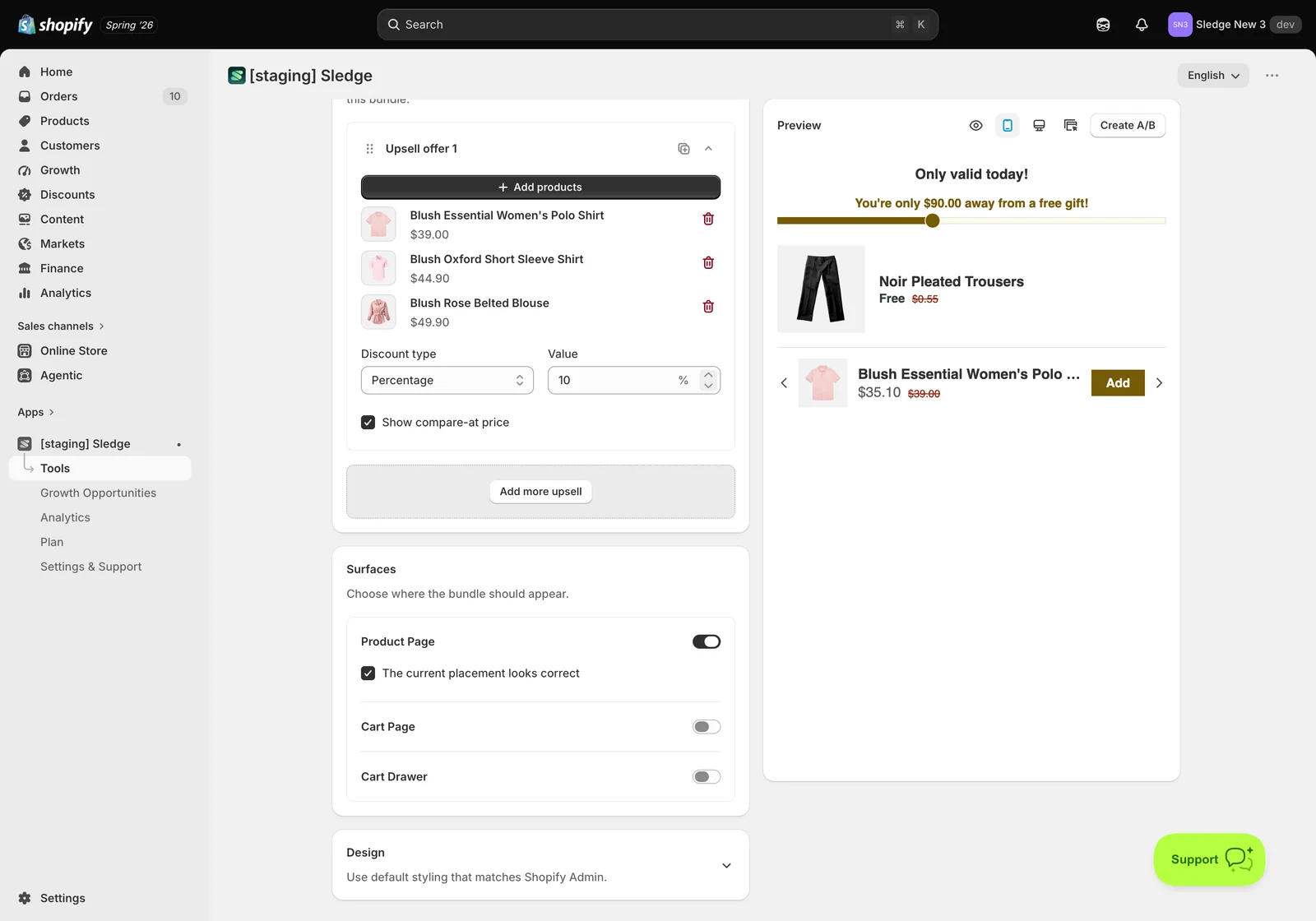
The Upsell section adds products that help customers reach the threshold — here a Blush Oxford Short Sleeve Shirt and a Blush Rose Belted Blouse. Anything bought through the upsell counts toward the goal.
Under Surfaces, switch on where the offer should render. At least one surface must be on — Product Page is the usual home.
Step 3 — Customise how it looks
The Design card is what makes the offer look like part of your theme rather than an app bolted onto it. It’s optional, and it’s the difference between an offer customers trust and one they scroll past.
- Bundle label, price and compare-at price colours — the text customers read first.
- Badge (and, on tiered types, medal) colours — the flag carrying your savings message. Give it contrast; it does the selling.
- Card background, border, border radius and padding — the panel itself. Radius and padding are what match it to your theme’s other cards.
- Featured card — a separate colour used only where the bundle appears as a card in a product grid on Collection, Search and Instant Search.
Watch the Preview as you edit — it re-renders live, so you can judge the real thing instead of guessing from hex codes.
Step 4 — Save and publish
- Check the Preview, then click Save.
- Set Status to Enable. A saved bundle that is still disabled won’t appear for anyone.
Result
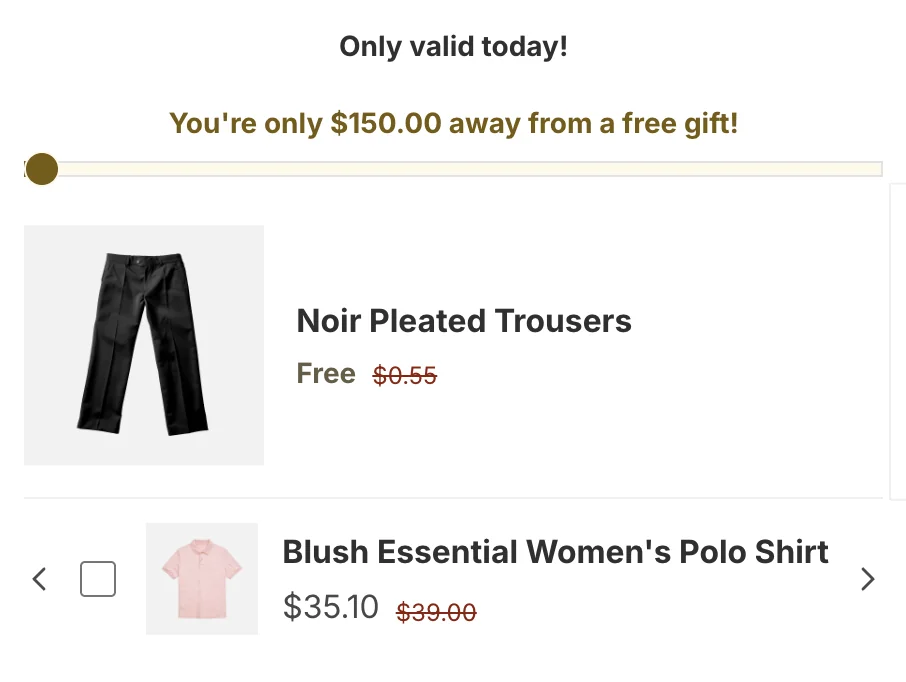
Done. The offer is now live. Below is the example on the storefront — the free-gift offer on the product page.
Not showing up?
- Status must be Enable, and the relevant surface switched on.
- Make sure you’re looking at a product that’s actually in Product eligibility.
- Every product involved must be active and in stock — an unavailable product takes the offer down with it.
- If a different discount applies, look for the overlap warning — another bundle is competing for the same product.
- If you set Active dates, confirm today falls inside the window.
- Storefront changes take about a minute to sync.
Related
Last updated on
How do I create a Build Your Own Bundle offer?
Build Your Own Bundle hands the choosing to the customer. You define the steps and the reward; they pick what goes in.
How do I create a Free Shipping offer?
Free Shipping offers to cover delivery once a customer’s basket passes an amount you set, with a progress bar showing how close they are.