
How to Set Up a Volume discount as the First Item on the instant search?
The First item position shows your Volume discount offer as a product-style card in the first slot of the instant search results, ahead of the regular products.
The First item position shows your Volume discount offer as a product-style card in the first slot of the instant search results, ahead of the regular products.
This guide shows how to place a Volume discount offer as the first item on the instant search, using the search query Kensington as an example.
Step 1: Open your Volume discount offer
In your Shopify admin, go to Apps > Sledge > Bundle, Discount & Upsell > Volume Discounts, then open the offer you want to place (or create a new one).
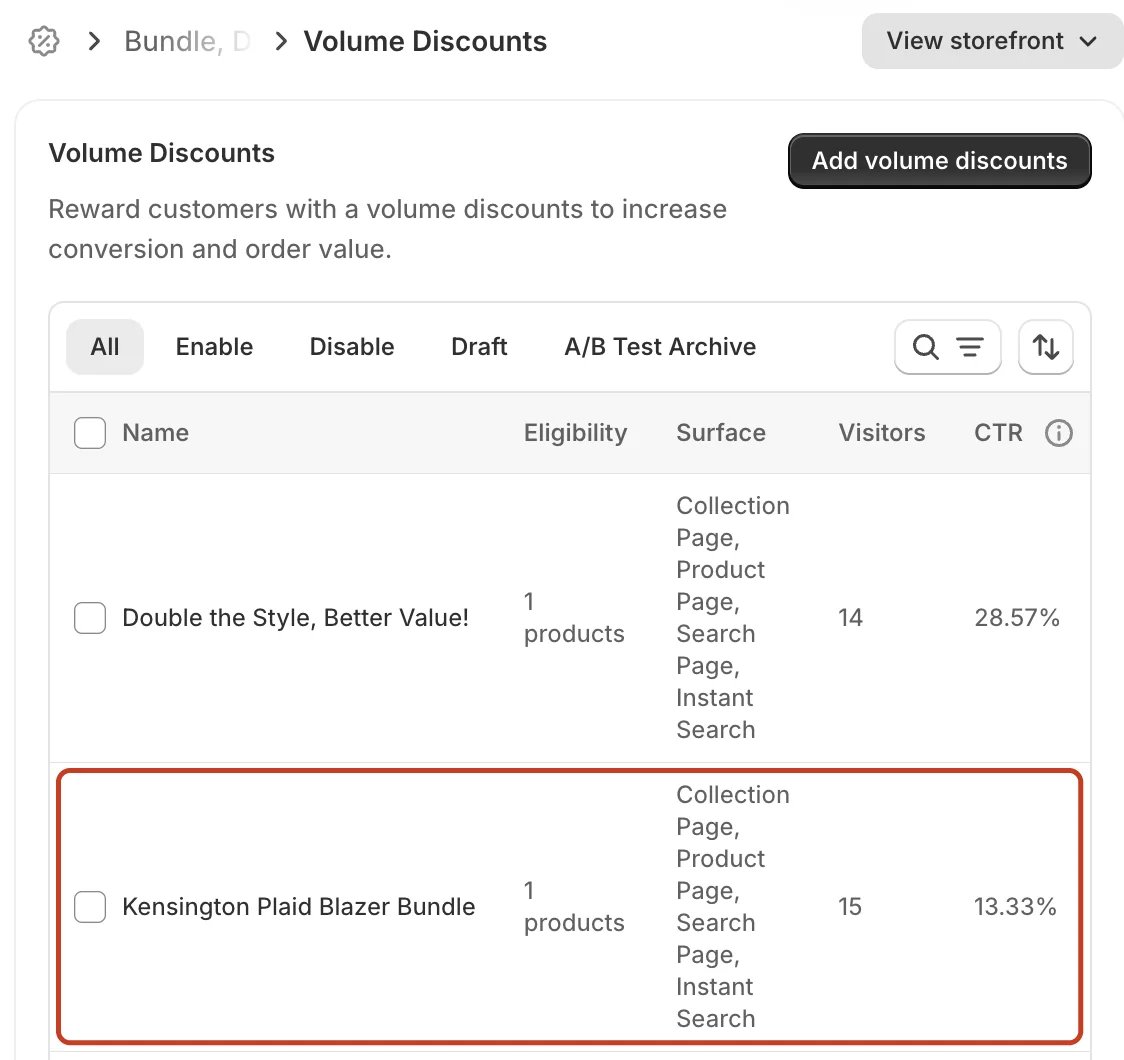
Step 2: Keep only the Instant Search surface on
Under Surfaces, turn off Collection Page, Product Page and Search Page, and turn on Instant Search. Under Instant search targeting, choose which searches show the offer: All searches, Only specific searches or Popular searches only. In this example we use Only specific searches with the search query Kensington.
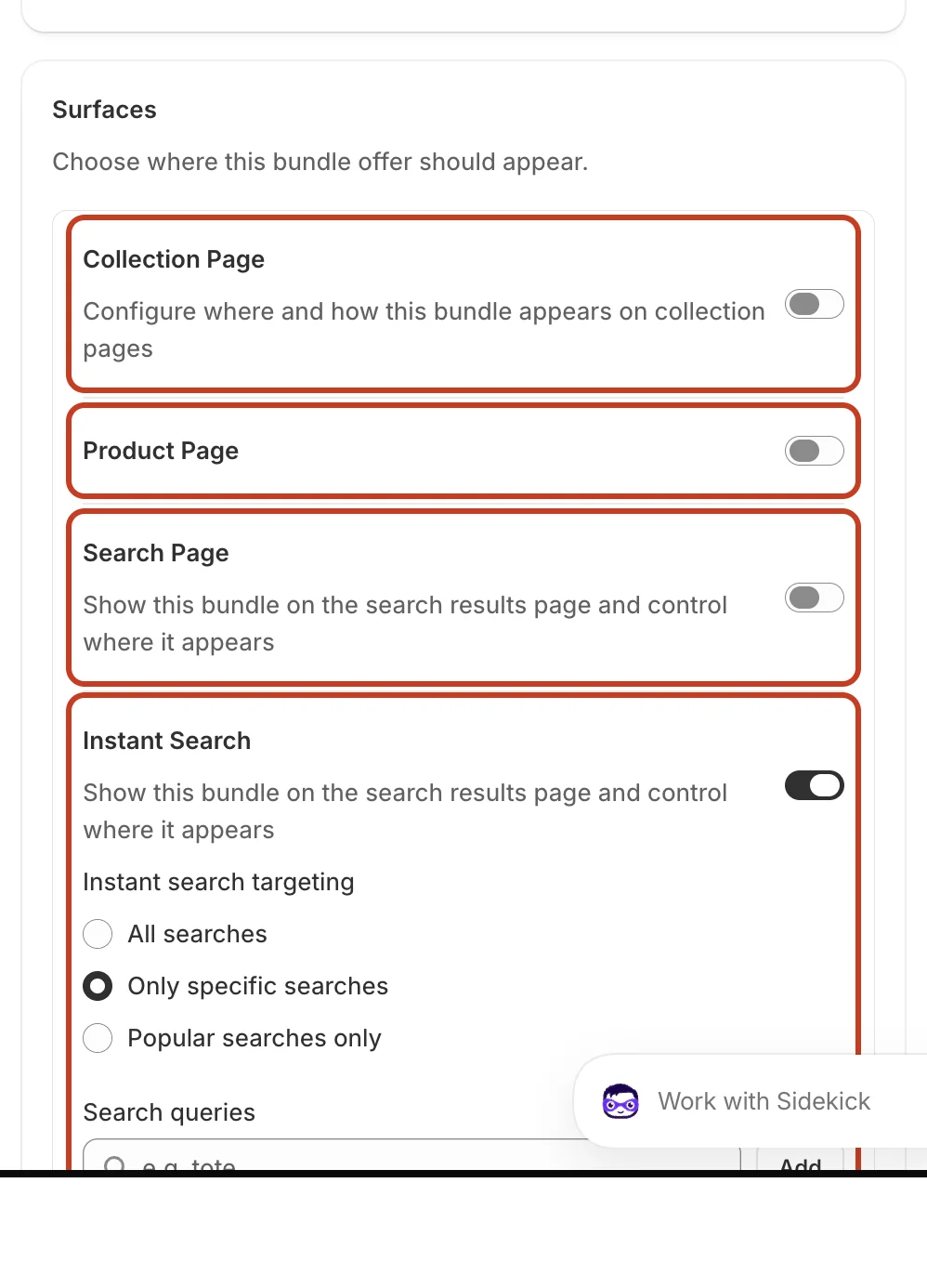
Step 3: Select the Instant search surface in the preview
Scroll down to the Preview section. Click the Select surface icon and choose Instant search. The page jumps to the Position options of the Instant Search surface.
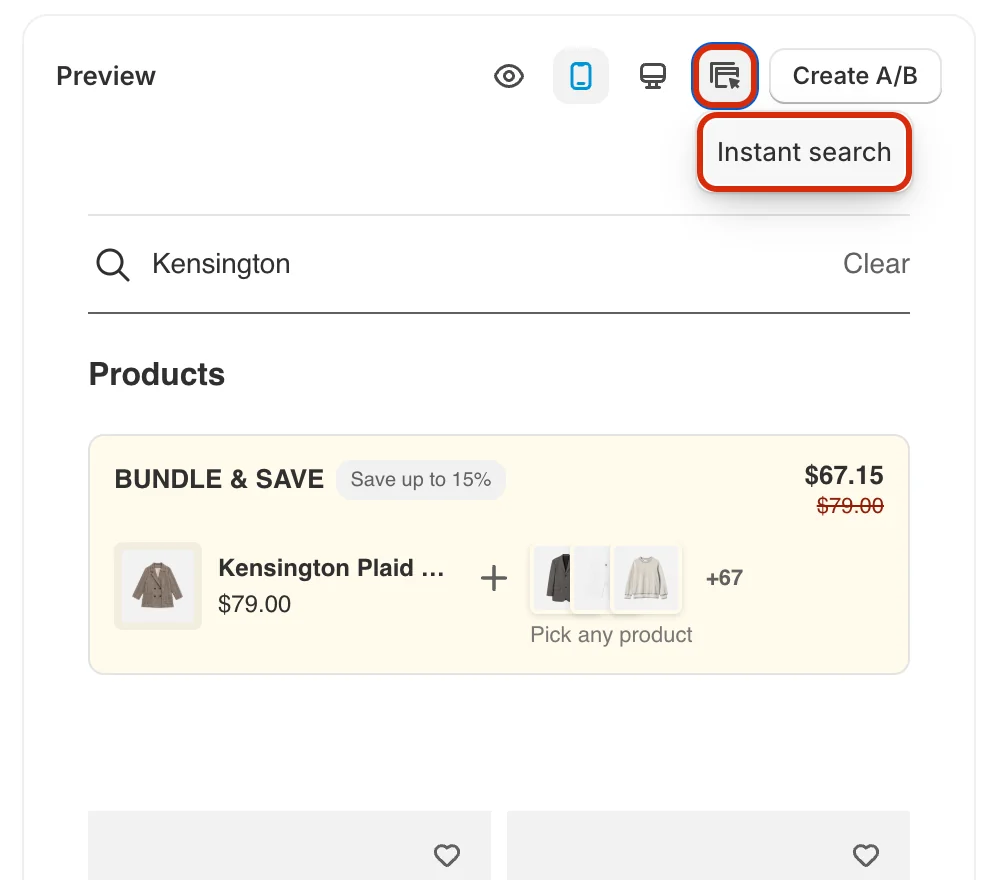
Step 4: Choose First item
Under Position, click Choose next to First item. The row is marked Current layout and the button changes to Chosen.
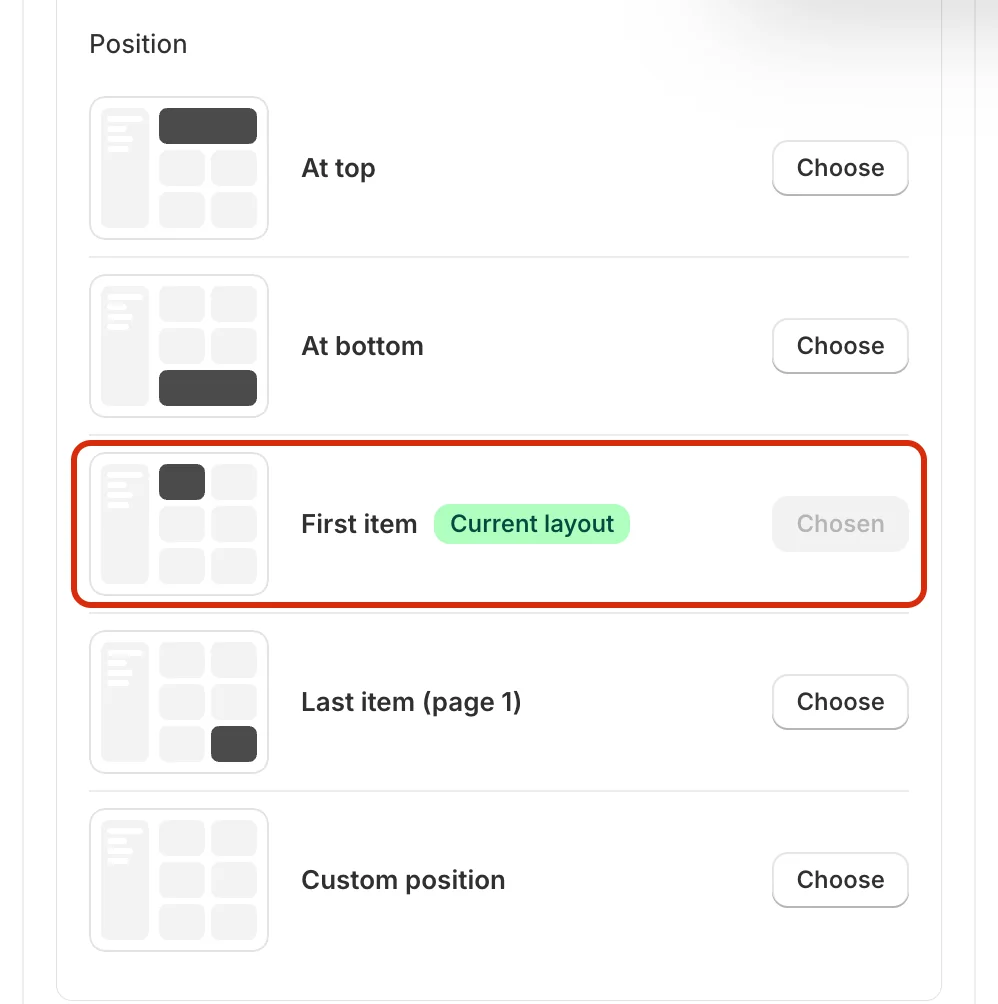
Step 5: Check the result in Desktop view
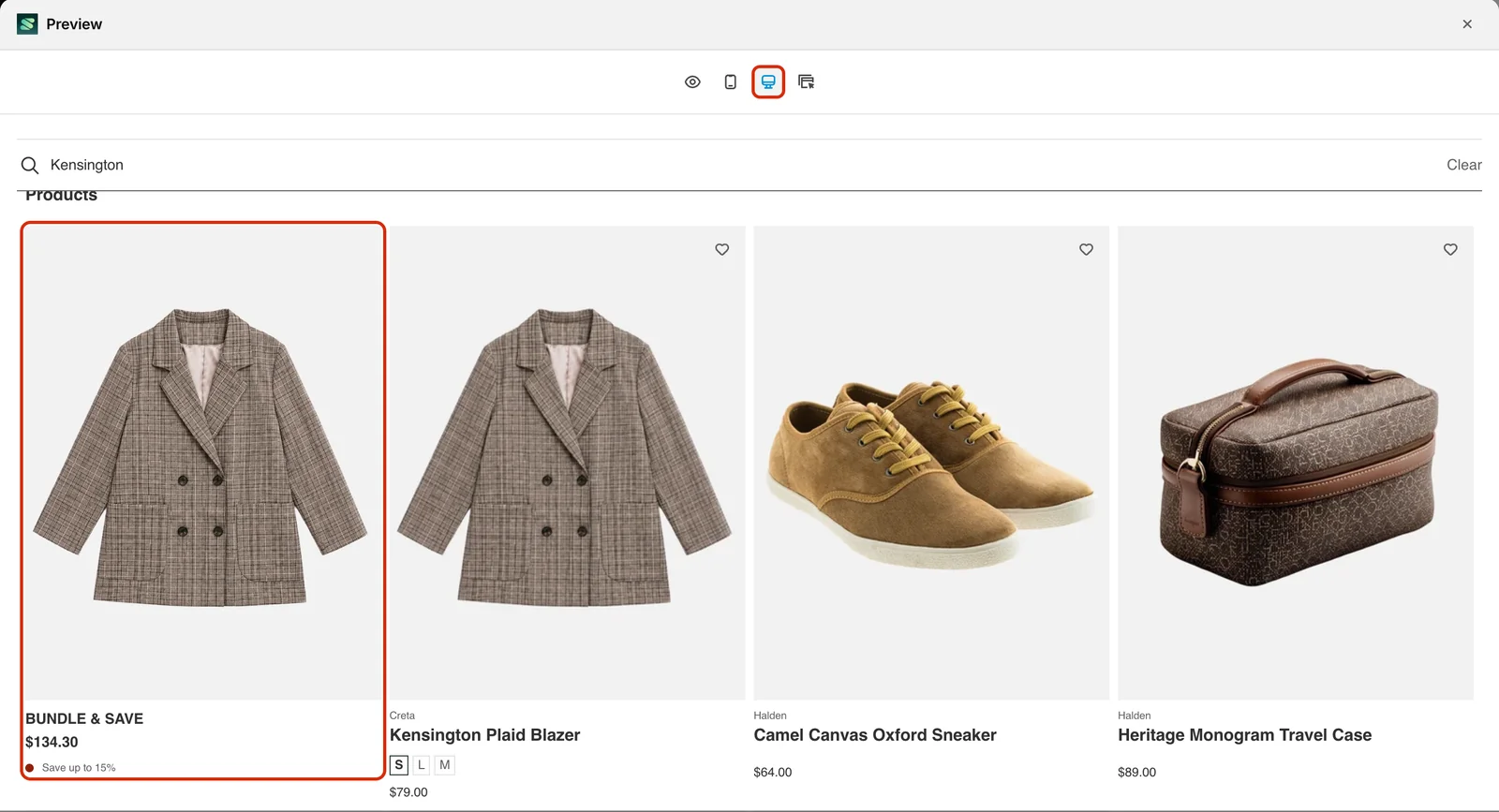
Go back to the Preview section and click the Desktop view icon. The preview opens in a larger window and shows the instant search results for your query (here, Kensington). The offer appears as a BUNDLE & SAVE card in the first slot of the results, before the Kensington Plaid Blazer product. It shows the bundle price ($134.30) and the Save up to 15% label.
Step 6: Save the offer
When you are happy with the placement, click Save in the bar at the top of the page. Then type one of the targeted queries in your storefront search bar to check that the offer appears in the position you chose.

Related
- How to Set Up a Volume discount as the Last Item on the instant search?
- How to Set Up a Volume discount at the Top of the instant search?
- How to Set Up a Volume discount at the Bottom of the instant search?
- How to Set Up a Volume discount as the First Item on the Collection Page?
- How to Set Up a Volume discount as the First Item on the Search Page?
- How to Create a Volume Discount in Sledge?
Last updated on
How to Set Up a Volume discount as the First Item on the Collection Page?
The First item position shows your Volume discount offer as a product-style card in the first slot of the collection page grid, ahead of the regular products.
How to Set Up a Volume discount as the First Item on the Search Page?
The First item position shows your Volume discount offer as a product-style card in the first slot of the search page grid, ahead of the regular products.