
How do I set up AI-Powered Synonyms?
Synonyms let customers find products even when they use different words — a search for “tshirt” can still find your “Polo Shirt”. Sledge builds this in two ways: the AI Synonym tab generates synonym a
Synonyms let customers find products even when they use different words — a search for “tshirt” can still find your “Polo Shirt”. Sledge builds this in two ways: the AI Synonym tab generates synonym and typo variations automatically from your store data, and the Manual Synonym tab lets you add your own rules for anything the AI doesn’t cover.
Before you start
Synonyms are applied when Sledge handles the search on your storefront, so two things must already be in place:
- Sledge Core is enabled on your theme. Sledge Core is the app embed that loads Sledge on your storefront — without it, nothing Sledge does (including synonyms) reaches your customers. You enable it during onboarding (Enable in theme), or any time via Online Store → Themes → Customize → App embeds → Sledge Core.
- Instant Search and Search Result Page are turned on. Open Sledge → Tools → Search and check the two switches at the top. Synonyms apply to both surfaces: the instant results panel that opens while a customer types, and the full search results page. At least the surface you use must be on — with both off, there is no Sledge search for the synonyms to improve.
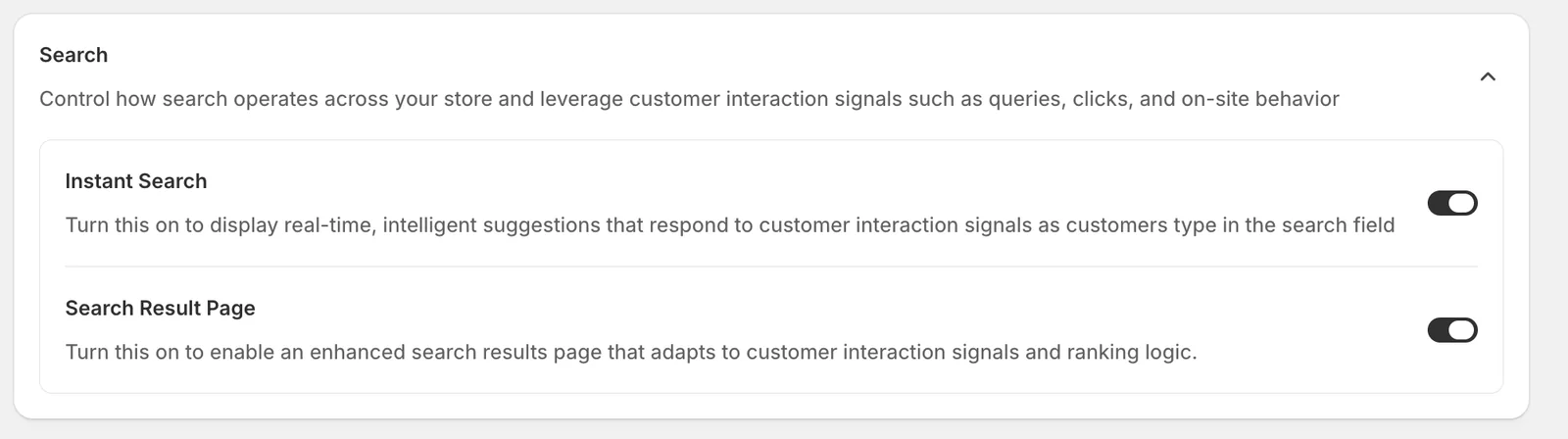
Open AI-Powered Synonyms
Go to Sledge → Tools → Search, and under Features click AI-Powered Synonyms.

The page has two tabs — AI Synonym and Manual Synonym. Each is explained below.
The AI Synonym tab
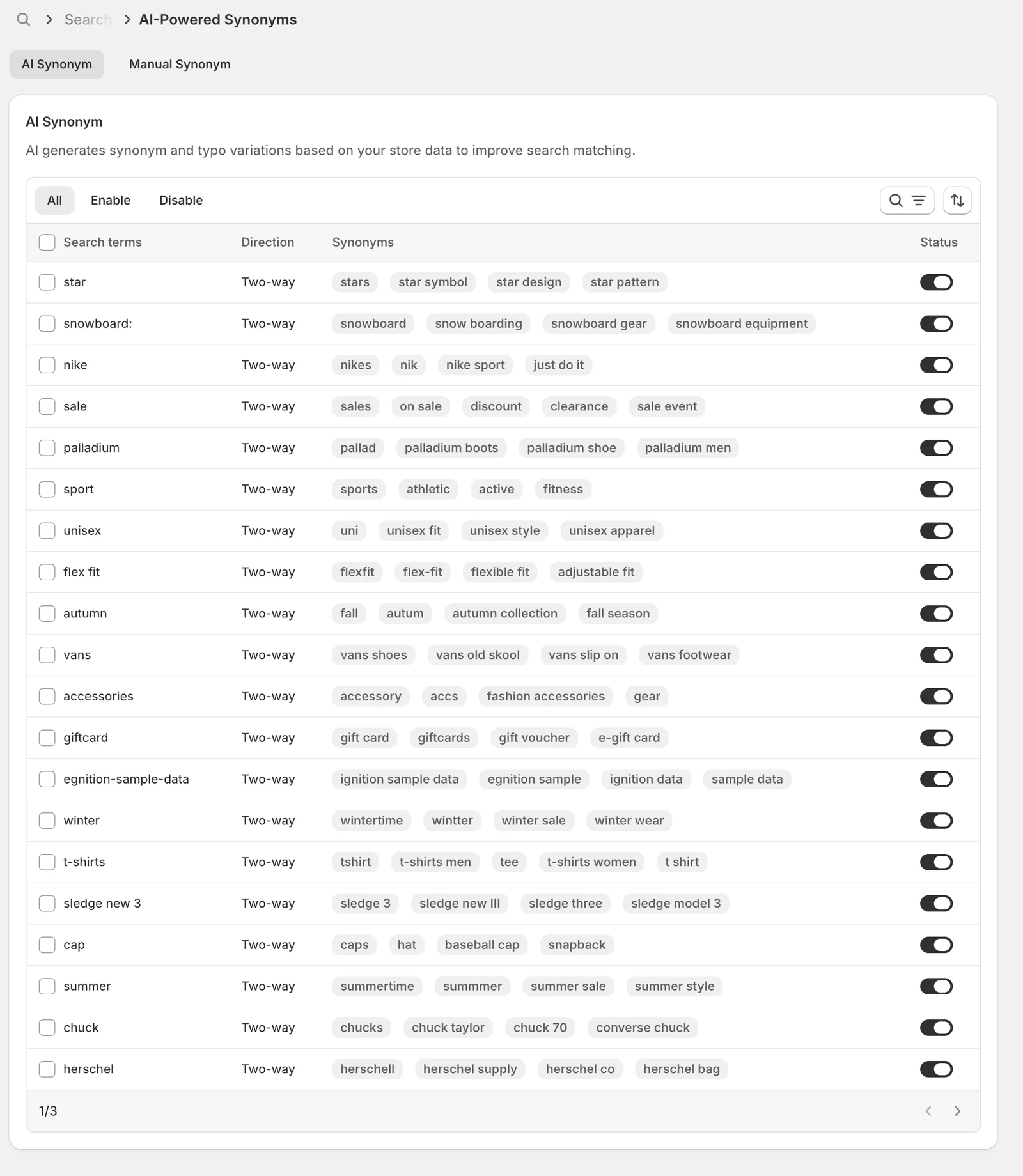
On the AI Synonym tab, Sledge automatically generates synonym and typo variations from your store data — product names, collections, and brand terms. There is nothing to set up: the list fills on its own and is applied to search right away. AI Synonym is part of the Pro plan; on the Free plan this tab shows a locked state with a Switch plan button.
Each row shows:
- Search terms — the base word the rule is built around.
- Direction — AI-generated rules are Two-way: every term in the rule finds the others.
- Synonyms — the generated variations, including common typos (for example winter → wintertime, wintter, winter sale).
- Status — a switch per rule. If a generated rule doesn’t fit your store, switch it off; you don’t have to delete it.
Above the table you can filter by All / Enable / Disable, search the list, and sort. Selecting rows with the checkboxes opens bulk actions to Deactivate or Delete synonyms.
Add a manual synonym
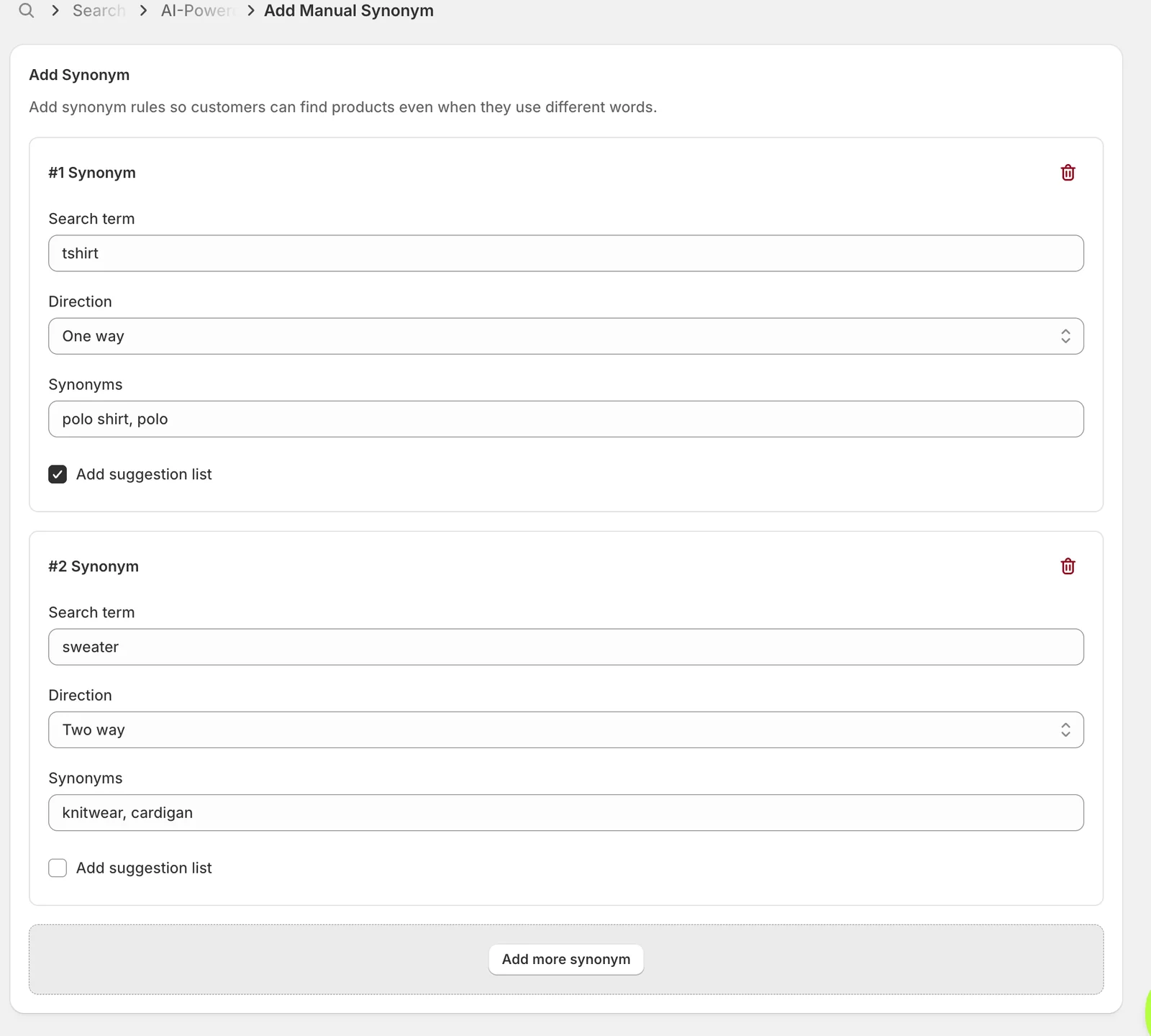
Open the Manual Synonym tab and click Add manual synonym. Each numbered card is one synonym rule, with four settings:
Search term
The word your customers actually type. In the example above, the first rule uses tshirt — a word customers use even though the store’s products are named “Polo Shirt”.
Direction
Controls which way the rule applies:
- One way — searching the Search term also finds products matching the Synonyms, but not the reverse. In the example: searching tshirt finds “polo shirt” products, but searching polo is not affected by this rule. Use this when the search term is a customer word that doesn’t appear in your catalog.
- Two way — the search term and every synonym are fully interchangeable; any of them finds the others. In the example: sweater, knitwear, and cardigan all find each other’s products. Use this for words that genuinely mean the same thing in your catalog.
Synonyms
The list of words the rule connects to the search term, separated by commas — for example polo shirt, polo. Both the Search term and at least one synonym are required before you can save.
Add suggestion list
Tick this to also add the search term to your Suggestion Dictionary. The term can then be offered to customers as a suggestion in Instant Search (for example under Popular searches) — useful when you want to actively steer customers toward a term you know returns good results.
Use Add more synonym at the bottom to add several rules in one go (the trash icon removes a card), then click Save.
Manage your synonyms
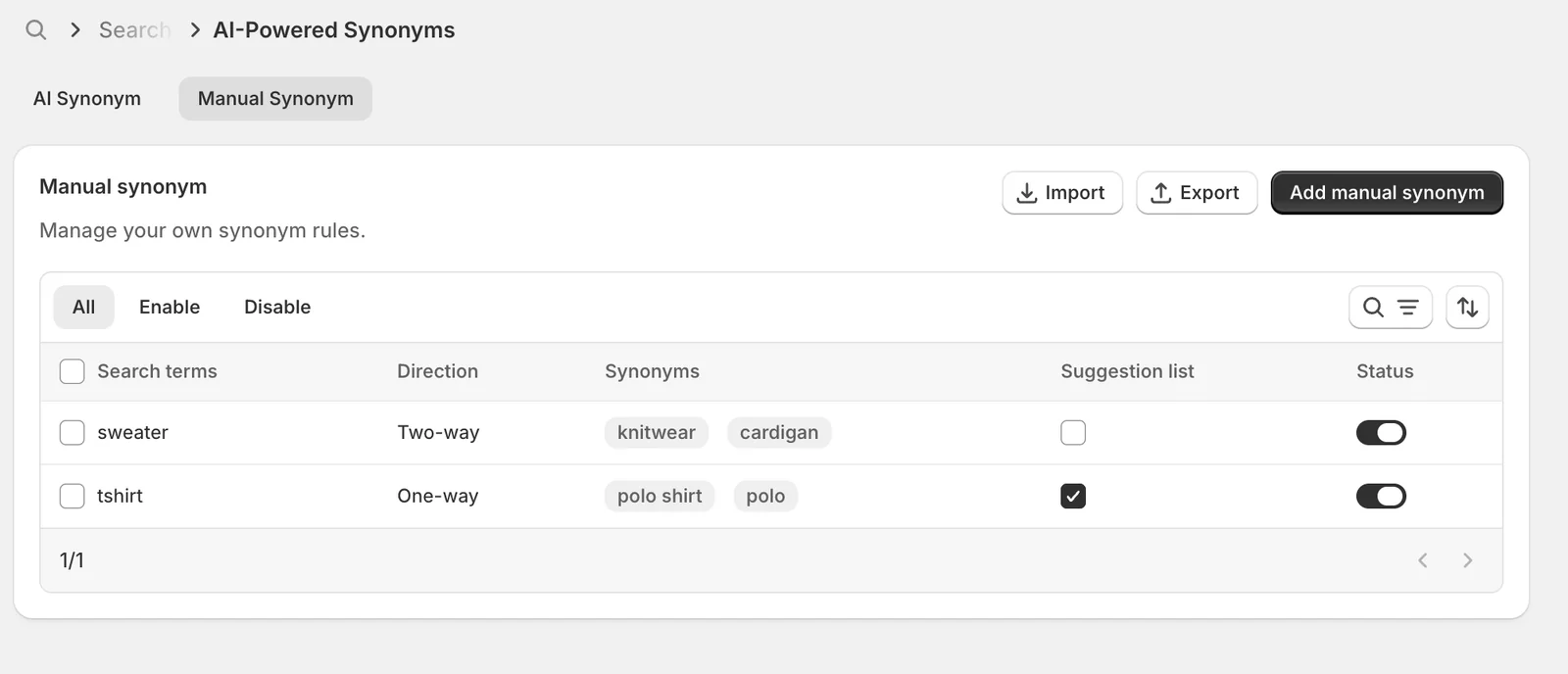
Saved rules appear in the Manual synonym list. From here you can:
- Edit a rule — click its row to open it.
- Suggestion list — tick or untick the checkbox directly in the list to add or remove the term from the Suggestion Dictionary.
- Status — switch a rule off to stop applying it without deleting it.
- Filter, search, and sort — the All / Enable / Disable tabs, the search icon, and the sort icon above the table.
- Bulk actions — select rows with the checkboxes to Deactivate or Delete synonyms in one action.
Import and export
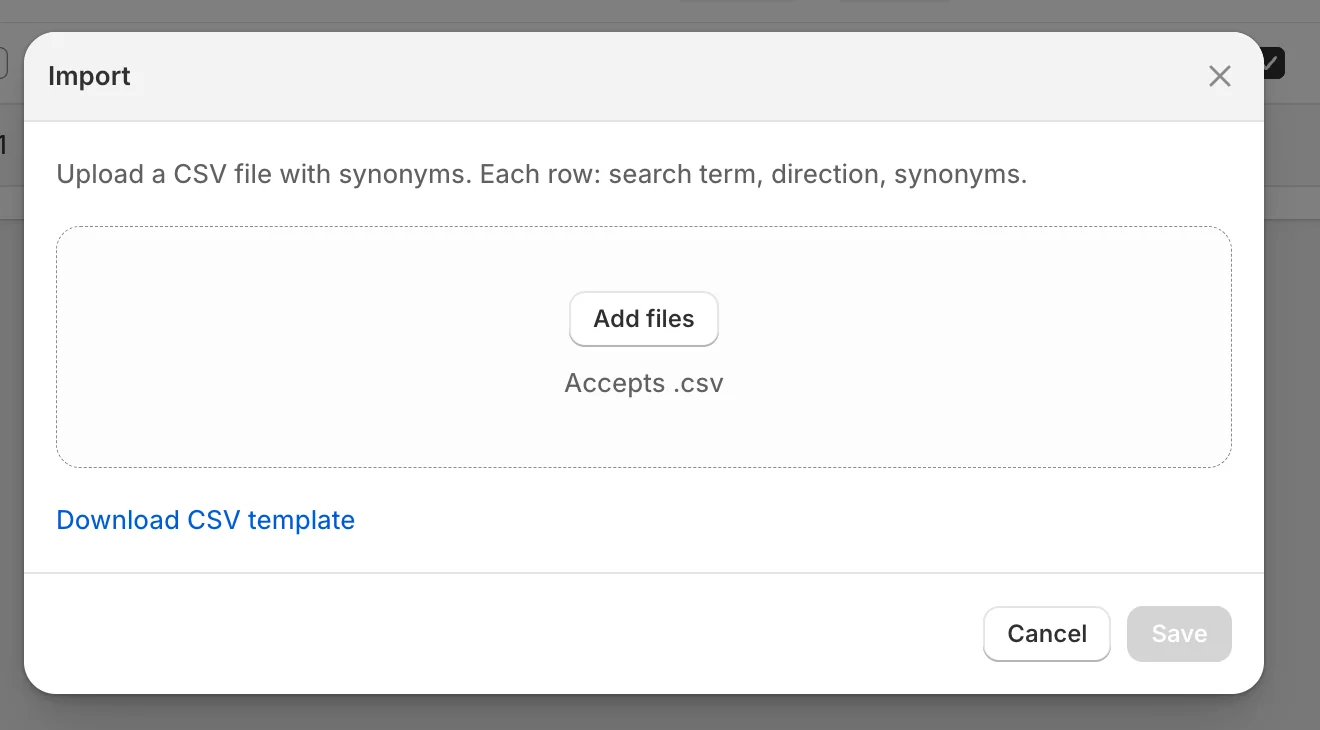
To manage rules in bulk, use Import and Export at the top of the Manual Synonym tab. Import accepts a CSV file where each row is search term, direction, synonyms — click Download CSV template in the modal for the exact format. Export downloads your current manual rules as a CSV, which is handy as a backup or for copying rules to another store.
Result
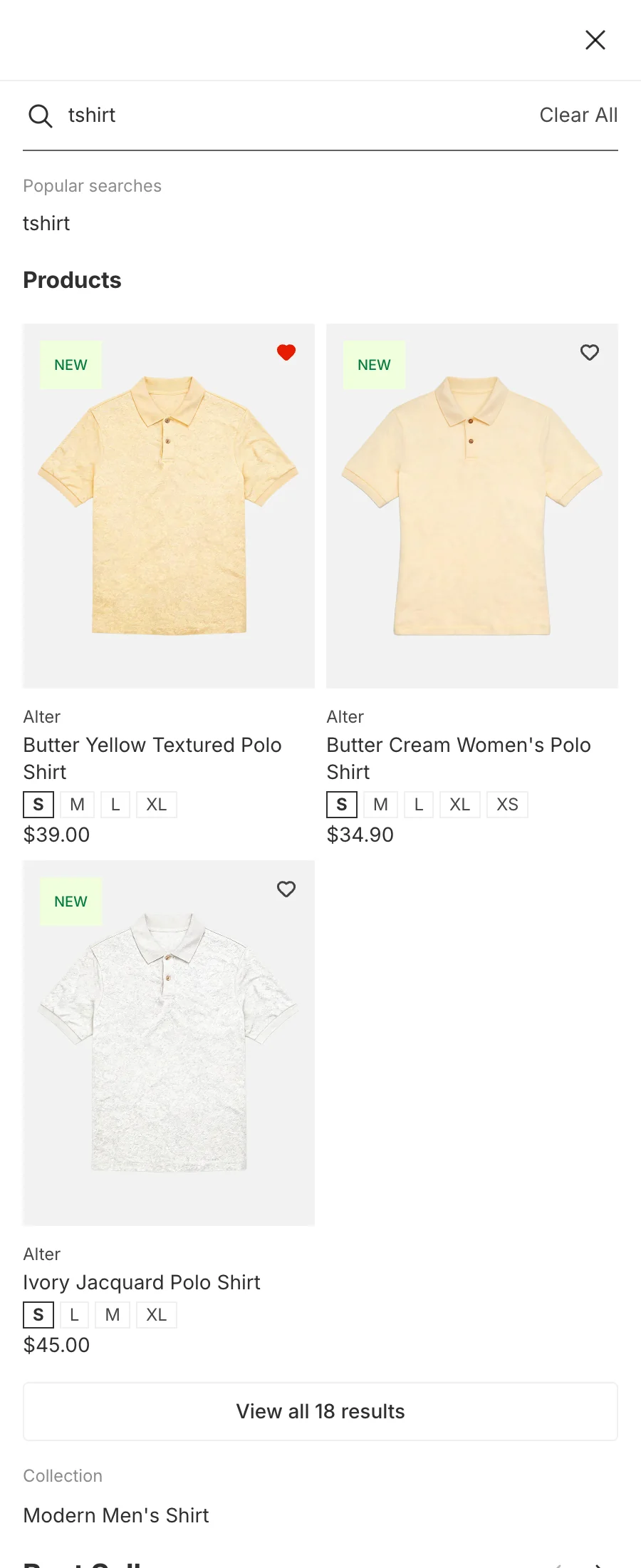
On the storefront, searching tshirt now returns the store’s Polo Shirts — the one-way rule connected a word customers type to products that don’t contain it. And because Add suggestion list was ticked, tshirt also appears as a suggestion under Popular searches.
Not showing up? Give the change about a minute to sync, then try the search again. Also confirm the rule’s Status is on, and that Sledge Core, Instant Search, and Search Result Page are enabled as described above.
Related
Last updated on
How do I set up Instant Search?
Instant Search is the panel that drops down under your store's search bar. It reacts as the customer types — showing matching products, collections and pages — so they can jump straight to what they w
How do I set up AI-Smart Search?
AI-Smart Search upgrades how Sledge matches a query to your products. Instead of only matching the exact words a customer types, it can also match by meaning — so a query that doesn’t literally appear