
How do I set up the Search Results Page?
The Search Results Page is the full page customers land on after they search. Configure which result types appear and what customers see when nothing matches.
The Search Results Page is the full page customers land on after they search. Configure which result types appear and what customers see when nothing matches.
Before you start — Sledge must be active on your theme. See Turn on Sledge.
Steps
-
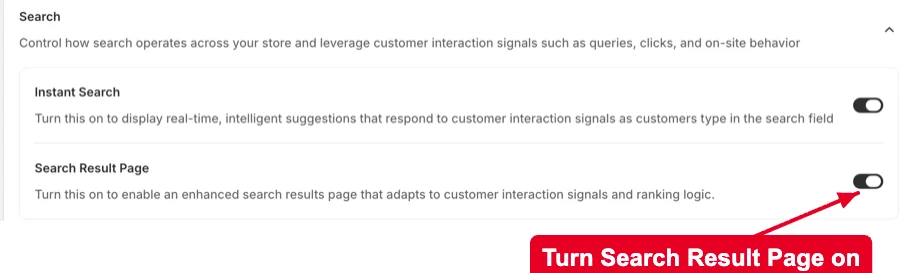
Go to Tools → Search and turn Search Result Page on.
-
Open Tools → Search → Search Page.
-
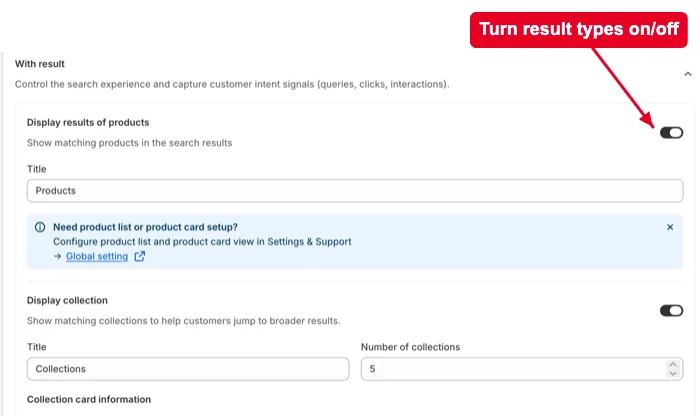
Under With result, choose which result types appear — Products, Collections, Pages, Blogs, and Articles. Set each one’s Title and how many to show, and pick the card details (image, description).
-
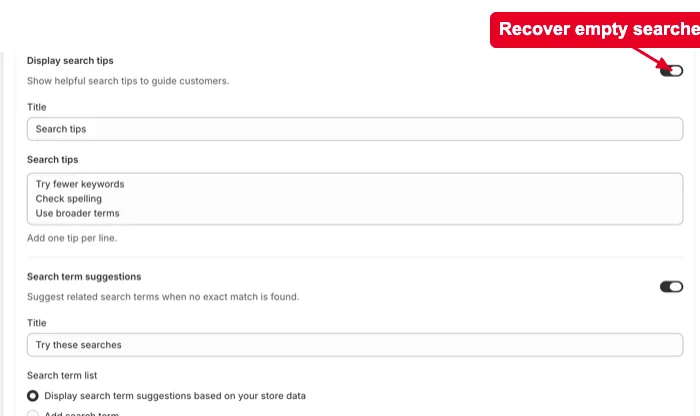
Under No result, set what customers see when a search returns nothing — a message, Search tips, Search term suggestions, and Most popular products to keep them shopping.
-
Click View storefront to check it in place, then Save.
Result
Done. Your search results page now shows the result types you enabled, and guides customers with tips and popular products when a search comes up empty.
Not showing up? Confirm Search Result Page is turned on in Tools → Search, and that Sledge is active on your theme. Storefront changes can take about a minute to sync.
Related
Last updated on
How do I set up Stop Words?
Stop words are common filler words — “the”, “for”, “from” — that carry no meaning in a search. Left alone, they can dilute results: a search for “shirts for men” shouldn’t rank products by how well th
How do I create a suggestion dictionary?
The Suggestion Dictionary is your own list of search phrases. Sledge offers these phrases to customers as clickable shortcuts — before they type, while they type, and when a search returns nothing.