
How do I set up AI-Smart Search?
AI-Smart Search upgrades how Sledge matches a query to your products. Instead of only matching the exact words a customer types, it can also match by meaning — so a query that doesn’t literally appear
AI-Smart Search upgrades how Sledge matches a query to your products. Instead of only matching the exact words a customer types, it can also match by meaning — so a query that doesn’t literally appear in your product text can still find the right products. You choose how far that goes with a single Search Mode setting.
Before you start
This feature only takes effect when Sledge handles the search on your storefront, so two things must already be in place:
- Sledge Core is enabled on your theme. Sledge Core is the app embed that loads Sledge on your storefront — without it, nothing Sledge does reaches your customers. You enable it during onboarding (Enable in theme), or any time via Online Store → Themes → Customize → App embeds → Sledge Core.
- Instant Search and Search Result Page are turned on. Open Sledge → Tools → Search and check the two switches at the top. At least the surface you use must be on — with both off, there is no Sledge search for this feature to act on.
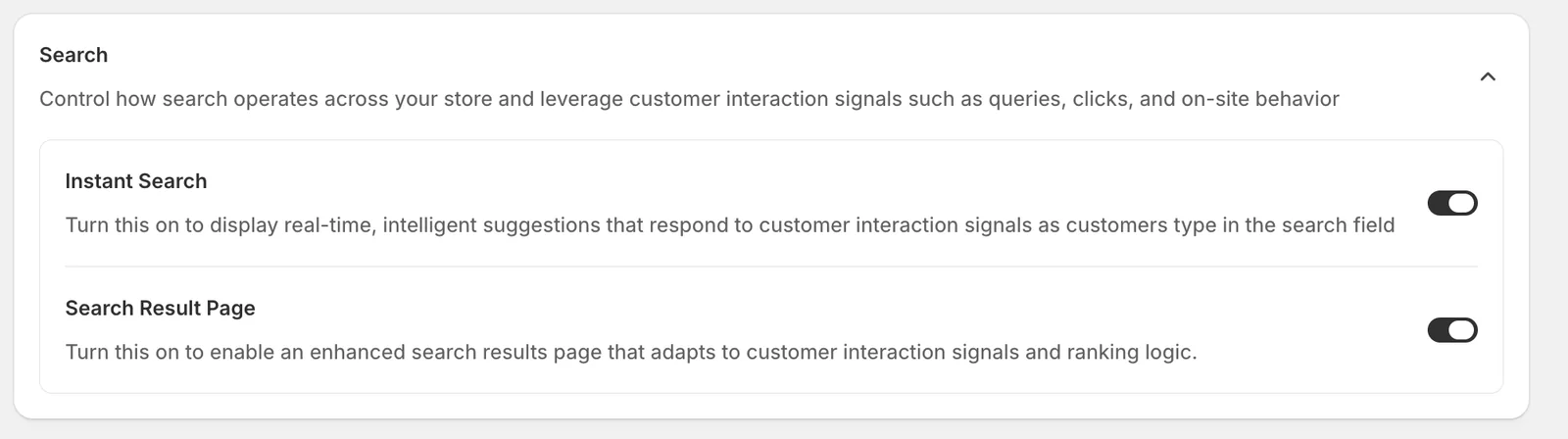
Open AI-Smart Search
Go to Sledge → Tools → Search, and under Features click AI-Smart Search. AI-Smart Search is part of the Pro plan — on the Free plan the page shows a locked state with a link to switch plans.
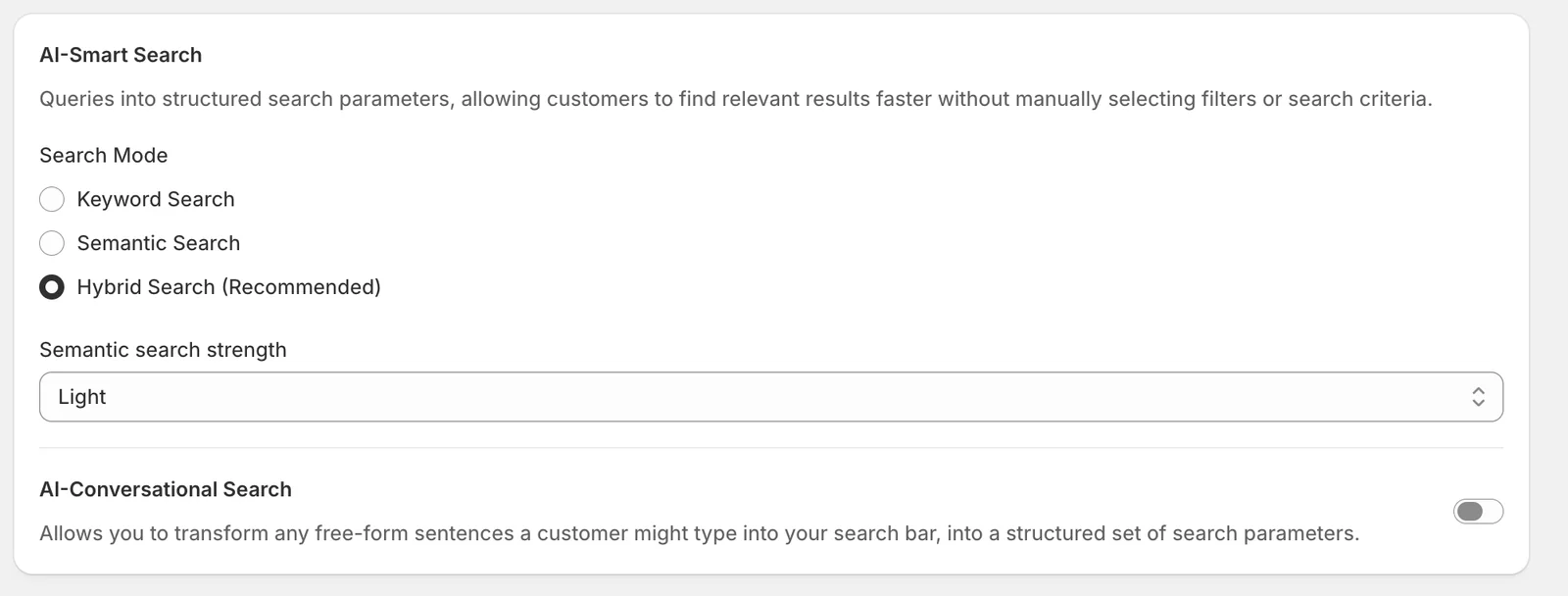
Search Mode
Controls how queries are matched against your catalog:
- Keyword Search — classic word matching only. A product is found when the query’s words (or their synonyms) appear in its fields. The most predictable mode, and the right choice if you want zero surprises in what a query returns.
- Semantic Search — matching by meaning only. The query and your products are compared as concepts, so “outerwear for cold days” can find coats even though no product says that. Results are broader and less literal.
- Hybrid Search (Recommended) — both at once: exact keyword matches rank first-class, and semantic matches fill in for queries your product text doesn’t cover literally. This is the recommended mode for most stores.
Semantic search strength
This select appears only when Hybrid Search is chosen, and controls how much the semantic side influences results in the blend:
- Light — keyword matches dominate; semantic matches only assist when keywords find little. The safest setting to start with.
- Balanced — an even blend of keyword and semantic relevance.
- Strong — semantic similarity weighs heavily, giving the most conceptual results.
AI-Conversational Search
A separate switch below the divider. When enabled, free-form sentences a customer types into the search bar — like “show me blue shirts under $50” — are transformed into a structured set of search parameters (query, filters, criteria) instead of being matched word-for-word. Leave it off if you prefer every query to be treated literally.
When you change any of these settings, a save bar appears at the top — click Save to apply, or Discard to revert.
Result
Searches on your storefront now use the mode you chose. With Hybrid on, exact queries (product names, SKUs) behave as before, while conceptual queries that used to return nothing start surfacing relevant products. If results ever feel too loose, lower the semantic strength — if too literal, raise it.
Not showing up? Give the change about a minute to sync, then try the search again. Also confirm that Sledge Core, Instant Search, and Search Result Page are enabled as described above.
Related
Last updated on
How do I set up AI-Powered Synonyms?
Synonyms let customers find products even when they use different words — a search for “tshirt” can still find your “Polo Shirt”. Sledge builds this in two ways: the AI Synonym tab generates synonym a
How do I set up Field Priority?
When a customer’s search matches several products, where the match happens matters: a match in a product’s title should usually count for more than a match buried in its description. Field Priority le