
How do I set up Field Priority?
When a customer’s search matches several products, where the match happens matters: a match in a product’s title should usually count for more than a match buried in its description. Field Priority le
When a customer’s search matches several products, where the match happens matters: a match in a product’s title should usually count for more than a match buried in its description. Field Priority lets you choose exactly which product fields are searched and in what order of importance.
Before you start
This feature only takes effect when Sledge handles the search on your storefront, so two things must already be in place:
- Sledge Core is enabled on your theme. Sledge Core is the app embed that loads Sledge on your storefront — without it, nothing Sledge does reaches your customers. You enable it during onboarding (Enable in theme), or any time via Online Store → Themes → Customize → App embeds → Sledge Core.
- Instant Search and Search Result Page are turned on. Open Sledge → Tools → Search and check the two switches at the top. At least the surface you use must be on — with both off, there is no Sledge search for this feature to act on.
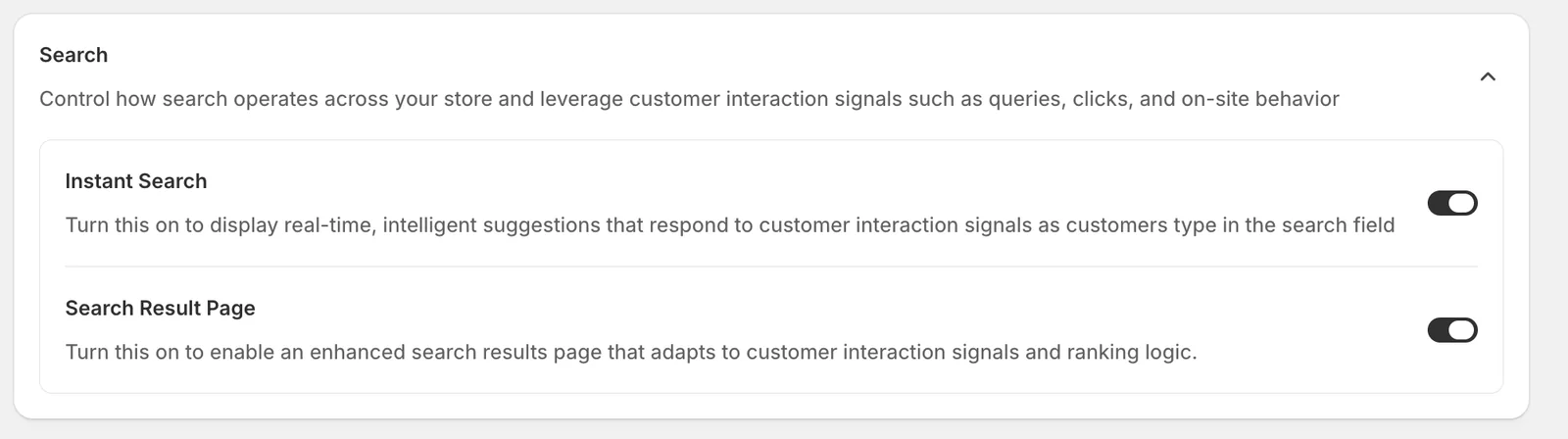
Open Field Priority
Go to Sledge → Tools → Search, and under Features click Field Priority. The whole feature is one table:
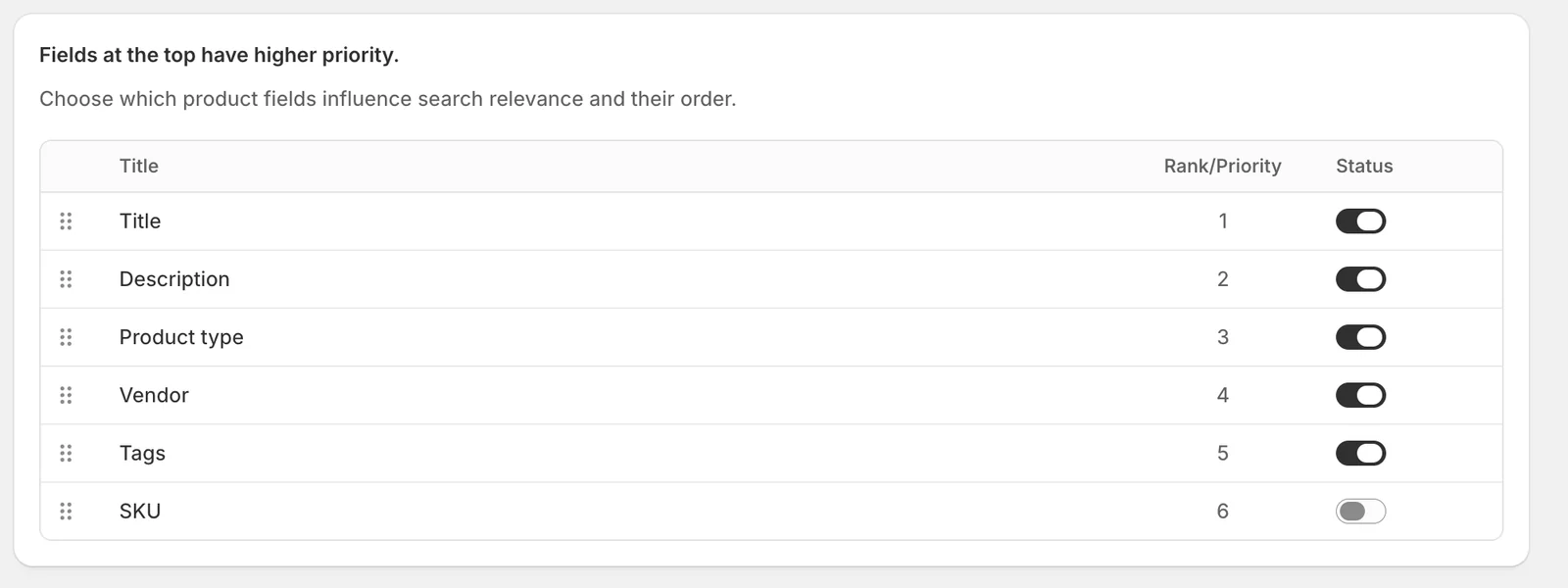
The field list
Each row is a product field Sledge can search: Title, Description, Product type, Vendor, Tags, and SKU. Fields at the top of the list have the higher priority — in the example above, a query that matches a product’s Title outranks one that only matches its Tags.
Rank / Priority — drag to reorder
Grab the handle on the left of a row and drag it up or down. The Rank/Priority number updates automatically; 1 is the most important field. Put the fields your customers actually search for (usually Title) at the top.
Status — enable or disable a field
The switch on the right controls whether the field is searched at all. Disable fields that create noise for your store — for example, turn off Description if long descriptions cause loosely-related products to appear, or off SKU if your SKUs are internal codes customers never type. At least one field must stay enabled — if you disable them all, Sledge shows an “Enable at least one field.” banner and blocks the save.
When you change the order or a status, a save bar appears at the top — click Save to apply, or Discard to revert.
Result
Search relevance on your storefront now follows your order. The change is most visible on queries that match different products in different fields: products matching in a high-priority field rise to the top, and disabled fields stop producing matches entirely.
Not showing up? Give the change about a minute to sync, then try the search again. Also confirm that Sledge Core, Instant Search, and Search Result Page are enabled as described above.
Related
Last updated on
How do I set up AI-Smart Search?
AI-Smart Search upgrades how Sledge matches a query to your products. Instead of only matching the exact words a customer types, it can also match by meaning — so a query that doesn’t literally appear
How do I set up Personalization?
Personalization tailors search results to each customer based on what they have searched, clicked, added to cart, and bought. Two customers typing the same query can see the same products in a differe