
How do I set up Stop Words?
Stop words are common filler words — “the”, “for”, “from” — that carry no meaning in a search. Left alone, they can dilute results: a search for “shirts for men” shouldn’t rank products by how well th
Stop words are common filler words — “the”, “for”, “from” — that carry no meaning in a search. Left alone, they can dilute results: a search for “shirts for men” shouldn’t rank products by how well they match the word “for”. Add them as stop words and Sledge ignores them during matching, keeping results focused on the words that matter.
Before you start
This feature only takes effect when Sledge handles the search on your storefront, so two things must already be in place:
- Sledge Core is enabled on your theme. Sledge Core is the app embed that loads Sledge on your storefront — without it, nothing Sledge does reaches your customers. You enable it during onboarding (Enable in theme), or any time via Online Store → Themes → Customize → App embeds → Sledge Core.
- Instant Search and Search Result Page are turned on. Open Sledge → Tools → Search and check the two switches at the top. At least the surface you use must be on — with both off, there is no Sledge search for this feature to act on.
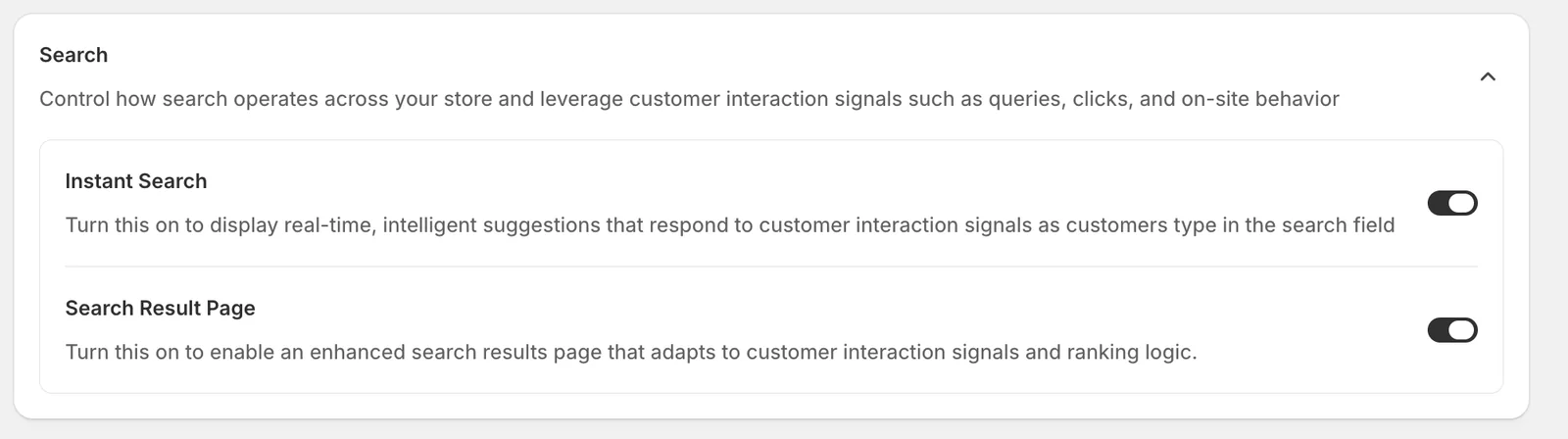
Open Stop Word
Go to Sledge → Tools → Search, and under Features click Stop Word, then click Add Word.
Add stop words
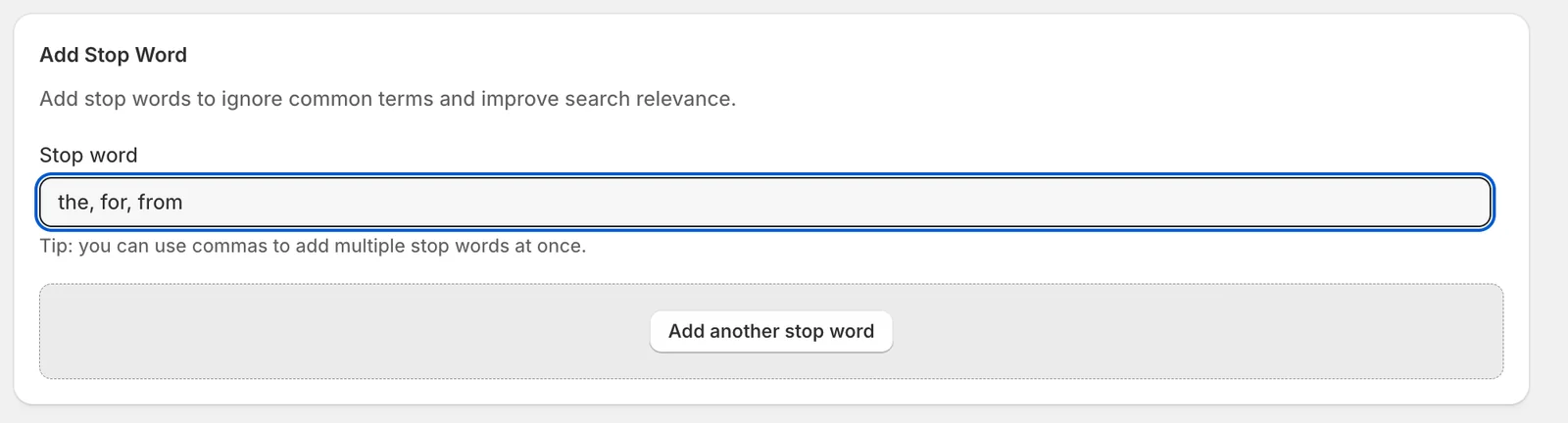
Stop word
Type the word to ignore. You can add several at once by separating them with commas — “the, for, from” above creates three stop words in one save. Use Add another stop word for extra fields if you prefer one per field, then click Save.
Manage your stop words
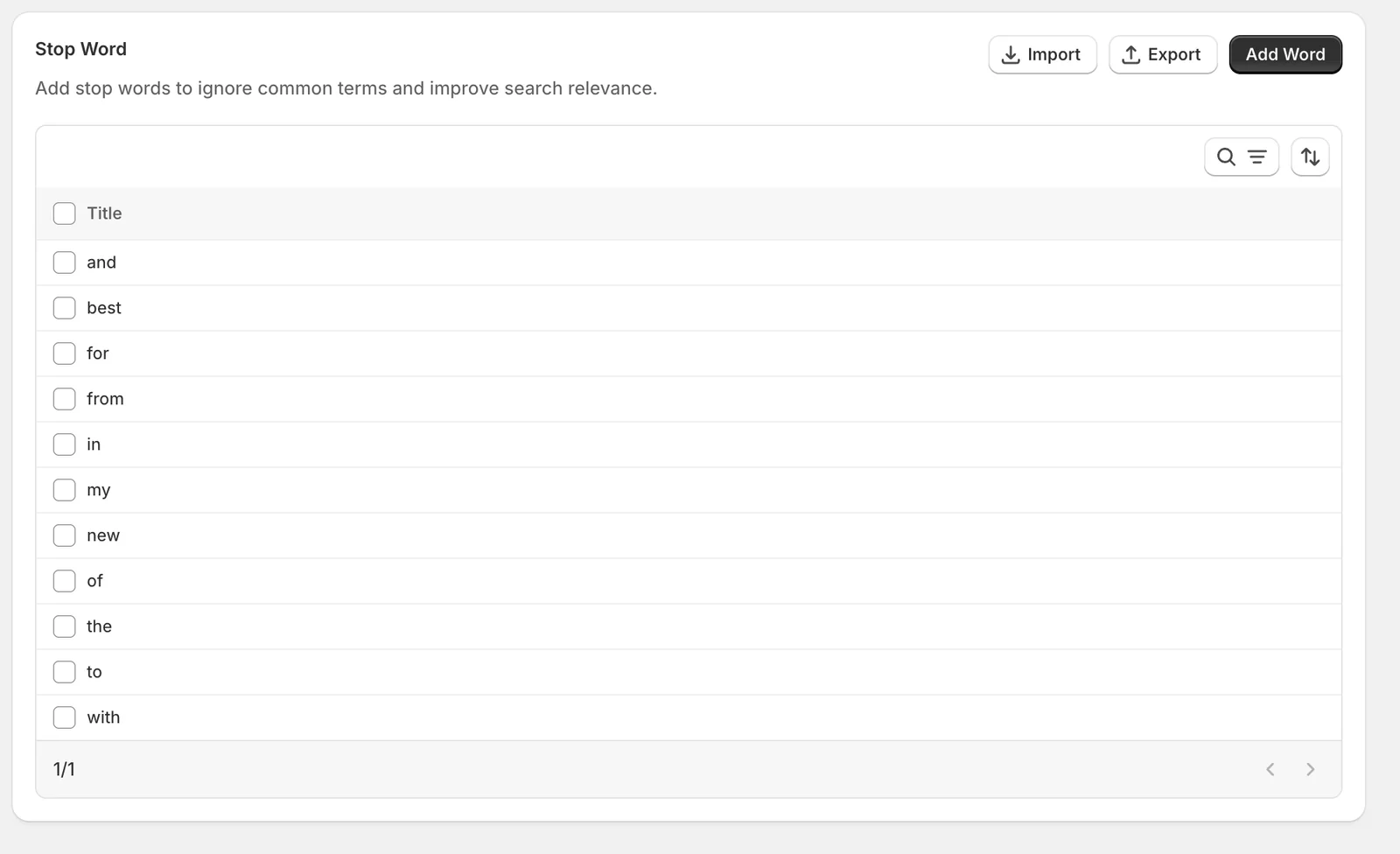
All stop words appear in one list. From here you can:
- Edit — click a word to open and change it.
- Delete — select words with the checkboxes and use the Delete stop words bulk action.
- Search and sort — the icons above the list, useful once the list grows long.
- Import / Export — manage the list in bulk as a CSV file. Import accepts a CSV of words (click Download CSV template in the modal for the format), and Export downloads your current list — handy as a backup or for copying to another store.
Result
On the storefront, a search for “the polo” now behaves exactly like a search for “polo” — the stop word is ignored and the polo shirts rank on the word that matters:
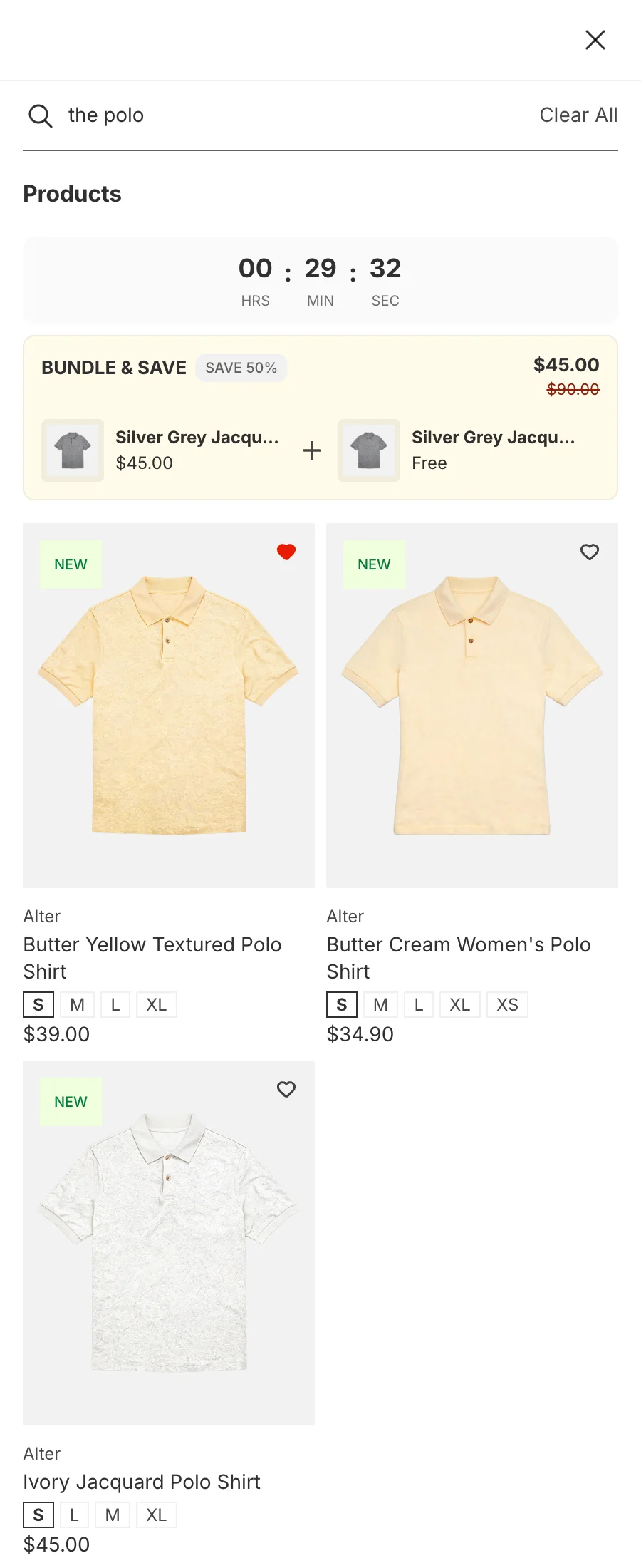
Not showing up? Give the change about a minute to sync, then try the search again. Also confirm that Sledge Core, Instant Search, and Search Result Page are enabled as described above.
Related
Last updated on
How do I set up Redirects?
Sometimes the best answer to a search isn’t a list of products — it’s a specific page. A redirect sends a search query straight to a URL you choose: “polos” to your polo collection, “shipping” to your
How do I set up the Search Results Page?
The Search Results Page is the full page customers land on after they search. Configure which result types appear and what customers see when nothing matches.