
How do I create a suggestion dictionary?
The Suggestion Dictionary is your own list of search phrases. Sledge offers these phrases to customers as clickable shortcuts — before they type, while they type, and when a search returns nothing.
The Suggestion Dictionary is your own list of search phrases. Sledge offers these phrases to customers as clickable shortcuts — before they type, while they type, and when a search returns nothing.
It is worth being precise about what it does, because this is the part merchants most often get wrong: the dictionary does not change which products a search finds. It changes which words Sledge puts in front of the customer. Think of it as writing the menu, not rewriting the recipe.
Before you start
Two things must already be switched on, or nothing you add here will reach your storefront.
1. Sledge Core must be enabled in your theme
Sledge Core is the app embed that loads Sledge on your storefront. Without it no Sledge feature renders at all. If you have not done this yet, follow How to Enable Sledge Core and Complete the Initial Setup first, then come back here.
You can tell it is missing: a yellow Enable Sledge Core banner appears at the top of the app with an Enable Now button.
2. Instant Search and Search Result Page must be on
Go to Tools → Search and check the two switches in the first card.
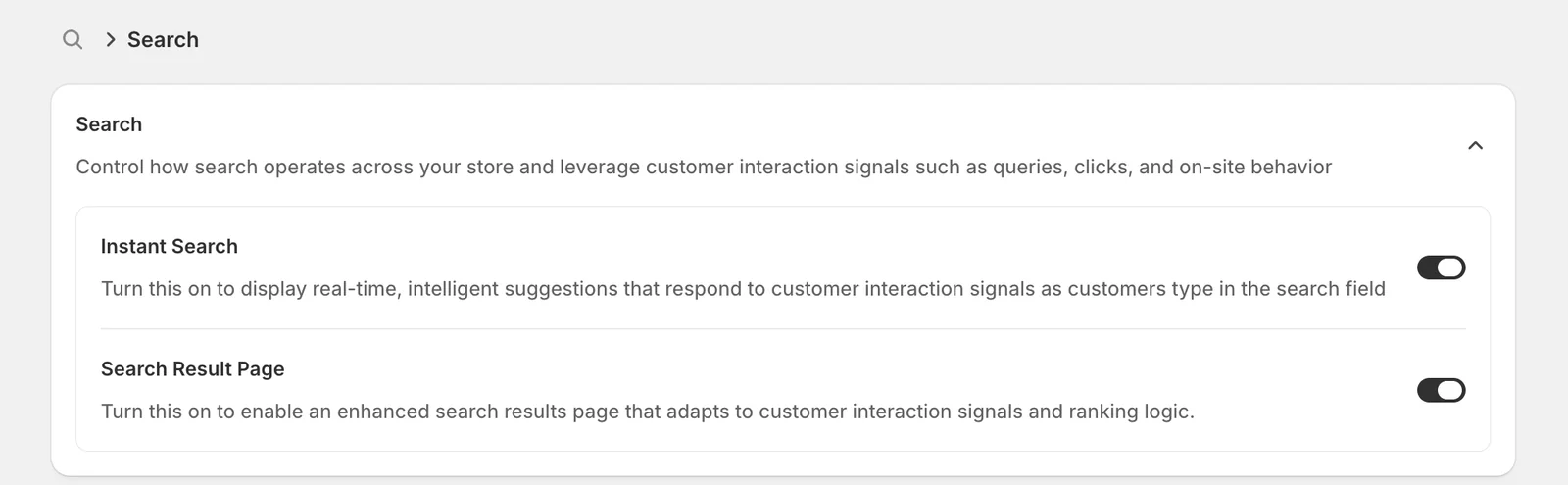
Instant Search is the drop-down panel under your search bar — that is where suggestions actually appear, so this one is essential. Search Result Page is the full results page a customer lands on after clicking a suggestion; leave it off and they drop onto your theme's default page instead. Turn both on. They save the moment you flip them.
Step 1 — Open the Suggestion Dictionary
Go to Tools → Search, scroll to the Features list, and click Suggestion Dictionary. On a new store the list is empty.
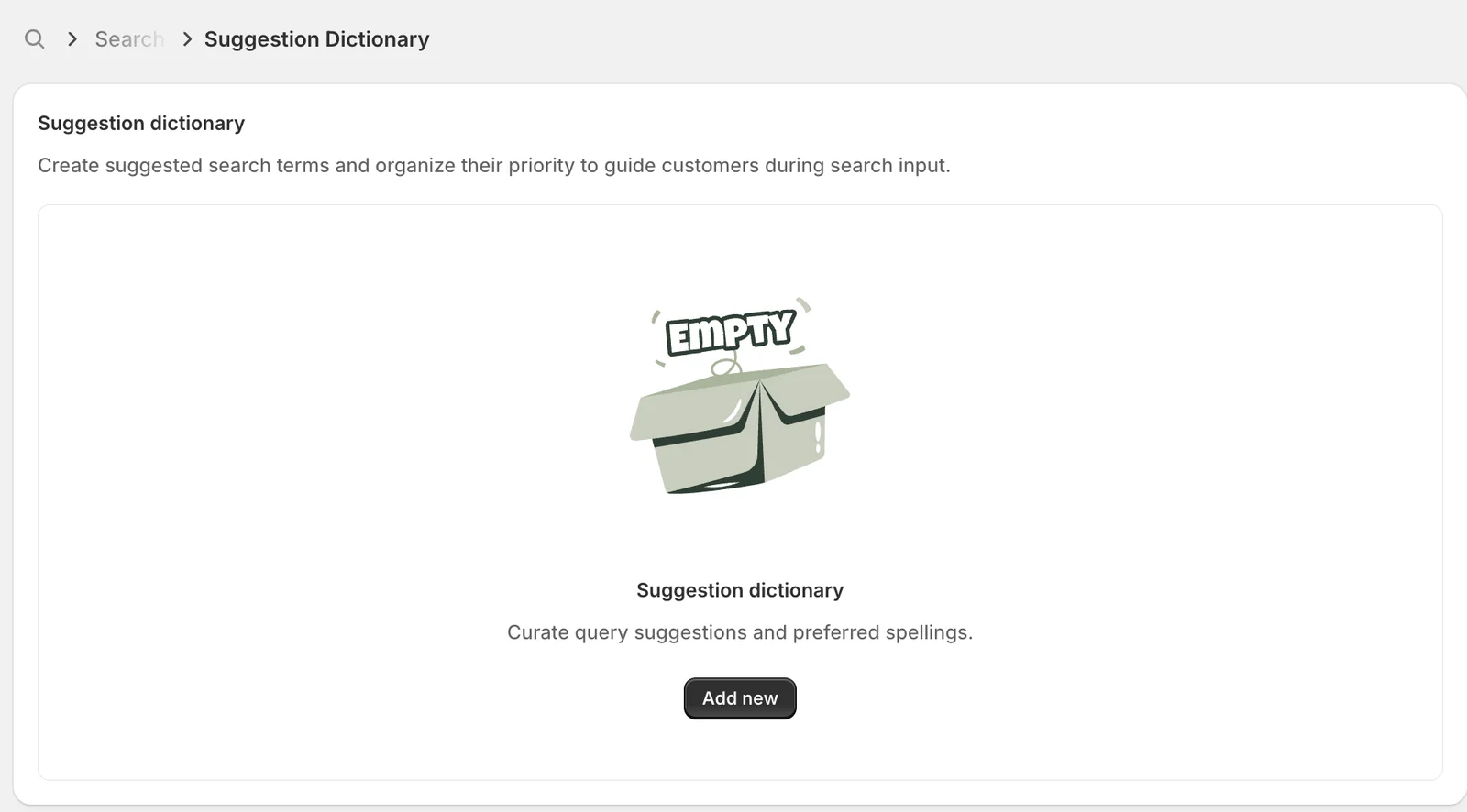
Click Add new to create your first entry.
Step 2 — Add your search terms
The add form starts with a single numbered block, #1 Suggestion dictionary.
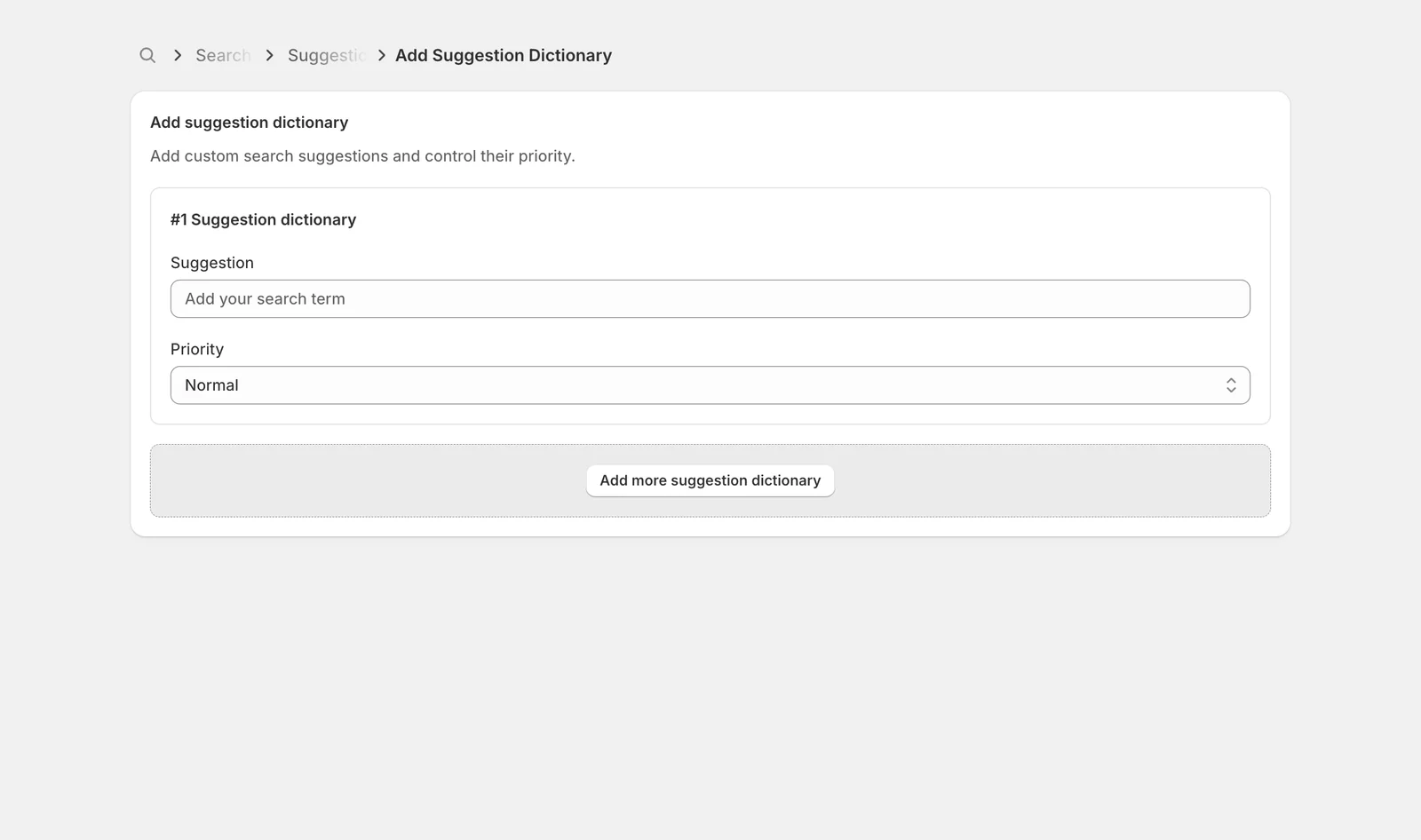
Each block has exactly two fields:
- Suggestion — the phrase itself. This is customer-facing text that appears exactly as you type it, so write it the way a customer would search: Polo Shirt, not polo-shirt-mens-cotton. Use the words your customers use, not your internal product codes.
- Priority — Normal (the default), High, or Low. This is a sort order, not a weight. The panel only has room for a handful of suggestions, so High entries fill those slots first, then Normal, then Low. If two entries share a priority, the older one wins. Use High for the few phrases you actively want to push.
Click Add more suggestion dictionary to add another block. You can build your whole starting list in one go — each block becomes its own entry. The red bin icon removes a block, and it only appears once you have more than one.
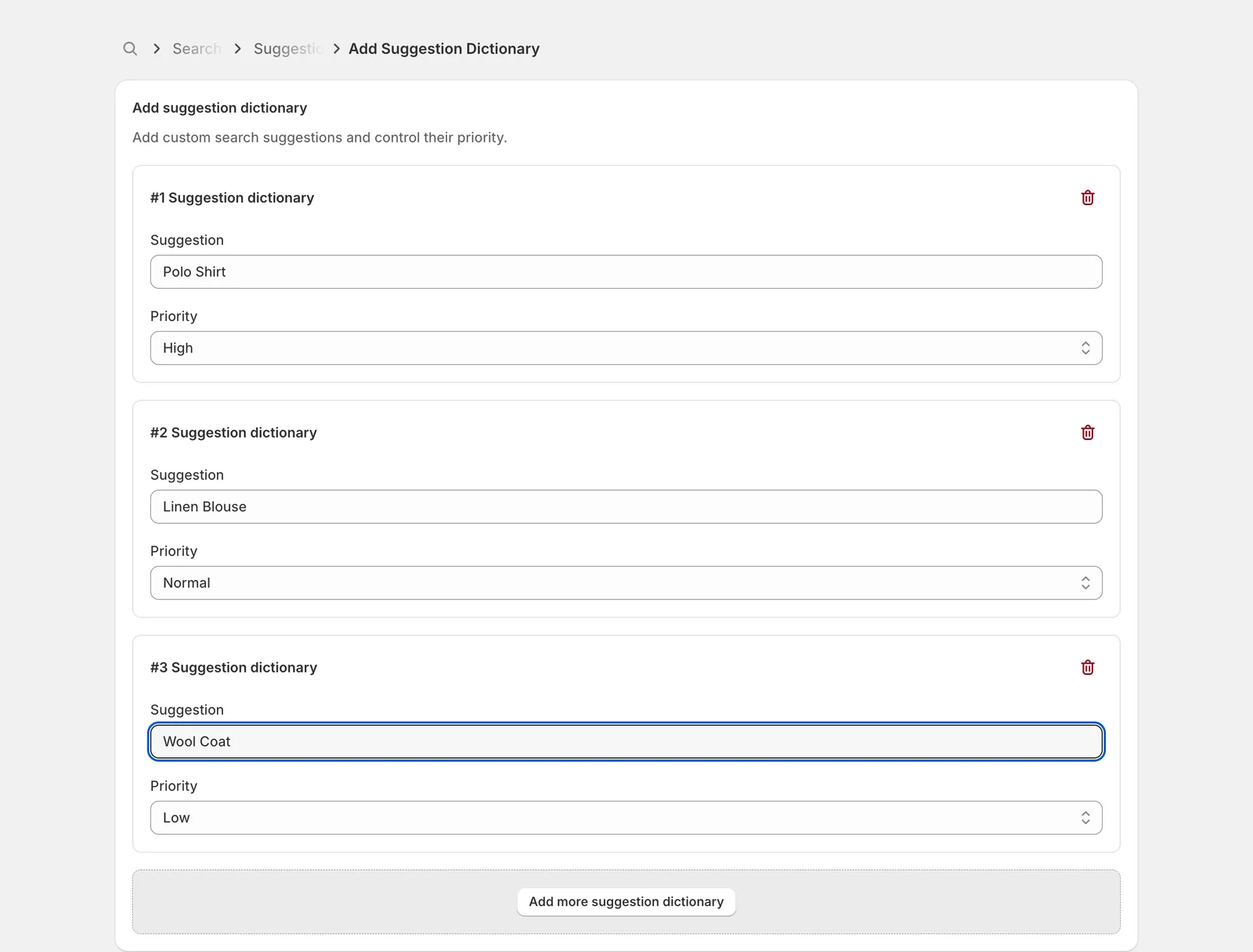
Click Save in the bar at the top of the page. Save stays greyed out until at least one Suggestion field has text in it.
Watch for blank blocks. If you add three blocks but only fill in two, the empty one is still submitted and will be rejected with "Suggestion cannot be empty". Remove blocks you are not using before saving.
Step 3 — Read the list
After saving you return to the list, with one row per entry.
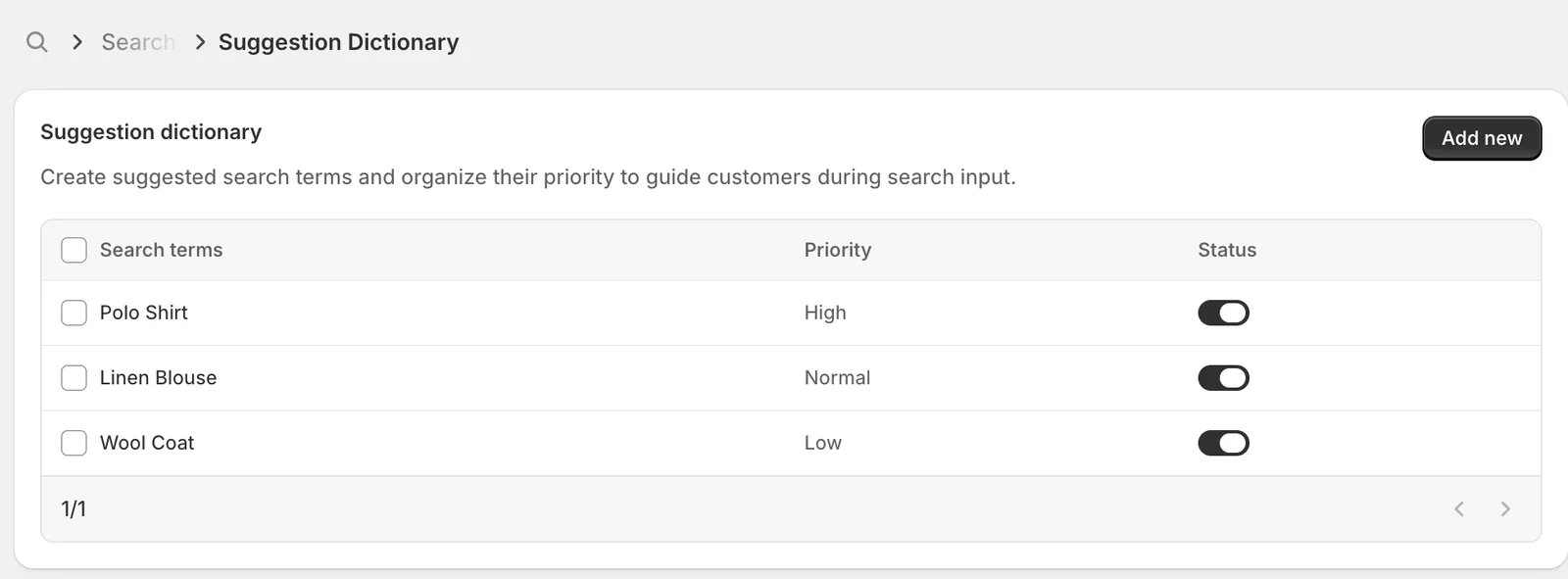
Three columns:
- Search terms — the phrase you entered.
- Priority — High, Normal or Low, as set on the entry.
- Status — the switch that decides whether this entry reaches your storefront at all. Switching it off keeps the entry in your list but stops Sledge serving it, which is the safe way to retire a seasonal phrase you will want back later. This saves immediately.
Click anywhere on a row to open that entry for editing. There are no per-row edit or delete buttons — the row itself is the link.
Step 4 — Edit, deactivate or delete
Opening a row gives you the same two fields, this time on their own.
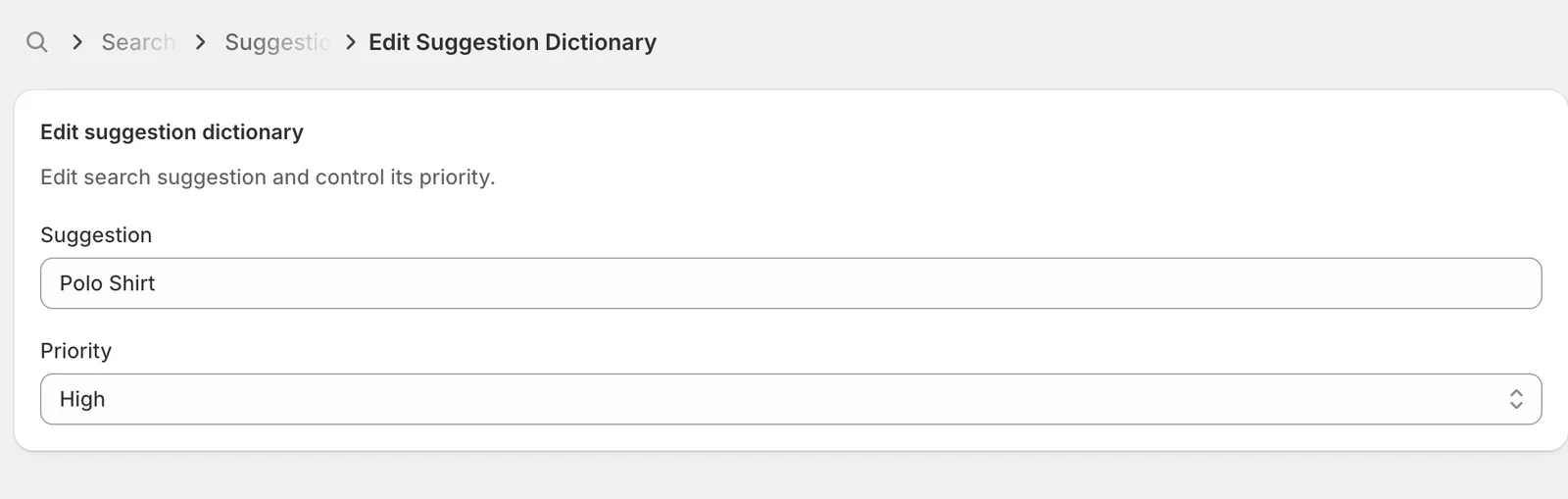
Change the phrase or its priority and click Save. Note there is no Status control on this screen — if an entry is switched off, you turn it back on from the switch on the list page.
To work on several entries at once, tick the checkboxes on the left. The header row turns into a bulk action bar.
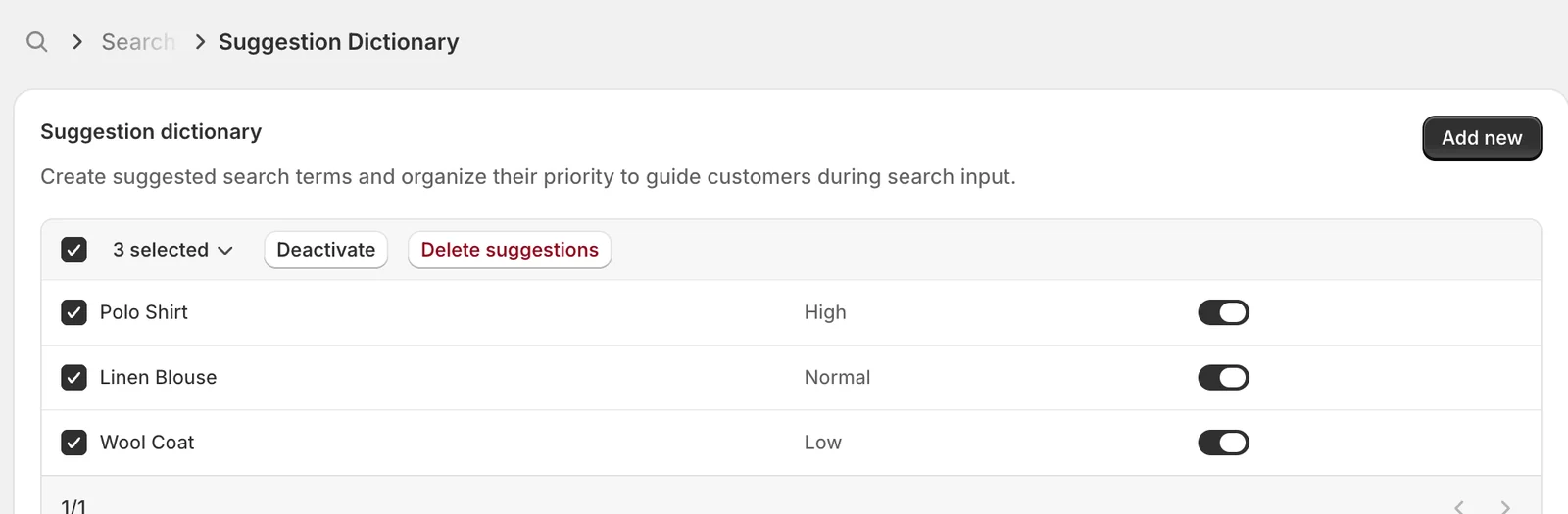
- Deactivate — switches off every selected entry in one go.
- Delete suggestions — removes them permanently, after a confirmation. There is no undo, so prefer Deactivate unless you are certain.
There is no bulk Activate. To switch entries back on, use the individual Status switches on the list.
Result
Open your storefront and click the search bar. Here a customer has typed polo, and the curated entry Polo Shirt is offered under Popular searches, above the product results.
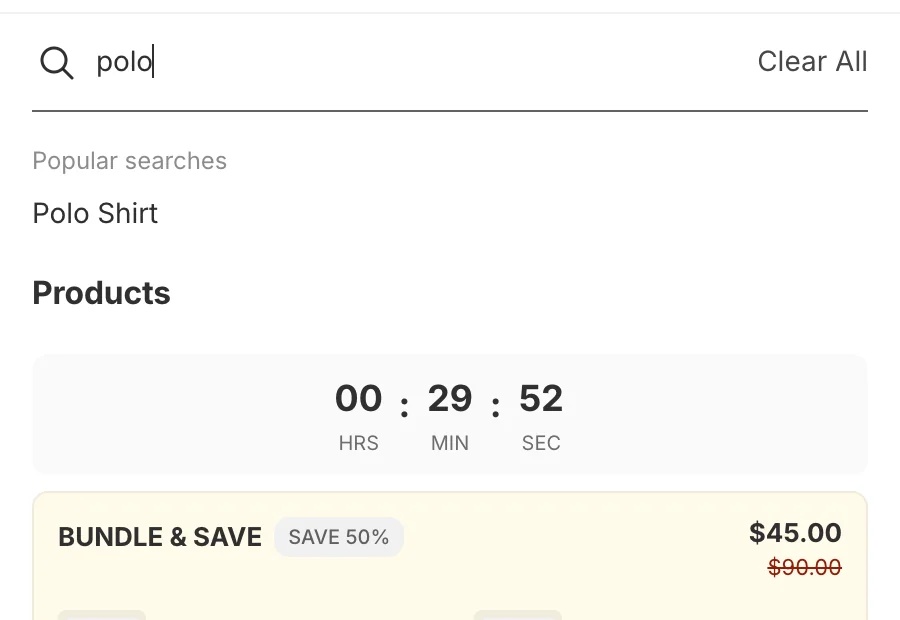
Clicking that phrase runs it as a search — which is the whole point. You are handing the customer a better-phrased query than the one they were halfway through typing.
Where your suggestions appear
Entries can surface in three places, all of them part of Instant Search:
- While the customer types — entries containing what they have typed so far, highest priority first. This is the main one, and it is what the screenshot above shows.
- Before they type anything — in the Popular searches block of the empty search panel.
- When a search finds nothing — under Search term suggestions, to give the customer somewhere to go instead of a dead end.
Important. For the last two, your dictionary is used only when that block's source is set to store data. If you have typed a manual term list into Instant Search settings instead, that manual list wins and the dictionary is ignored there. Check Tools → Search → Instant Search if your terms are not showing up where you expect.
How this differs from the other search tools
Four features under Tools → Search sound similar and do very different jobs:
- Suggestion Dictionary — offers phrases to the customer. Presentation only; never changes which products match.
- AI-Powered Synonyms — makes two different words find the same products, such as sofa and couch. Changes results.
- Redirect — sends a matching query straight to a page instead of showing results at all.
- Stop Word — the opposite of this feature: words to ignore, so filler words do not dilute relevance.
One connection worth knowing: a synonym can be added to the suggestion list from the Synonyms screen. If you see an entry here you do not remember creating, it probably arrived that way.
Not showing up?
- Check the Status switch on the list. A deactivated entry is never sent to the storefront.
- Confirm Instant Search is on under Tools → Search. Suggestions live inside that panel — with it off, there is nowhere for them to appear.
- Give it about a minute. New entries sync to your storefront shortly after saving rather than instantly.
- Suggestions are matched against what the customer has typed. An entry only appears while typing if it contains that text — Wool Coat will not surface for someone typing polo.
- Only a few suggestions fit in the panel. If you have many entries, low-priority ones may simply be below the cut — raise the ones that matter to High.
- Not appearing before typing, or on a no-result search? Those blocks may be set to a manual term list in Instant Search settings, which overrides the dictionary.
Last updated on