
How do I set up Personalization?
Personalization tailors search results to each customer based on what they have searched, clicked, added to cart, and bought. Two customers typing the same query can see the same products in a differe
Personalization tailors search results to each customer based on what they have searched, clicked, added to cart, and bought. Two customers typing the same query can see the same products in a different order — each sorted toward what that person is most likely to want.
Before you start
This feature only takes effect when Sledge handles the search on your storefront, so two things must already be in place:
- Sledge Core is enabled on your theme. Sledge Core is the app embed that loads Sledge on your storefront — without it, nothing Sledge does reaches your customers. You enable it during onboarding (Enable in theme), or any time via Online Store → Themes → Customize → App embeds → Sledge Core.
- Instant Search and Search Result Page are turned on. Open Sledge → Tools → Search and check the two switches at the top. At least the surface you use must be on — with both off, there is no Sledge search for this feature to act on.
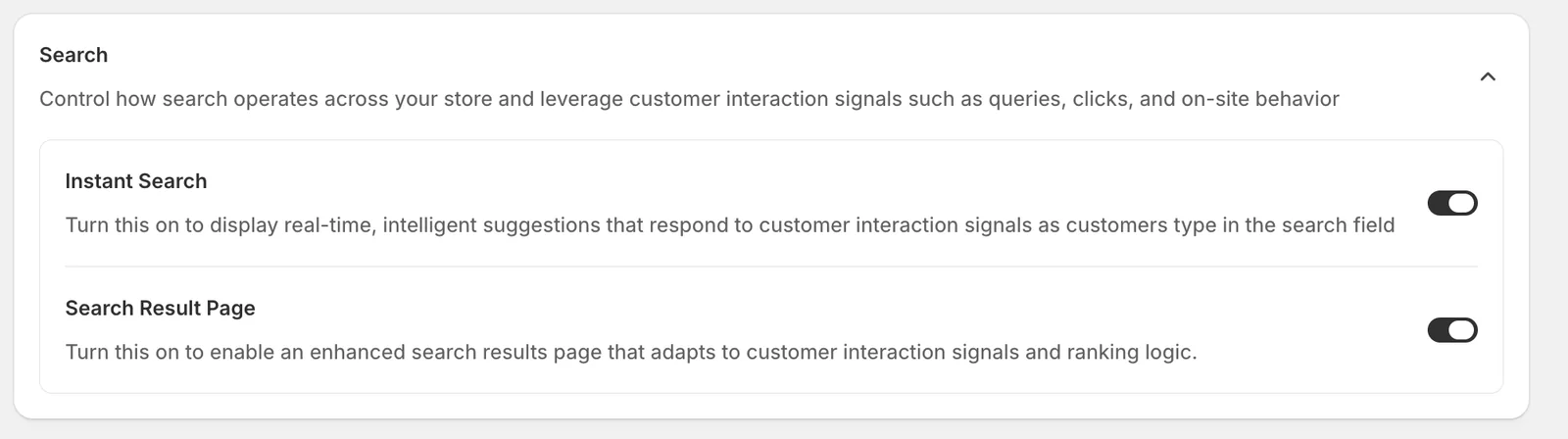
Open Personalization
Go to Sledge → Tools → Search, and under Features click Personalization.
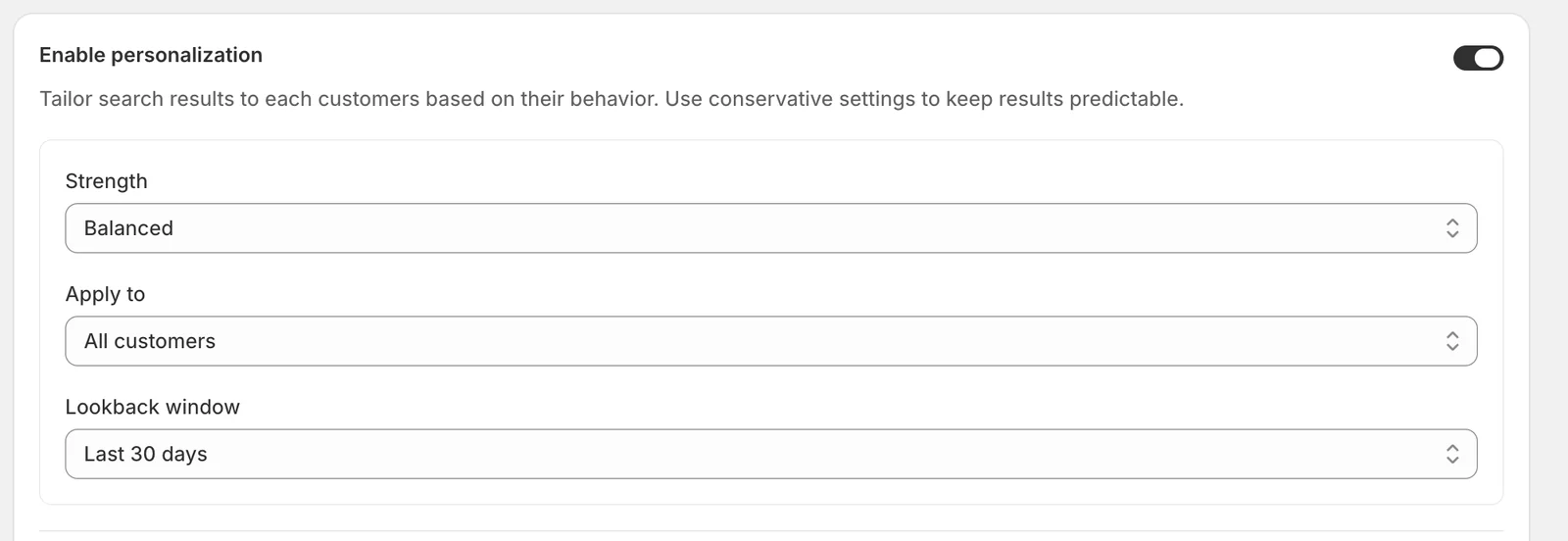
Enable personalization
The master switch at the top. When it’s off, everyone sees the same default ranking and the settings below have no effect.
Strength
How strongly a customer’s history is allowed to re-order their results:
- Light — a gentle nudge; results stay close to the default ranking.
- Balanced — a middle ground, and a sensible default.
- Strong — history weighs heavily; results can differ a lot per customer. Use conservative settings if you want results to stay predictable.
Apply to
Who gets personalized results: All customers (anyone with any history, even from the current visit) or Returning customers only (first-time visitors always see the default ranking).
Lookback window
How far back behavior counts: Last 7 days, Last 30 days, or Last 90 days. A short window follows what the customer is shopping for right now; a long window builds a more stable taste profile.
Signals
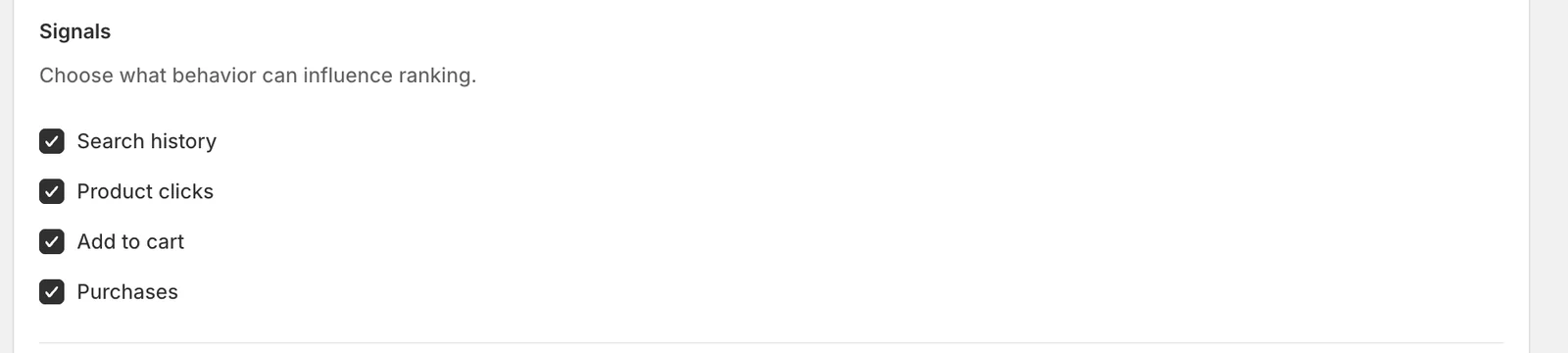
Choose which behaviors are allowed to influence ranking. Each can be toggled independently:
- Search history — what the customer has searched for before.
- Product clicks — products they opened from search or listings.
- Add to cart — products they added to the cart, a stronger interest signal than a click.
- Purchases — what they actually bought, the strongest signal of all.
Fallback
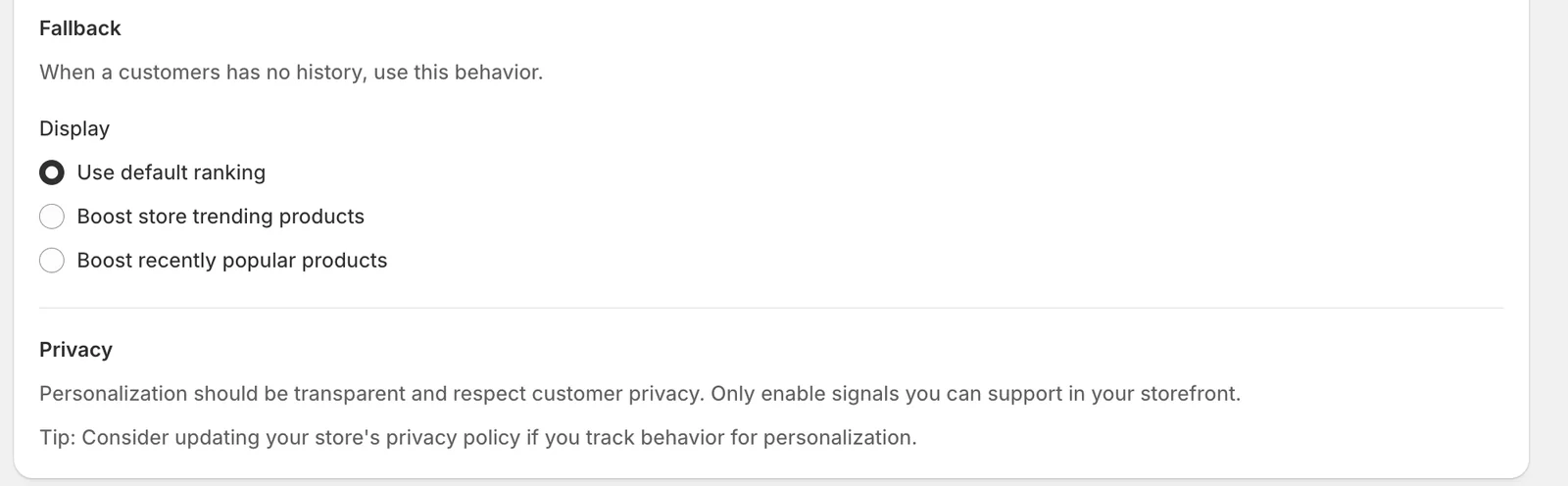
What a customer sees when they have no usable history (for example a brand-new visitor when Apply to is set to All customers):
- Use default ranking — plain relevance order, exactly as if personalization were off.
- Boost store trending products — lean on what is trending across your whole store.
- Boost recently popular products — favor products that have been popular lately.
Privacy
Personalization should be transparent and respect customer privacy — only enable signals you can support in your storefront, and consider updating your store’s privacy policy if you track behavior for personalization.
When you change any setting, a save bar appears at the top — click Save to apply, or Discard to revert.
Result
As customers browse and buy, their search results gradually reorder toward their interests — a customer who keeps viewing polo shirts will see polos climb in mixed results. The effect needs some history to become visible, so test it after browsing a few products rather than on a fresh incognito window (that’s exactly what a new visitor’s fallback is for).
Not showing up? Give the change about a minute to sync, then try the search again. Also confirm that Sledge Core, Instant Search, and Search Result Page are enabled as described above.
Related
Last updated on
How do I set up Field Priority?
When a customer’s search matches several products, where the match happens matters: a match in a product’s title should usually count for more than a match buried in its description. Field Priority le
How do I set up Redirects?
Sometimes the best answer to a search isn’t a list of products — it’s a specific page. A redirect sends a search query straight to a URL you choose: “polos” to your polo collection, “shipping” to your