
How do I set up Redirects?
Sometimes the best answer to a search isn’t a list of products — it’s a specific page. A redirect sends a search query straight to a URL you choose: “polos” to your polo collection, “shipping” to your
Sometimes the best answer to a search isn’t a list of products — it’s a specific page. A redirect sends a search query straight to a URL you choose: “polos” to your polo collection, “shipping” to your shipping policy, a campaign word to a landing page. The customer presses Enter and lands on the page instead of a results list.
Before you start
This feature only takes effect when Sledge handles the search on your storefront, so two things must already be in place:
- Sledge Core is enabled on your theme. Sledge Core is the app embed that loads Sledge on your storefront — without it, nothing Sledge does reaches your customers. You enable it during onboarding (Enable in theme), or any time via Online Store → Themes → Customize → App embeds → Sledge Core.
- Instant Search and Search Result Page are turned on. Open Sledge → Tools → Search and check the two switches at the top. At least the surface you use must be on — with both off, there is no Sledge search for this feature to act on.
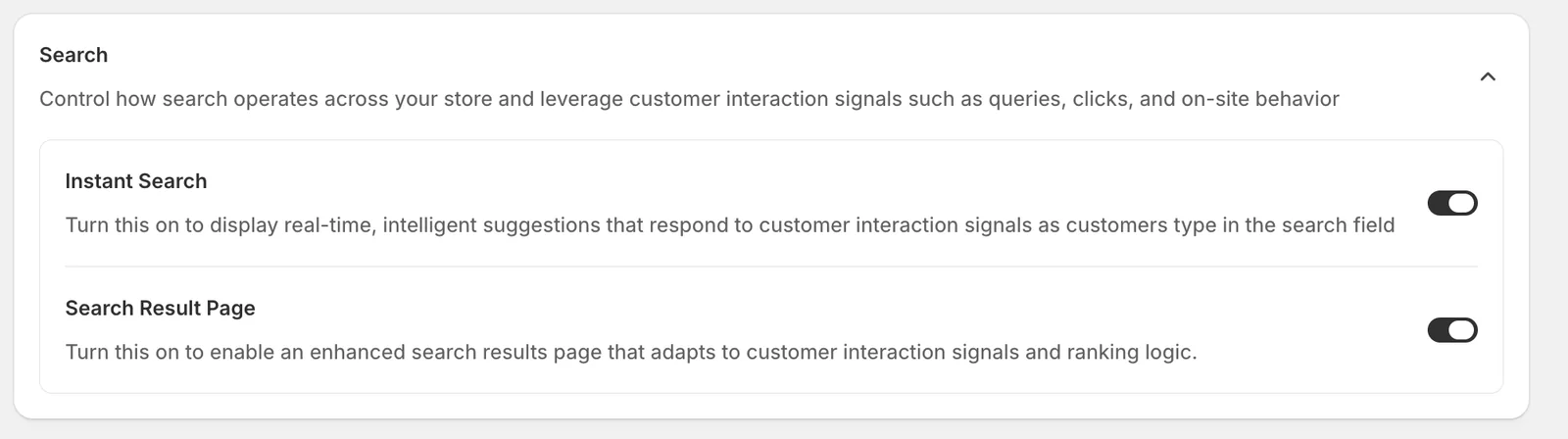
Open Redirect
Go to Sledge → Tools → Search, and under Features click Redirect, then click Add redirect.
Add a redirect rule
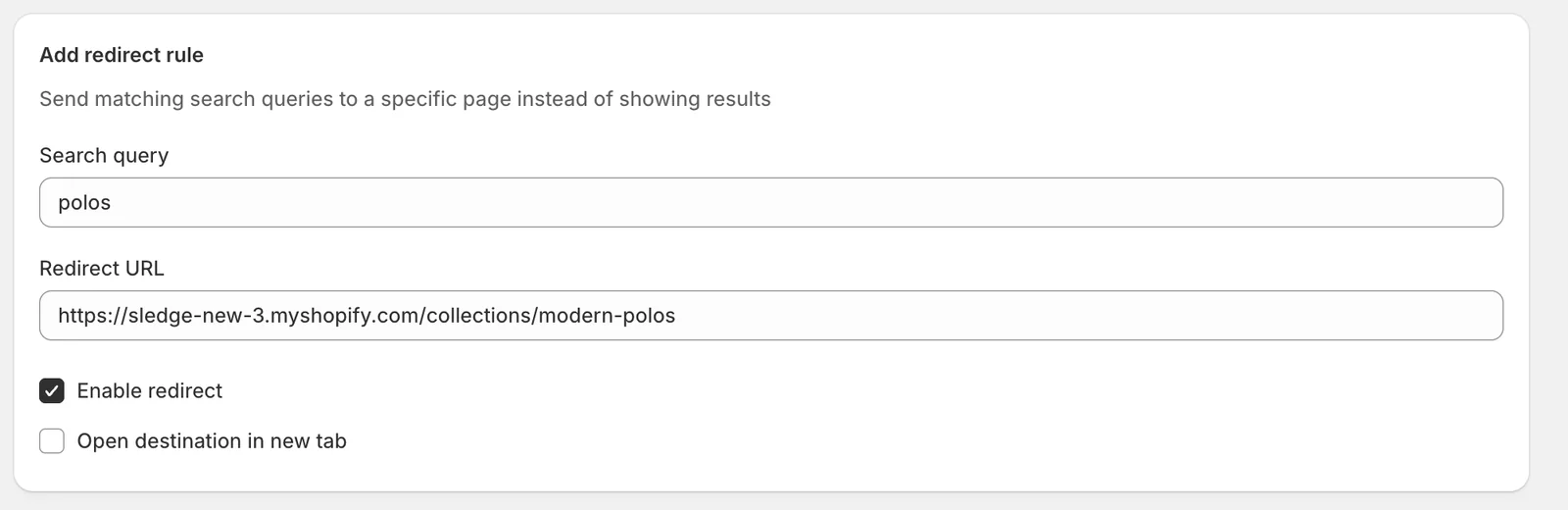
Search query
The term that triggers the redirect. Matching is exact — the rule fires when a customer submits exactly this query (“polos” above), not when the word merely appears somewhere in a longer search.
Redirect URL
The full destination URL, including https:// — a collection, a page, a product, or any other address. In the example the query “polos” goes to the store’s Modern Polos collection.
Enable redirect
Whether the rule is live. You can create rules disabled and switch them on later — handy for campaign terms you only want active during the campaign.
Open destination in new tab
By default the redirect replaces the current page. Tick this to open the destination in a new browser tab instead — useful when the destination is outside your store.
Click Save in the save bar to create the rule.
Manage your redirects
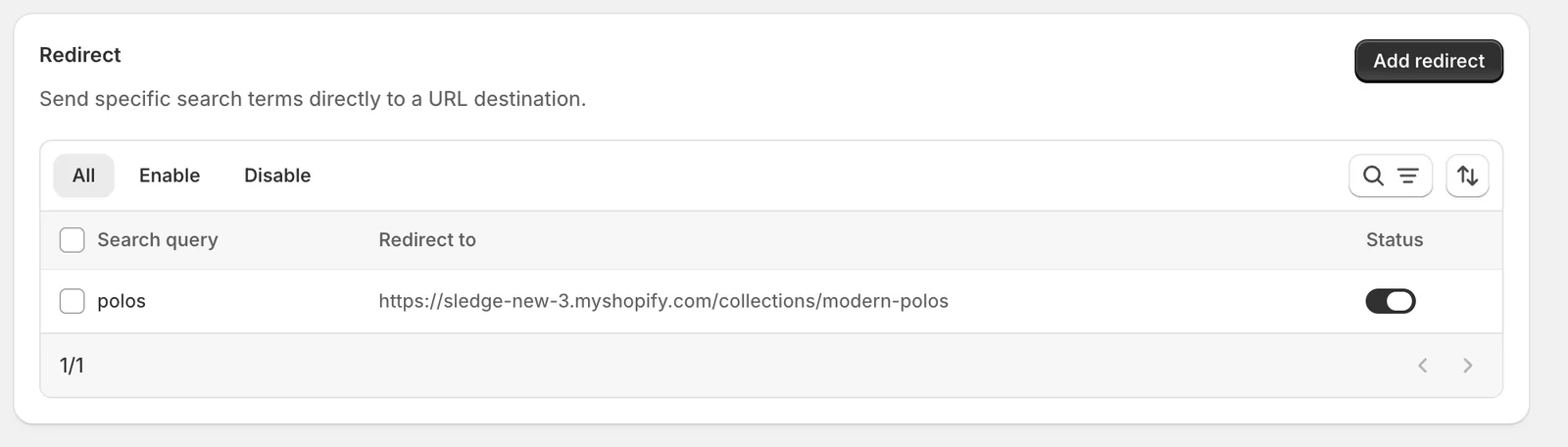
Saved rules appear in the Redirect list showing the Search query, the Redirect to URL, and a Status switch to turn each rule on or off without deleting it. Click a row to edit it. The All / Enable / Disable tabs filter by status, the icons on the right search and sort the list, and selecting rows with the checkboxes opens bulk actions to Deactivate or delete several rules at once.
Result
On the storefront, a customer who types polos and presses Enter skips the results page entirely and lands on the Modern Polos collection:
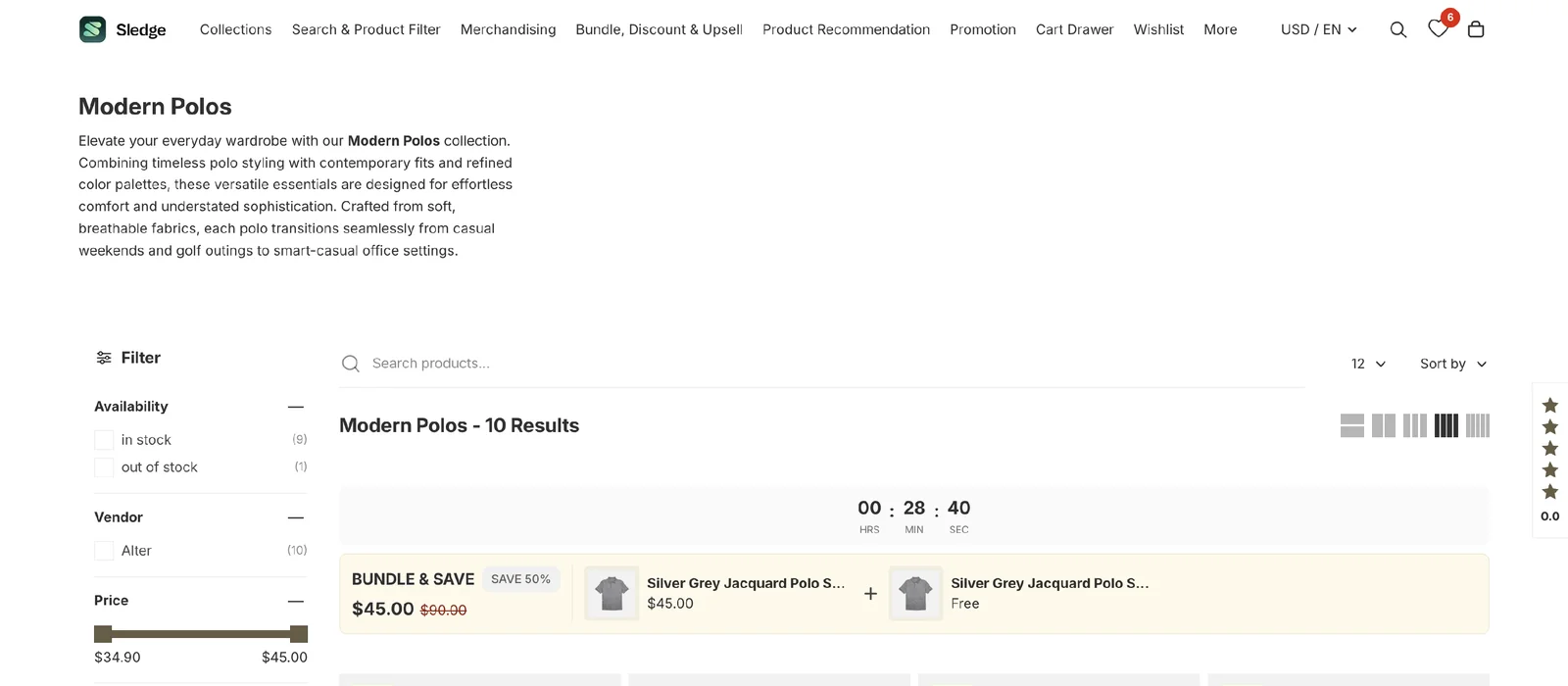
Not showing up? Give the change about a minute to sync, then try the search again. Also confirm that Sledge Core, Instant Search, and Search Result Page are enabled as described above.
Related
Last updated on
How do I set up Personalization?
Personalization tailors search results to each customer based on what they have searched, clicked, added to cart, and bought. Two customers typing the same query can see the same products in a differe
How do I set up Stop Words?
Stop words are common filler words — “the”, “for”, “from” — that carry no meaning in a search. Left alone, they can dilute results: a search for “shirts for men” shouldn’t rank products by how well th