
How to set up pre order bundle?
Pre-order bundle puts an existing bundle offer on pre-order, so customers can buy the whole set before it’s available. It’s the way to run a launch or restock as a pre-sell without rebuilding the bund
Pre-order bundle puts an existing bundle offer on pre-order, so customers can buy the whole set before it’s available. It’s the way to run a launch or restock as a pre-sell without rebuilding the bundle: the bundle you link already supplies the products, the pricing, and where it shows — this campaign only adds the pre-order behaviour on top.
How it differs from Pre-order
Both features share the same payment, country, dates, and notes options. The difference is what you point them at:
- Pre-order targets products you pick, has its own discount %, its own visibility rule (out of stock / in stock / always), and its own Surfaces.
- Pre-order bundle targets one bundle. There’s no discount field (the bundle’s own pricing applies), no visibility rule, and no Surfaces section — placement follows the linked bundle’s settings, so the bundle stays the single source of truth.
Before you start — You need a bundle already created. Only Fixed bundle, Buy X get Y, and Volume discount can be used; the other types never render where a pre-order bundle needs to appear.
Create the campaign
-
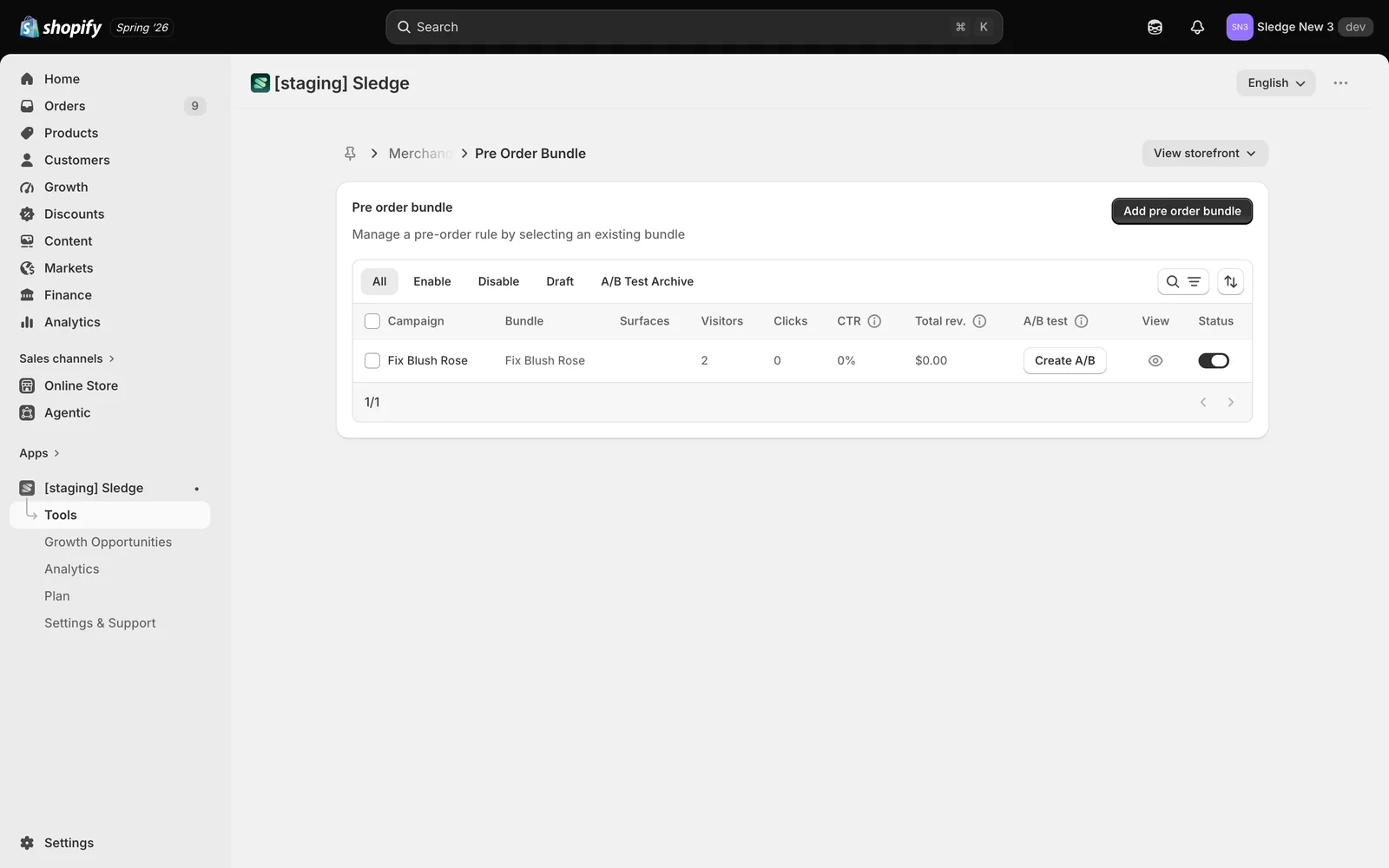
Go to Tools → Merchandising → Pre Order Bundle and click Add pre order bundle. Existing campaigns show which Bundle they’re linked to.
-
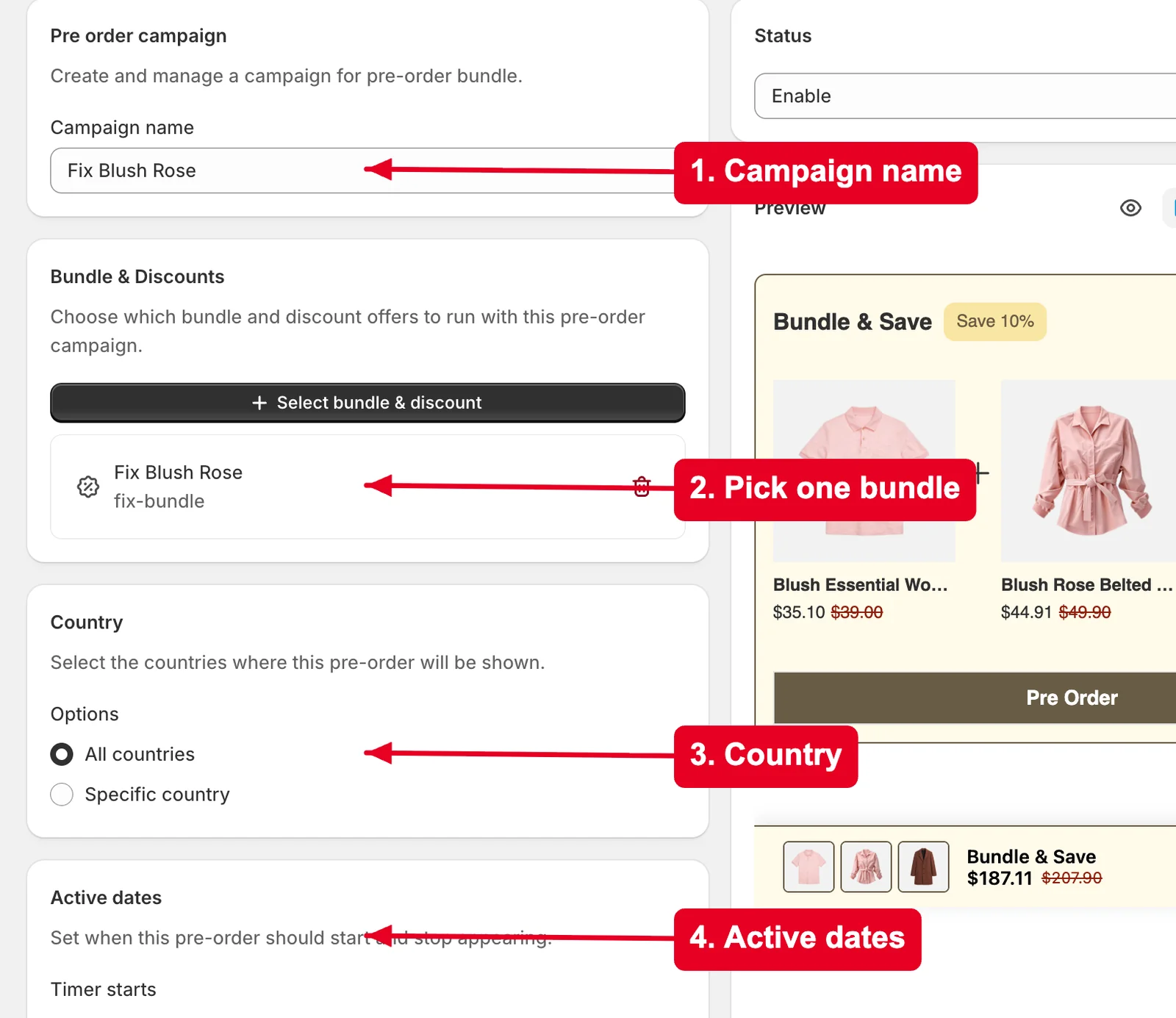
Under Pre order campaign, enter a Campaign name (internal only).
-
Under Bundle & Discounts, click Select bundle & discount and choose one bundle. If you have none yet, Create bundle lets you build one without leaving the page — pick Fixed bundle, Buy X get Y, or Volume discount, and it’s linked automatically when you save.
-
Use Country and Active dates to limit where and when it runs.
The red arrows below show these first four settings on a real campaign — the bundle Fix Blush Rose is already linked, and the Preview on the right updates as you go:
-
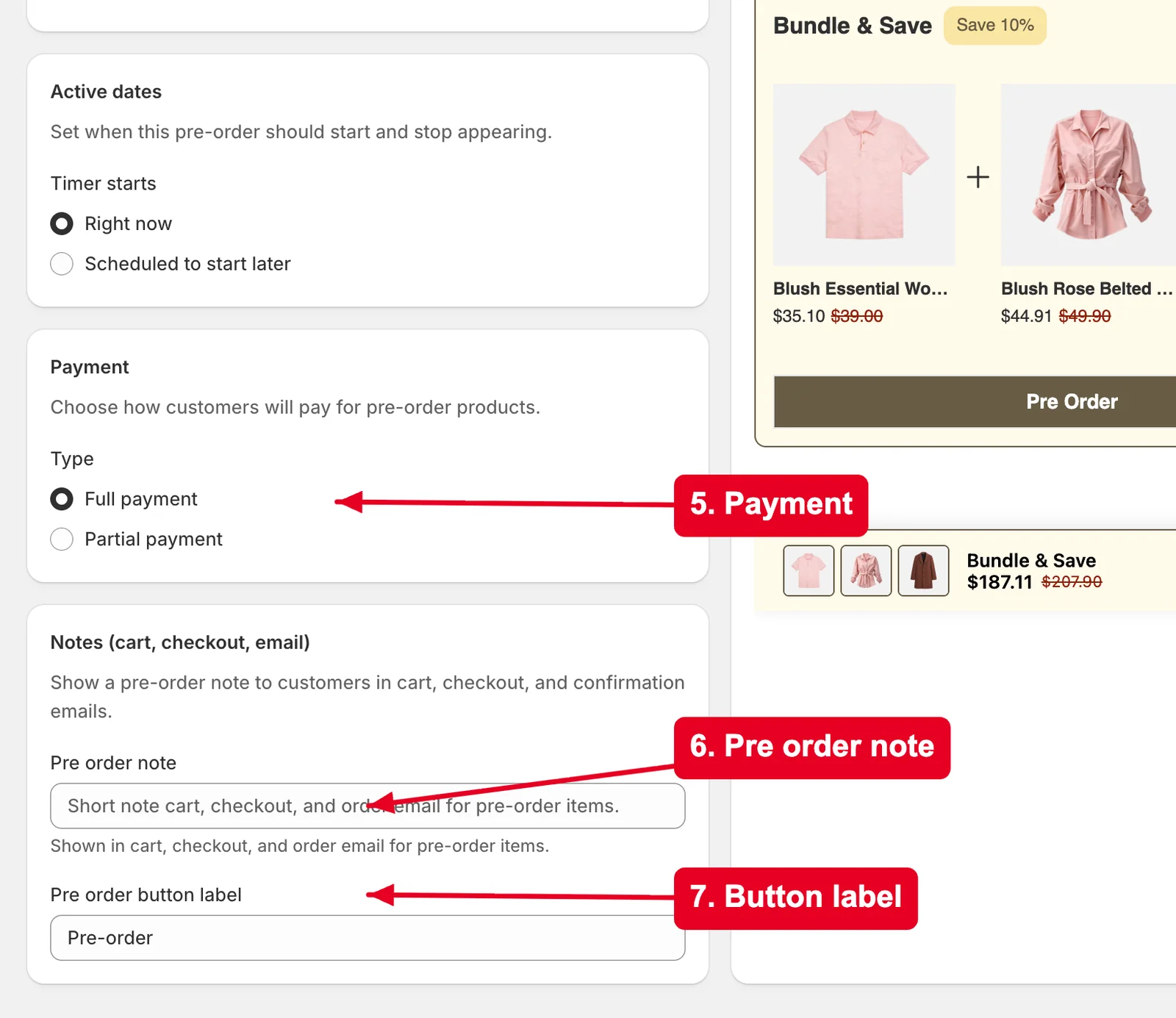
Under Payment, choose Full payment or Partial payment. With partial, set Amount pay now (the deposit) and a Due date for the balance.
-
Under Notes (cart, checkout, email), write the Pre order note that follows the order into cart, checkout, and the order email, and set the Pre order button label (default Pre-order) — this is the text customers click.
-
Check the Preview, click Save, and set Status to Enable.
Good to know — The preview stays empty until you pick a bundle, because the bundle supplies everything it renders. And since there’s no Surfaces section here, if the bundle isn’t showing somewhere you expect, change that on the bundle, not on this campaign.
Result
Done. The bundle now appears with a pre-order call to action instead of a normal add-to-cart. Below is the live storefront: the linked bundle renders as a Bundle & Save panel — Save 10%, $207.90 struck through, $187.11 to pay, with all three products listed — and the red arrow points to the Pre Order button your campaign added.
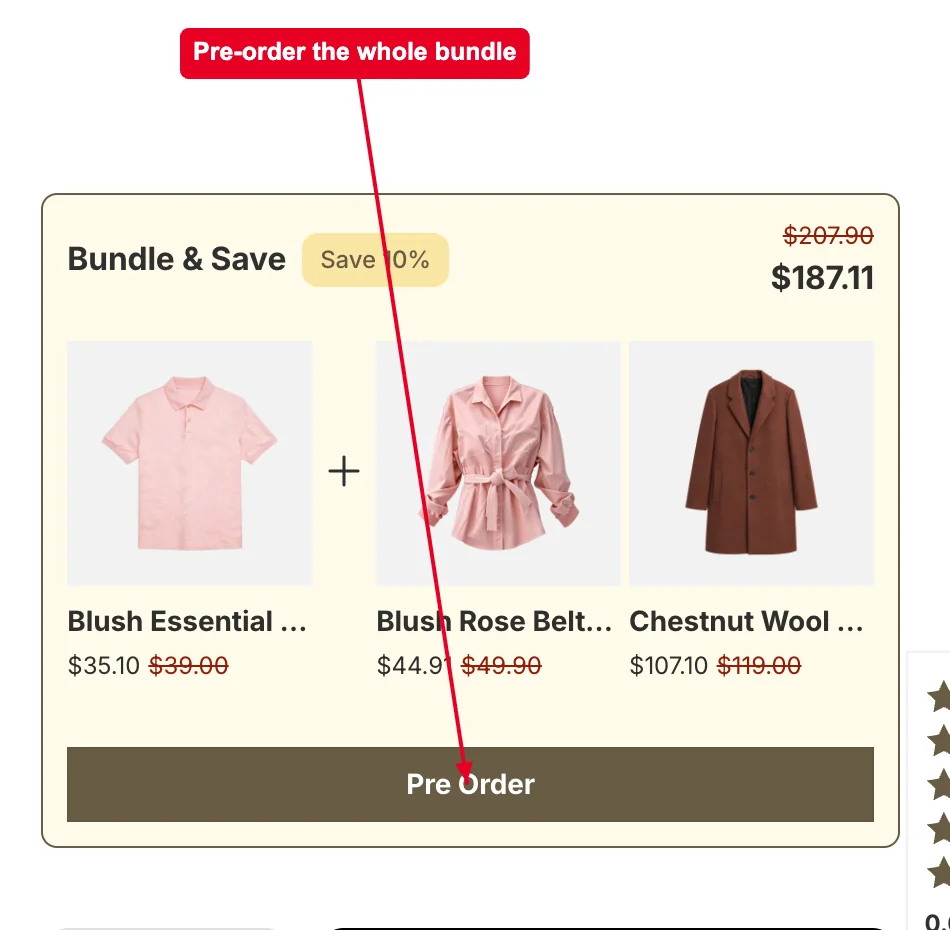
Your Pre order note isn’t shown in the panel — it travels with the items into the cart, checkout, and order confirmation email.
Not showing up? Check Status is Enable, a bundle is actually selected, and the bundle itself is active. If it appears without the pre-order button, the campaign is off or outside its Active dates. Placement problems are fixed on the linked bundle’s own surface settings. Storefront changes can take about a minute to sync.
Related
Last updated on
How to set up pin product?
Pin lets you place chosen products in exact positions at the top of a collection or search results — position 1 is the very first card a customer sees. Use it to put your hero products, new drops, or
How to set up pre order (single / multiple products)?
Pre-order lets customers buy selected products before they’re available — typically when stock has run out and a restock is coming. The Add to cart button becomes a pre-order button, optionally with i