
How to set up pre order (single / multiple products)?
Pre-order lets customers buy selected products before they’re available — typically when stock has run out and a restock is coming. The Add to cart button becomes a pre-order button, optionally with i
Pre-order lets customers buy selected products before they’re available — typically when stock has run out and a restock is coming. The Add to cart button becomes a pre-order button, optionally with its own discount and payment terms.
Before you start
Sledge Core must be enabled on your theme. Sledge Core is the app embed that loads Sledge on your storefront — without it, nothing you configure here reaches your customers. You enable it during onboarding (Enable in theme), or any time via Online Store → Themes → Customize → App embeds → Sledge Core. Which pages actually show this feature is controlled by its own Surfaces section, explained below.
Create or edit a pre-order campaign
Go to Sledge → Tools → Merchandising, open Pre Order Single / Multiple Products, and click Add (or open an existing campaign — the example is “Pre Order 1” for the Ivory Grace Belted Blouse).
Campaign, Country, Active dates, and Products
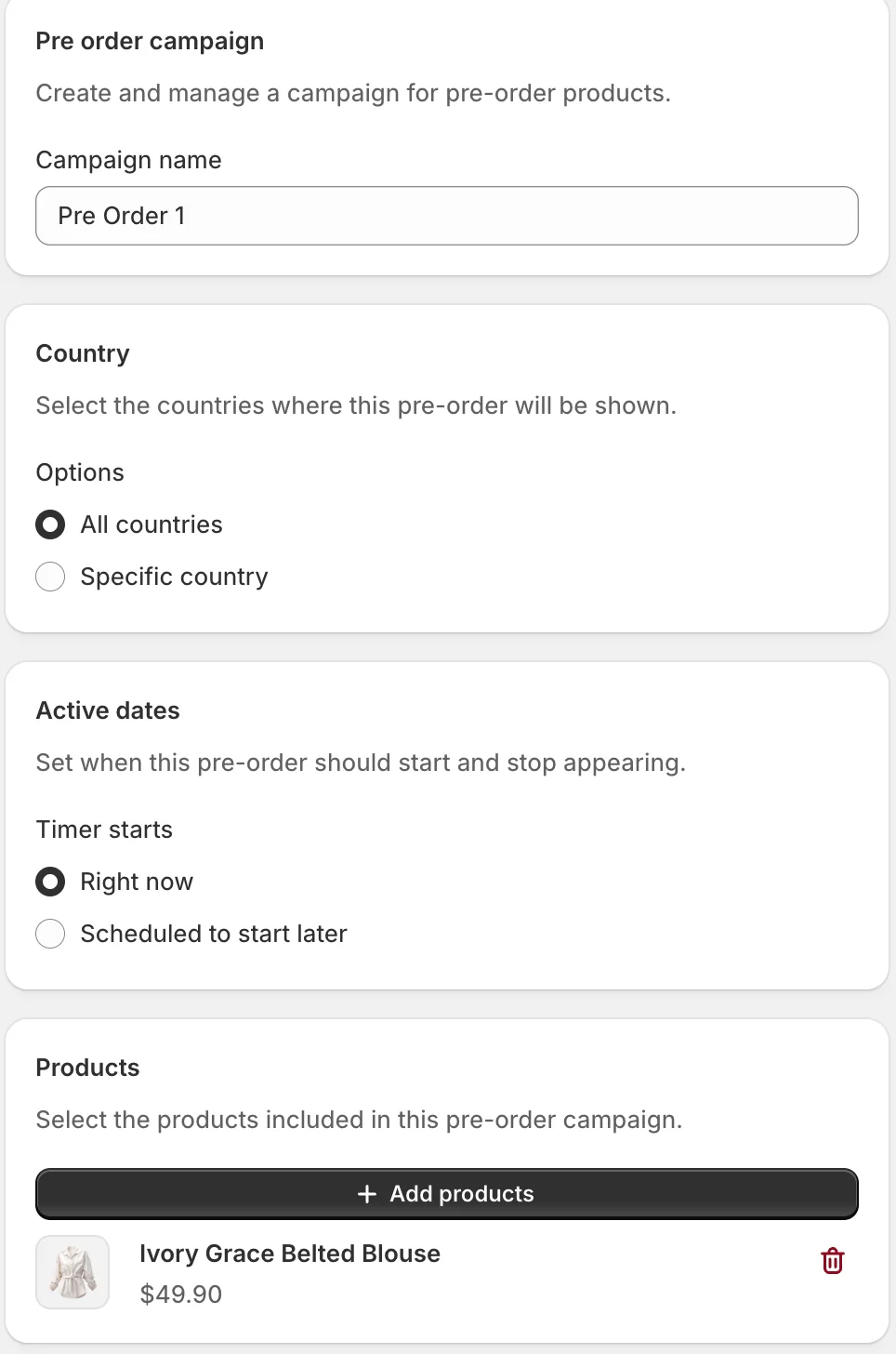
Name the campaign, choose the countries and schedule, then use Add products to pick the products this pre-order covers — one product or many.
Discount & visibility, and Payment
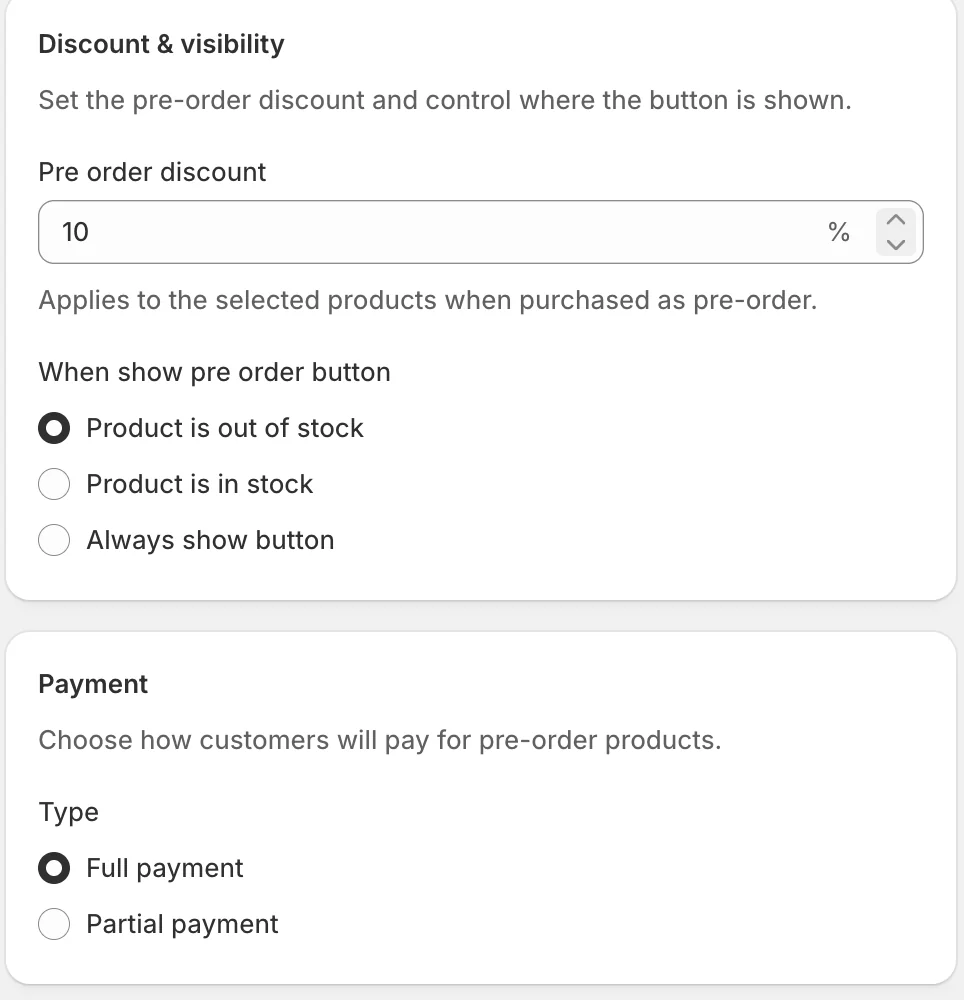
- Pre order discount — a percentage off applied when the product is bought as a pre-order (10% in the example; the preview shows the struck-through price).
- When show pre order button — the trigger: Product is out of stock (the classic case), Product is in stock, or Always show button.
- Payment — Full payment up front, or Partial payment to take a deposit now and the rest later.
Notes and Surfaces
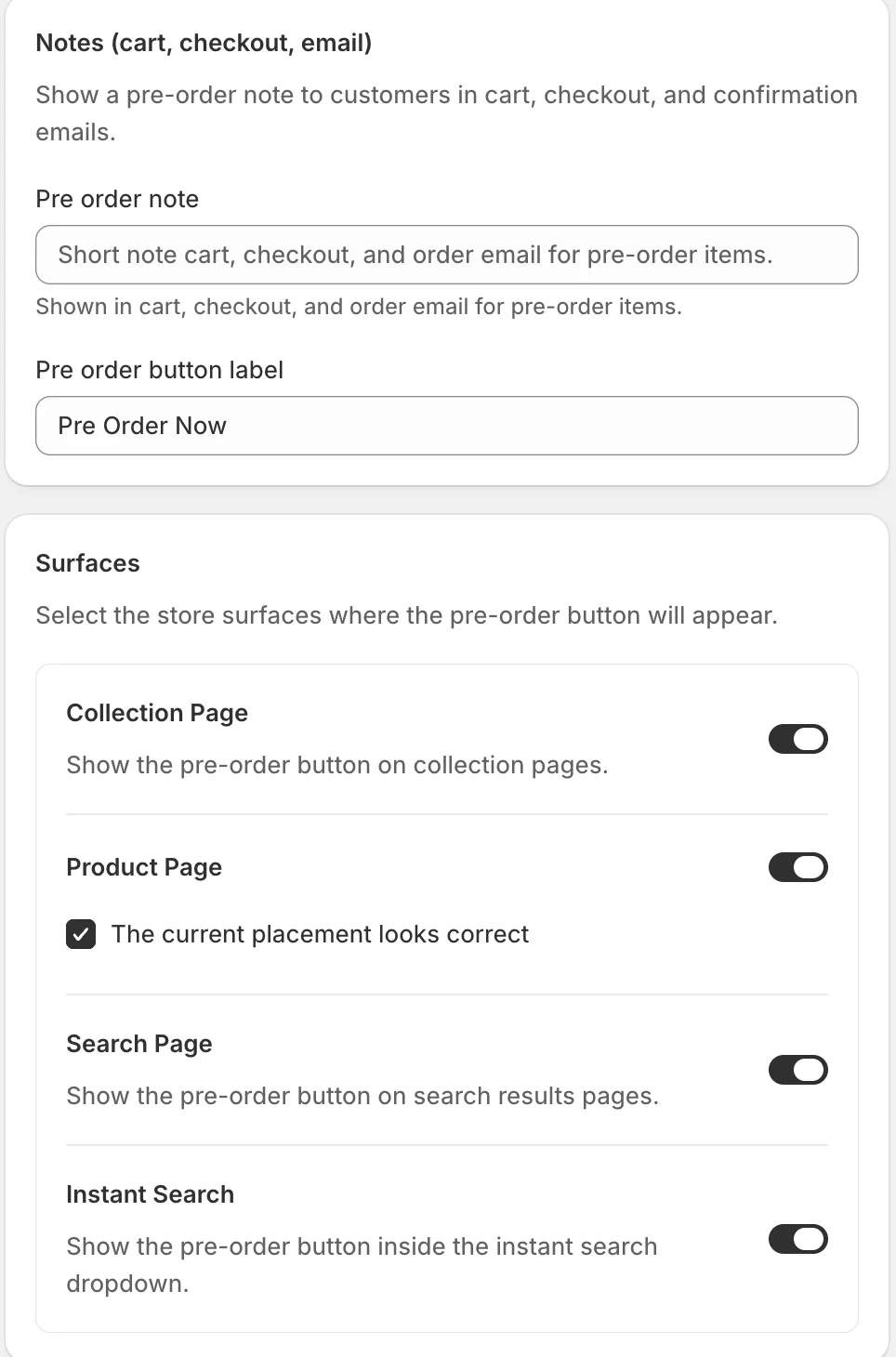
Pre order note is a short line shown in cart, checkout, and the confirmation email — set expectations (“ships in 4–6 weeks”). Pre order button label is the button text itself (“Pre Order Now”). Surfaces control where the button appears: Collection Page, Product Page, Search Page, and Instant Search.
Status and Preview
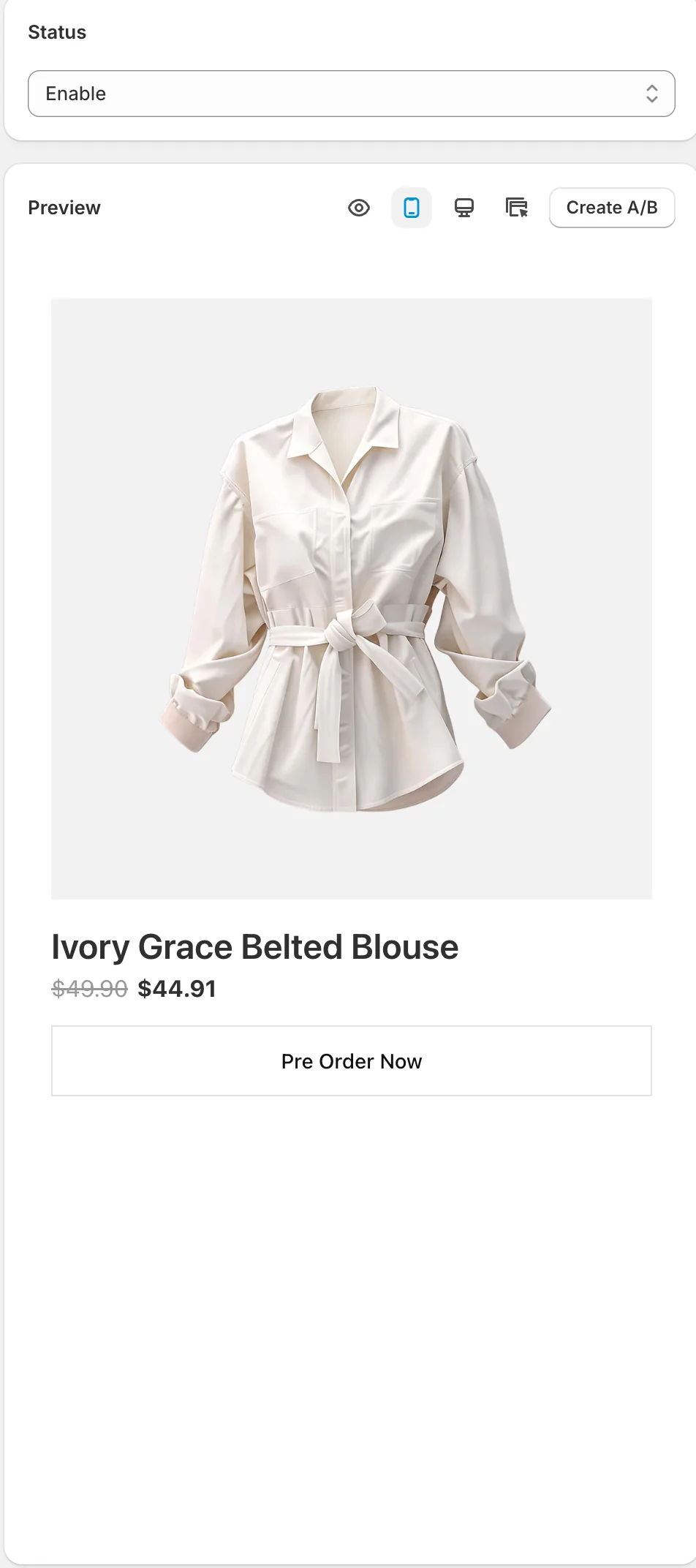
The Preview renders the product card in pre-order state — discounted price and the pre-order button. Create A/B starts an A/B test. Click Save to apply.
Result
When the trigger condition is met (for example the product sells out), its Add to cart button becomes Pre Order Now across the surfaces you enabled, the discount applies at checkout, and your note follows the order into cart, checkout, and email.
Not showing up? Give the change a minute to sync, then reload the page. Also confirm the campaign’s Status is Enable, the surface you expect is switched on in Surfaces, and Sledge Core is enabled as described above.
Related
Last updated on
How to set up pre order bundle?
Pre-order bundle puts an existing bundle offer on pre-order, so customers can buy the whole set before it’s available. It’s the way to run a launch or restock as a pre-sell without rebuilding the bund
Bundles, Discounts & Upsell
Bundles, Discounts & Upsell in Sledge — 21 guides covering setup and day-to-day use.