
How to Create Collection Tabs and Pin Products in Each Tab?
Collection tabs let you split a single collection page into tabs, so customers can switch between groups of products without leaving the page. Each tab has its own product list, and you can apply merc
Collection tabs let you split a single collection page into tabs, so customers can switch between groups of products without leaving the page. Each tab has its own product list, and you can apply merchandising strategies such as Pin to each tab separately.
In this guide we use the Modern Bottoms collection as an example and create two tabs: short pant (shorts only) and long pant (all other products). Then we pin one product at the top of each tab.
Step 1: Open Merchandising Strategy
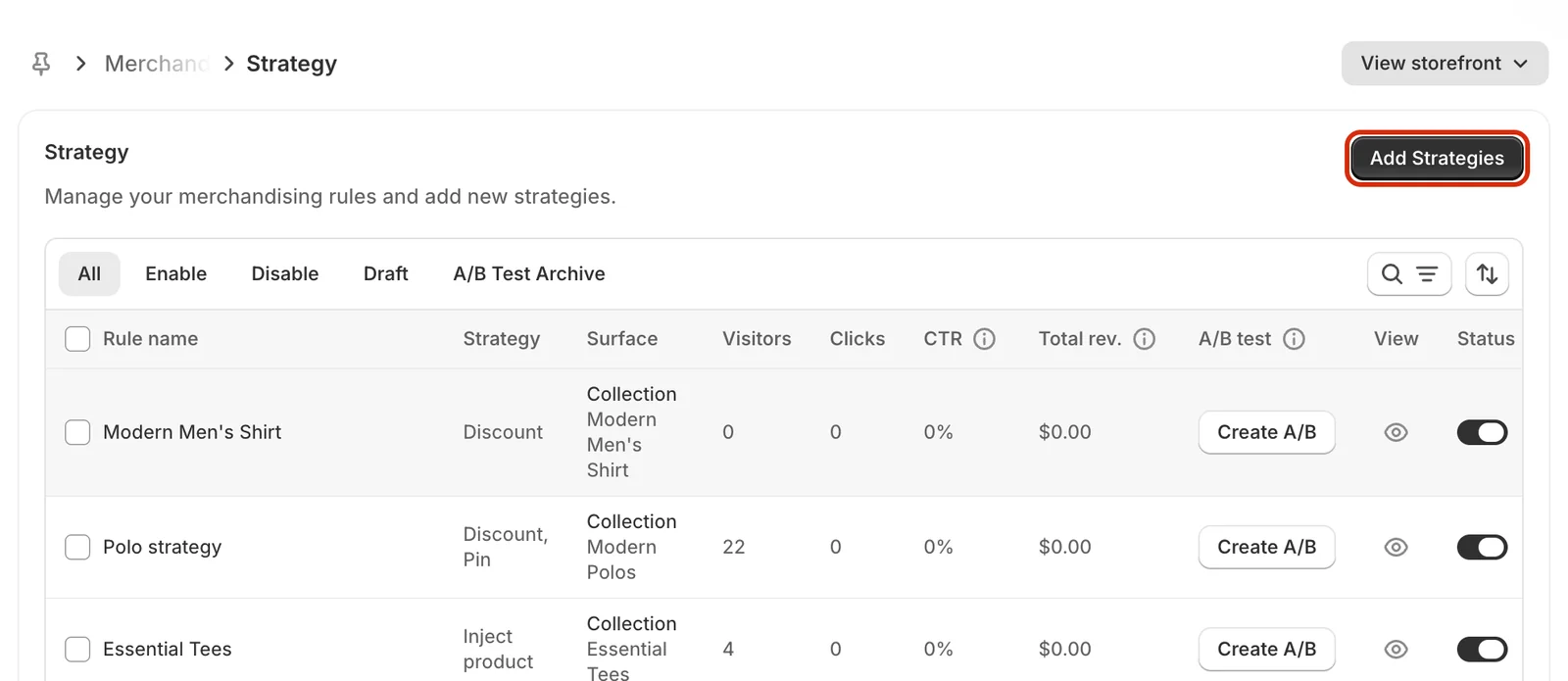
In your Shopify admin, go to Apps > Sledge > Tools > Merchandising > Strategy, then click Add Strategies.
Step 2: Set the rule name and turn on Collection Page
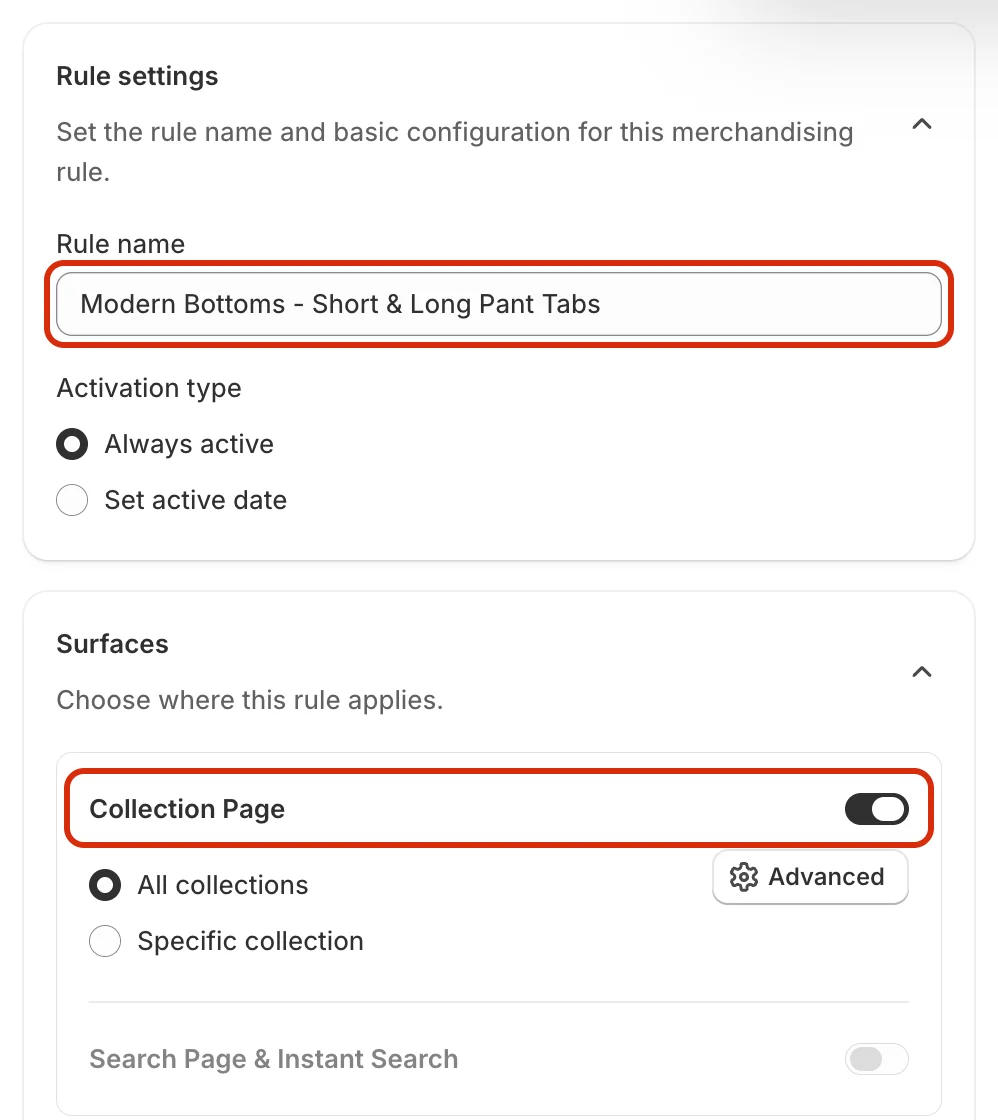
Enter a Rule name that is easy to recognize, for example Modern Bottoms - Short & Long Pant Tabs, and choose the activation type (Always active or Set active date). Then, under Surfaces, turn on the Collection Page toggle.
Step 3: Choose a specific collection
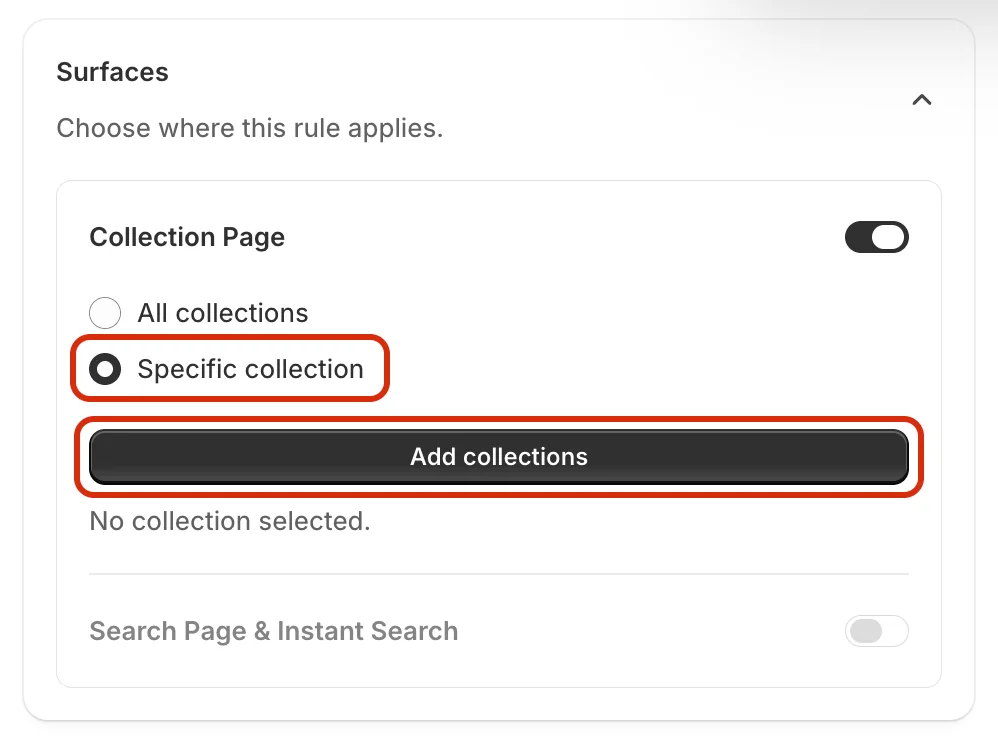
Select Specific collection, then click Add collections.
Step 4: Select the collection
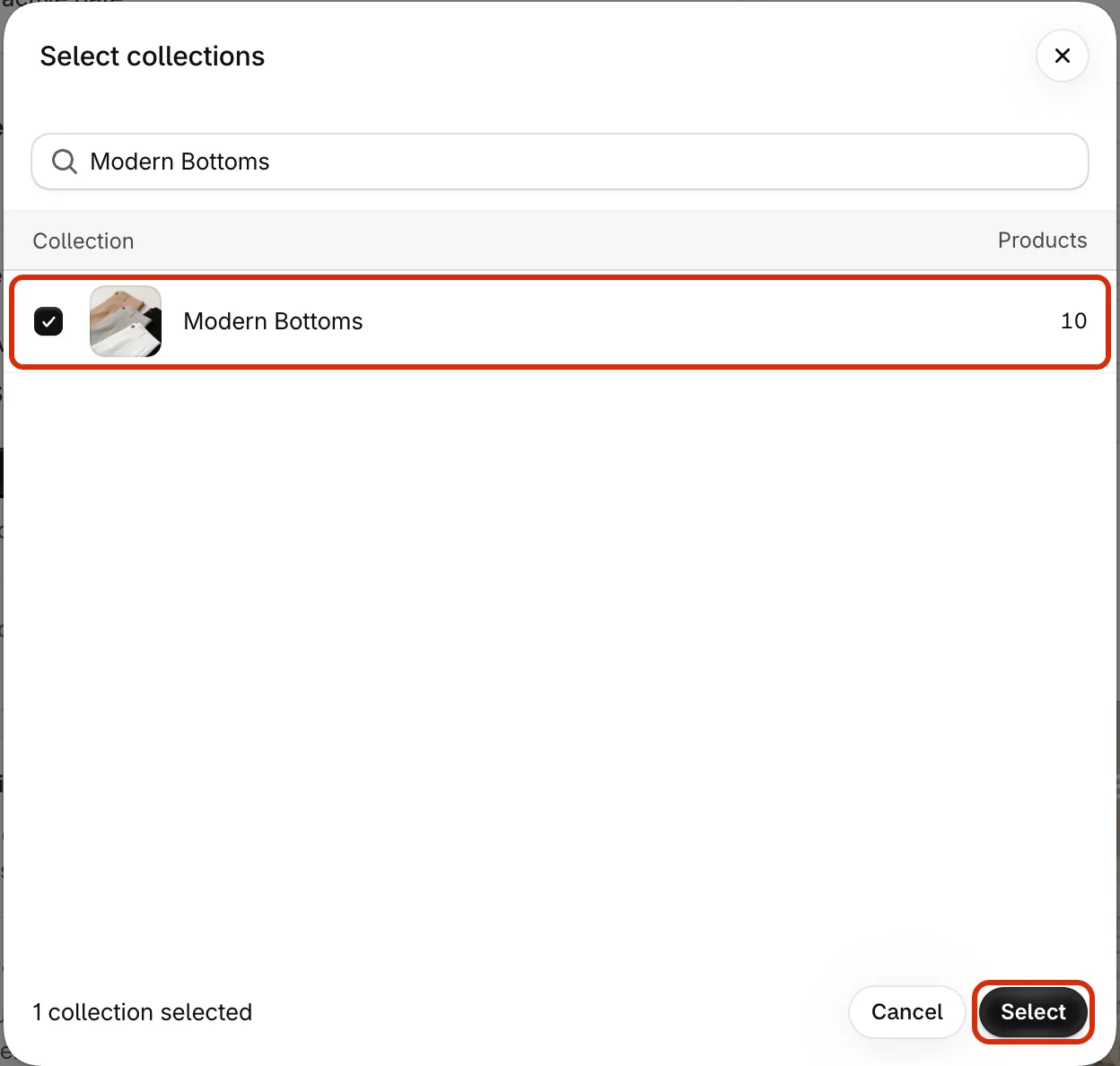
In the Select collections window, search for the collection (here, Modern Bottoms), tick it, and click Select.
Step 5: Open Advanced and create a tab
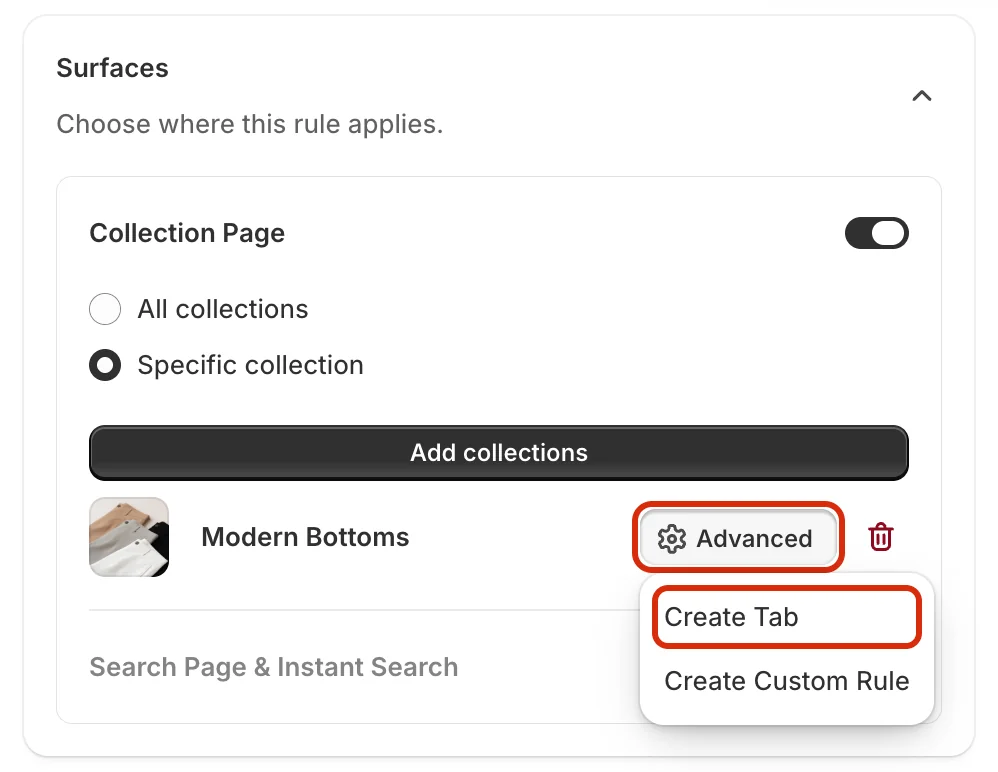
Next to the selected collection, click Advanced, then choose Create Tab. A tab section (Tab #1) appears under the collection.
Step 6: Set up Tab #1 (short pant)
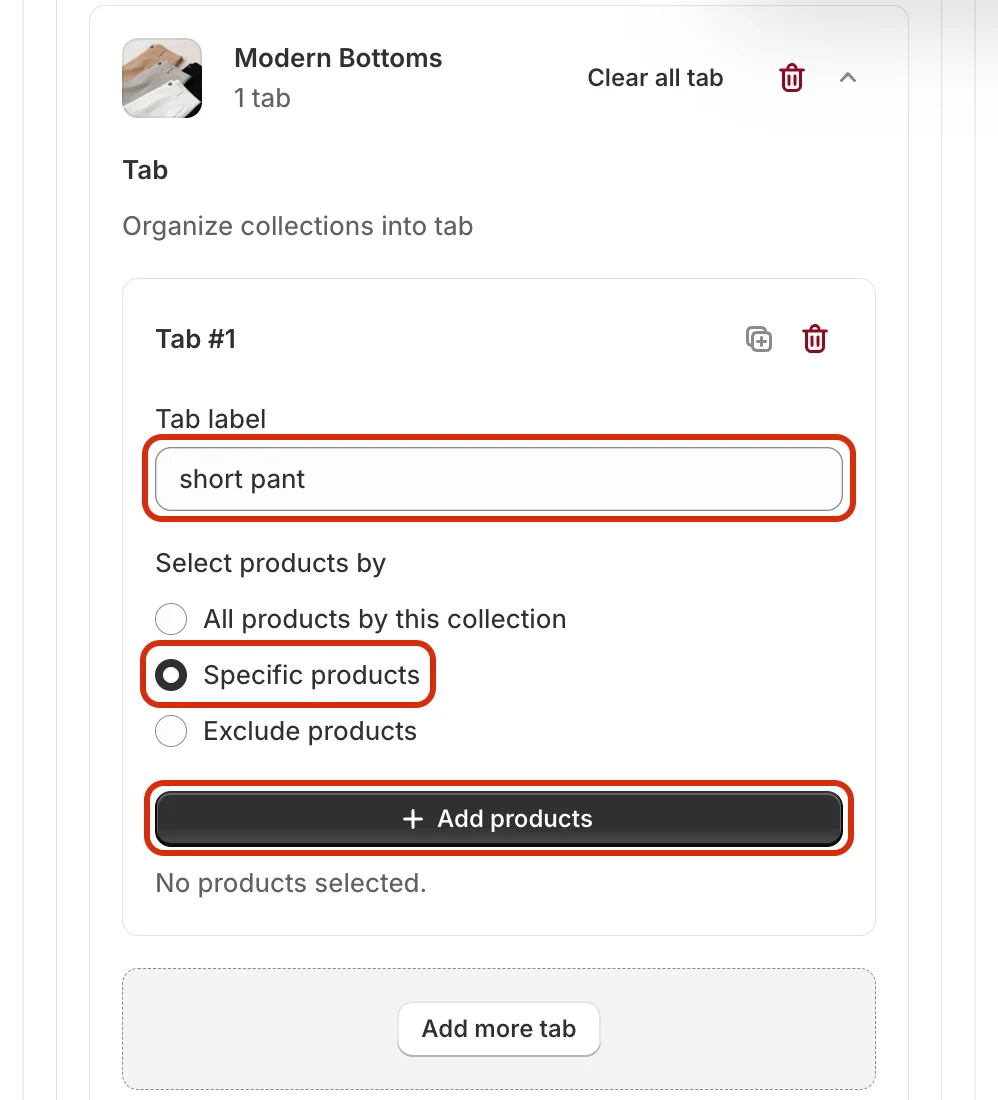
In Tab #1, replace the default Tab label with short pant. Under Select products by, choose Specific products, then click Add products.
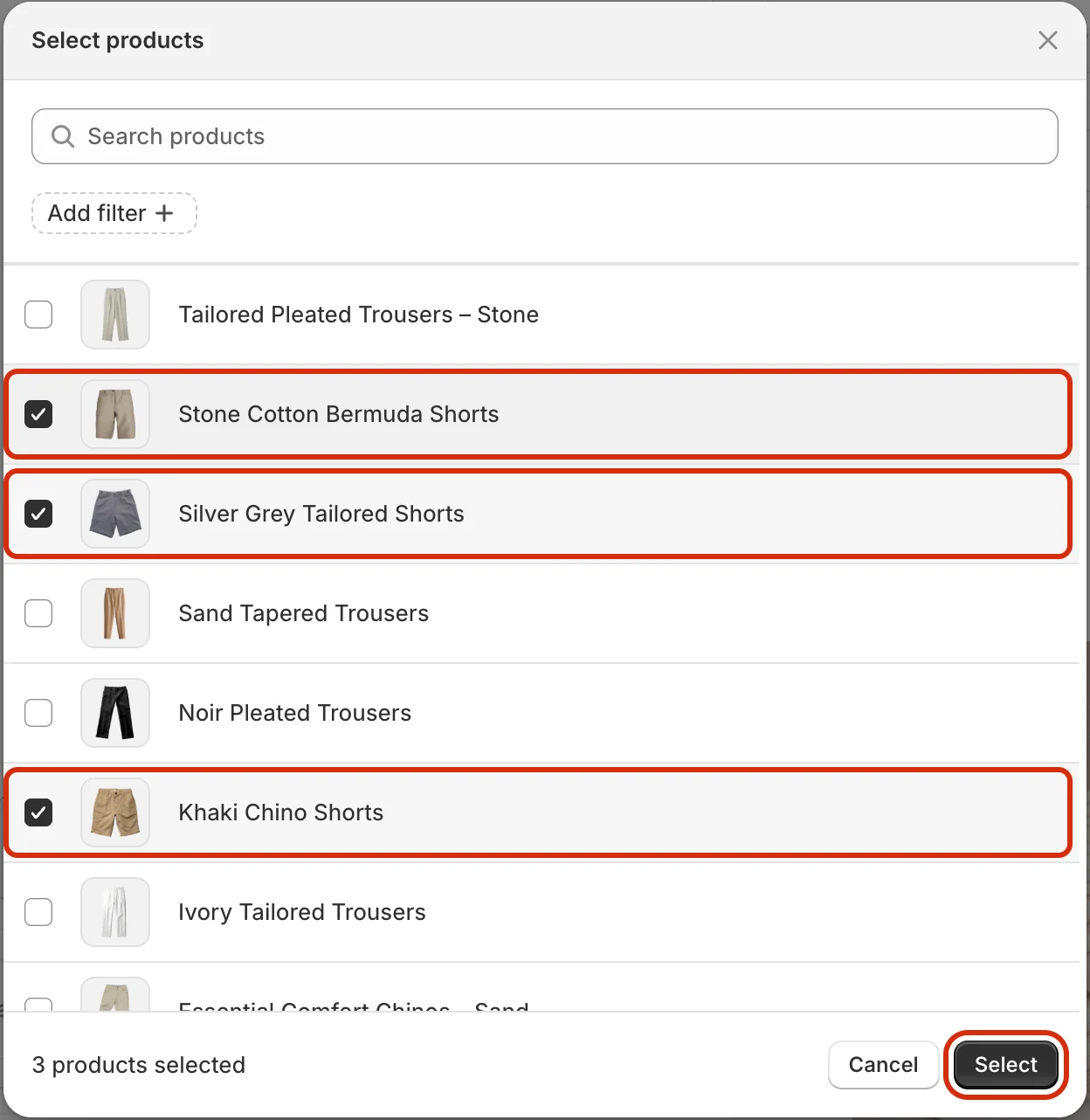
In the Select products window, tick the products that belong to this tab and click Select. In this example:
- Stone Cotton Bermuda Shorts
- Silver Grey Tailored Shorts
- Khaki Chino Shorts (scroll down the list to find it)
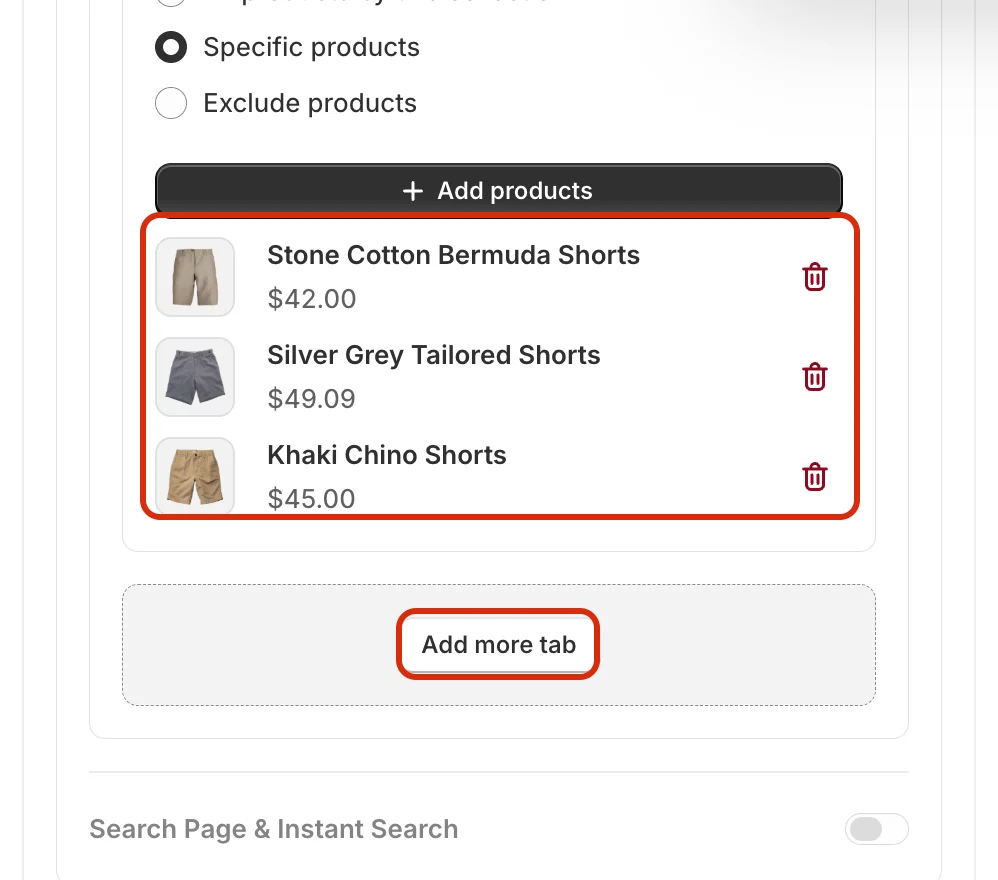
The selected products now appear in Tab #1. Click Add more tab to create the next tab.
Step 7: Set up Tab #2 (long pant)
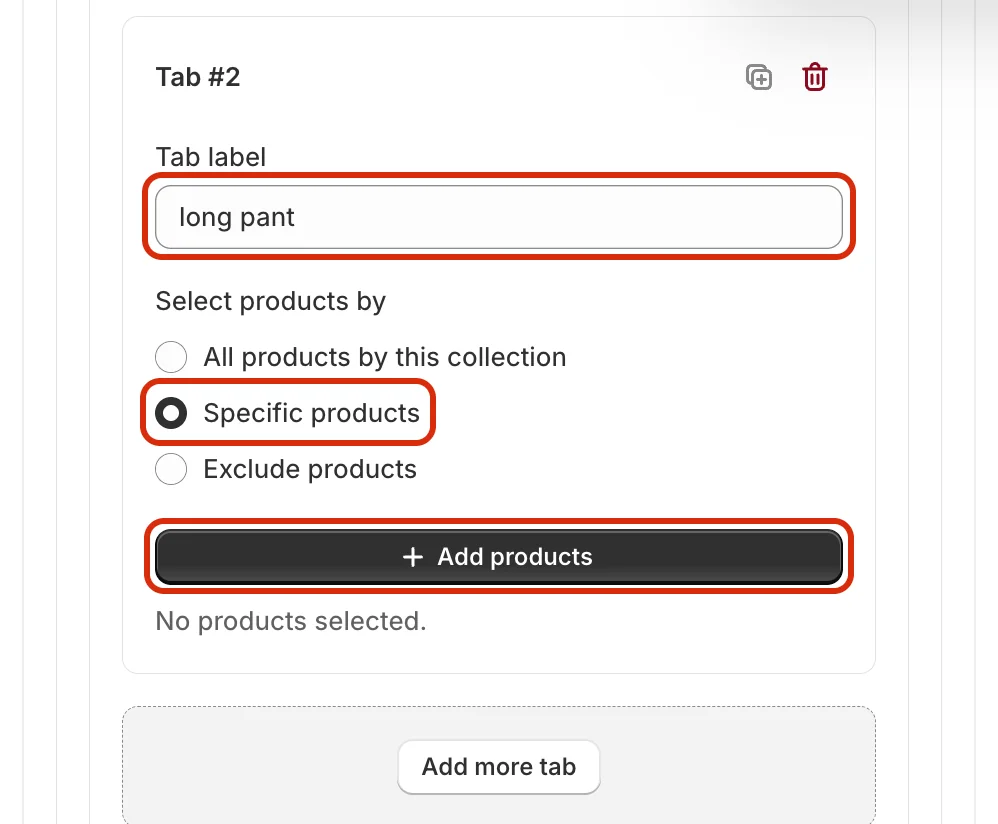
In Tab #2, set the Tab label to long pant, choose Specific products, and click Add products.
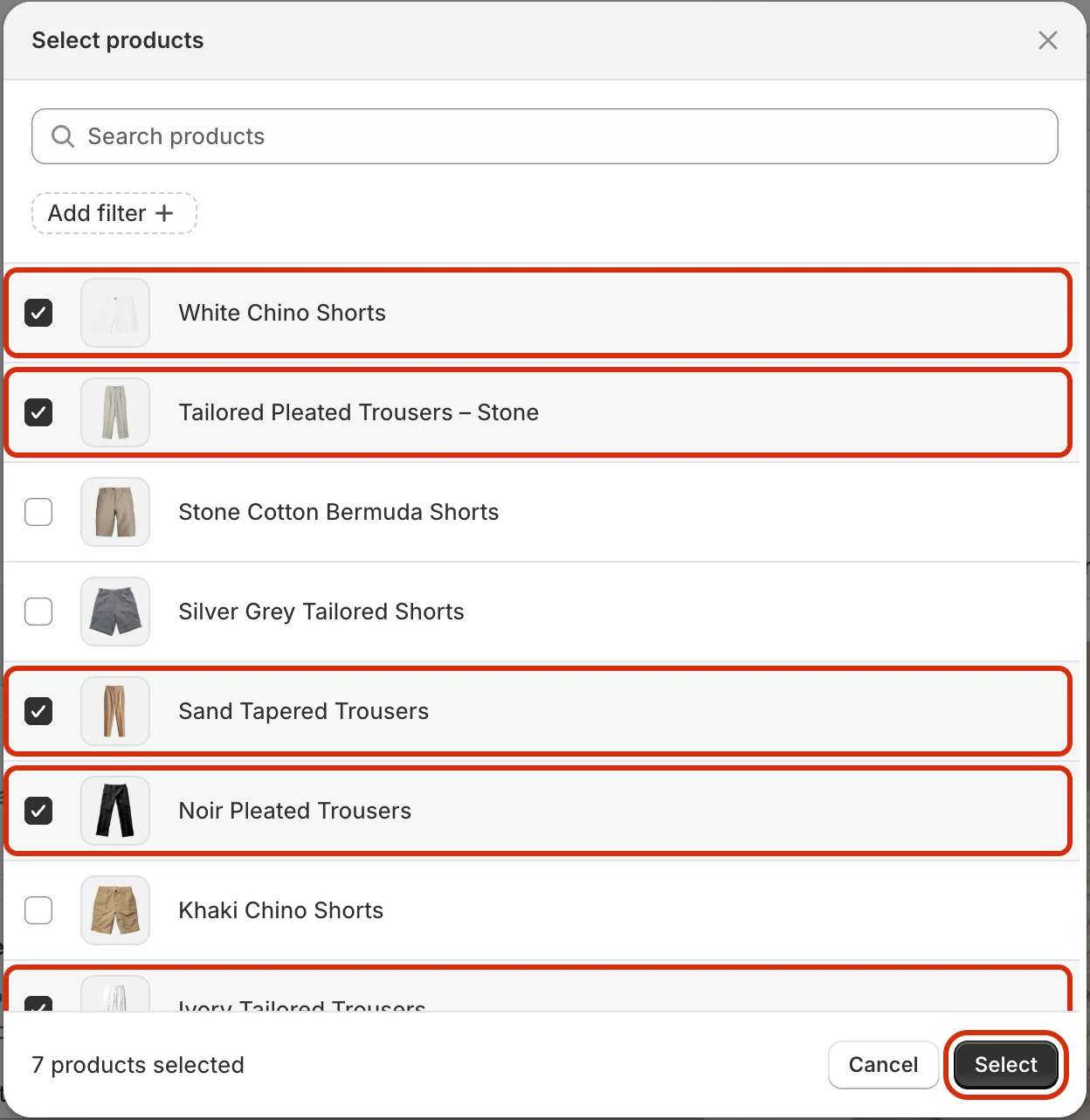
Select every product in the collection except the three shorts used in Tab #1 (here, 7 products), then click Select.
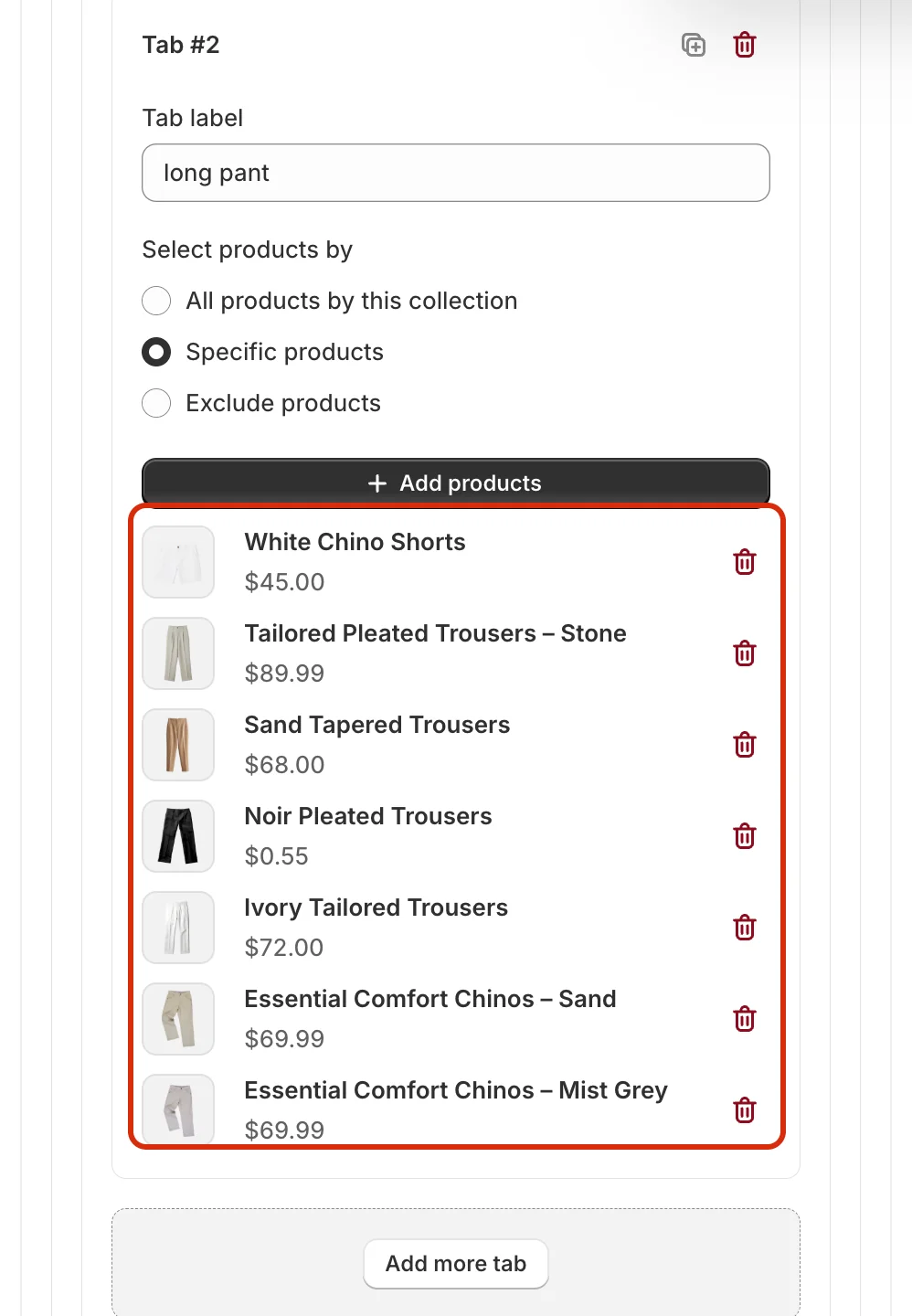
Tab #2 now lists its products. You can add more tabs the same way with Add more tab.
Tip: instead of picking each product, you can choose Exclude products for Tab #2 and select only the three shorts. The tab will then show all products in the collection except those.
Step 8: Pin a product in each tab
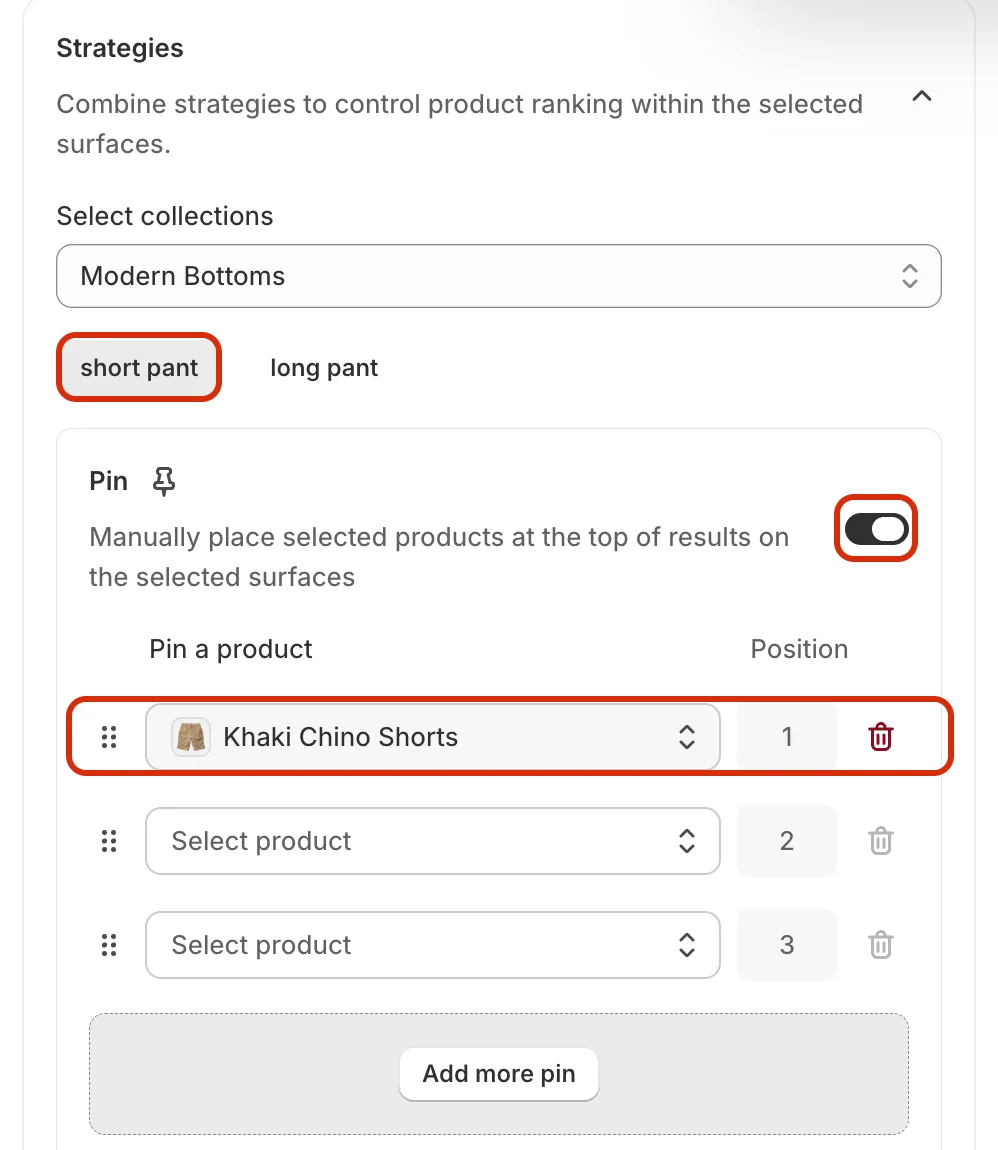
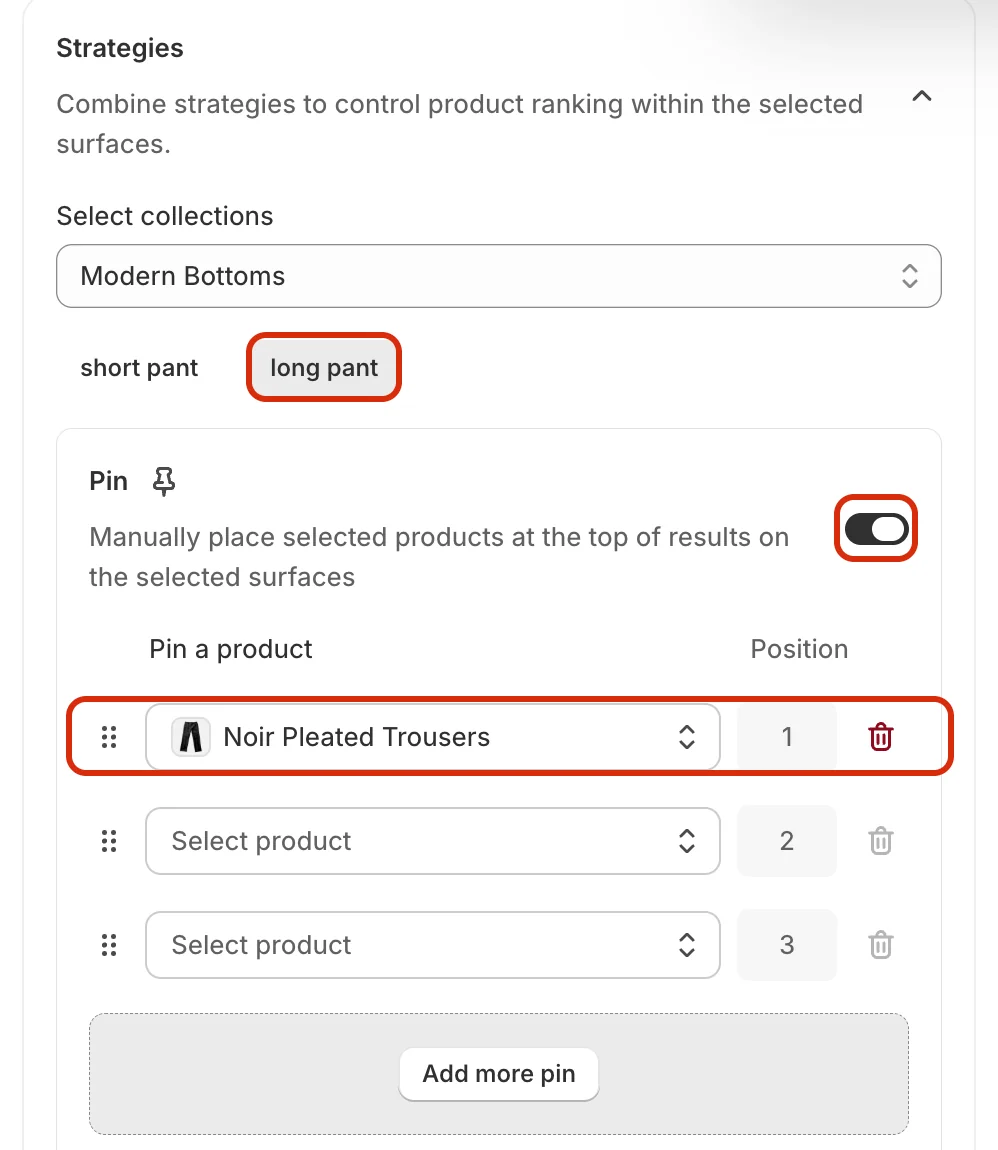
Scroll down to Strategies. Under Select collections, make sure Modern Bottoms is selected. The tabs you created (short pant and long pant) appear as buttons. Strategies are set per tab, so pick a tab first.
With short pant selected, turn on the Pin toggle and click the first Select product field. The product picker only shows the products in this tab. Tick one product (for example Khaki Chino Shorts) and click Select.
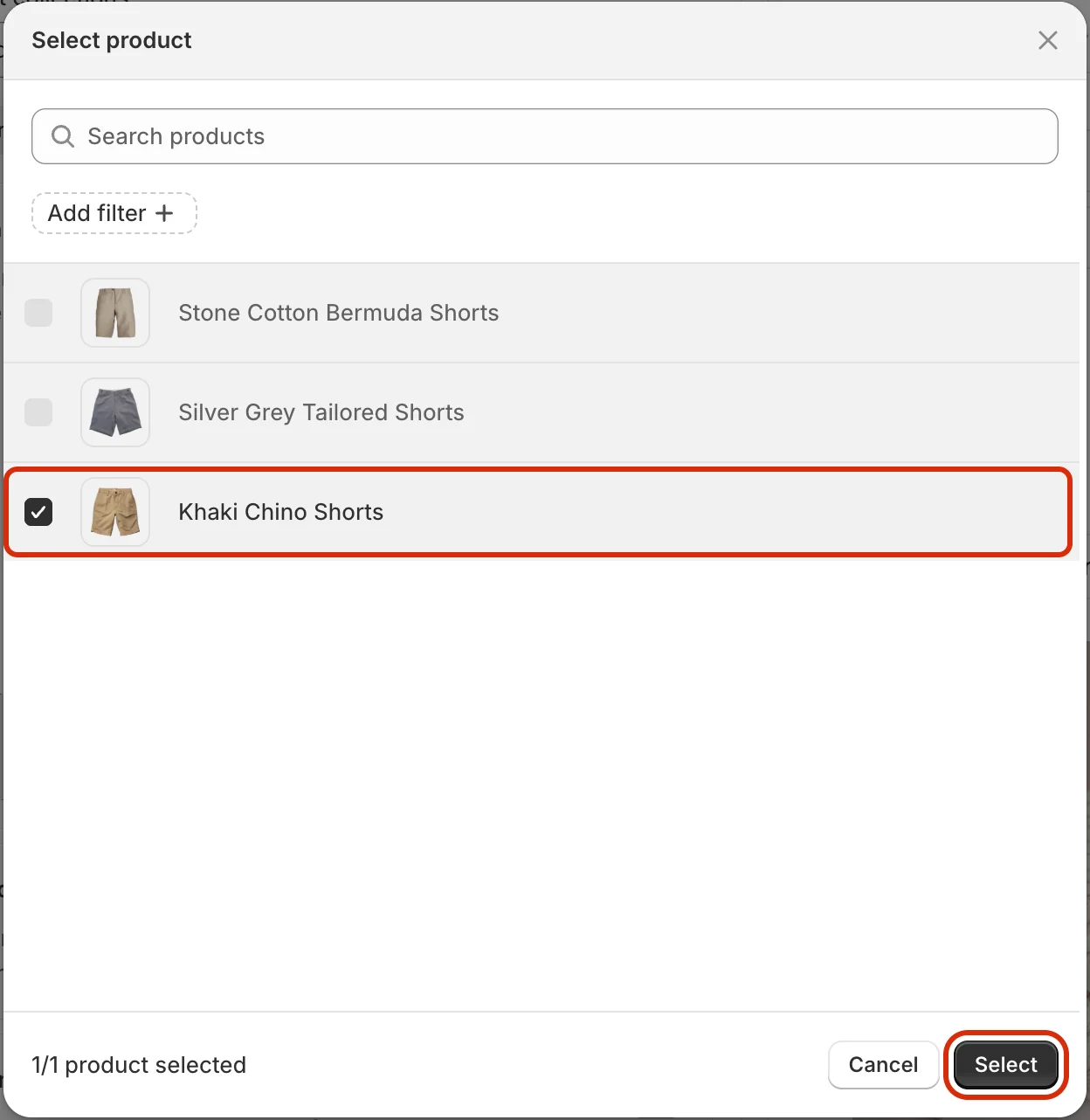
The product is pinned at Position 1, so it appears first in the short pant tab. Use Add more pin to pin more products.
Now click the long pant tab, turn on Pin, and pin a product from that tab the same way (for example Noir Pleated Trousers).
Step 9: Save the strategy
Make sure Status is set to Enable, then click Save in the bar at the top of the page. After saving, open the collection on your storefront and check that the tabs appear and that the pinned product shows first in each tab.

Related
- How to Pin Products on Search Page & Instant Search?
- How to Set Up Product Boosting for Search Page & Instant Search?
- How to Set Up Product Boosting Based on Selected Filters?
- How to Set Up Product Filters for Search Page & Instant Search?
- How to set up pin product?
- How to Set Up A/B Testing for Merchandising Strategy?
Last updated on
Merchandising
Merchandising in Sledge — 26 guides covering setup and day-to-day use.
How to Demote Products on Search Page & Instant Search?
Demote lowers selected products so they appear further down in the results on Search Page & Instant Search. Use it for products you still want to sell but do not want to feature, such as low-stock, ol