
How to set up Back in Stock?
Back in Stock lets customers leave their email on a sold-out product and get an automatic email the moment it’s available again — recovering demand you would otherwise lose. It’s one page: who it appl
Back in Stock lets customers leave their email on a sold-out product and get an automatic email the moment it’s available again — recovering demand you would otherwise lose. It’s one page: who it applies to, the button, the form, and the email.
Before you start
Sledge Core must be enabled on your theme. Sledge Core is the app embed that loads Sledge on your storefront — without it, nothing you configure here reaches your customers. You enable it during onboarding (Enable in theme), or any time via Online Store → Themes → Customize → App embeds → Sledge Core. Which pages actually show this feature is controlled by its own Surfaces section, explained below.
Open Back in Stock
Go to Sledge → Tools → Merchandising and open Back in Stock. It’s a single settings page (no list of campaigns).
Campaign, Applies to, and Country
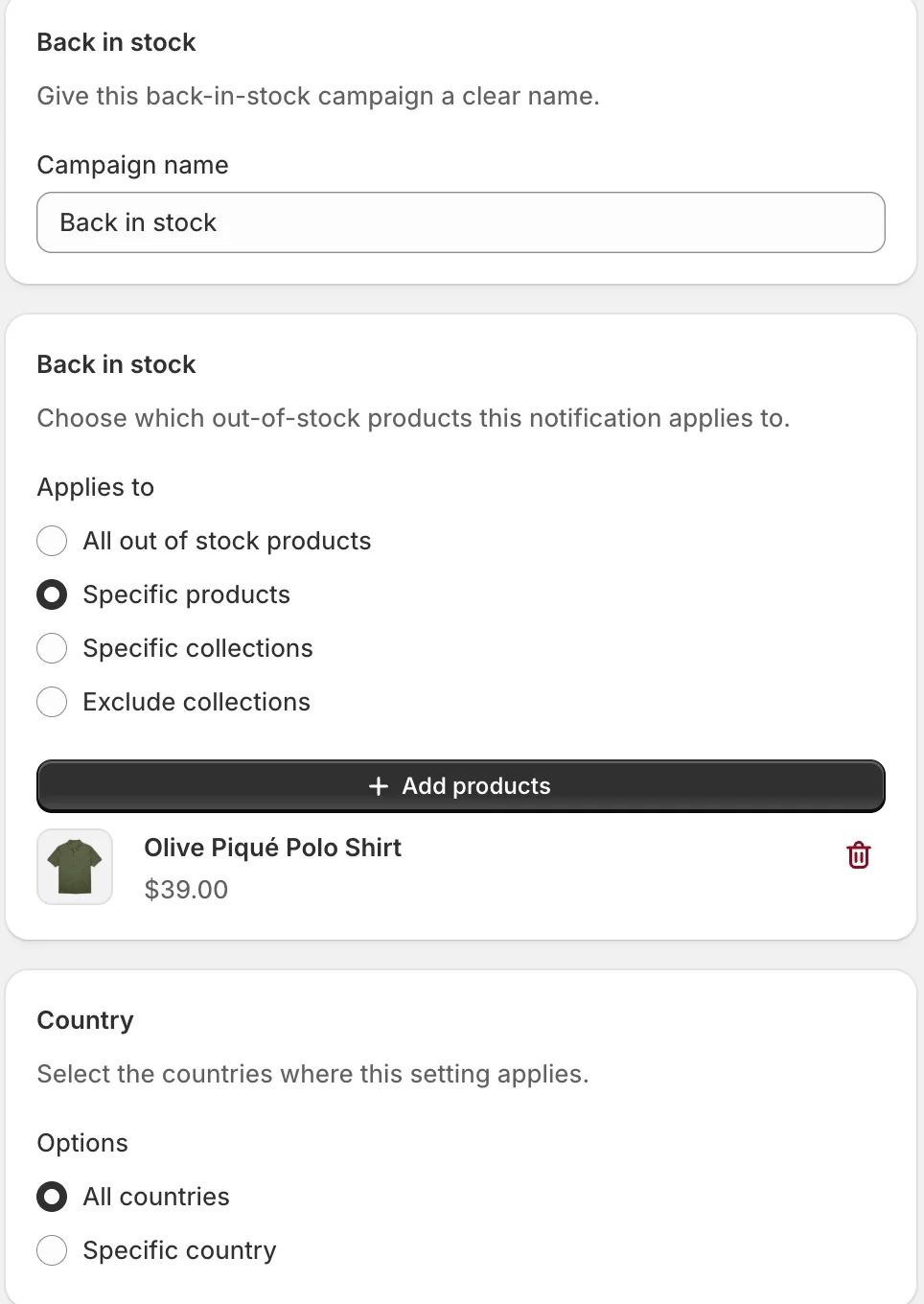
Name the campaign, then choose which out-of-stock products offer the notification: All out of stock products, Specific products (the example covers the Olive Piqué Polo Shirt), Specific collections, or Exclude collections. Country limits where the button shows.
Active dates and Button position
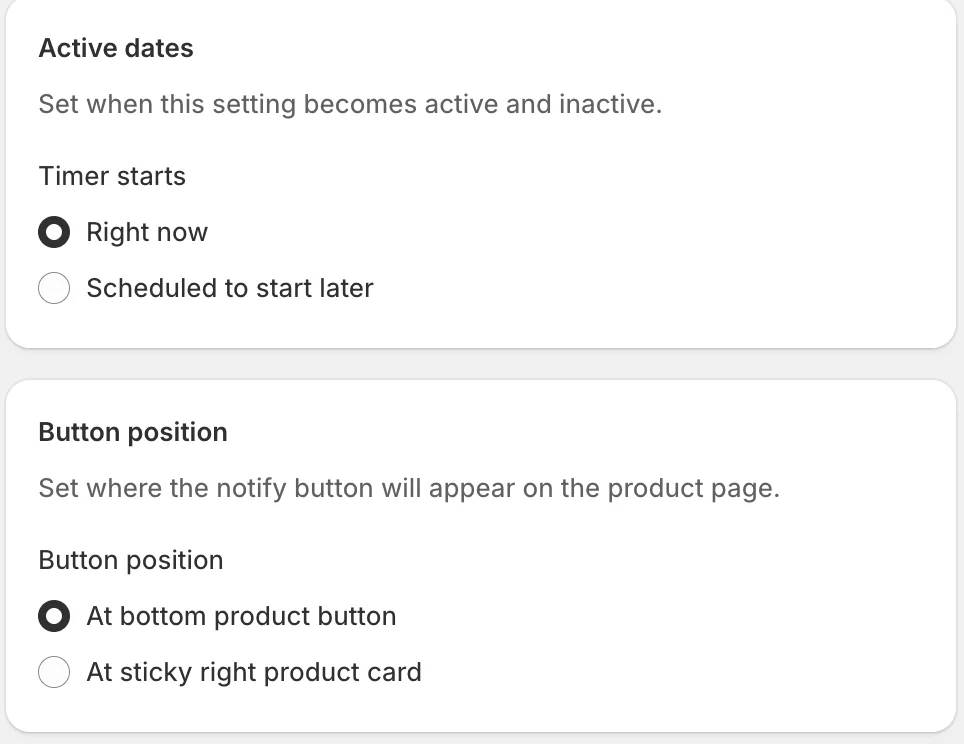
Scheduling works like every other campaign. Button position puts the notify button either At bottom product button (under the normal buy buttons) or At sticky right product card.
Form and Confirm message
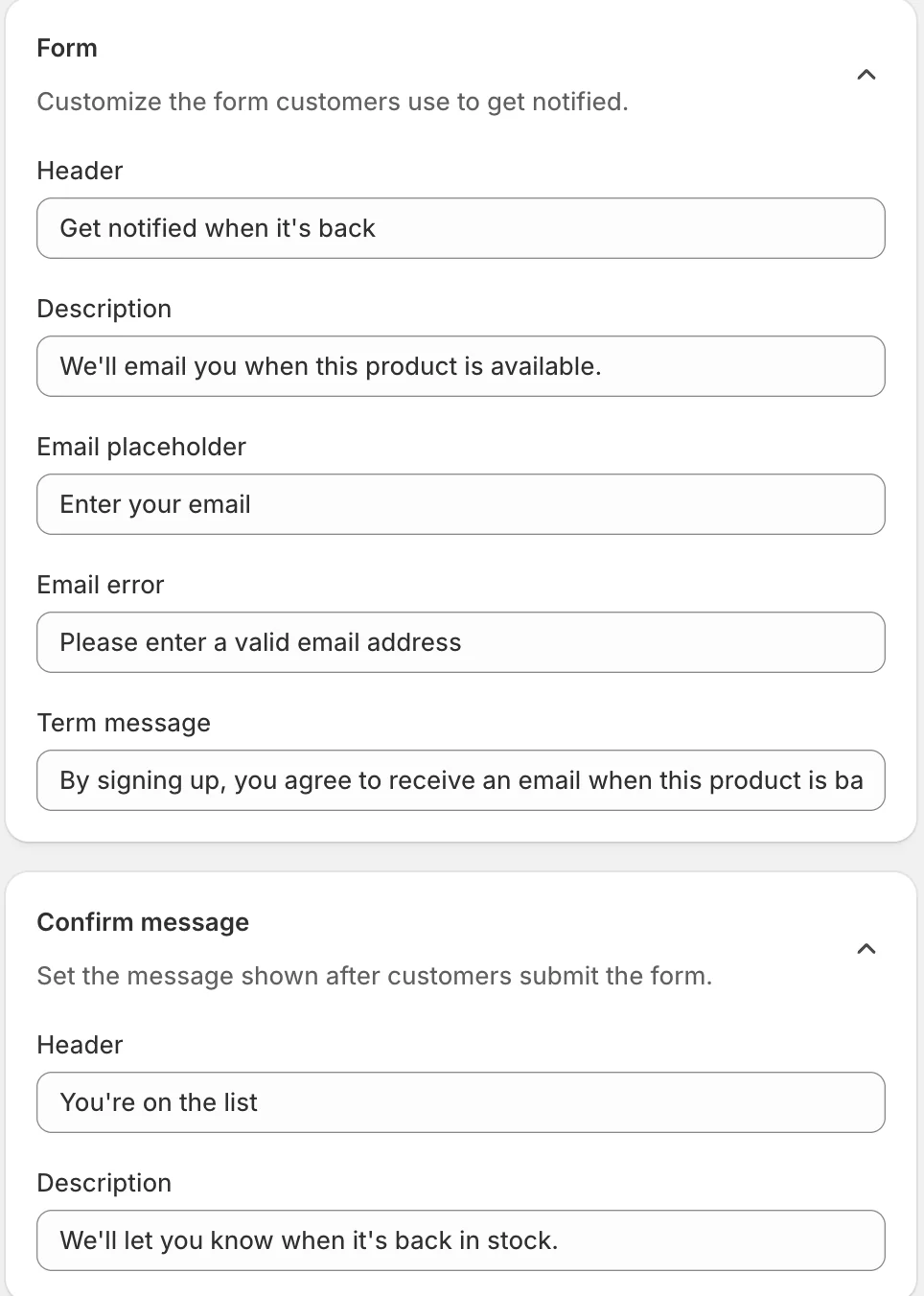
Every text of the signup flow is editable: the form’s Header (“Get notified when it’s back”), Description, Email placeholder, the Email error message, and the consent Term message. Confirm message is what customers see right after subscribing (“You’re on the list”).
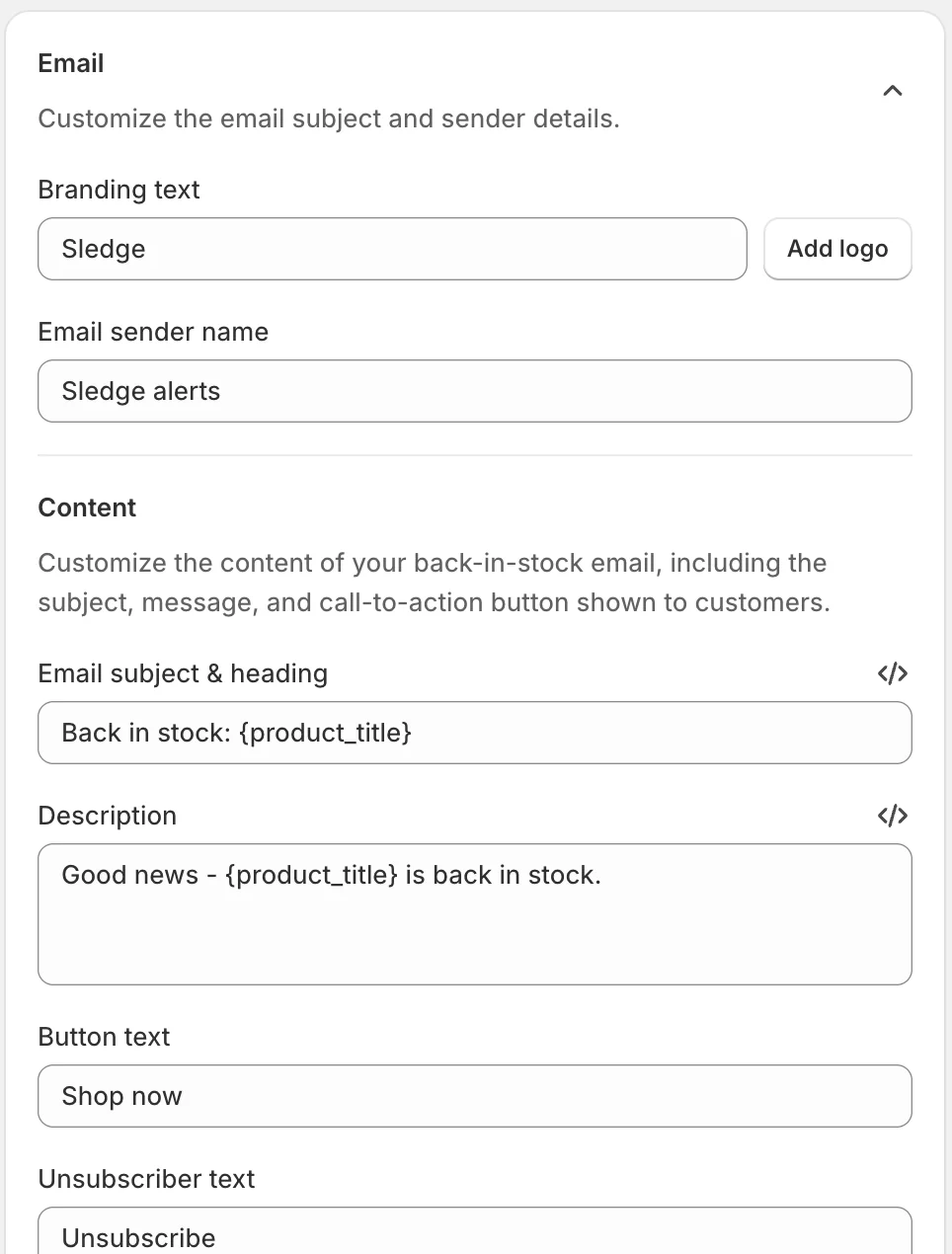
The notification email itself: Branding text (or a logo), Email sender name, then the content — Email subject & heading, Description, Button text (“Shop now”), and Unsubscriber text. The subject and description support the {product_title} placeholder, which is replaced with the actual product name when the email is sent.
Previews
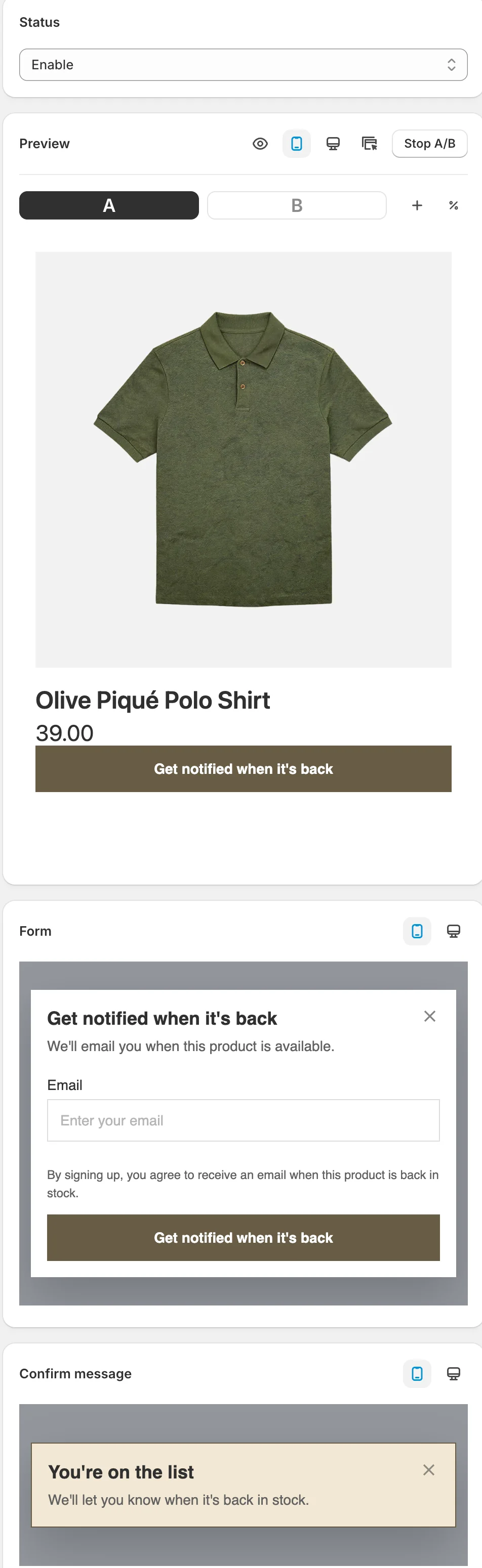
The right rail previews each piece live: the product page button, the signup form, and the confirmation toast — with mobile and desktop toggles.
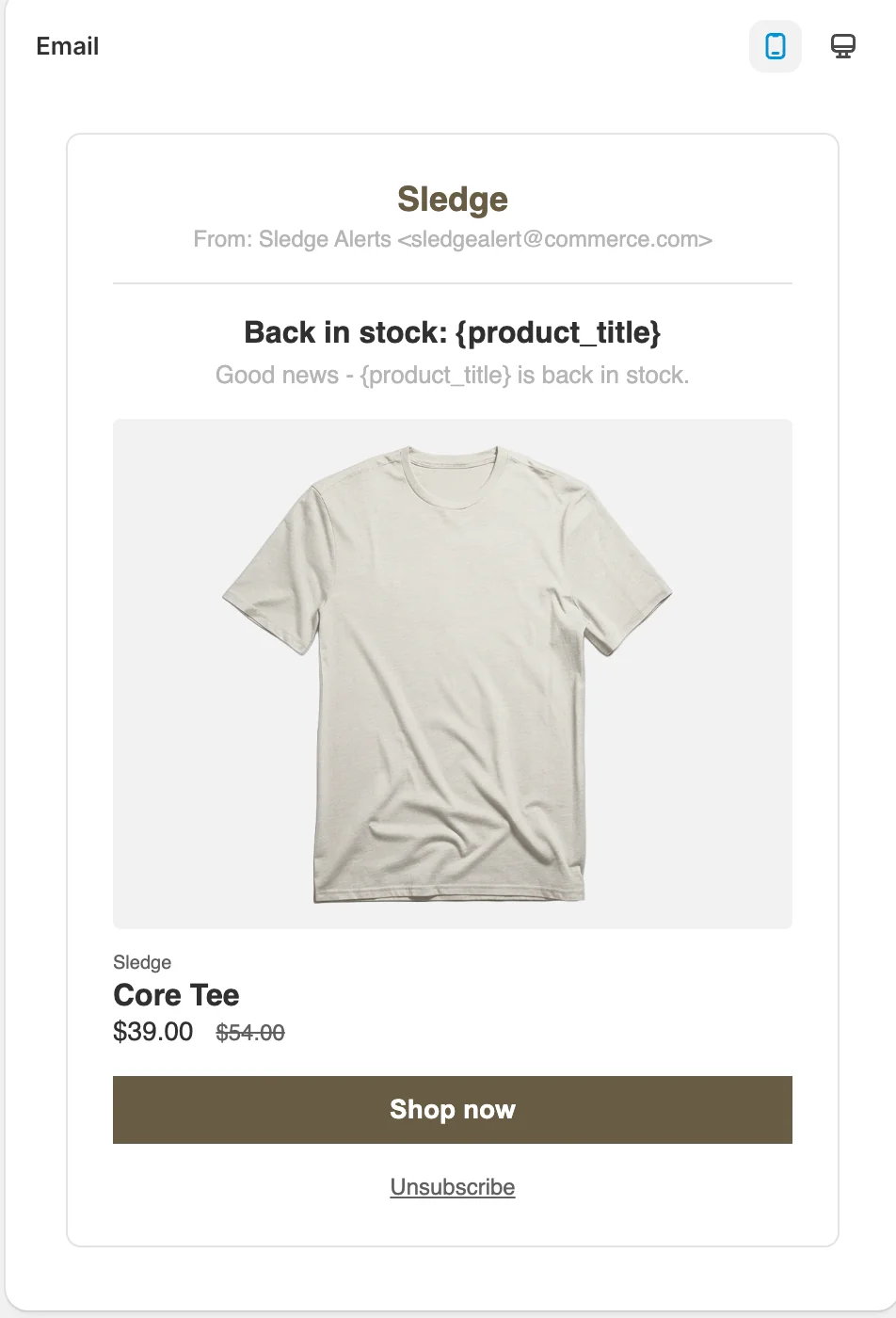
The email preview shows the final email with your branding, content, and the product card. Click Save to apply changes.
Result
Sold-out eligible products show the Get notified when it’s back button; customers subscribe through your form, and when stock returns Sledge automatically emails everyone on the list with your configured email.
Not showing up? Give the change a minute to sync, then reload the page. Also confirm the campaign’s Status is Enable, the surface you expect is switched on in Surfaces, and Sledge Core is enabled as described above.
Related
Last updated on
How to set up a badge campaign?
A badge campaign sticks a label — “BEST SELLER”, “NEW”, “BFCM” — on the product cards you choose, everywhere those cards appear. Badges guide the eye and lift clicks on the products you want to push.
How to set up boost product?
Boost pushes products up the results without nailing them to a fixed slot. Unlike Pin, you don’t choose exact positions — you either name the products you want lifted, or describe them with conditions