
How to set up pin product?
Pin lets you place chosen products in exact positions at the top of a collection or search results — position 1 is the very first card a customer sees. Use it to put your hero products, new drops, or
Pin lets you place chosen products in exact positions at the top of a collection or search results — position 1 is the very first card a customer sees. Use it to put your hero products, new drops, or highest-margin items where they get seen first, instead of leaving that to the default sort order.
Pin lives inside a merchandising rule (a “Strategy”). One rule is scoped to where it applies, and can carry several actions at once — so you can pin and boost and hide on the same rule.
Before you start — Sledge must be active on your theme, and the collection or search page you want to curate should already be working.
Create the rule
-
Go to Tools → Merchandising → Strategy and click Add Strategies (or open an existing rule).
-
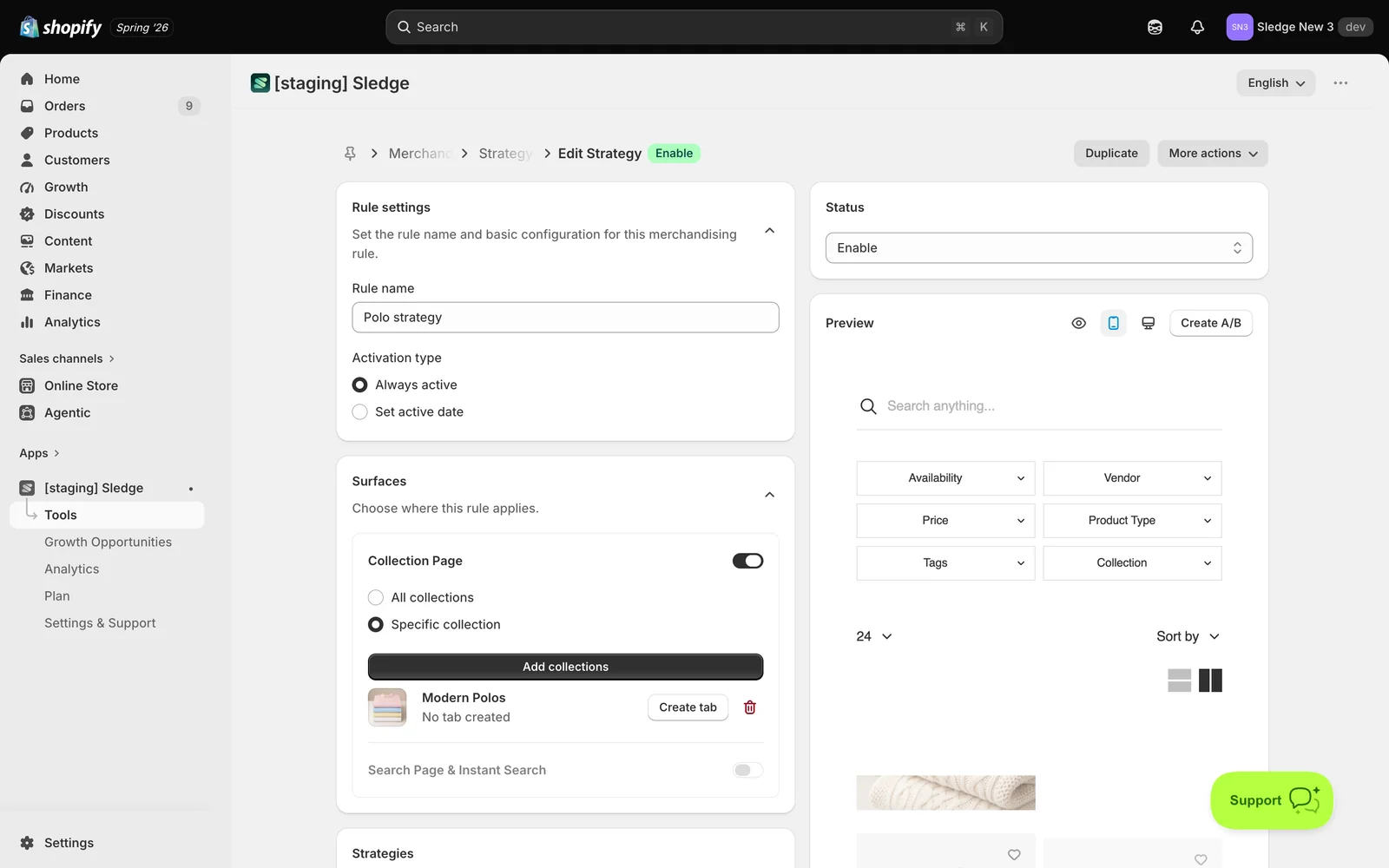
Under Rule settings, enter a Rule name you’ll recognise later (for example, “Winter boots – prioritize best sellers”). Choose an Activation type: Always active, or Set active date to schedule a start and end.
-
Under Surfaces, choose where the rule applies:
- Collection Page — then All collections, or Specific collection and Add collections to pick them.
- Search Page & Instant Search — then All searches, or Specific keywords with a Match of Contains or Exact.
-
You must enable at least one surface — the Strategies section stays greyed out until you do.
Set up Pin
-
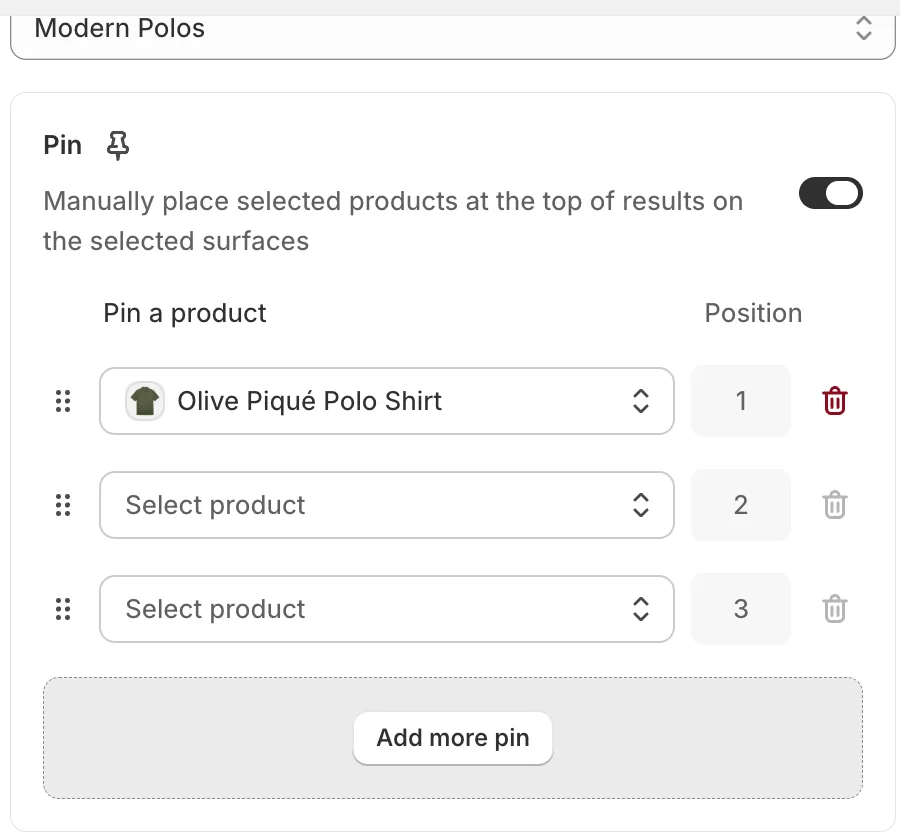
Scroll to Strategies and turn on Pin — “Manually place selected products at the top of results on the selected surfaces”.
-
Each row is one slot: pick a product with Select product, and the number beside it is the position it will hold. Position 1 = the first card in the grid.
-
Drag the handle on the left to reorder slots, click Add more pin for extra slots, or the bin icon to clear one. Three slots always show — you don’t have to fill them all.
-
Click Save. Set Status to Enable on the right so the rule goes live, and check the live Preview panel as you work.
Good to know — Pin is applied first, so it claims its exact slot numbers before any other action. If Boost or Inject product is also on, they fill the gaps your pins left. The same product can’t sit in two slots — Sledge skips the duplicate.
Result
Done. Your pinned products now hold the exact top slots you chose on that collection or search page, above the normal sort order — for every customer, every visit.
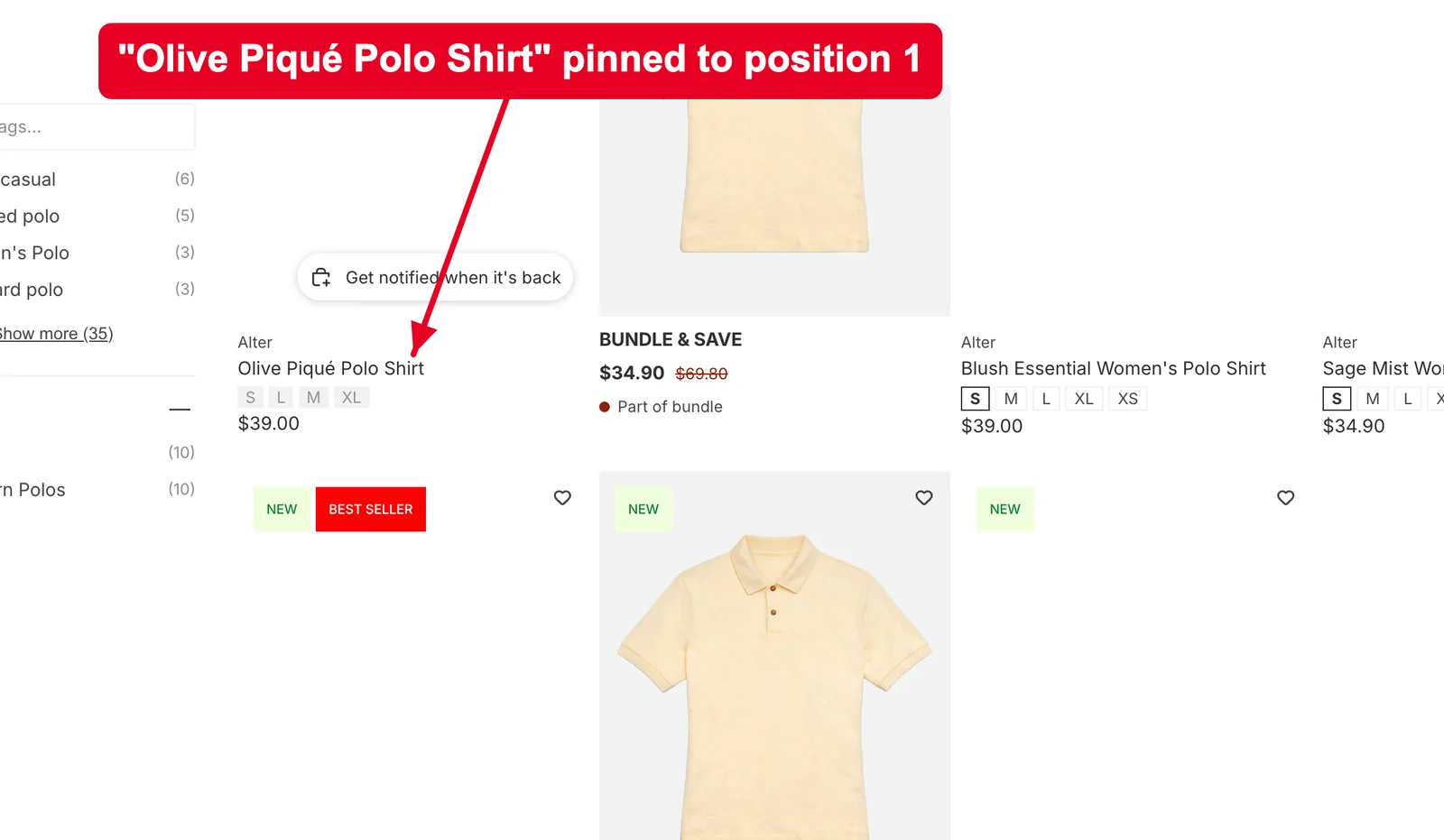
Not showing up? Check the rule’s Status is Enable, that the collection you’re looking at is listed under Surfaces, and that the pinned product is actually in that collection. If dates are set, confirm the rule is inside its active window. Storefront changes can take about a minute to sync.
Related
Last updated on
How to set up inject product?
Inject product drops a product into a collection or search results even when it doesn’t belong there — at a slot number you choose. Unlike Pin (which can only reorder products already in the collectio
How to set up pre order bundle?
Pre-order bundle puts an existing bundle offer on pre-order, so customers can buy the whole set before it’s available. It’s the way to run a launch or restock as a pre-sell without rebuilding the bund