
How to set up boost product?
Boost pushes products up the results without nailing them to a fixed slot. Unlike Pin, you don’t choose exact positions — you either name the products you want lifted, or describe them with conditions
Boost pushes products up the results without nailing them to a fixed slot. Unlike Pin, you don’t choose exact positions — you either name the products you want lifted, or describe them with conditions (“on sale”, “best sellers”, “new arrivals”) and let Sledge lift whatever matches, automatically, as your catalogue changes.
Boost lives inside a merchandising rule (a “Strategy”). One rule can carry several actions at once, so Boost can run alongside Pin, Hide, and the rest.
Before you start — Sledge must be active on your theme, and the collection or search page you want to curate should already be working.
Create the rule
-
Go to Tools → Merchandising → Strategy and click Add Strategies (or open an existing rule).
-
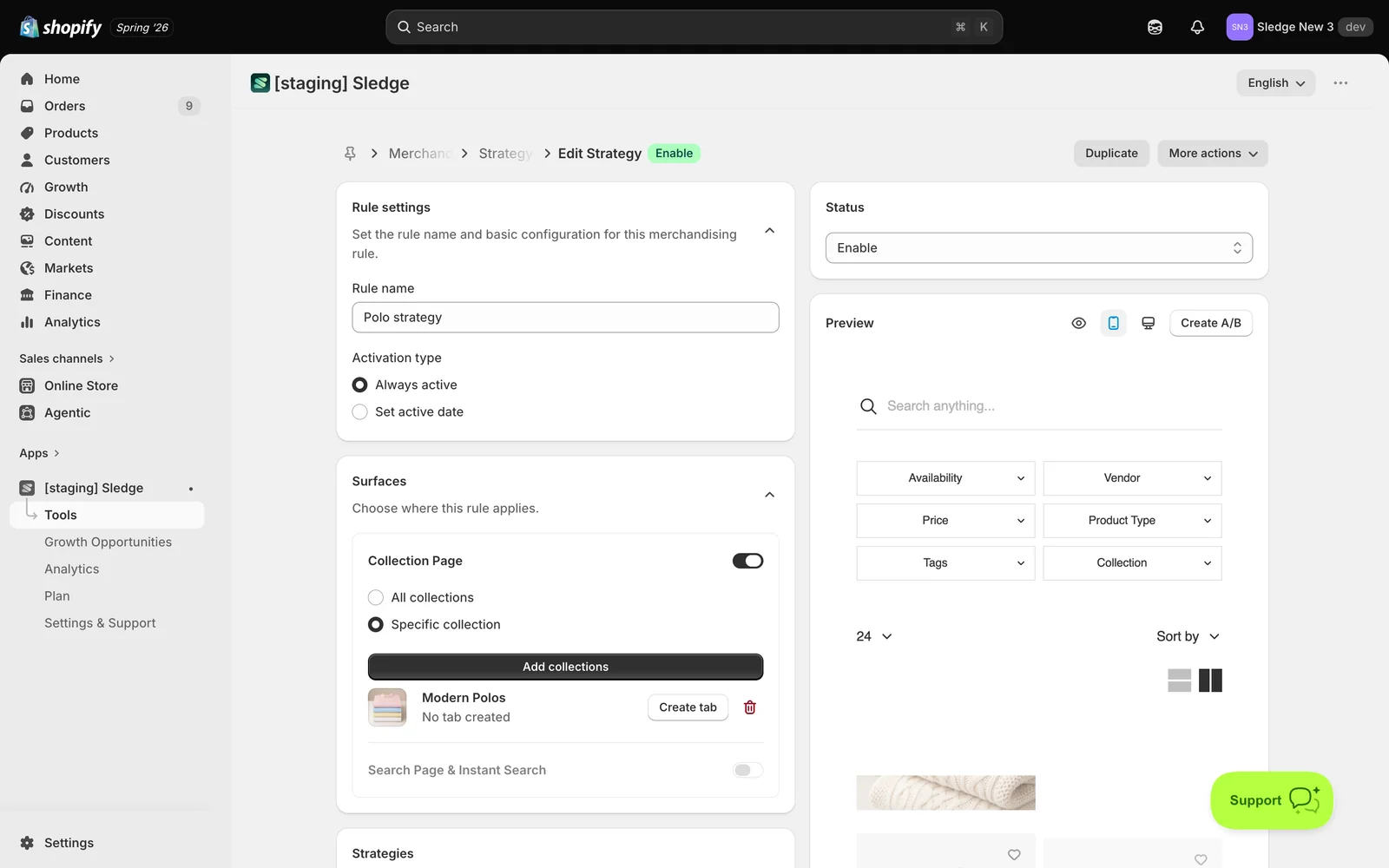
Under Rule settings, enter a Rule name and choose an Activation type — Always active or Set active date.
-
Under Surfaces, enable Collection Page (All collections or Specific collection) and/or Search Page & Instant Search (All searches or Specific keywords). At least one surface is required.
Set up Boost
-
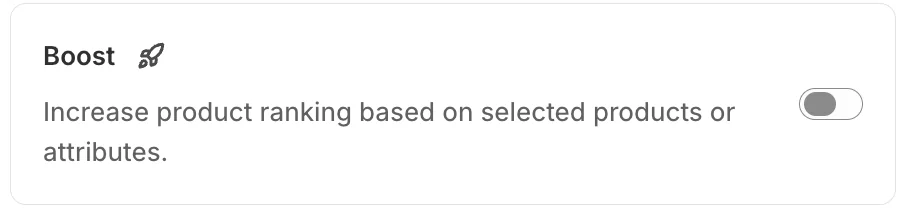
Scroll to Strategies and turn on Boost — “Increase product ranking based on selected products or attributes.”
-
Pick how you want to choose products:
- By Product Items — hand-pick up to 5 products to lift. Use Add more boost for extra rows.
- By Attributes and Metrics — describe them instead. Build condition groups from attributes like Product type, Vendor, Tag, Price, Inventory, New arrivals, On sale, Best sellers, Most viewed, Most clicked, Highest conversion rate, and Highest add-to-cart ratio, with operators such as Is, More than, or Less than. Rules inside a group must all match; add another group with Add new group for an alternative set.
-
Click Save and set Status to Enable. Watch the live Preview to see the new order.
Good to know — There is no strength or weight setting; boosted products simply move up. Pin runs first and claims its exact slots, so Boost fills the highest slots that are still free. If a product is both boosted and demoted, Demote wins.
Result
Done. Matching products now rise toward the top of that collection or search page, above products that don’t match — and with the attribute mode, the line-up keeps itself up to date as products go on sale, sell well, or arrive.
Not showing up? Check the rule’s Status is Enable and the collection is listed under Surfaces. If you used conditions, make sure products actually match them — a condition group only matches when every rule in it is true. Storefront changes can take about a minute to sync.
Related
Last updated on
How to set up Back in Stock?
Back in Stock lets customers leave their email on a sold-out product and get an automatic email the moment it’s available again — recovering demand you would otherwise lose. It’s one page: who it appl
How to set up demote product?
Demote pushes products to the very bottom of a collection or search results without removing them. Use it for clearance leftovers, low-margin lines, or items you must keep listed but don’t want compet