
How to set up hide product?
Hide removes products from a collection or search results completely — they simply aren’t there, and the result count drops. Use it for items you don’t want surfaced while browsing (discontinued lines
Hide removes products from a collection or search results completely — they simply aren’t there, and the result count drops. Use it for items you don’t want surfaced while browsing (discontinued lines, staff-only SKUs, region-specific stock) without unpublishing them in Shopify.
Hide lives inside a merchandising rule (a “Strategy”). One rule can carry several actions at once.
Before you start — Sledge must be active on your theme, and the collection or search page you want to curate should already be working.
Create the rule
-
Go to Tools → Merchandising → Strategy and click Add Strategies (or open an existing rule).
-
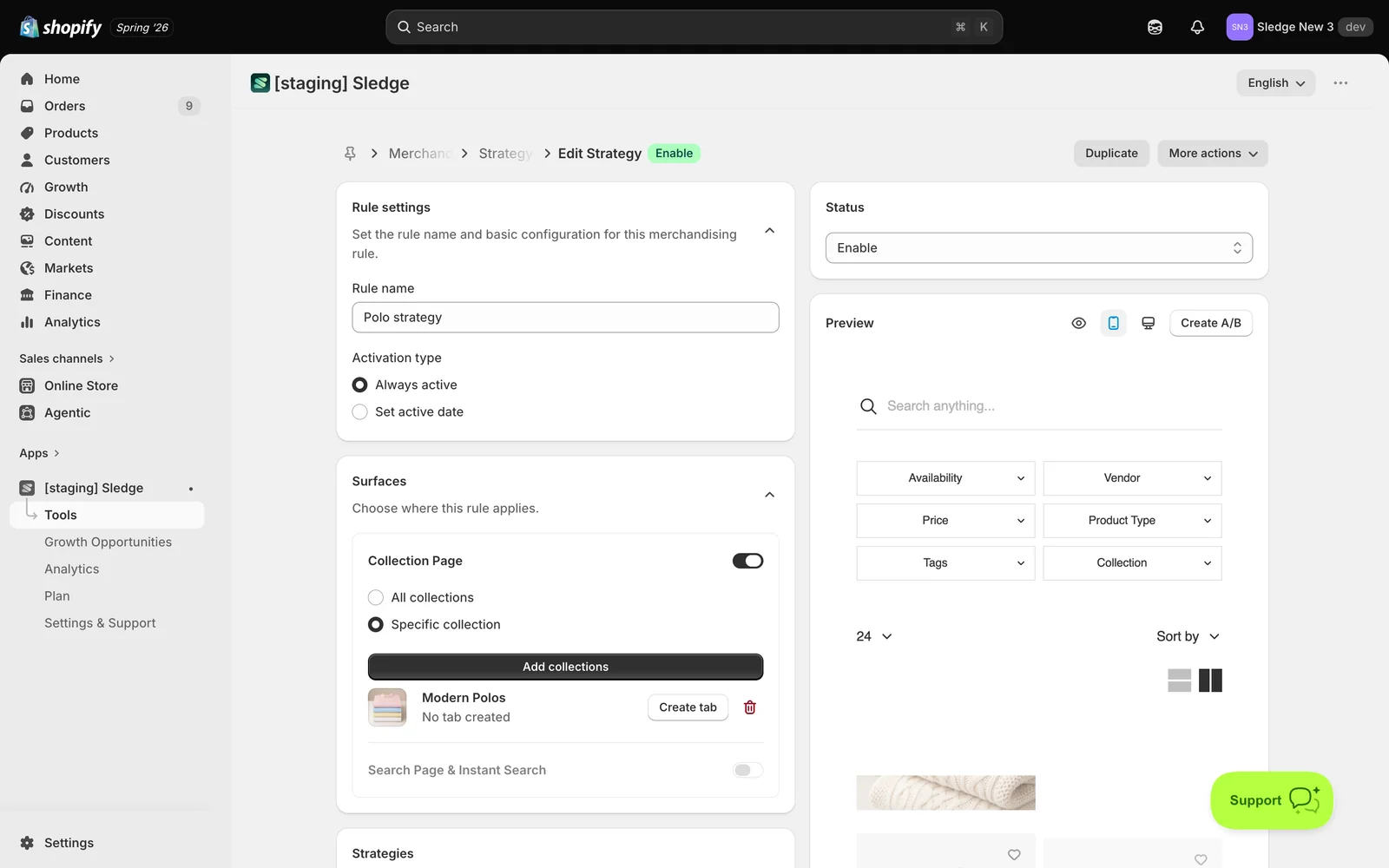
Under Rule settings, enter a Rule name and choose an Activation type — Always active or Set active date.
-
Under Surfaces, enable Collection Page (All collections or Specific collection) and/or Search Page & Instant Search (All searches or Specific keywords). At least one surface is required.
Set up Hide
-
Scroll to Strategies and turn on Hide — “Hide selected products from customer-facing results.”

-
Choose how to select the products:
- By Product Items — hand-pick up to 5 products to hide. Use Add more hide for extra rows.
- By Attributes and Metrics — describe them with condition groups instead (for example, hide everything from a given Vendor, or anything Out of Stock). Every rule in a group must match.
-
Click Save and set Status to Enable.
Important — Hide only affects browsing. The product is not unpublished: a customer with a direct link to the product page can still open and buy it. To take it off your store entirely, unpublish it in Shopify instead.
Result
Done. The products you chose are gone from that collection or search page, and the result count at the top drops to match. Everything else moves up to fill the gap.
To check it on your storefront, open the collection and compare the result count before and after enabling the rule — that number is the quickest confirmation Hide is working. (Use Demote instead if you want them kept but pushed to the bottom.)
Not showing up? Check the rule’s Status is Enable and the collection is listed under Surfaces. If you used conditions, confirm the products really match them. Storefront changes can take about a minute to sync.
Related
Last updated on
How to set up filter product?
Filter is an allowlist: it restricts a collection or search page to only the products you approve, and everything else disappears. It’s the mirror image of Hide — instead of naming what to remove, you
How to set up inject product?
Inject product drops a product into a collection or search results even when it doesn’t belong there — at a slot number you choose. Unlike Pin (which can only reorder products already in the collectio