
How to set position Bundle, Discount & Upsell?
Bundle, Discount & Upsell places one of your existing bundle offers directly into the product grid, at a slot number you choose. Instead of hoping customers find the offer on a product page, you put t
Bundle, Discount & Upsell places one of your existing bundle offers directly into the product grid, at a slot number you choose. Instead of hoping customers find the offer on a product page, you put the deal in front of them while they browse — and because it sits in the grid like a card, it reads as part of the collection rather than an ad.
This action lives inside a merchandising rule (a “Strategy”). It doesn’t create the bundle — it positions a bundle you’ve already built in Bundle, Discount & Upsell.
Before you start — You need at least one bundle already created. Only Fixed bundle, Buy X get Y, and Volume discount can be placed here — the other types (like Free gift or Subscription) only ever render in the cart or on a product page, so they’re not offered.
Create the rule
-
Go to Tools → Merchandising → Strategy and click Add Strategies (or open an existing rule).
-
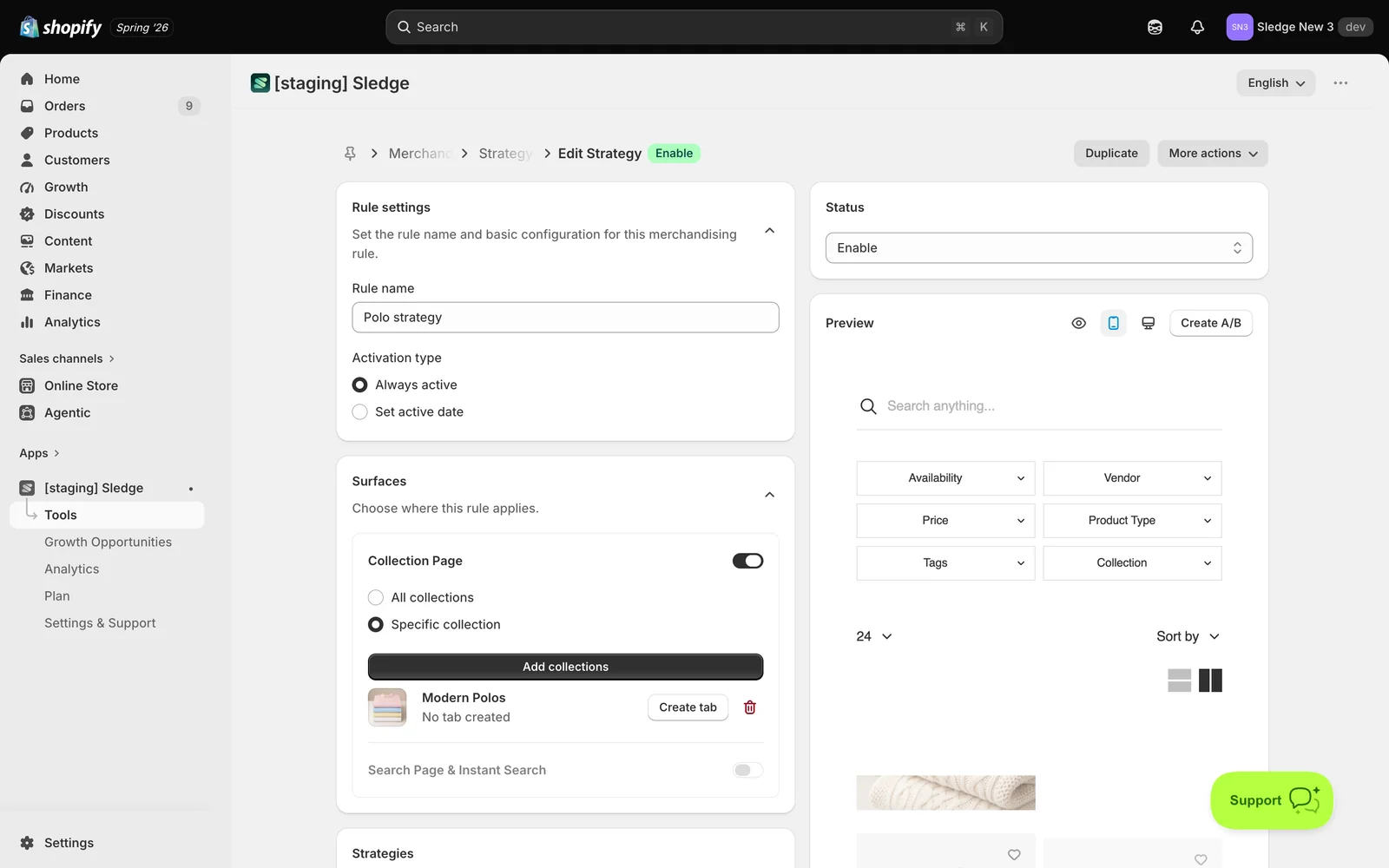
Under Rule settings, enter a Rule name and choose an Activation type — Always active or Set active date.
-
Under Surfaces, enable Collection Page (All collections or Specific collection) and/or Search Page & Instant Search. At least one surface is required.
Place your bundle
-
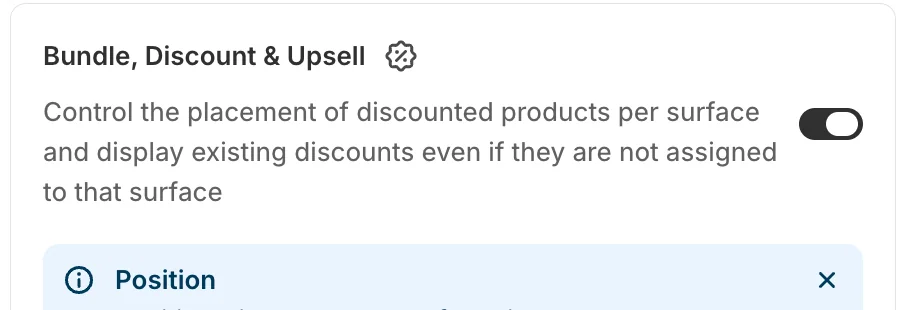
Scroll to Strategies and turn on Bundle, Discount & Upsell — “Control the placement of discounted products per surface and display existing discounts even if they are not assigned to that surface”.
-
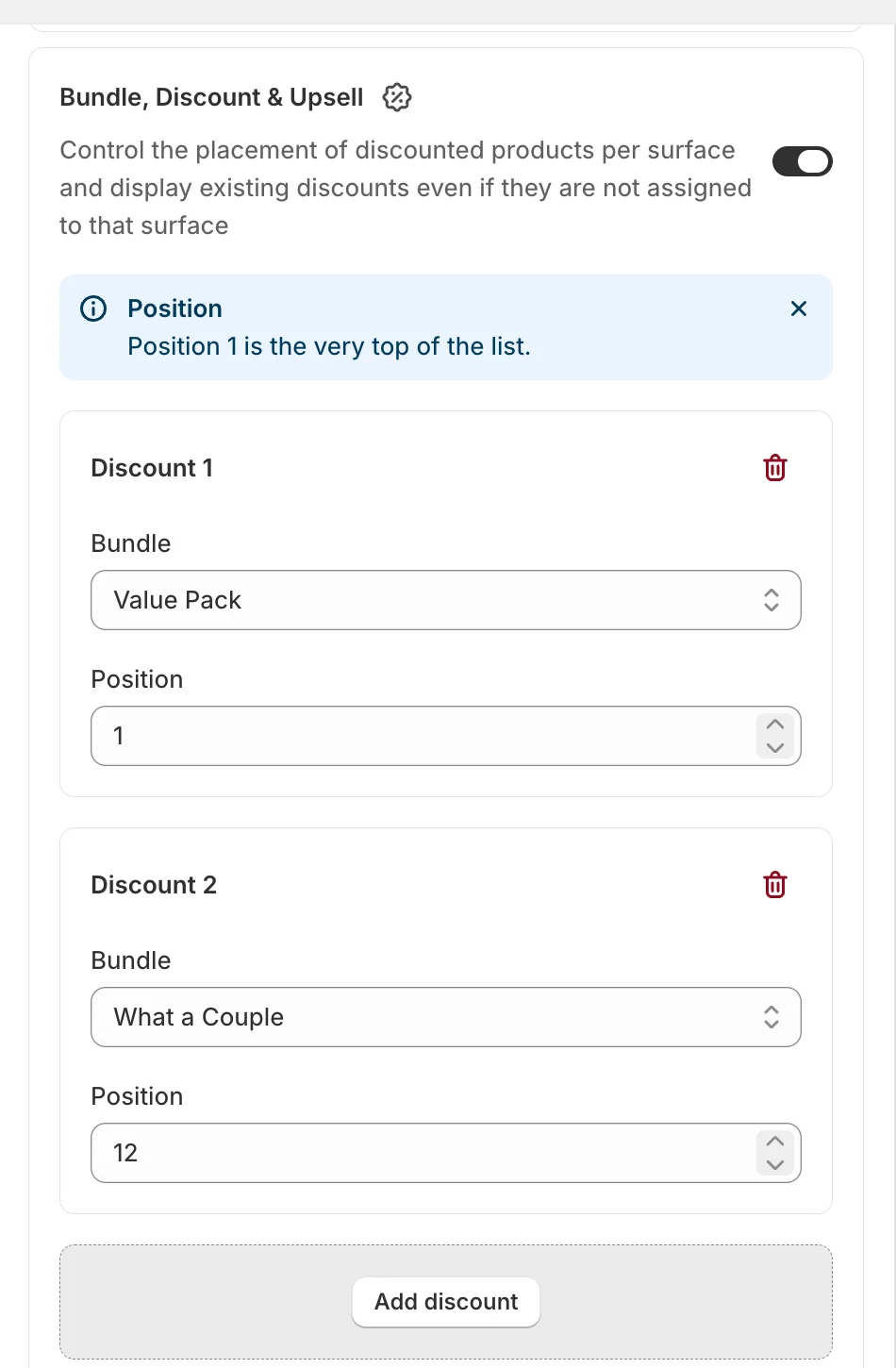
In the Discount 1 card, choose your offer from the Bundle dropdown, then set its Position. As the note says: Position 1 is the very top of the list.
-
Click Add discount to place another bundle at a different slot. If you have no bundles yet, use Create bundle, discount & upsell to make one without leaving the page.
-
Click Save and set Status to Enable.
Good to know — The wording “even if they are not assigned to that surface” matters: placing a bundle here overrides the bundle’s own surface settings. So a bundle that normally only shows on product pages will still appear in this collection.
Result
Done. Your bundle now appears as a card in the grid at the position you set — customers see the offer, the saving, and the included products while they browse, and can add the whole bundle in one go.
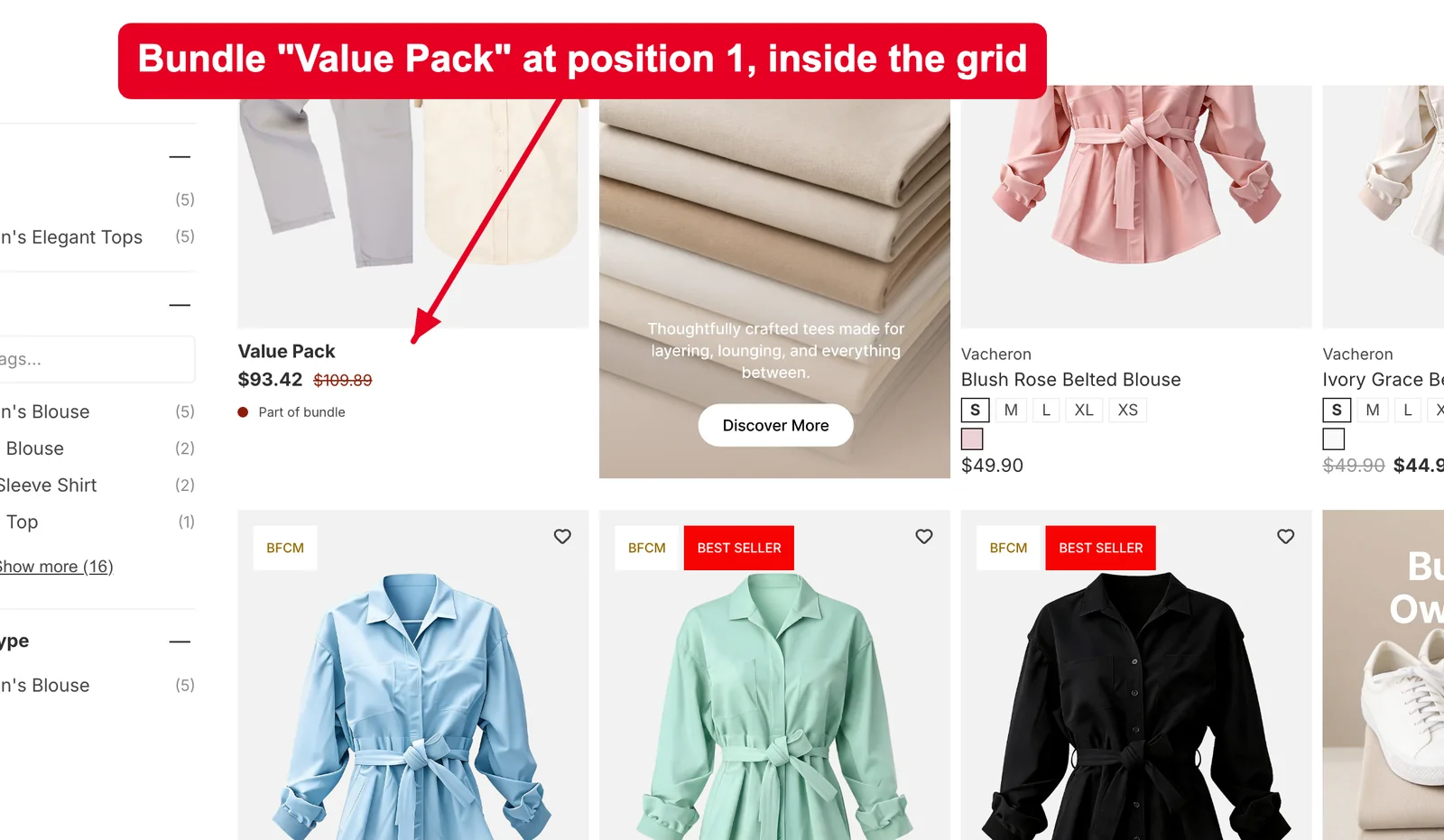
Not showing up? Check the rule’s Status is Enable, the collection is listed under Surfaces, and the bundle itself is active. Remember only Fixed bundle, Buy X get Y, and Volume discount can be placed in a grid. Storefront changes can take about a minute to sync.
Related
Last updated on
How to set position Banner?
Banner places one of your existing promotional banners directly into the product grid, at a slot number you choose. Rather than sitting above the page where customers scroll straight past it, the bann
How to Set Up A/B Testing for Back in stock?
A/B testing lets you run two versions of the same Back in Stock at once and split live traffic between them, so the winner is decided by what customers actually do rather than by opinion.