
How to Set Up A/B Testing for Back in stock?
A/B testing lets you run two versions of the same Back in Stock at once and split live traffic between them, so the winner is decided by what customers actually do rather than by opinion.
A/B testing lets you run two versions of the same Back in Stock at once and split live traffic between them, so the winner is decided by what customers actually do rather than by opinion.
Sledge copies your current setup into two variants, A and B. A is an exact clone of what you have now, so it acts as your control; you change B and let real visitors settle it. For Back in Stock the things worth testing are the notify button label, the form wording, or the confirmation message.
Before you start — Have the record set up and working the way you want it first. A/B is for comparing a change against a known baseline, so there needs to be a baseline. Give the test enough traffic to mean something before you call it — a handful of visitors is noise, not a result.
Step 1 — Create the test
-
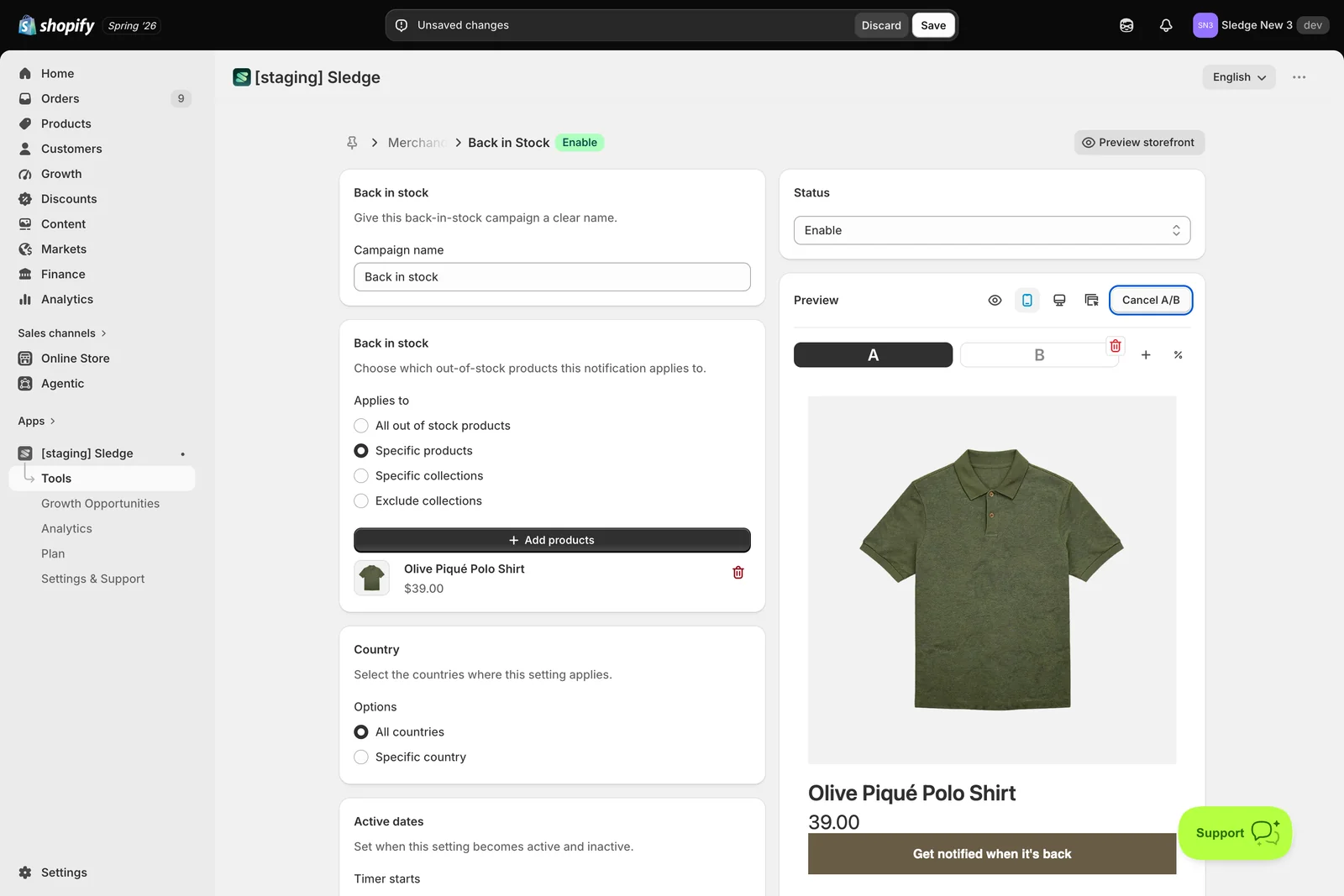
Open Merchandising → Back in Stock. This feature has a single settings page rather than a list, so you’re already on the record. Click Create A/B in the Preview toolbar.
-
The Preview panel splits into variant tabs A and B, and three controls appear next to them: + adds another variant (up to D), the % sets how traffic is divided, and the bin icon deletes a variant.
-
Click the B tab and make the one change you want to test. Change one thing — if B differs in three ways you won’t know which one moved the numbers.
-
Nothing exists yet at this point. The button now reads Cancel A/B, and clicking it throws the whole setup away and returns the record to normal. Use it if you change your mind before starting.
-
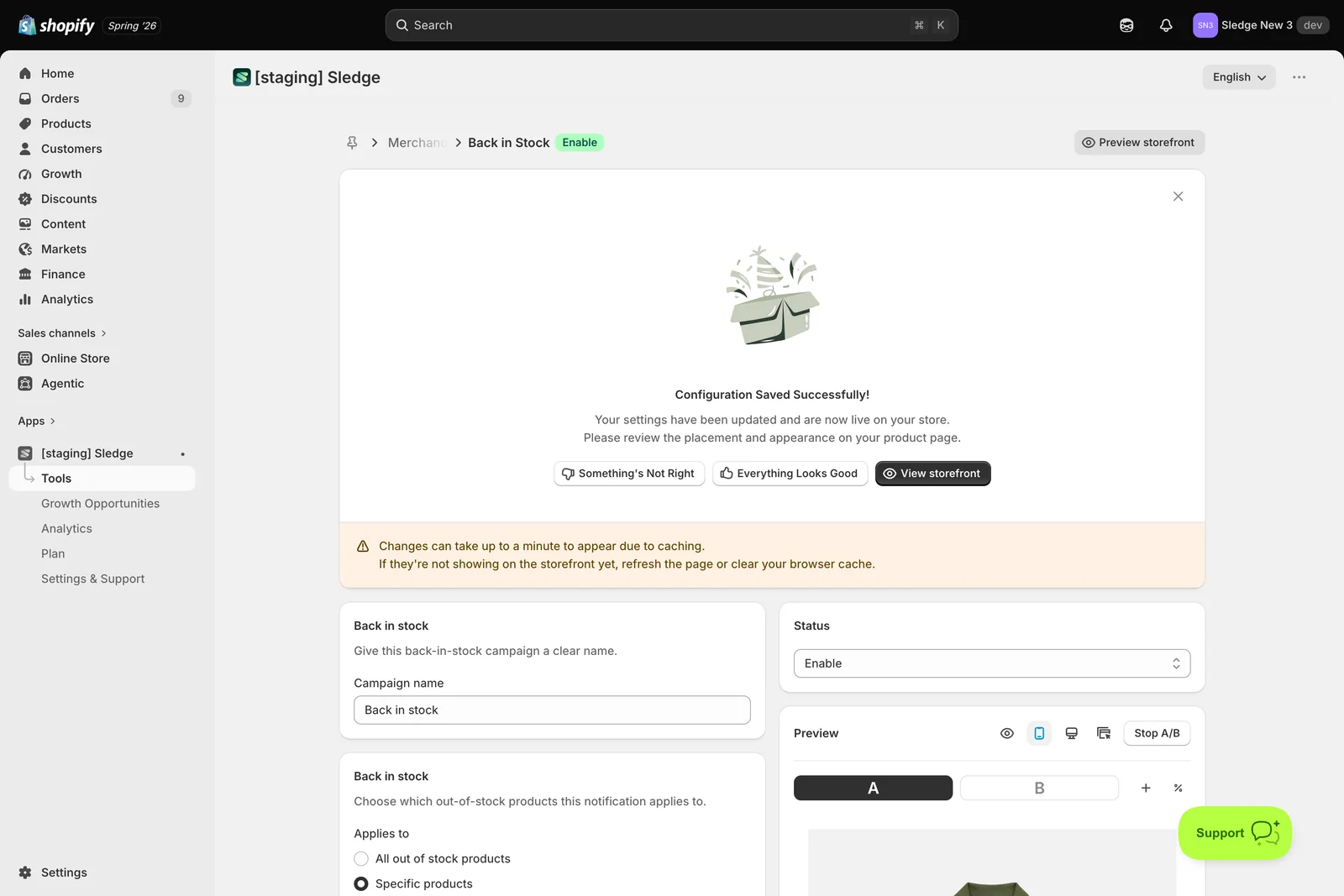
Click Save. That’s what actually starts the test.
Step 2 — While the test runs
-
Once it’s live the button changes to Stop A/B. That switch from Cancel to Stop is the reliable sign the test is really running.
-
Customers now get A or B according to your traffic split, and Sledge records visitors, clicks, and revenue against each one. Switch between the tabs any time to see how each variant is configured.
-
Leave it alone while it gathers data. Editing a variant mid-test changes what you’re measuring.
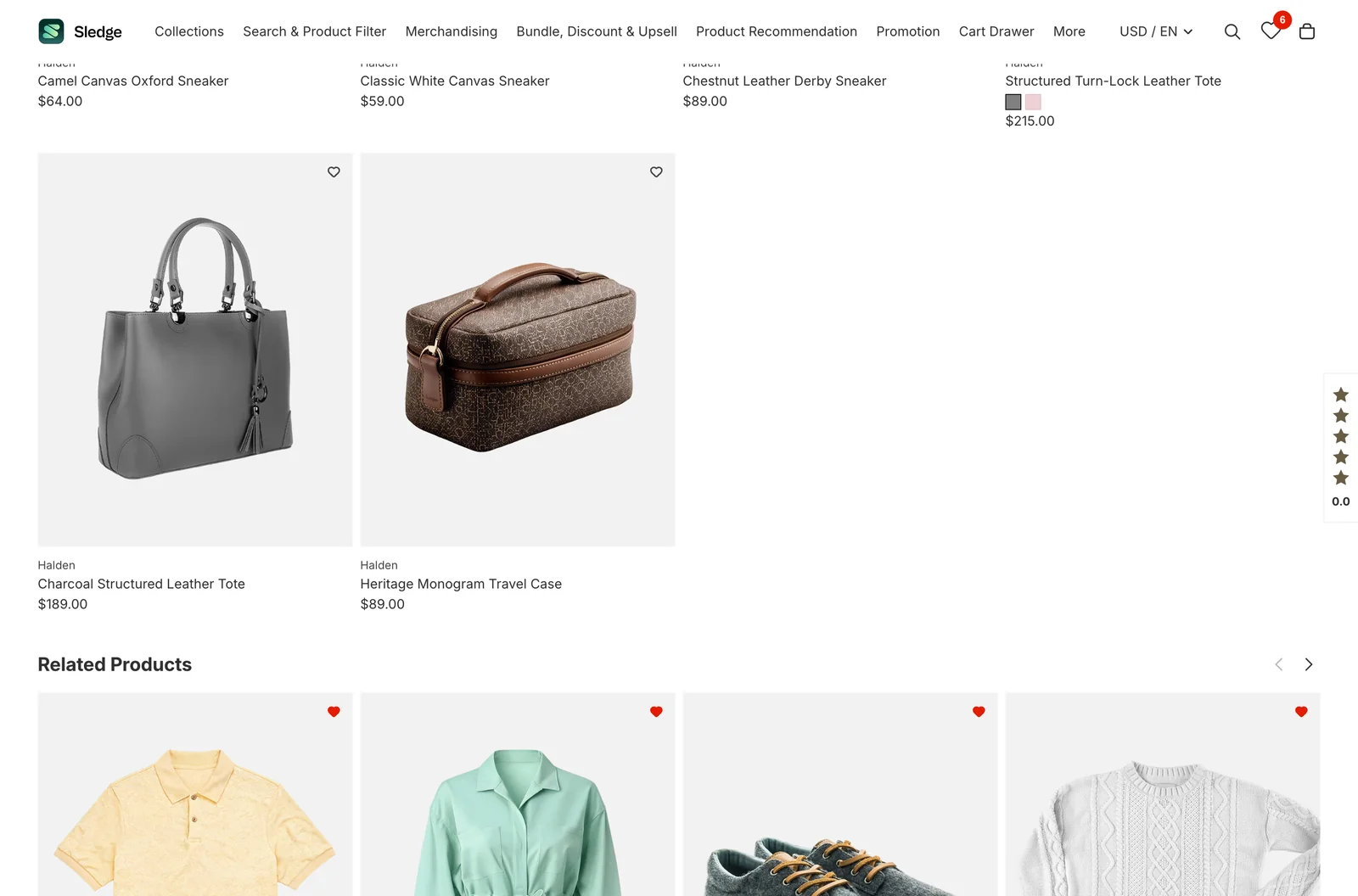
Customers see one variant or the other — here’s the notify-me button on a sold-out product page:
Step 3 — Pick the winner
-
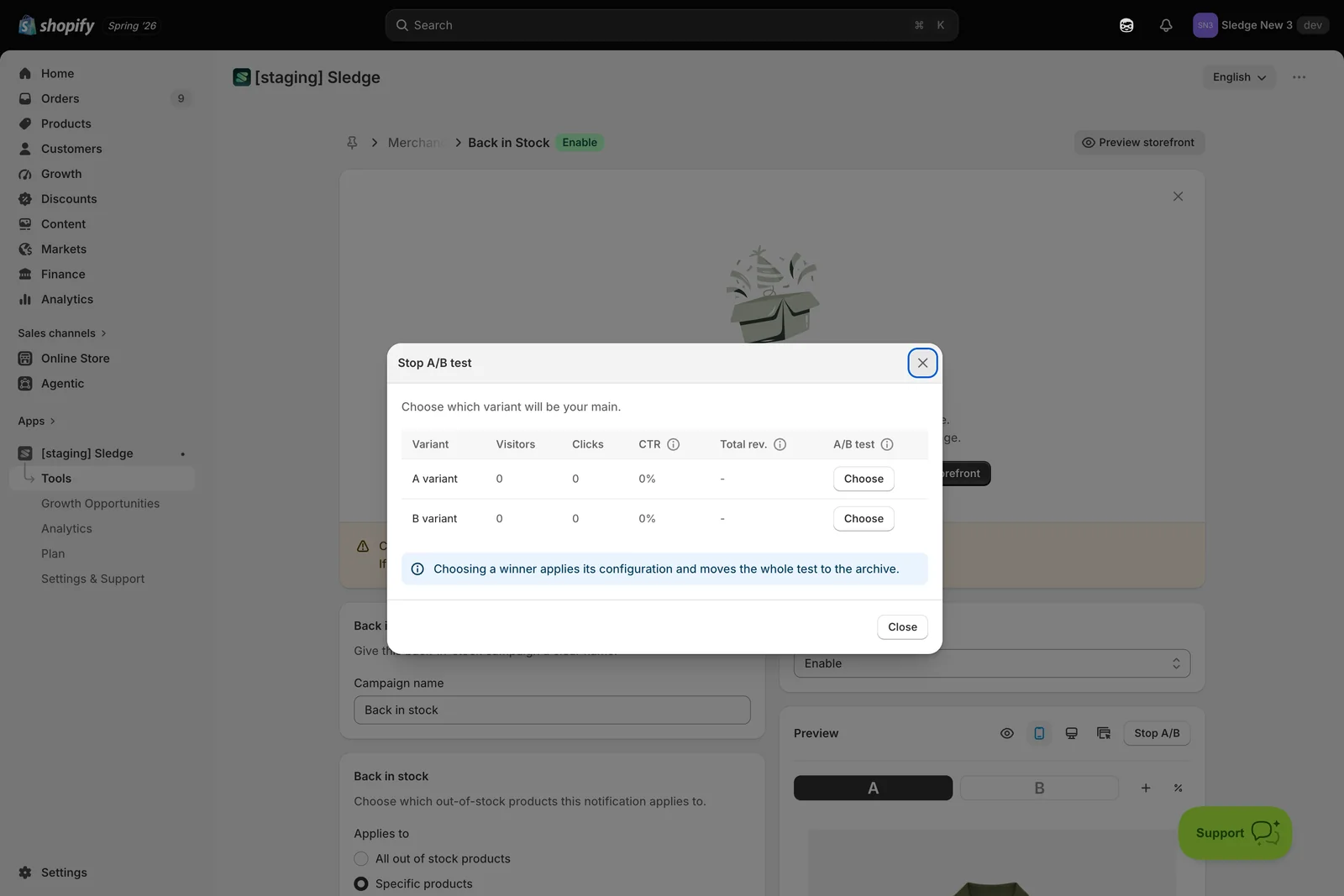
When you have enough data, click Stop A/B. Sledge opens the Stop A/B test window with a row per variant showing Visitors, CTR, Clicks, Extra rev. and Total rev.
-
Compare the rows and click Choose on the variant that performed best. If the numbers are close, keep the test running rather than picking on noise.
-
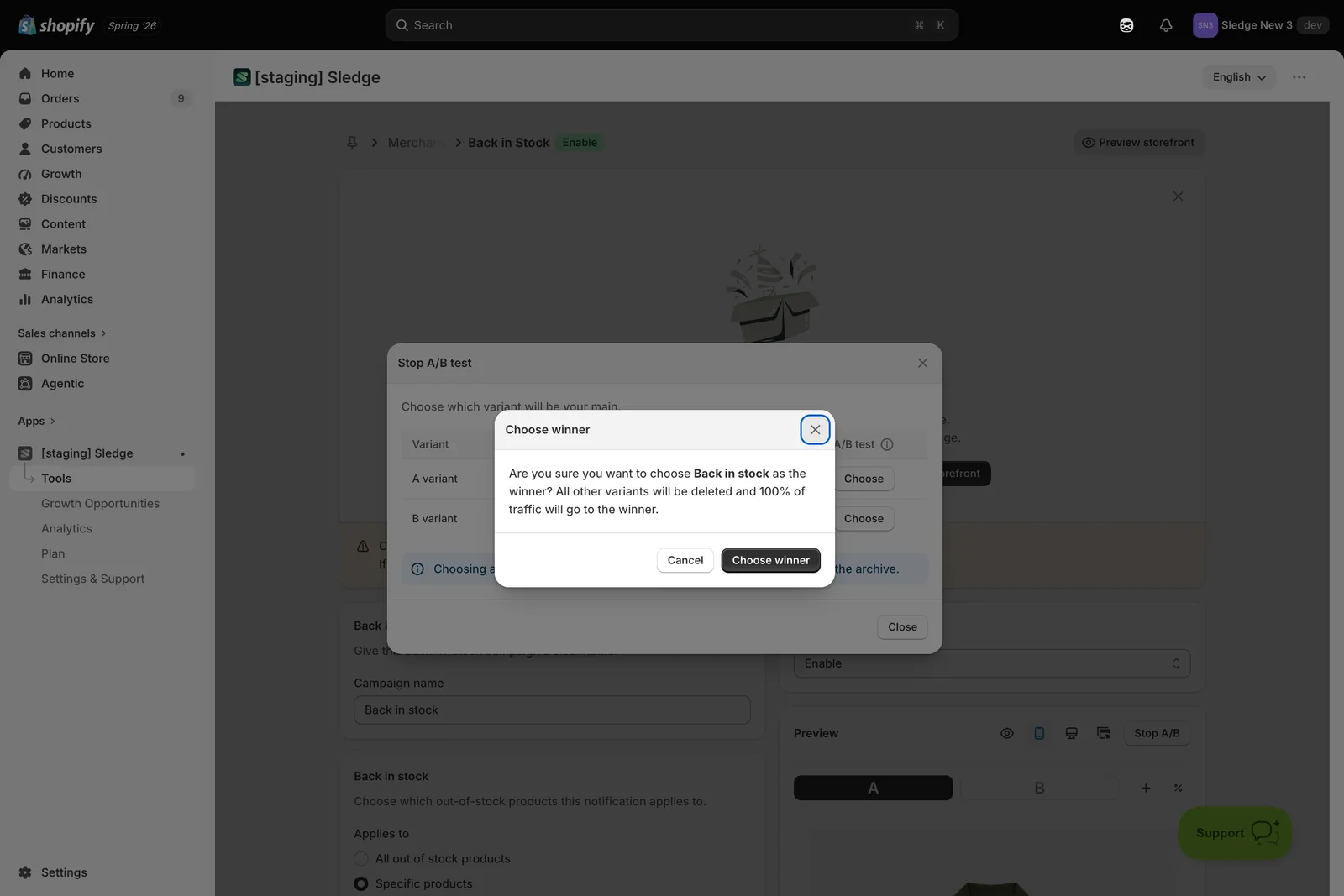
Sledge asks you to confirm, and tells you plainly what happens: the other variants are deleted and 100% of traffic goes to the winner.
-
Click Choose winner.
What “winner” actually does — it copies that variant’s configuration onto your live record and archives the test. Choosing B means B’s settings become your Back in Stock from then on. Choosing A puts you back exactly where you started, which is the right call when the change didn’t help.
Result
Done. The winning setup is now live for everyone, the test moves to the archive, and the button returns to Create A/B — ready for the next thing you want to try.
Cancel, Stop, and winner — the difference
- Cancel A/B — only before you save. Discards the variants; nothing was ever live, and no data is recorded.
- Stop A/B — ends a running test. It doesn’t decide anything on its own; it opens the window where you pick the winner.
- Choose winner — applies that variant to the live record, deletes the others, and archives the test. This is the step that changes your storefront.
Not showing up?
If Create A/B does nothing, check the record is saved and has no validation errors. If you can’t complete Choose winner, look for an Unsaved changes bar at the top — discard or save those first, then reopen Stop A/B. If both variants read zero after a while, the record may be disabled or outside its active dates, so no customer is being served either version. Storefront changes take about a minute to sync.
Related
Last updated on
How to set position Bundle, Discount & Upsell?
Bundle, Discount & Upsell places one of your existing bundle offers directly into the product grid, at a slot number you choose. Instead of hoping customers find the offer on a product page, you put t
How to Set Up A/B Testing for Badge Campaign?
A/B testing lets you run two versions of the same Badge Campaign at once and split live traffic between them, so the winner is decided by what customers actually do rather than by opinion.