
How to set up demote product?
Demote pushes products to the very bottom of a collection or search results without removing them. Use it for clearance leftovers, low-margin lines, or items you must keep listed but don’t want compet
Demote pushes products to the very bottom of a collection or search results without removing them. Use it for clearance leftovers, low-margin lines, or items you must keep listed but don’t want competing for attention — customers can still find and buy them, they just stop taking up prime space.
Demote lives inside a merchandising rule (a “Strategy”). One rule can carry several actions at once.
Before you start — Sledge must be active on your theme, and the collection or search page you want to curate should already be working.
Create the rule
-
Go to Tools → Merchandising → Strategy and click Add Strategies (or open an existing rule).
-
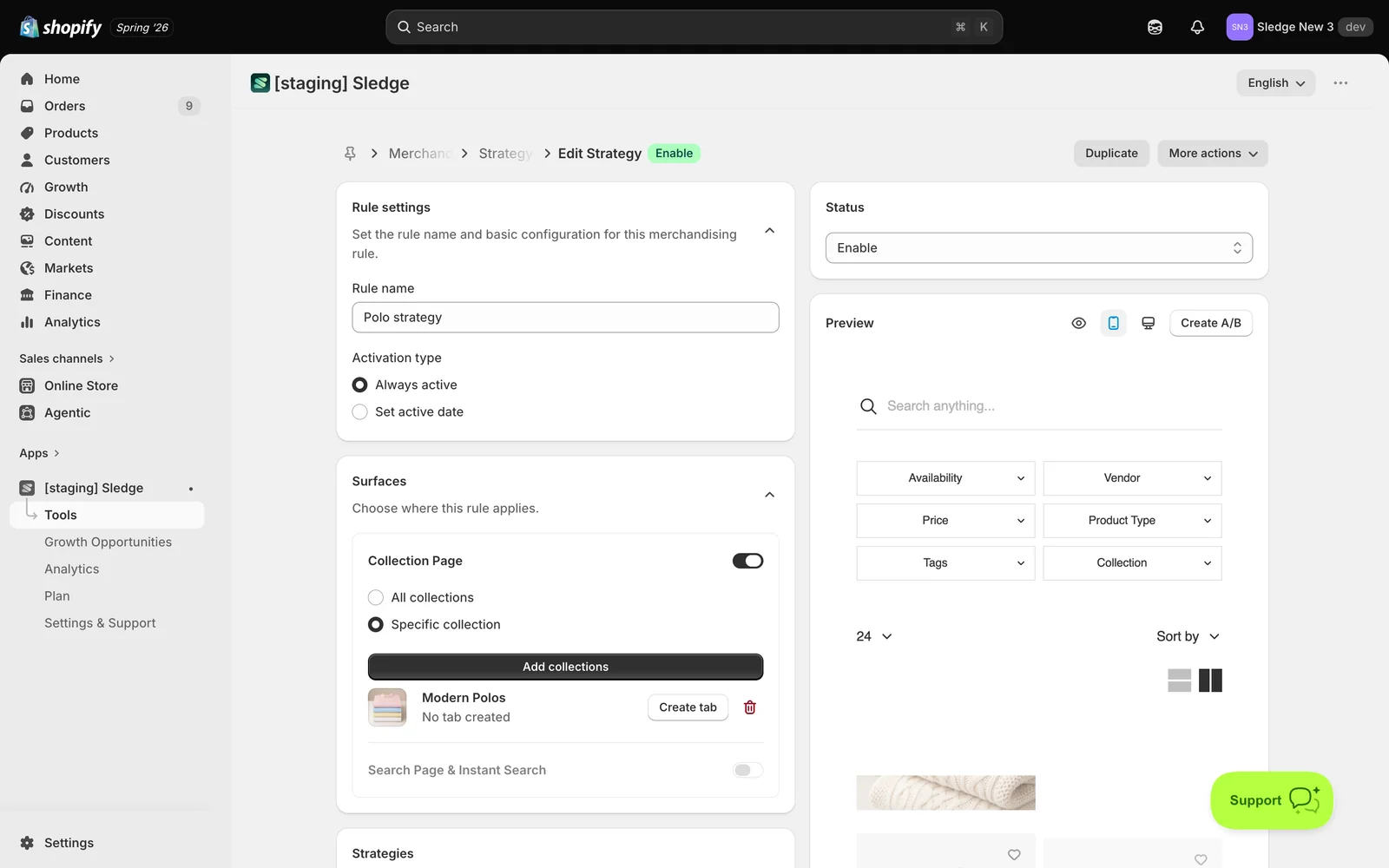
Under Rule settings, enter a Rule name and choose an Activation type — Always active or Set active date.
-
Under Surfaces, enable Collection Page (All collections or Specific collection) and/or Search Page & Instant Search (All searches or Specific keywords). At least one surface is required.
Set up Demote
-
Scroll to Strategies and turn on Demote — “Lower products so they appear further down.”

-
Choose how to select the products:
- By Product Items — hand-pick up to 5 products to push down. Use Add more demote for extra rows.
- By Attributes and Metrics — describe them with condition groups instead, using attributes such as Product type, Vendor, Tag, Price, Inventory, or metrics like Most viewed. Every rule in a group must match; add another group for an alternative set.
-
Click Save and set Status to Enable.
Good to know — Demote is strong: matching products sort last even if the customer changes the sort order. If a product is caught by both Boost and Demote, Demote wins and it stays at the bottom.
Result
Done. The products you chose now appear at the very end of that collection or search page — usually the last page — while everything else moves up. They remain fully listed and purchasable.
To check it on your storefront, open the collection and jump to the last page of results: the demoted products will be sitting there. (Use Hide instead if you want them gone from the results entirely.)
Not showing up? Check the rule’s Status is Enable and the collection is listed under Surfaces. Remember to look at the last page — demoted products don’t disappear, they move. Storefront changes can take about a minute to sync.
Related
Last updated on
How to set up boost product?
Boost pushes products up the results without nailing them to a fixed slot. Unlike Pin, you don’t choose exact positions — you either name the products you want lifted, or describe them with conditions
How to set up filter product?
Filter is an allowlist: it restricts a collection or search page to only the products you approve, and everything else disappears. It’s the mirror image of Hide — instead of naming what to remove, you