
How to set up a badge campaign?
A badge campaign sticks a label — “BEST SELLER”, “NEW”, “BFCM” — on the product cards you choose, everywhere those cards appear. Badges guide the eye and lift clicks on the products you want to push.
A badge campaign sticks a label — “BEST SELLER”, “NEW”, “BFCM” — on the product cards you choose, everywhere those cards appear. Badges guide the eye and lift clicks on the products you want to push.
Before you start
Sledge Core must be enabled on your theme. Sledge Core is the app embed that loads Sledge on your storefront — without it, nothing you configure here reaches your customers. You enable it during onboarding (Enable in theme), or any time via Online Store → Themes → Customize → App embeds → Sledge Core. Which pages actually show this feature is controlled by its own Surfaces section, explained below.
Create or edit a badge campaign
Go to Sledge → Tools → Merchandising, open Badge Campaign, and click Add (or open an existing one — the example is “Best seller demo”).
Campaign name and Applies to
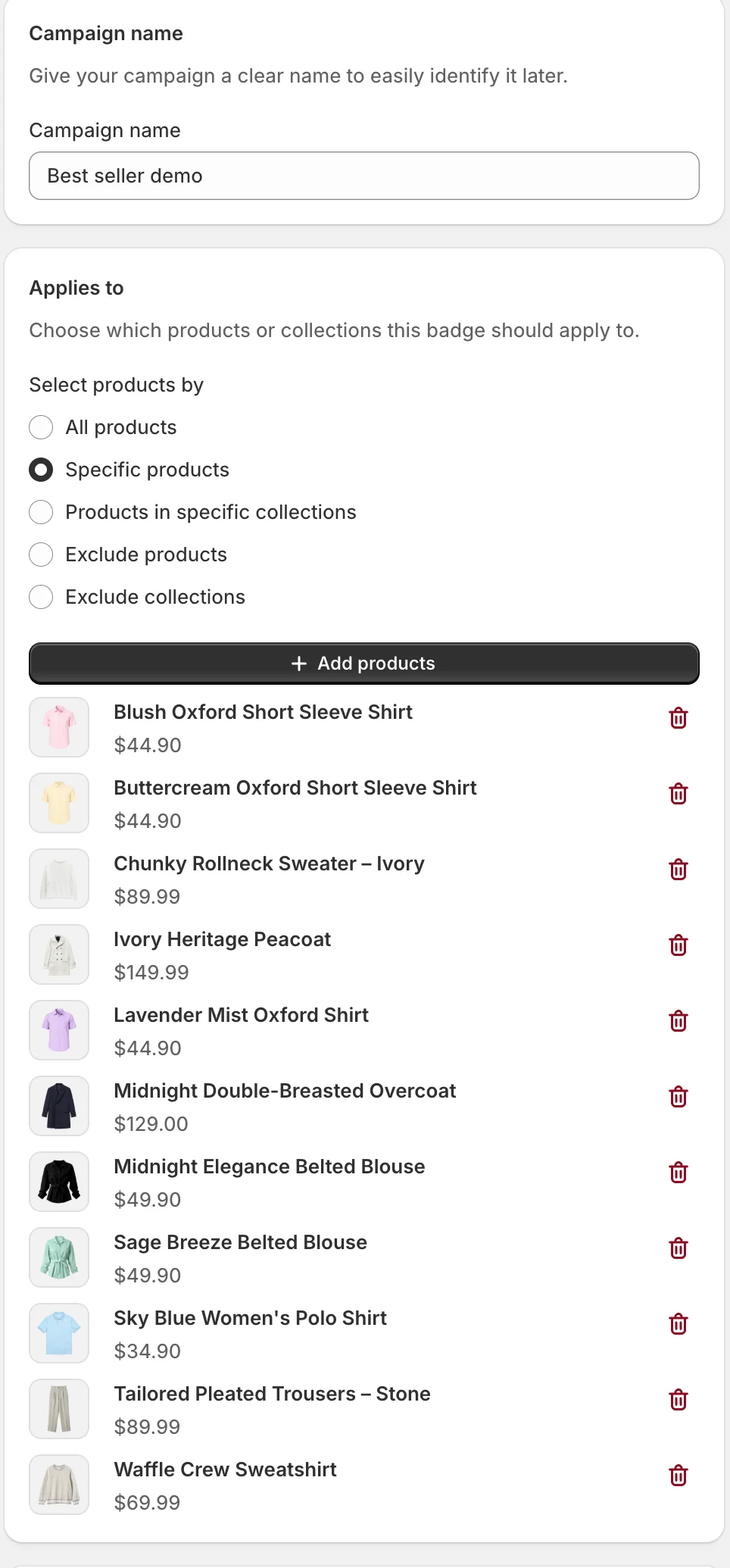
Campaign name is internal. Applies to selects the products that get the badge — All products, Specific products (the example picks 11 by hand), Products in specific collections, or the two Exclude modes.
Country, Active dates, and Inventory conditions
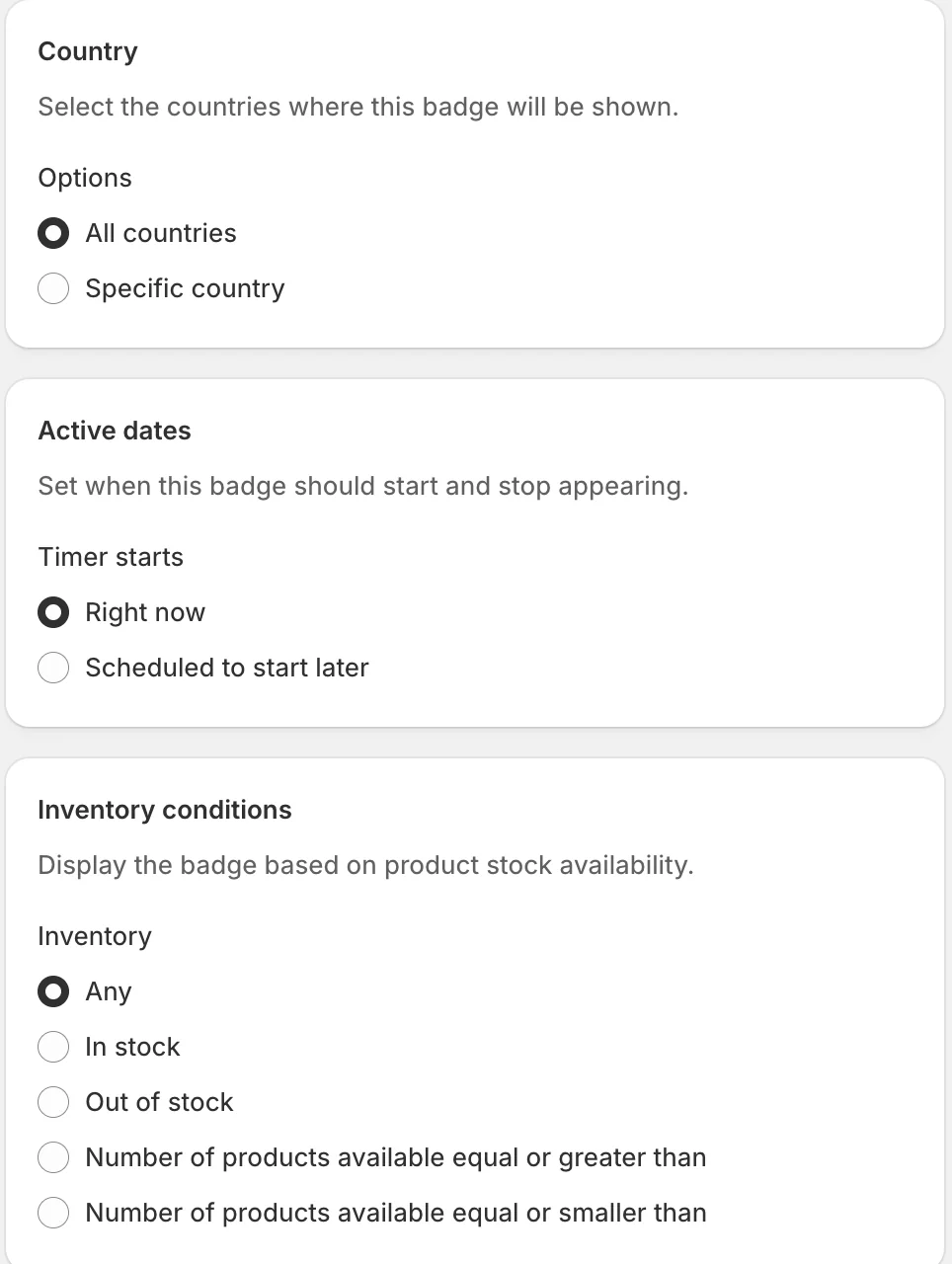
Beyond country and scheduling, Inventory conditions can tie the badge to stock levels: show it regardless (Any), only when In stock or Out of stock, or when available quantity is above / below a number — handy for automatic “Low stock” style badges.
Badge settings and Badge position
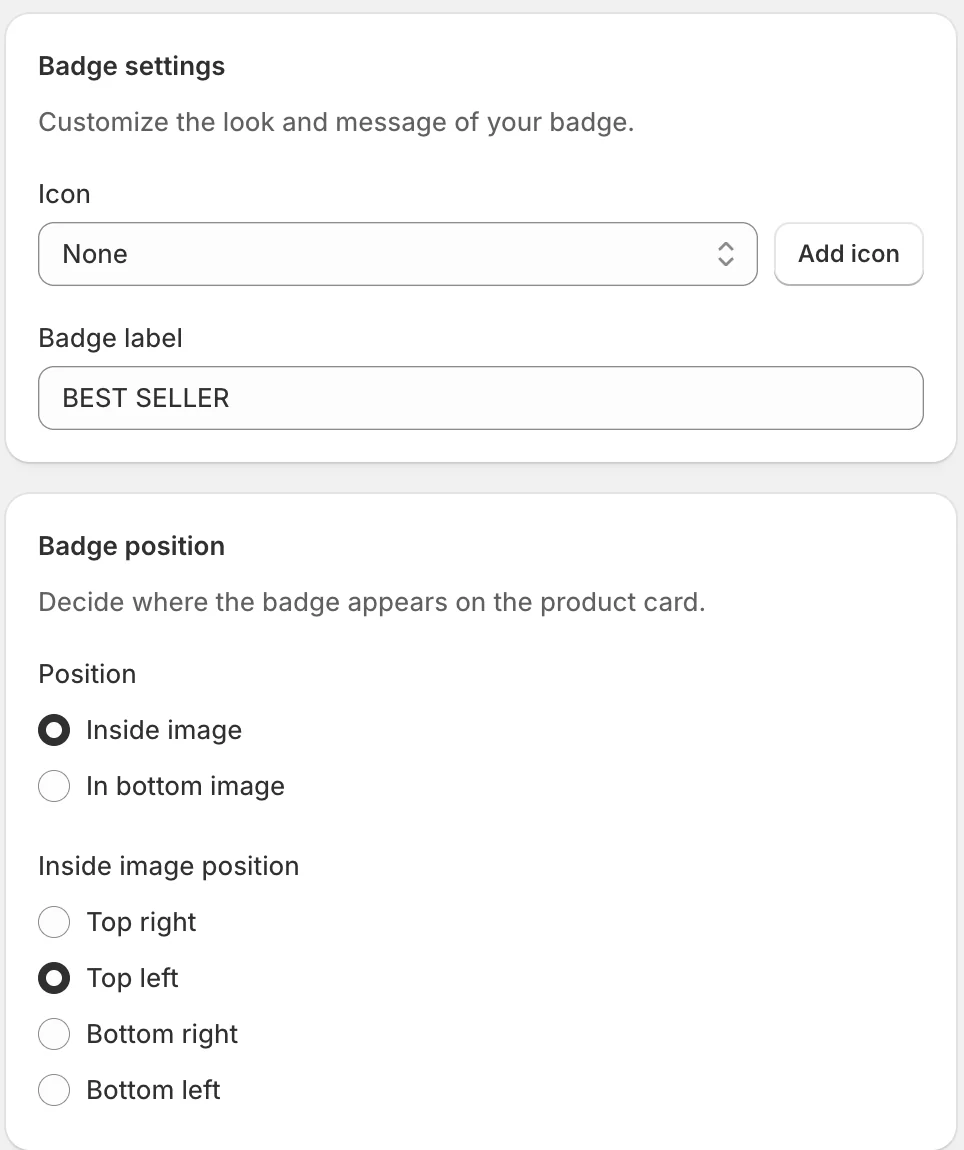
Badge settings holds the content: an optional Icon and the Badge label text (“BEST SELLER”). Badge position decides placement on the product card — Inside image (with a corner choice: top right, top left, bottom right, bottom left) or In bottom image, a strip under the photo.
Surfaces
Badges follow their products everywhere you enable them: Collection Page, Product Page, Search Page, Instant Search, Cart Page, and Cart Drawer each have their own switch.
Status and Preview
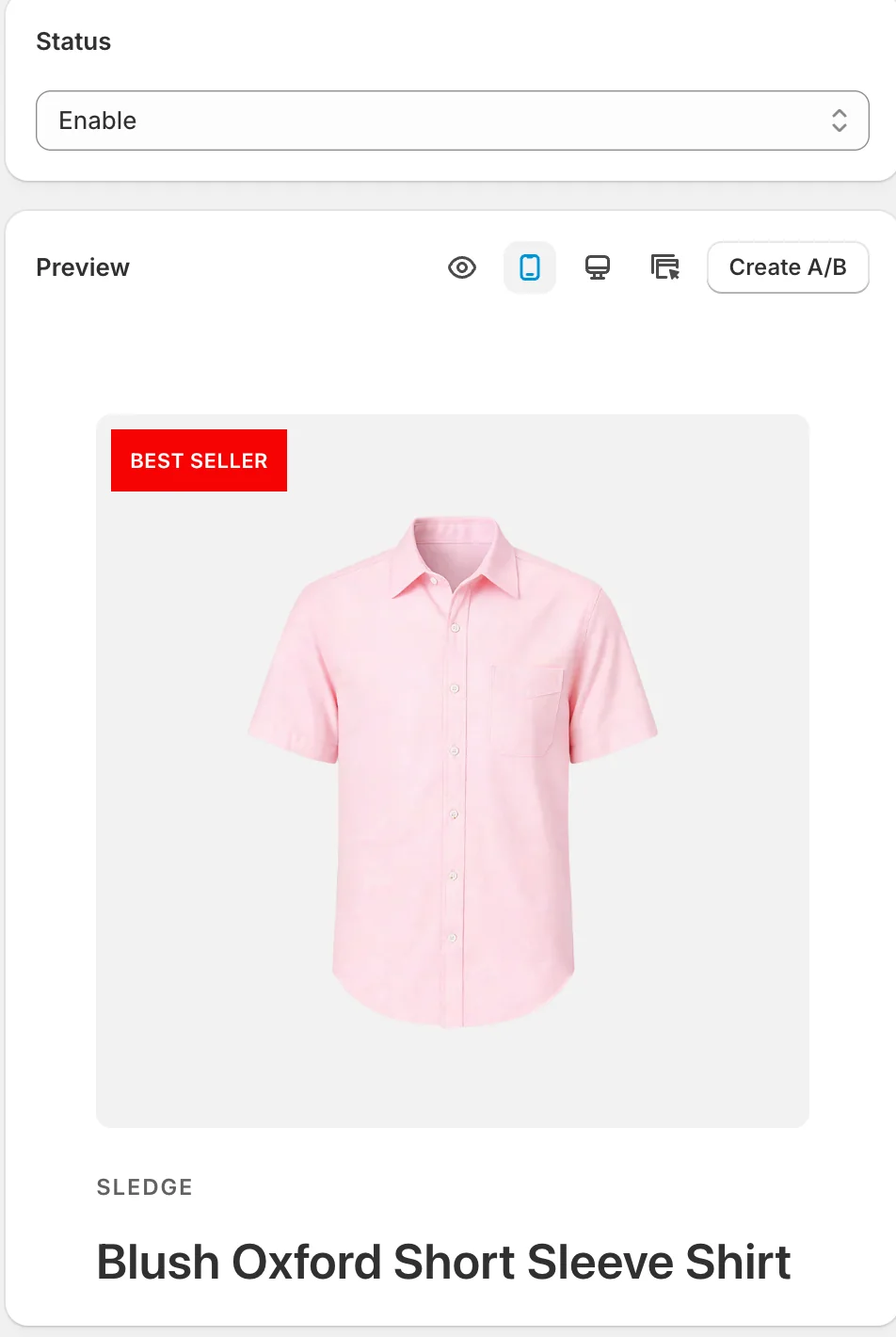
The Preview shows a real product card with your badge in place. Create A/B starts an A/B test. Click Save to apply.
Result
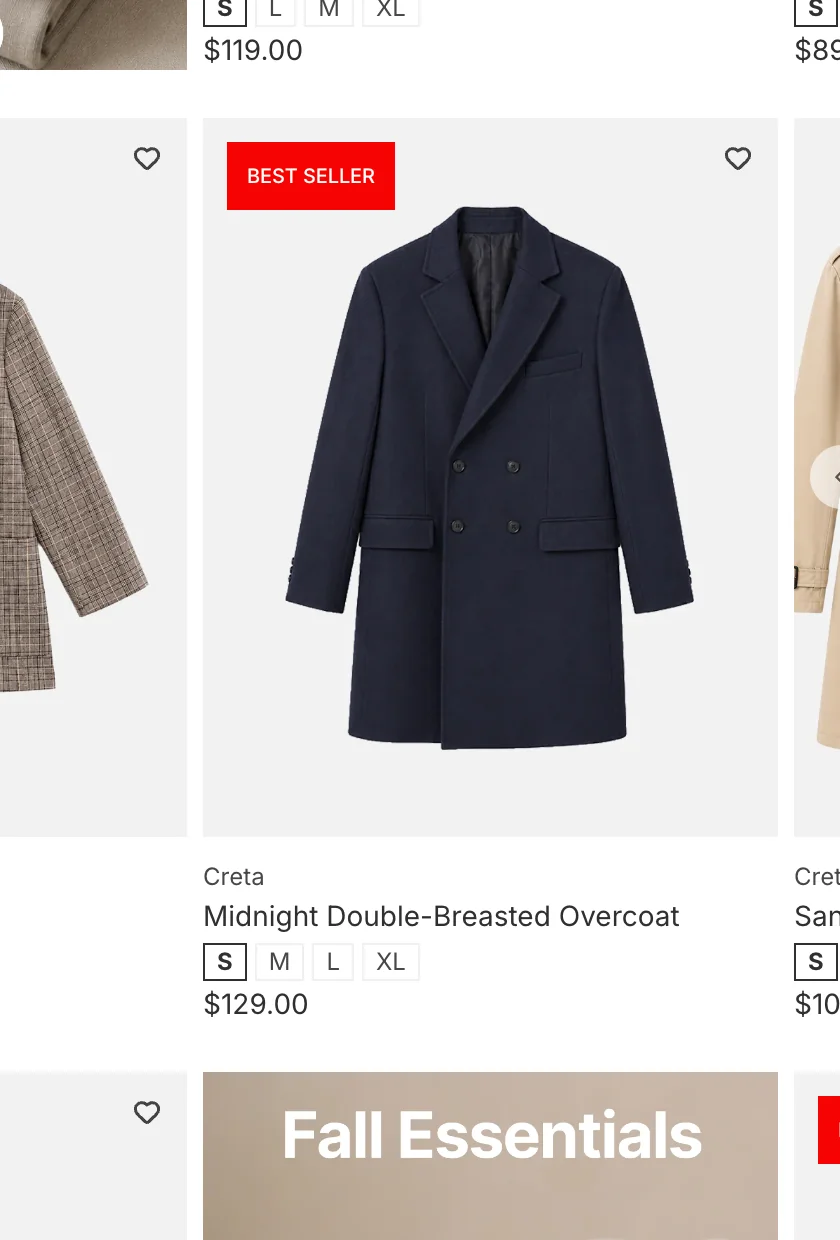
On the storefront, the badge rides the product card wherever it appears — here “BEST SELLER” on a card in a collection grid:
Not showing up? Give the change a minute to sync, then reload the page. Also confirm the campaign’s Status is Enable, the surface you expect is switched on in Surfaces, and Sledge Core is enabled as described above.
Related
Last updated on
How to Set Up A/B Testing for Pre-Order (Single & Multiple)?
A/B testing lets you run two versions of the same Pre-order at once and split live traffic between them, so the winner is decided by what customers actually do rather than by opinion.
How to set up Back in Stock?
Back in Stock lets customers leave their email on a sold-out product and get an automatic email the moment it’s available again — recovering demand you would otherwise lose. It’s one page: who it appl