
How to set up inject product?
Inject product drops a product into a collection or search results even when it doesn’t belong there — at a slot number you choose. Unlike Pin (which can only reorder products already in the collectio
Inject product drops a product into a collection or search results even when it doesn’t belong there — at a slot number you choose. Unlike Pin (which can only reorder products already in the collection), Inject reaches across your whole catalogue. It’s the fix for cross-selling into a category, and the classic rescue for a search that would otherwise return nothing.
Inject lives inside a merchandising rule (a “Strategy”). One rule can carry several actions at once.
Before you start — Sledge must be active on your theme, and the collection or search page you want to curate should already be working.
Create the rule
-
Go to Tools → Merchandising → Strategy and click Add Strategies (or open an existing rule).
-
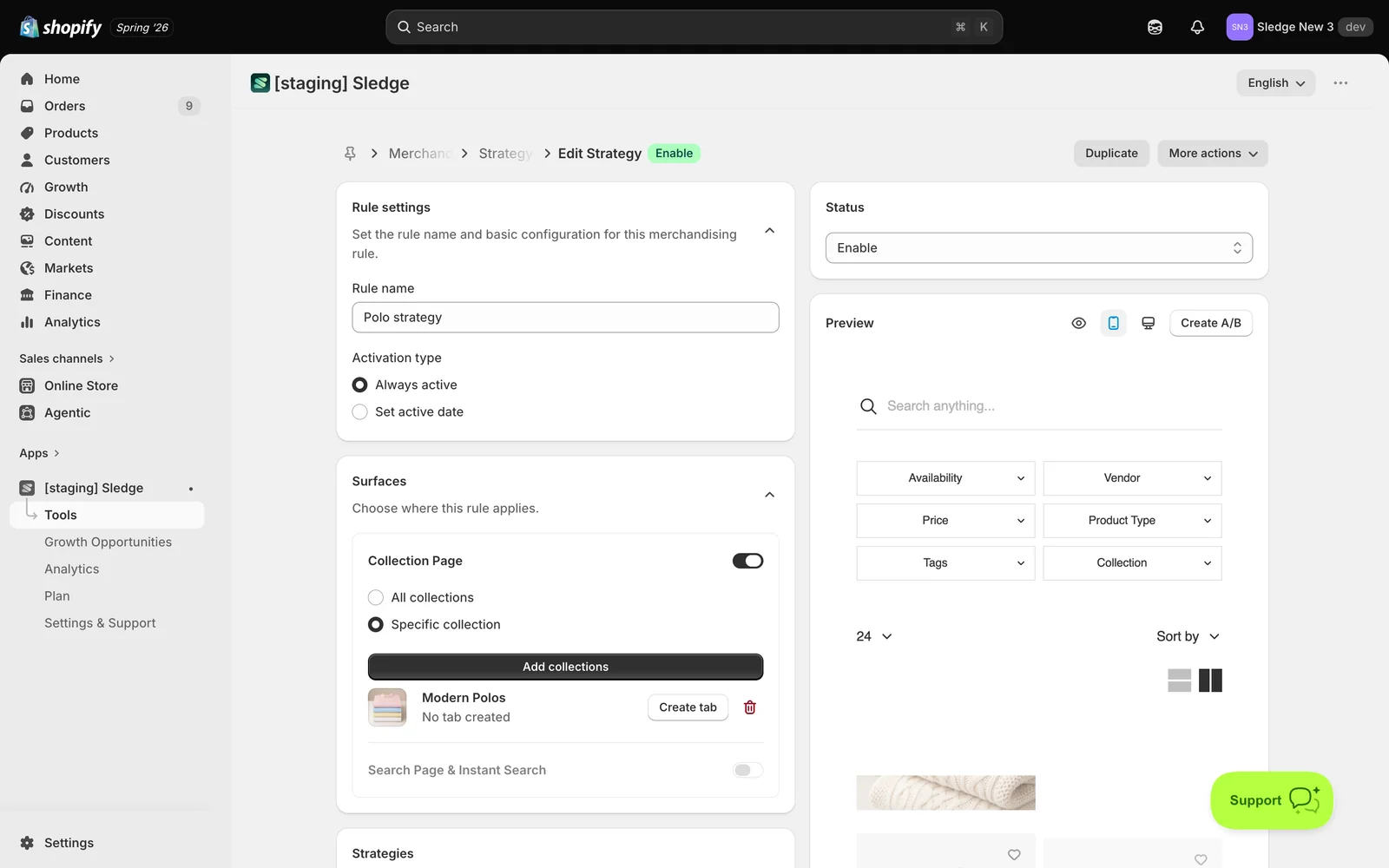
Under Rule settings, enter a Rule name and choose an Activation type — Always active or Set active date.
-
Under Surfaces, enable Collection Page (All collections or Specific collection) and/or Search Page & Instant Search (All searches or Specific keywords). At least one surface is required.
Set up Inject product
-
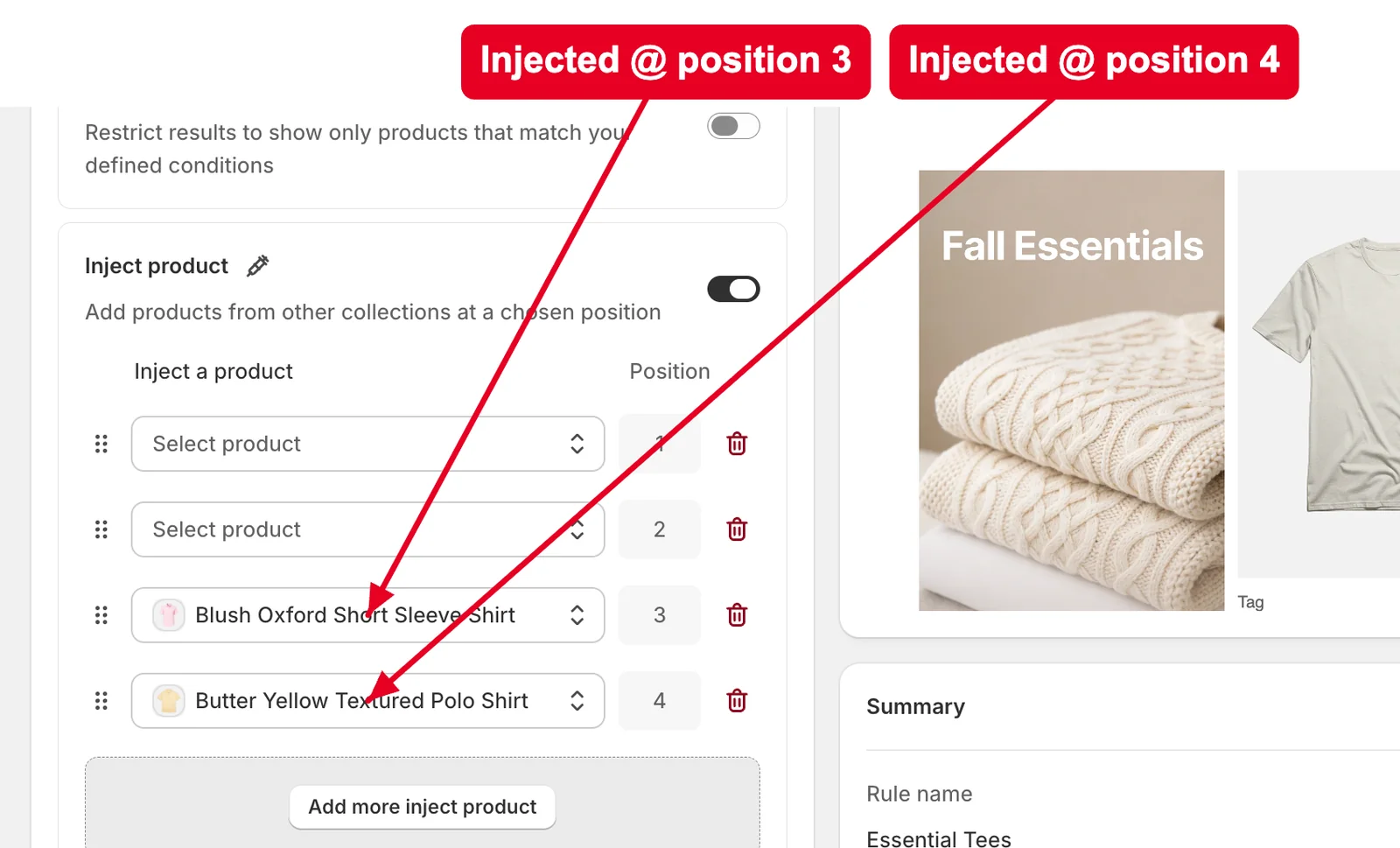
Scroll to Strategies and turn on Inject product — “Add products from other collections at a chosen position”.
-
Each row is one slot: pick a product with Select product, and set the position it should land in. The picker searches your entire catalogue — not just this collection — which is the whole point of the action.
-
Click Add more inject product for extra slots. There’s no limit on how many you add.
-
Click Save and set Status to Enable. Use the live Preview to check the placement.
Good to know — Pin claims its exact slots first. If a pin already owns the number you asked for, your injected product takes the next free slot rather than being dropped. A great use case: point a rule at a search keyword that returns nothing and inject a few curated products, so customers get suggestions instead of a dead end.
Result
Done. The product you injected now appears in that collection or search page at your chosen slot, sitting among the normal results — even though it isn’t part of the collection.
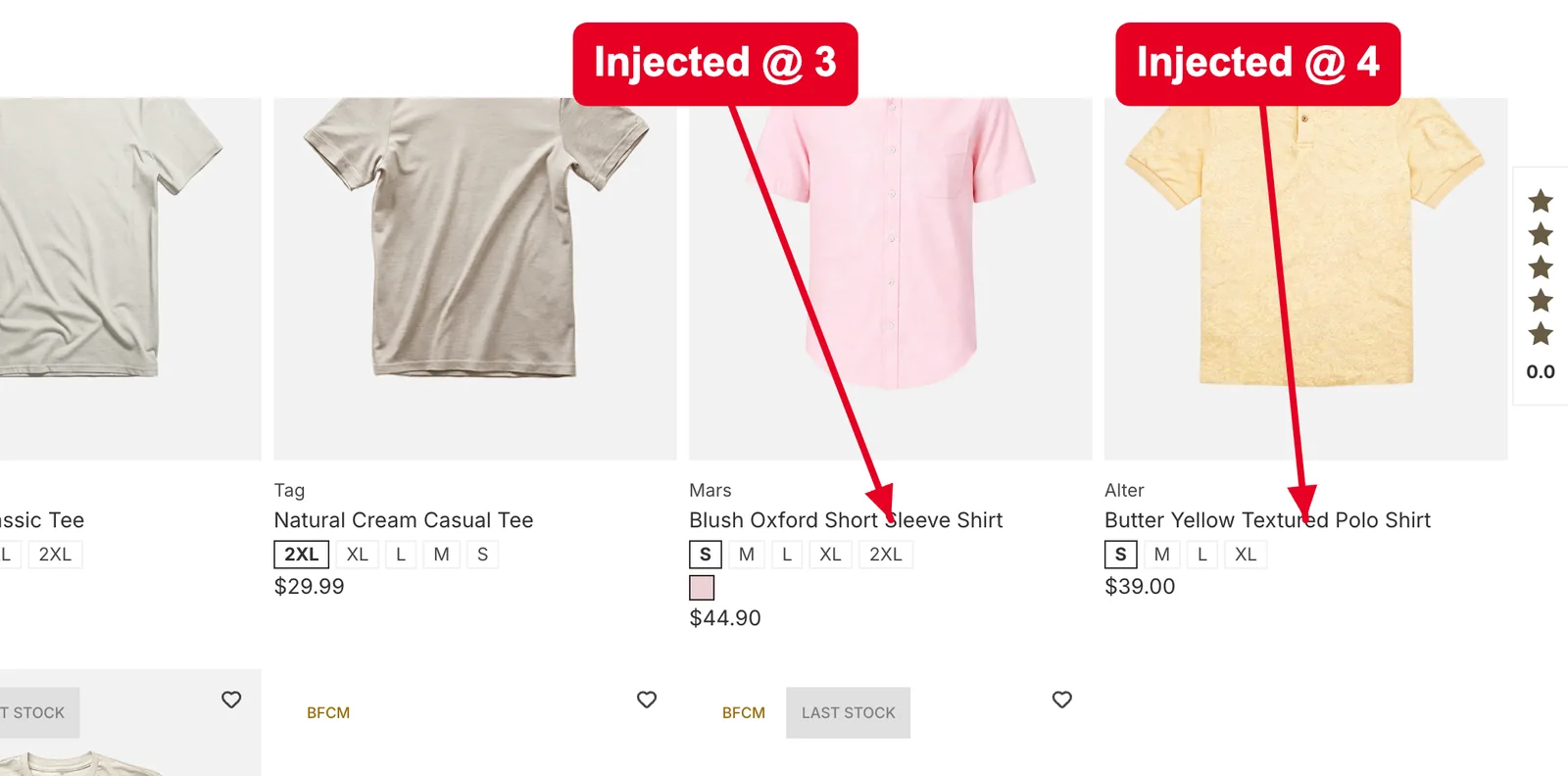
Not showing up? Check the rule’s Status is Enable and the collection or keyword is listed under Surfaces. If it landed somewhere unexpected, a Pin is probably holding that slot — Sledge moved it to the next free one. Storefront changes can take about a minute to sync.
Related
Last updated on
How to set up hide product?
Hide removes products from a collection or search results completely — they simply aren’t there, and the result count drops. Use it for items you don’t want surfaced while browsing (discontinued lines
How to set up pin product?
Pin lets you place chosen products in exact positions at the top of a collection or search results — position 1 is the very first card a customer sees. Use it to put your hero products, new drops, or