
How to Set Up Banners on Search Page & Instant Search?
Banners lets you control where your banners appear in the results on Search Page & Instant Search. Use it to show a promotional or collection banner between products when customers search your store.
Banners lets you control where your banners appear in the results on Search Page & Instant Search. Use it to show a promotional or collection banner between products when customers search your store.
This guide shows how to place one banner in the search results as an example.
Step 1: Open Merchandising Strategy
In your Shopify admin, go to Apps > Sledge > Tools > Merchandising > Strategy, then click Add Strategies.
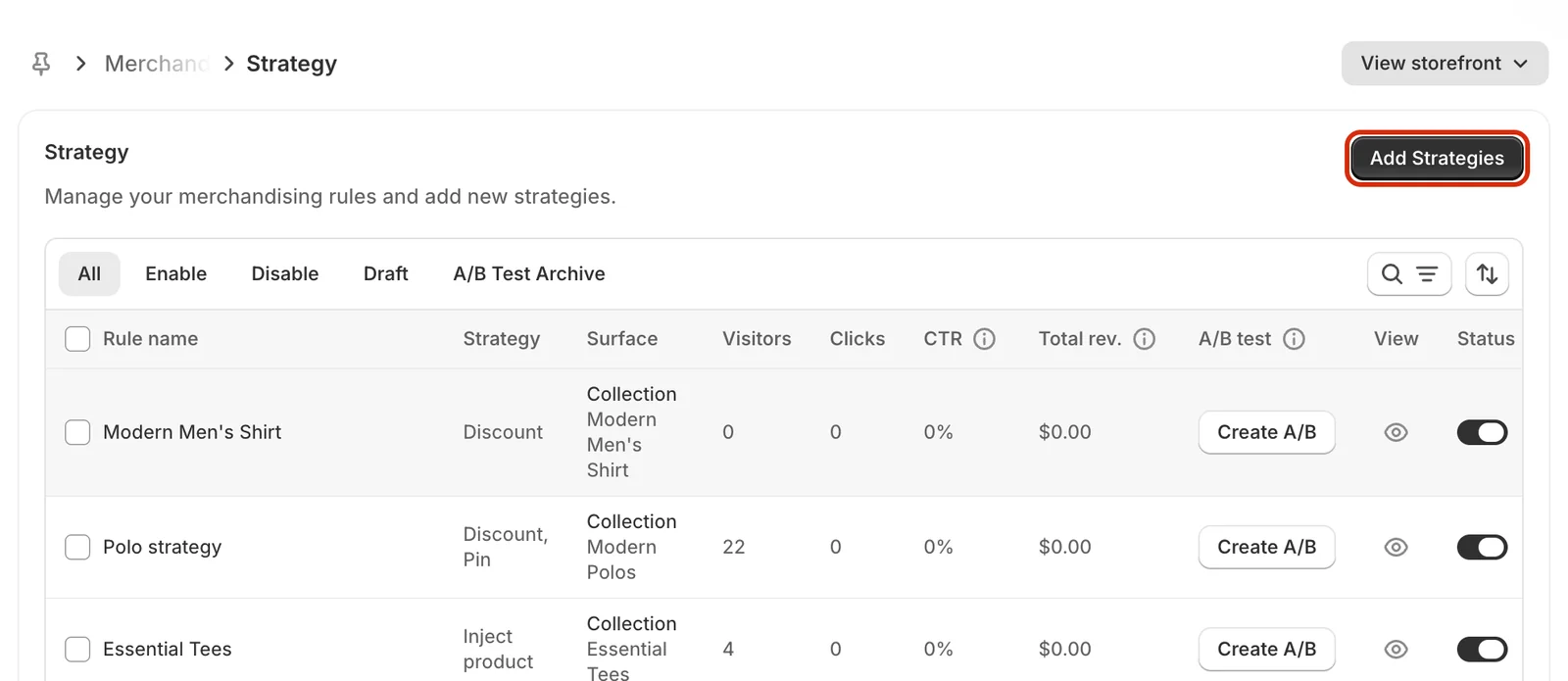
Step 2: Set the rule name and activation type
Enter a Rule name that is easy to recognize, for example Search - Windsor Check Blazer. Then choose the activation type:
- Always active – the rule runs continuously until you disable it.
- Set active date – the rule only runs between the start and end dates you choose.
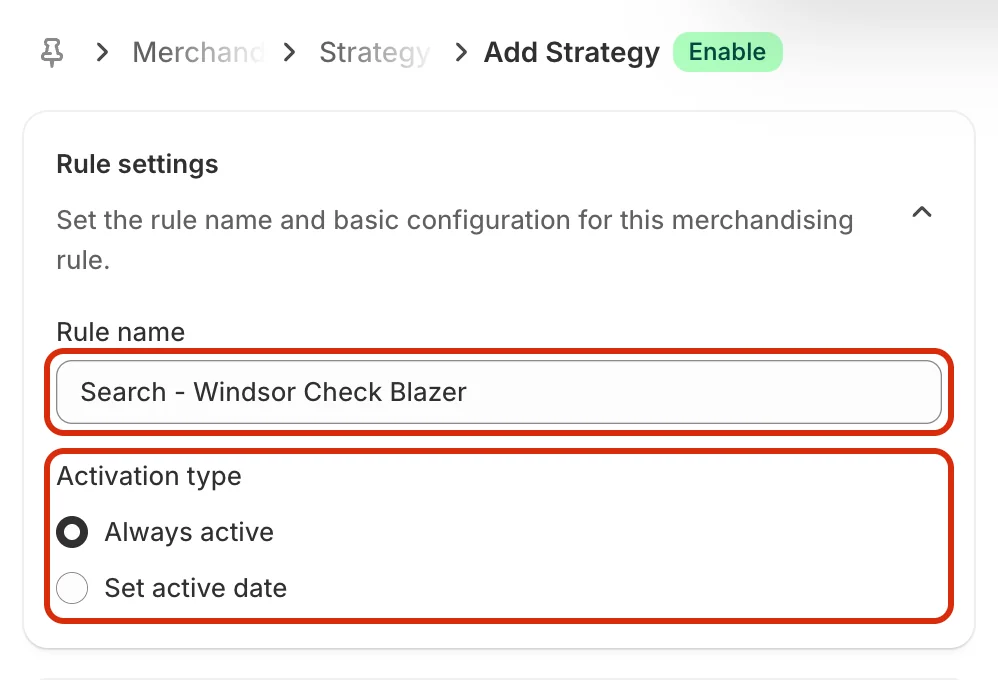
Step 3: Choose the Search Page & Instant Search surface
Under Surface, select Search Page & Instant Search, then choose All searches so the rule applies to every search query.
Note: once this surface is selected, the Collection Page surface becomes disabled. Create a separate rule if you also want to apply the strategy on collection pages.
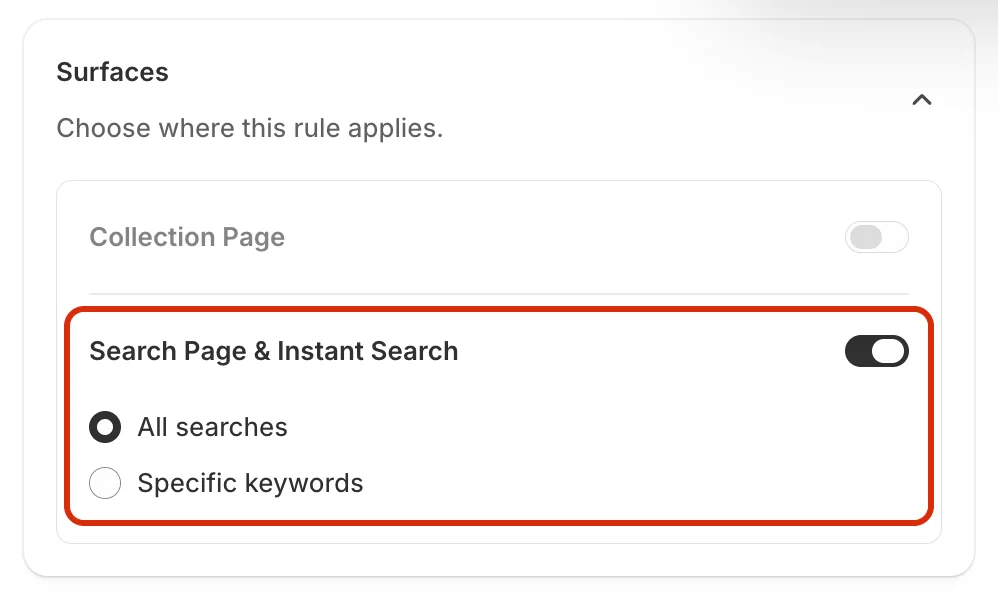
Step 4: Turn on Banners and choose a banner
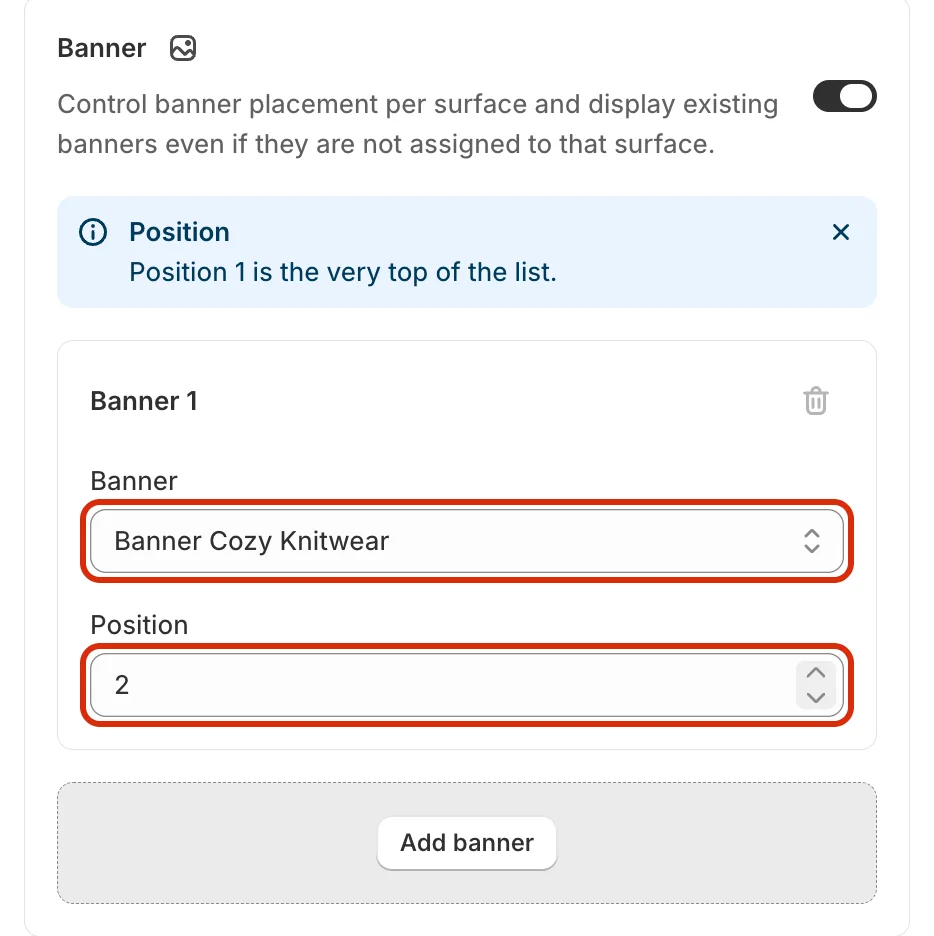
Scroll down to the Banners section and turn on the toggle. In the Banner 1 card, open the Banner dropdown and choose the banner you want to show, for example Banner Cozy Knitwear.
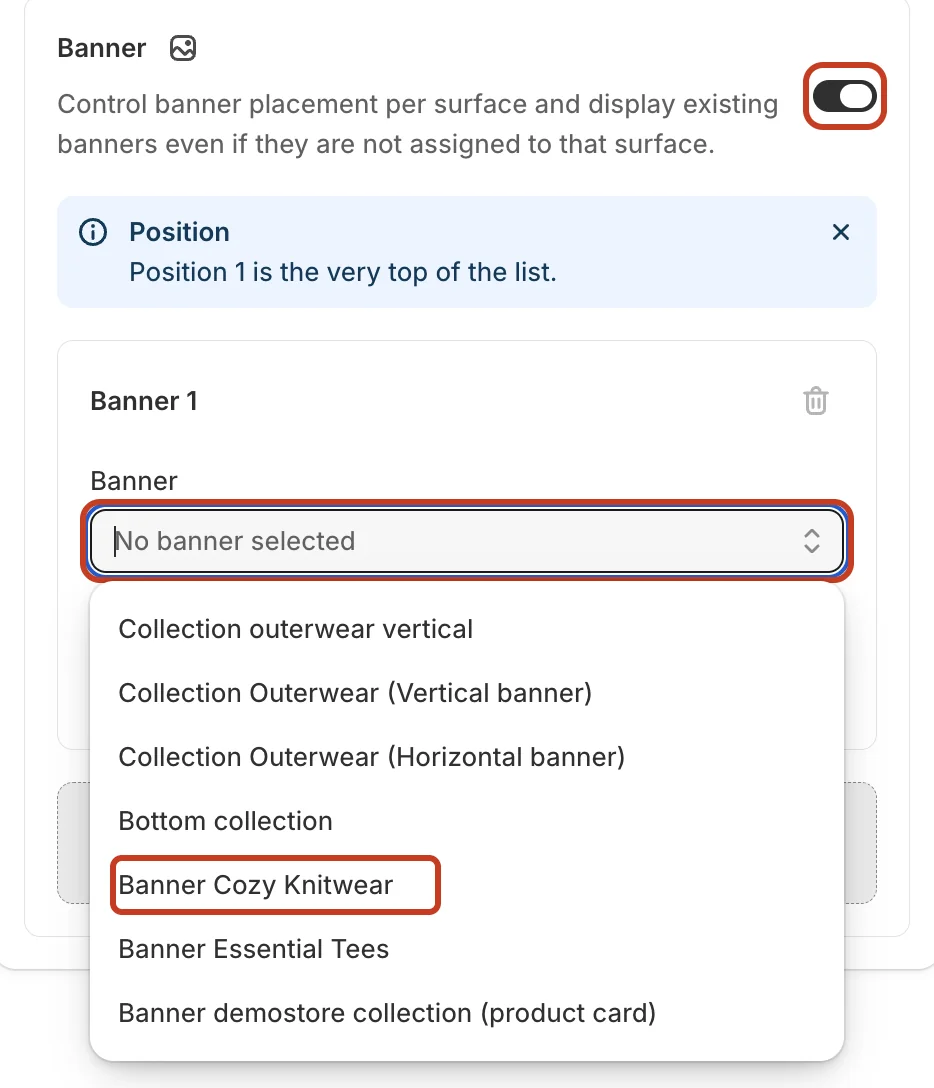
Step 5: Set the position
Enter where the banner should appear in the results in the Position field (the default is 2). Position 1 is the very top of the list.
- Click Add banner to place another banner.
- Click the trash icon to remove a banner.
Step 6: Save the strategy
Make sure Status is set to Enable, then click Save in the bar at the top of the page. After saving, open your storefront and run a search to check that the banner appears at the position you set.

Related
- How to Set Up Bundle, Discount & Upsell on Search Page & Instant Search?
- How to Inject Products into Search Page & Instant Search?
- How to Pin Products on Search Page & Instant Search?
- How to Set Up Product Boosting for Search Page & Instant Search?
- How to set position Banner?
- How to Set Up A/B Testing for Merchandising Strategy?
Last updated on
How to set up Back in Stock?
Back in Stock lets customers leave their email on a sold-out product and get an automatic email the moment it is available again, recovering demand you would otherwise lose. It is one page: who it app
How to set up boost product?
Boost pushes products up the results without nailing them to a fixed slot. Unlike Pin, you do not choose exact positions. You either name the products you want lifted, or describe them with conditions