
How to Set Up Product Boosting for Search Page & Instant Search ?
Boost lets you push selected products higher in your store's search results. In this guide, you'll create a Boost rule that applies to the Search Page & Instant Search surface for All searches, using
Boost lets you push selected products higher in your store's search results. In this guide, you'll create a Boost rule that applies to the Search Page & Instant Search surface for All searches, using By Product Items to choose exactly which product gets boosted.
Step 1: Open Merchandising Strategy
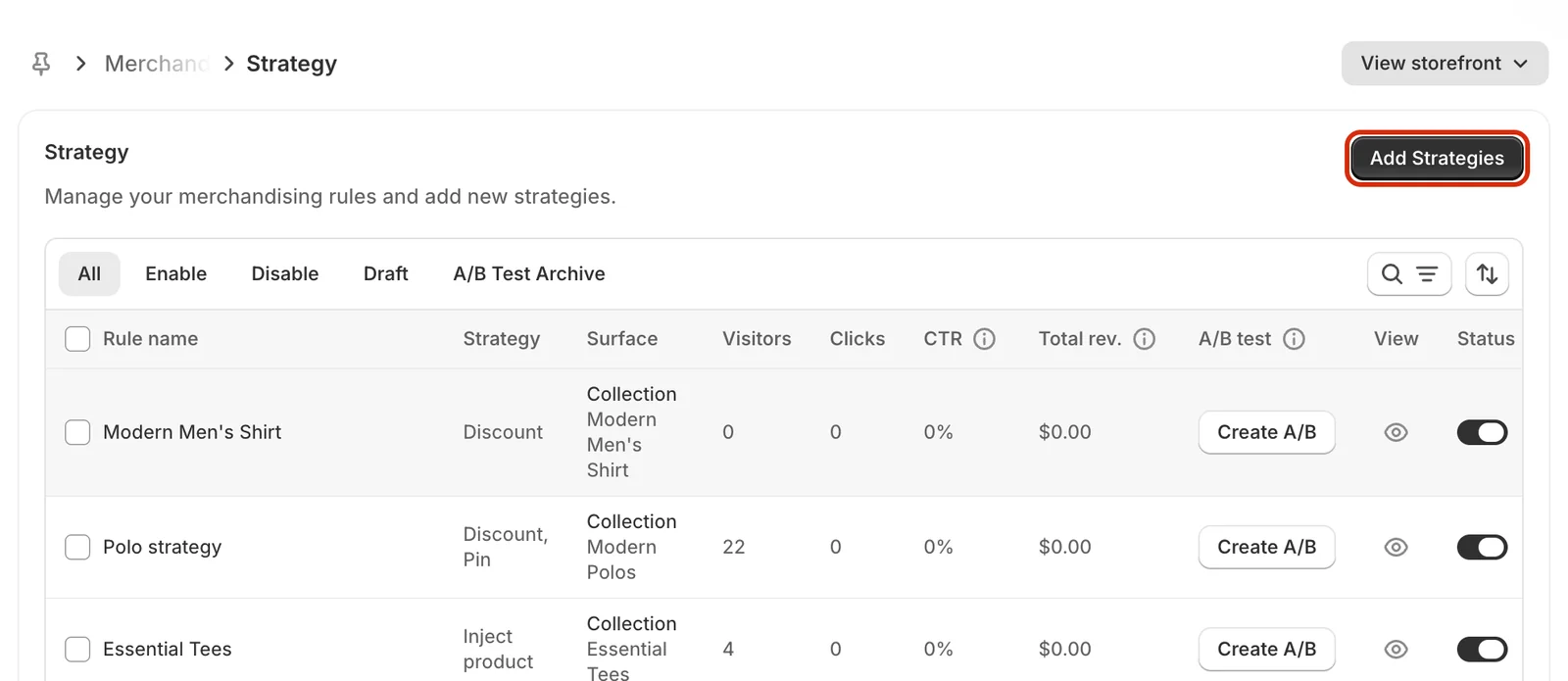
In your Shopify admin, open Apps > Sledge > Tools > Merchandising > Strategy, then click Add Strategies.
Step 2: Set the rule name and activation type
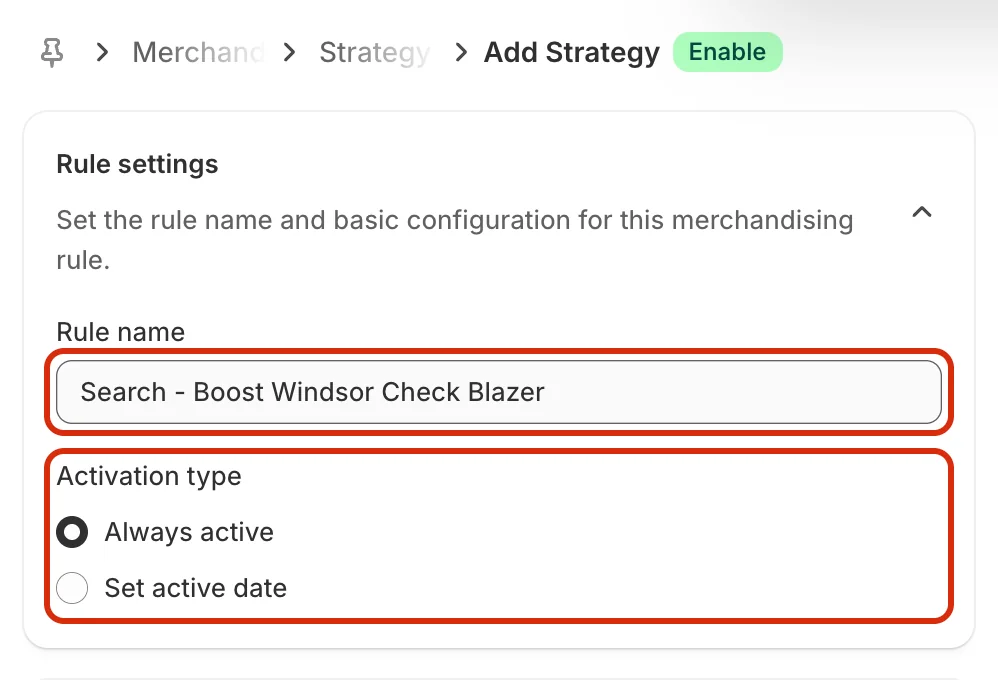
Under Rule settings, enter a Rule name that describes the rule (for example, Search - Boost Windsor Check Blazer). Then choose an Activation type:
- Always active – the rule runs as soon as it is saved and enabled.
- Set active date – the rule only runs during the date range you set.
Step 3: Choose the Search Page & Instant Search surface
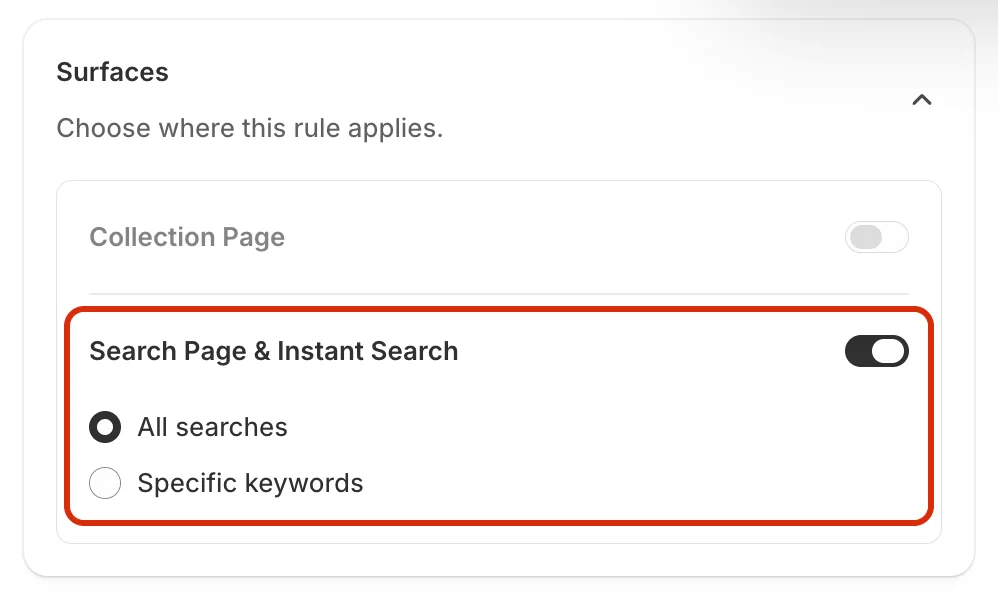
In the Surfaces section, turn on Search Page & Instant Search and select All searches so the boost applies to every search query. (Choose Specific keywords instead if you only want the boost to apply to certain search terms.)
Note: Once Search Page & Instant Search is turned on, the Collection Page surface is disabled for this rule. Create a separate rule if you also want to boost products on collection pages.
Step 4: Turn on Boost and choose By Product Items
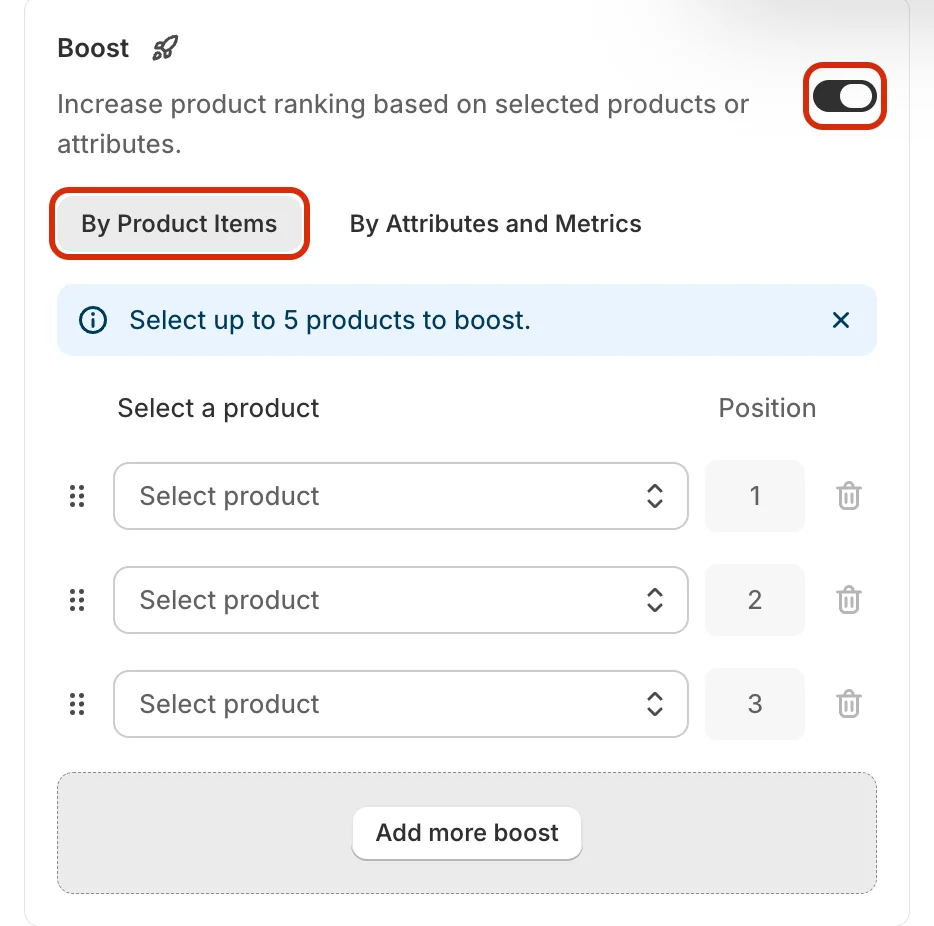
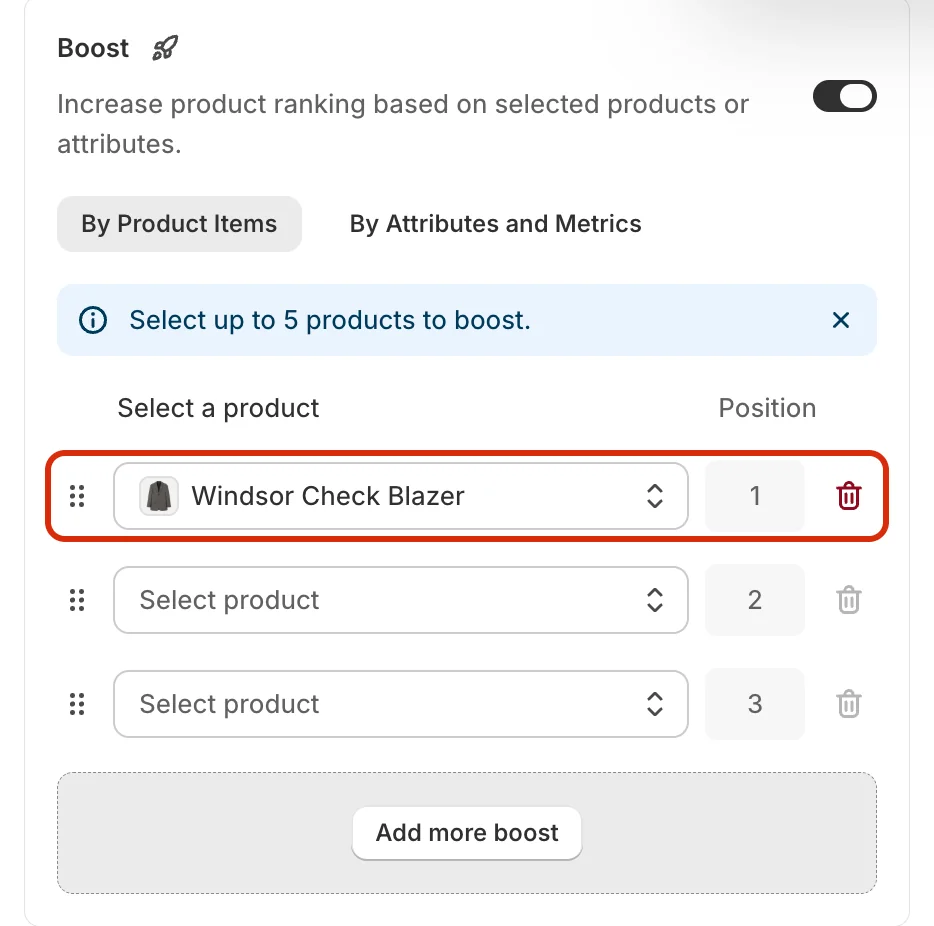
Scroll to the Strategies section, turn on the Boost toggle, and make sure the By Product Items tab is selected.
Step 5: Select the product to boost
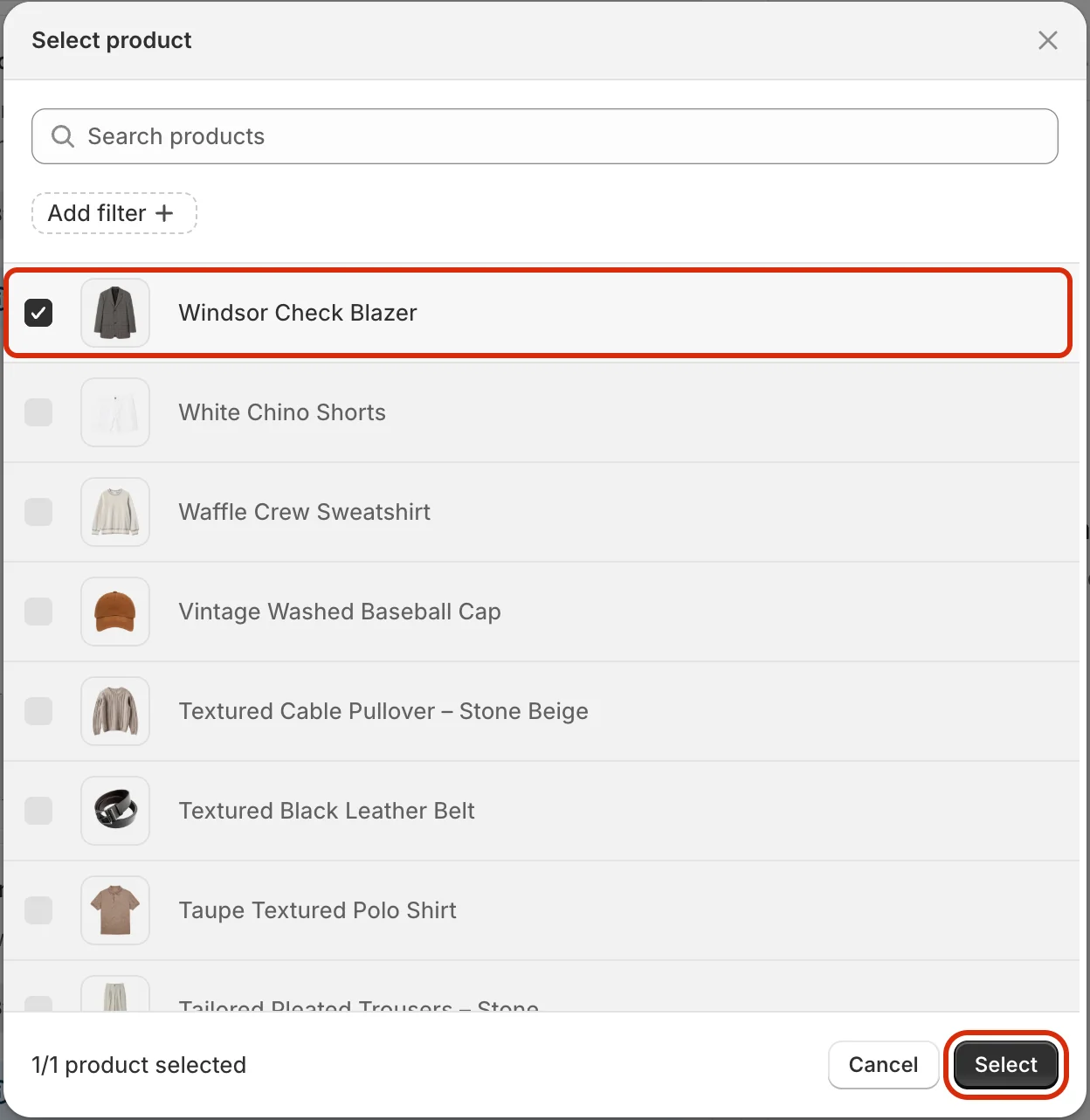
Click the first Select product field. In the Select product window, search for or tick the product you want to boost, then click Select.
Step 6: Review the boosted product
The product now appears in the list with its Position (1 = shown first among boosted products). You can boost up to 5 products: fill in the other rows or click Add more boost, drag the handle on the left to change the order, and use the trash icon to remove a product.
Step 7: Save the rule
When everything looks right, click Save in the bar at the top of the page. Make sure the rule's Status is set to Enable so the boost goes live. You can then search on your storefront to check that the boosted product appears near the top of the results.

Related
- How to Pin Products on Search Page & Instant Search?
- How to Demote Products on Search Page & Instant Search?
- How to Set Up Product Boosting Based on Selected Filters?
- How to Inject Products into Search Page & Instant Search?
- How to set up boost product?
- How to Set Up A/B Testing for Merchandising Strategy?
Last updated on
How to Set Up Product Boosting Based on Selected Filters?
A custom rule lets you run a merchandising strategy only when a shopper applies a specific filter on a collection page. For example, when a shopper filters the Modern Bottoms collection by Product Typ
How to Set Up Product Filters for Search Page & Instant Search?
Filter restricts the results on Search Page & Instant Search so that only the products you pick are allowed to show. Use it when you want a search to return a tightly curated set of products.